Manage Lock Screen Notifications in Ubuntu Linux


You manage lock screen notifications in Ubuntu Linux to control which app alerts appear when your computer is locked.
This feature lets you decide if sensitive information from your email or messaging apps is visible to anyone glancing at your screen.
Ubuntu 22.04 LTS, like other versions, displays these notifications by default. You might want to hide them for privacy or to reduce distractions.
You can easily customize these settings to show or hide notifications from specific applications.
Manage lock screen notifications by opening Settings, then clicking Notifications. Toggle the “Lock Screen Notifications” switch on or off. Alternatively, navigate to Privacy, then Screen, and toggle “Show Notifications on the Lock Screen.
How to turn on or off lock screen notifications in Ubuntu Linux
For privacy, you might not want notifications showing on your lock screen in Ubuntu Linux.
The steps below show you how to turn notifications on or off.
Most Ubuntu Linux settings are in one place. You can manage system configurations, create new users, and update software all from the System Settings panel.
To open System Settings, go to the Activities overview and start typing Settings.

Alternatively, click on the System menu at the top-right corner of the top bar on your desktop.
On the System menu, select Settings (it’s highlighted below)

In the Settings app, click Notifications in the sidebar to open the panel.
There, switch Lock Screen Notifications off to disable notifications from being displayed on the lock screen.
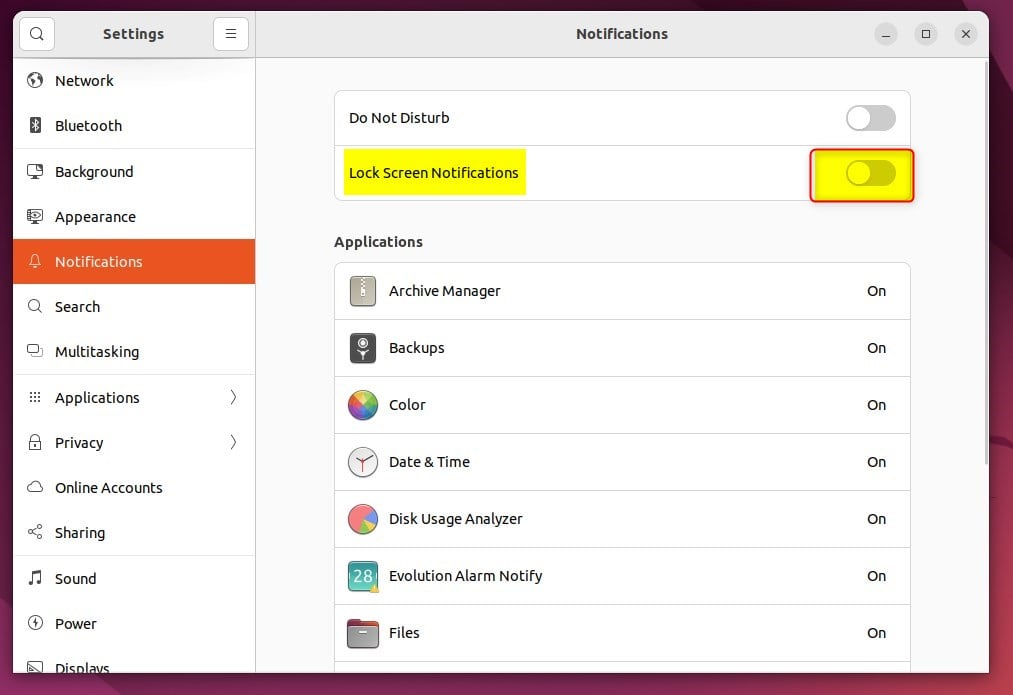
To enable, switch the Lock Screen Notifications button to On.
You can also show or hide notifications on the lock screen by going to the System menu -> Settings -> Privacy -> Screen and toggling the switch to the Off or On position on the Show Notifications on the Lock Screen tile.
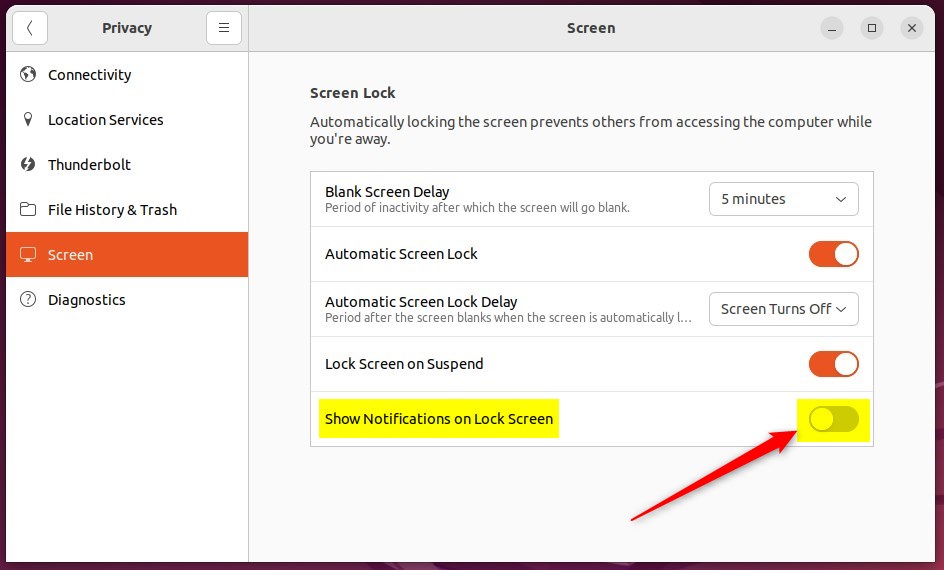
That should do it! You can now close the Settings app.
Conclusion:
- Managing lock screen notifications in Ubuntu Linux can help improve privacy and security.
- Controlling the display of notifications on the lock screen can be easily toggled through the System Settings panel.
- Customizing lock screen notification settings adds a layer of control over displayed information, whether for personal or professional use.
Was this guide helpful?

About the Author
Richard
Tech Writer, IT Professional
Richard, a writer for Geek Rewind, is a tech enthusiast who loves breaking down complex IT topics into simple, easy-to-understand ideas. With years of hands-on experience in system administration and enterprise IT operations, he’s developed a knack for offering practical tips and solutions. Richard aims to make technology more accessible and actionable. He's deeply committed to the Geek Rewind community, always ready to answer questions and engage in discussions.




[…] Linux will display the date and time on the Lock Screen, the System menu on your desktop, and other applications that depend on your system’s […]