How to Change Windows Terminal Launch Mode in Windows 11


You might want the app to take up your whole screen so you can focus on your work. Or, you might prefer it to open in a smaller window. Setting a custom Windows Terminal launch mode helps your computer work exactly the way you like it. By controlling your terminal window behavior, you reduce distractions and improve your workflow efficiency.
What happens when done?
Every time you open Windows Terminal, it will automatically start in the size or mode you selected. This saves you from having to resize the window manually every time you start a task. Your terminal startup settings are saved to your user profile, ensuring a consistent experience across every session.
How to change the Windows Terminal launch mode
Follow these steps to pick your preferred view:
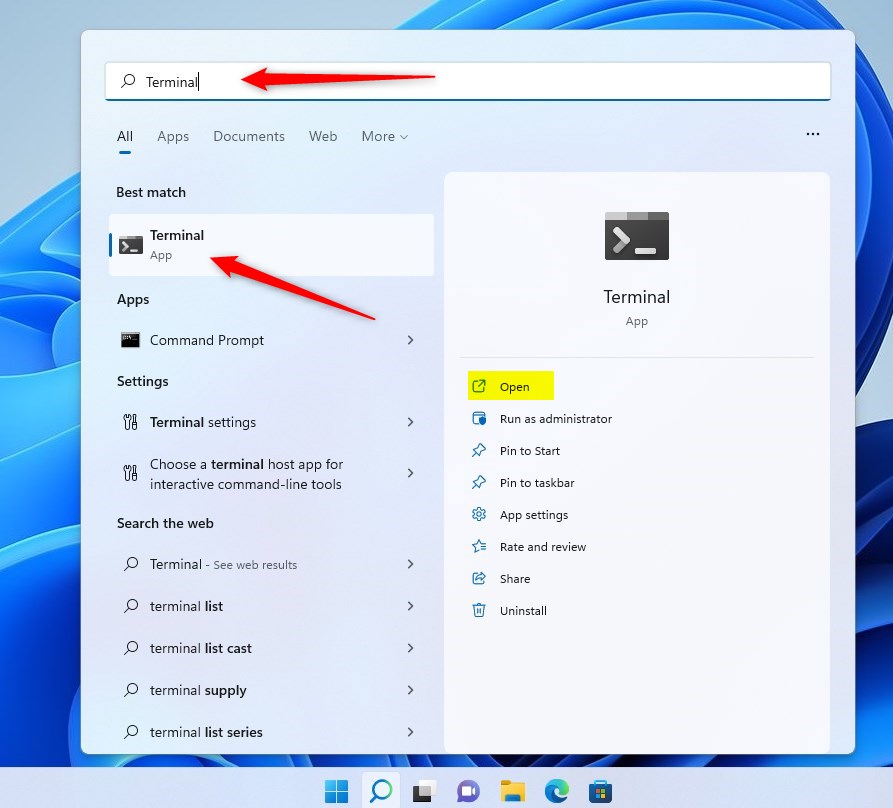
- Open the Terminal app by clicking the Start button, typing “Terminal,” and selecting the app from the list.
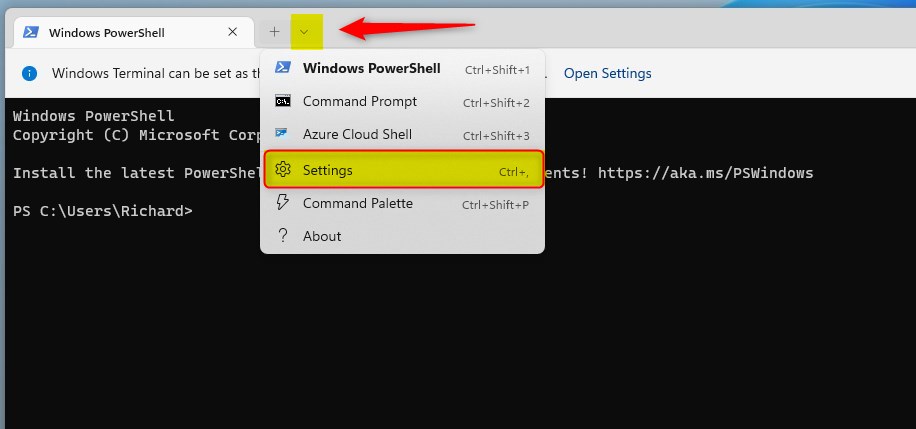
- Once the app is open, click the down arrow at the top of the window. Select Settings from the menu. You can also press Ctrl + , (the comma key) on your keyboard to open this screen.
- Look for the Startup section. Find the Launch mode setting and choose your favorite option from the list:
- Default: Opens in the standard window size.
- Maximized: Opens as a full-size window.
- Full screen: Opens covering your entire screen.
- Focus: Opens in a normal window but hides the tabs and title bar.
- Maximized focus: Opens as a full-size window with the tabs and title bar hidden.
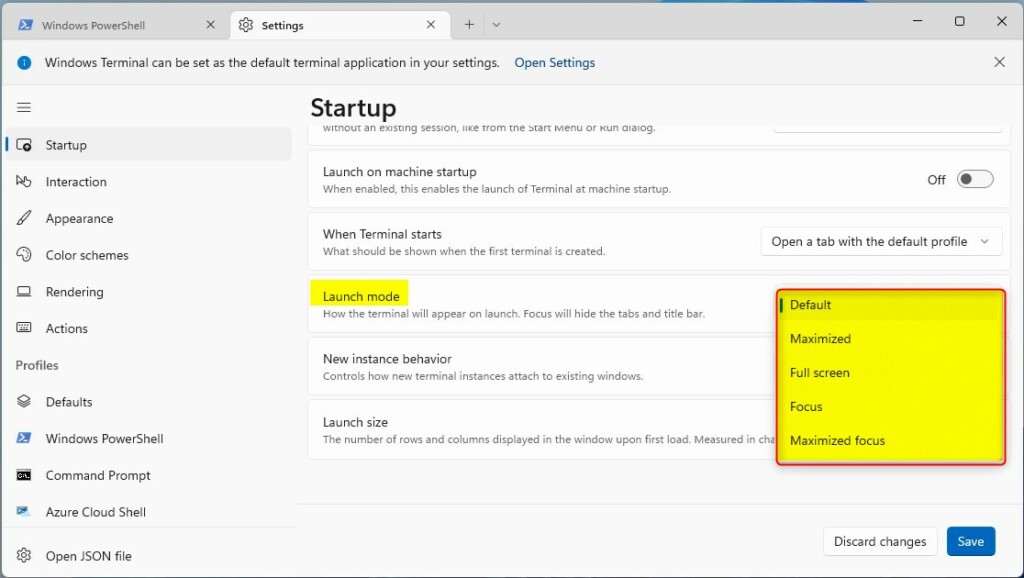
- Click the Save button to apply your changes.
Understanding JSON Configuration
The settings.json file is the heart of your Windows Terminal configuration. It uses a specific JSON schema to define how the terminal behaves. When you change a setting in the UI, it updates this file. Advanced users can manually edit the launchMode, initialRows, and initialCols properties here. For official documentation on the schema, visit the Microsoft Windows Terminal documentation.
Launch Position, Size, and Behavior
You can control more than just the mode. By editing the settings.json file, you can define the exact size using initialRows and initialCols. You can also use centerOnLaunch to ensure the window appears in the middle of your monitor. The startupActions property allows you to define specific commands to run immediately upon opening, such as splitting panes or launching a specific default profile.
Summary
Customizing your Windows Terminal launch mode allows you to tailor your workspace for better productivity. Whether you prefer a clean Focus mode or a Maximized view, these settings ensure your terminal is ready the moment you open it. By understanding the settings.json structure, you gain full control over your terminal’s size, position, and startup behavior.
How do I reset Windows Terminal settings to default?
To reset, open the Settings menu, click on the Defaults tab, and look for the option to restore settings. Alternatively, you can delete the settings.json file located in %LOCALAPPDATA%\Packages\Microsoft.WindowsTerminal_8wekyb3d8bbwe\LocalState. The app will recreate a fresh default file upon the next launch.
Can I set different launch modes for different profiles?
Yes, you can customize individual profiles within the settings.json file. By defining specific properties under the profiles section, you can ensure that a specific profile, such as a development environment, always launches in a maximized state while others remain in the default window mode.
What is the difference between ‘maximized’ and ‘fullscreen’ launch modes?
Maximized mode opens the window to fill your desktop area while keeping the taskbar and window borders visible. Fullscreen mode removes all window decorations, including the title bar and taskbar, allowing the terminal to occupy every single pixel of your display for a completely immersive experience.
Was this guide helpful?




[…] open the Windows Terminal app, and use the PowerShell tab as […]
[…] open the Windows Terminal app and select either Windows PowerShell or Command Prompt […]
[…] open Windows Terminal and select either Windows PowerShell or Command Prompt […]
[…] Read more about how to open Windows Terminal with PowerShell. […]