How to Lock Windows 11 Proxy Settings for Security


You lock Windows 11 proxy settings to prevent unauthorized changes that could compromise your network security.
Proxy settings dictate how your Windows PC accesses the internet, directing your traffic through an intermediary server. Locking these settings ensures that users cannot bypass your defined security measures.
This is especially important on shared computers or in corporate environments where maintaining a consistent, secure connection is paramount. For example, you can ensure all internet traffic uses the specific proxy server mandated by your IT department, preventing users from installing malware or circumventing security policies.
Lock Windows 11 proxy settings by enabling “Prevent changing proxy settings” in the Local Group Policy Editor or by creating a Proxy DWORD value in the Registry Editor. These actions prevent unauthorized modifications to your internet connection.
Why Lock Proxy Settings?
Locking proxy settings in Windows 11 is important for security because it stops people from changing how your computer connects to the internet.
What Happens When Done?
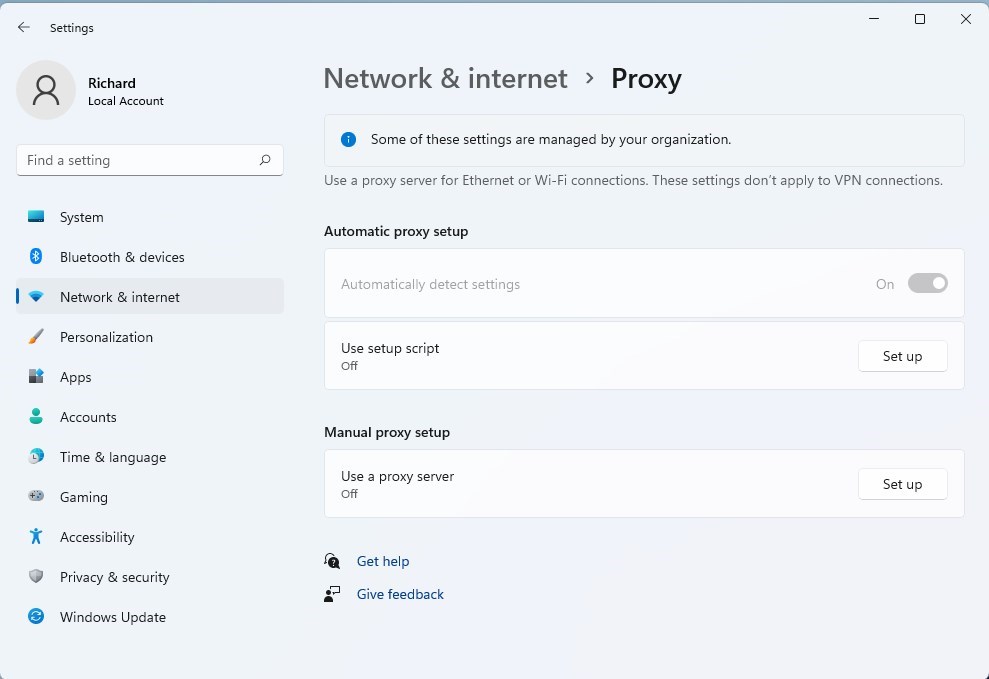
Once you apply these steps, the proxy settings in the Windows Settings menu will be “greyed out” and locked. This means no one can turn off or change the proxy configuration without administrative permission. It’s a critical step for system administrators managing proxy settings.
Before You Begin
Before you lock proxy settings in Windows 11, know that the easiest method only works on Pro, Enterprise, or Education versions.
Locking Proxy Settings via Group Policy
You can lock proxy settings in Windows 11 using the Group Policy Editor, which is a tool for system administrators.
To lock down proxy settings, open the Local Group Policy Editor by clicking the Start menu and searching for “Edit group policy.” Select it from the results.
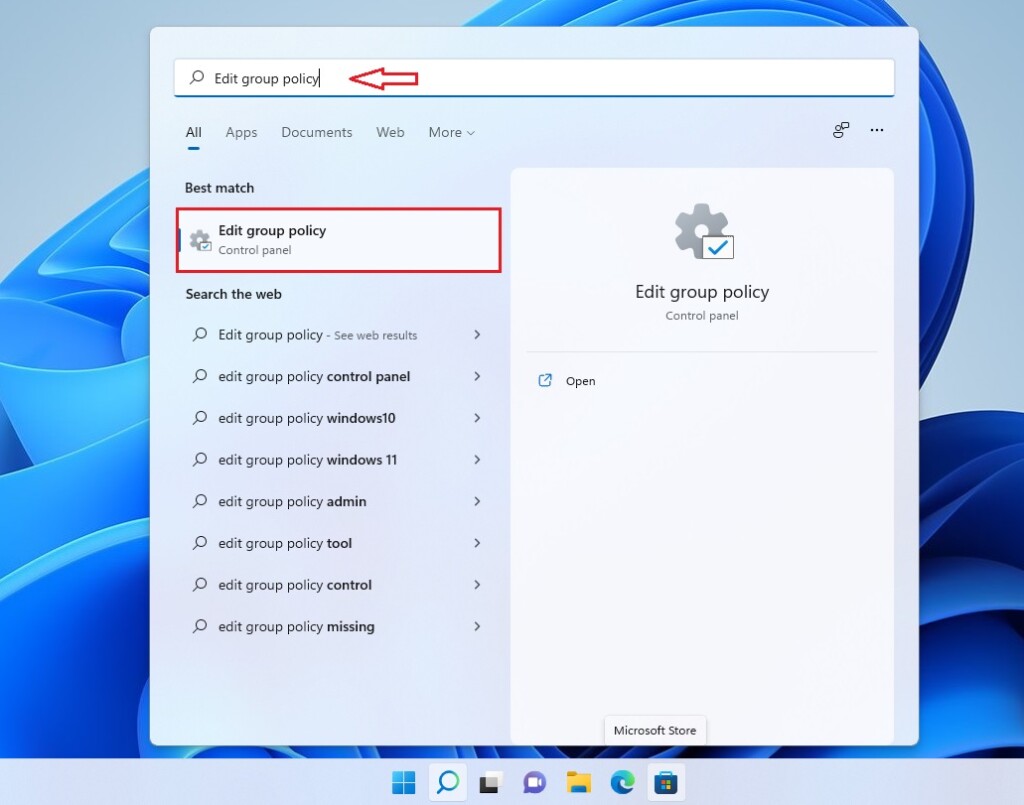
In the window that opens, follow this path on the left side:
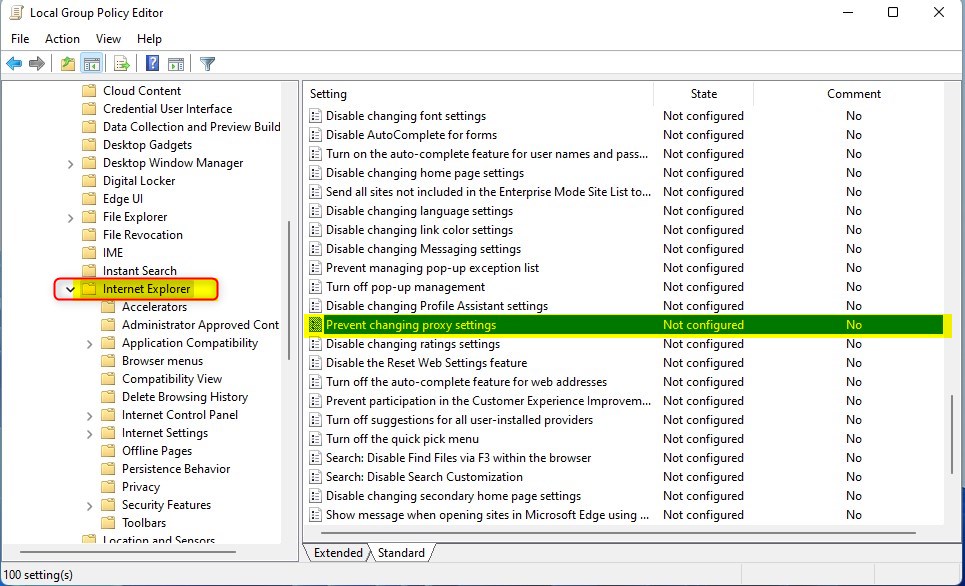
User Configuration > Administrative Templates > Windows Components > Internet Explorer
On the right side, find the setting named Prevent changing proxy settings and double-click it.
In the new window, select the Enabled button.
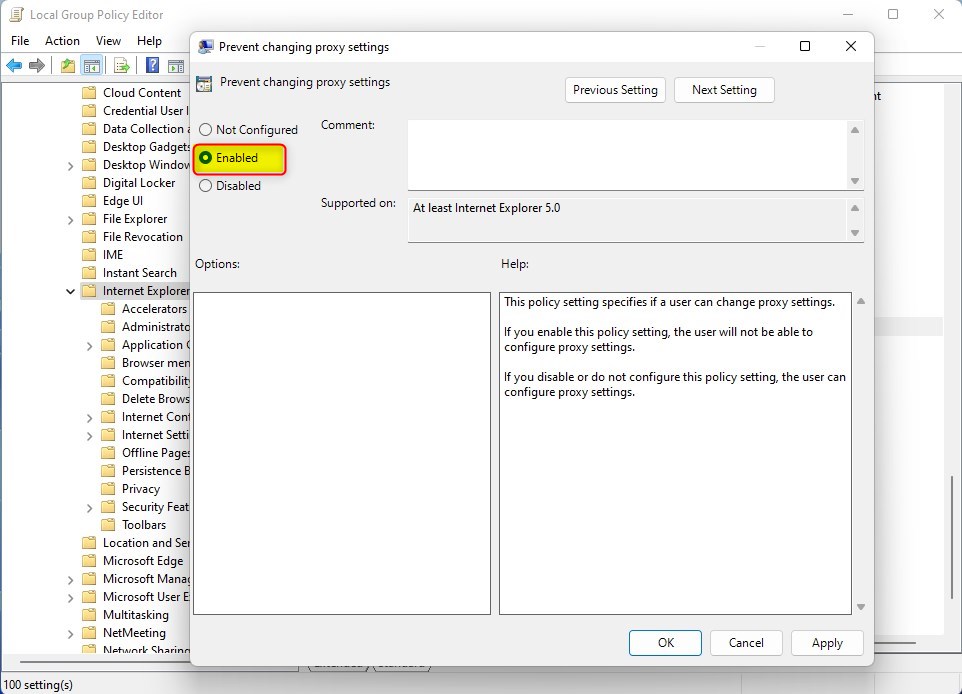
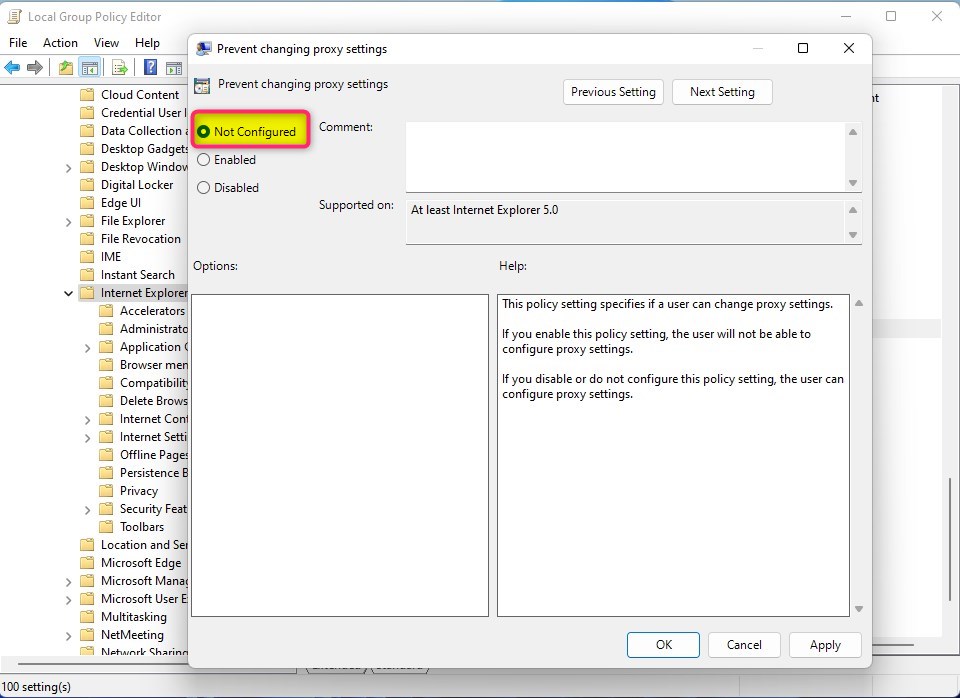
Click OK and close the editor. If you ever need to change this back, follow the same steps but select Not configured instead.
Locking Proxy Settings via Registry
If you can’t use Group Policy, you can lock proxy settings in Windows 11 by making changes in the Windows Registry.
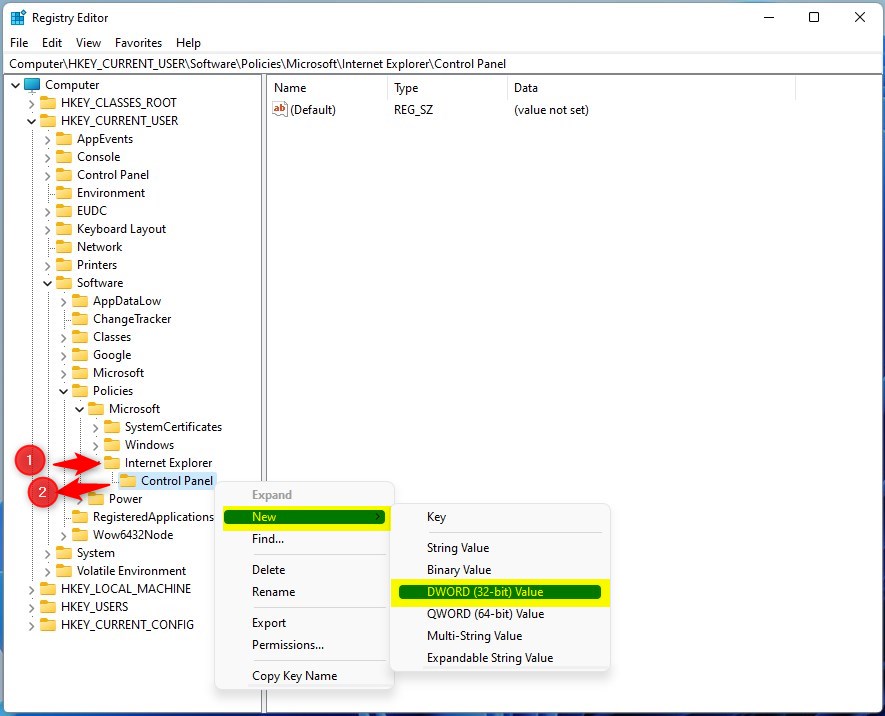
You can also use the Windows Registry to lock these settings. Open the Registry Editor and go to this path:
HKEY_CURRENT_USER\Software\Policies\Microsoft
Right-click the Microsoft folder, then choose New > Key. Name this new folder “Internet Explorer”. Next, right-click the “Internet Explorer” folder, choose New > Key, and name it “Control Panel”. Finally, right-click the “Control Panel” folder, choose New > DWORD (32-bit) Value, and name it “Proxy”.
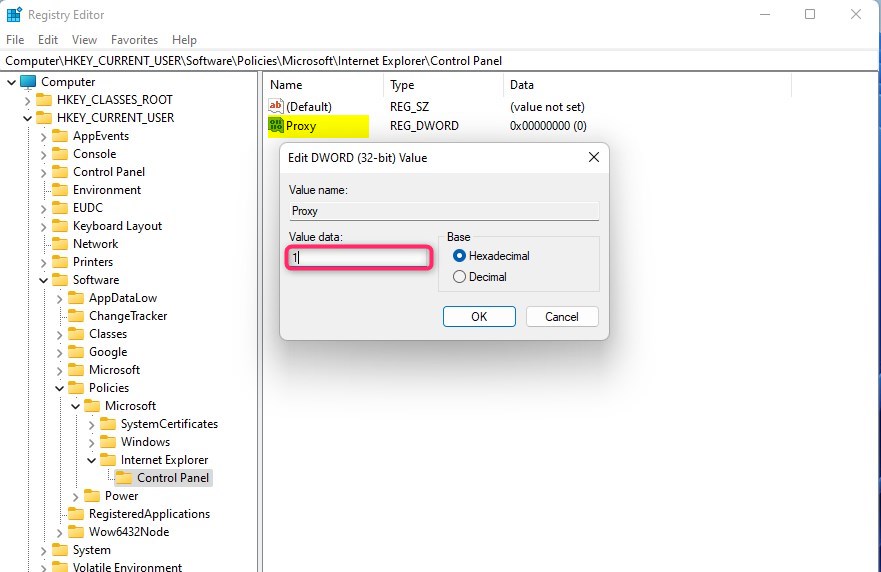
Double-click the Proxy value you just created. Change the “Value data” box to 1 and click OK.
Once finished, the proxy settings are locked.
Verification and Troubleshooting
After locking proxy settings in Windows 11, you can check if the changes worked by opening the Command Prompt and running a specific command.
Summary
Locking proxy settings in Windows 11 keeps your internet connection secure and compliant with company rules by preventing unauthorized changes.
Can I lock proxy settings on 🪟 Windows 11 Home edition?
Yes, you can lock proxy settings on Windows 11 Home, but you cannot use the Group Policy Editor. Instead, you must manually edit the Windows Registry by creating the specific DWORD value in the 🗝️HKEY_CURRENT_USER path. Always exercise caution when editing the registry to avoid system instability.
Does locking proxy settings prevent VPN usage?
Locking your proxy settings in Windows 11 usually doesn’t stop a VPN from working because VPNs use their own network connections.
Was this guide helpful?

About the Author
Richard
Tech Writer, IT Professional
Richard, a writer for Geek Rewind, is a tech enthusiast who loves breaking down complex IT topics into simple, easy-to-understand ideas. With years of hands-on experience in system administration and enterprise IT operations, he’s developed a knack for offering practical tips and solutions. Richard aims to make technology more accessible and actionable. He's deeply committed to the Geek Rewind community, always ready to answer questions and engage in discussions.




i tried both, and settings menu cannot open after the policy applied