How to Enable or Disable Suggested Actions in Windows 11


Important Disclaimer: Microsoft has officially deprecated the Suggested Actions feature in newer versions of Windows 11. This means the feature is no longer being actively developed and may be removed or unavailable in your current build. You can review the official Microsoft Deprecated features documentation for more information.
What are Suggested Actions in Windows 11?
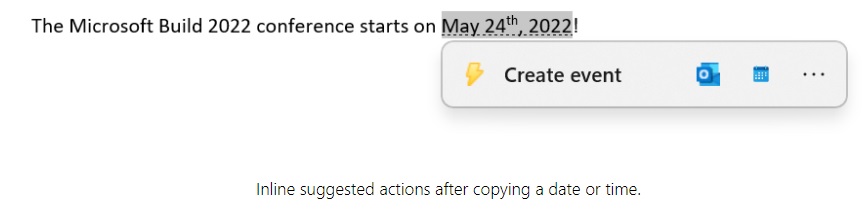
Windows 11 included a feature called Suggested Actions. This tool helped you finish tasks faster by offering smart shortcuts based on what you copied. For example, if you copied a phone number, Windows might suggest calling it through your favorite app. If you copied a date, it might offer to add it to your calendar.
Why use this? It saved time by removing extra steps when handling dates, times, or phone numbers.
What happens when done? Once enabled, a small window would pop up automatically whenever you copied specific types of information, allowing you to choose an action immediately.

For date/time actions:
Is Suggested Actions being removed from Windows 11?
Is Suggested Actions being removed from Windows 11?
Yes, Suggested Actions is a deprecated feature. Microsoft has moved away from this tool in recent Windows 11 updates. If you cannot find the setting, it is likely because your version of Windows has removed support for it entirely as part of the standard Windows 11 feature deprecation process.
Why can’t I find Suggested Actions in my Windows 11 settings?
Why can’t I find Suggested Actions in my Windows 11 settings?
If the option is missing, your system has likely updated to a version where this feature is no longer supported. Additionally, this feature was historically limited to users in North America. If you are outside this region or on a newer build, the Clipboard settings menu will not display the toggle.
What replaces Suggested Actions in newer Windows 11 builds?
What replaces Suggested Actions in newer Windows 11 builds?
There is no direct replacement for Suggested Actions. Instead, Microsoft encourages users to utilize the standard Clipboard history settings. You can access your clipboard by pressing Windows key + V. This allows you to manage copied items manually without the automated pop-up windows that were previously triggered by Suggested Actions.
How to enable or disable Suggested Actions
If you are on an older build where the feature still exists, you can turn it on or off using the Windows Settings menu. No administrative privileges are required for these steps.
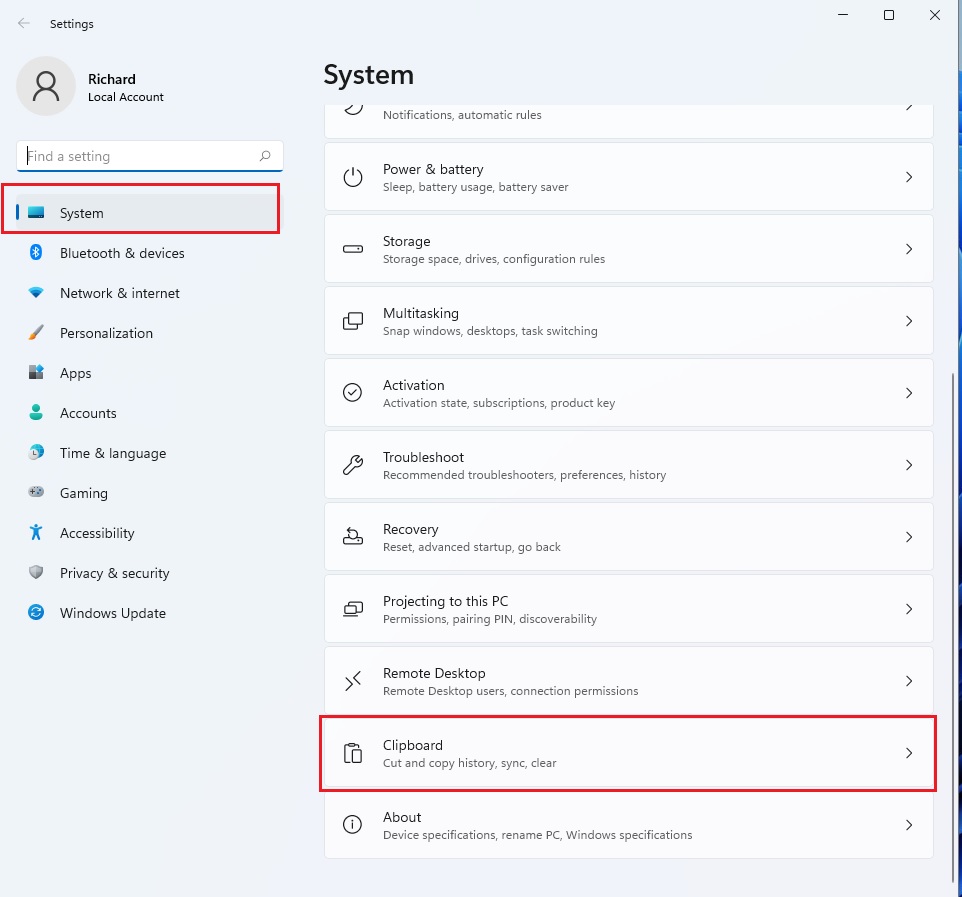
- Open the Settings app. You can do this by pressing Windows key + I on your keyboard or by clicking Start > Settings.

- Click on System in the left menu.
- Select Clipboard from the list of options on the right.
- Find the Suggested actions toggle switch. Click it to turn the feature On or Off.
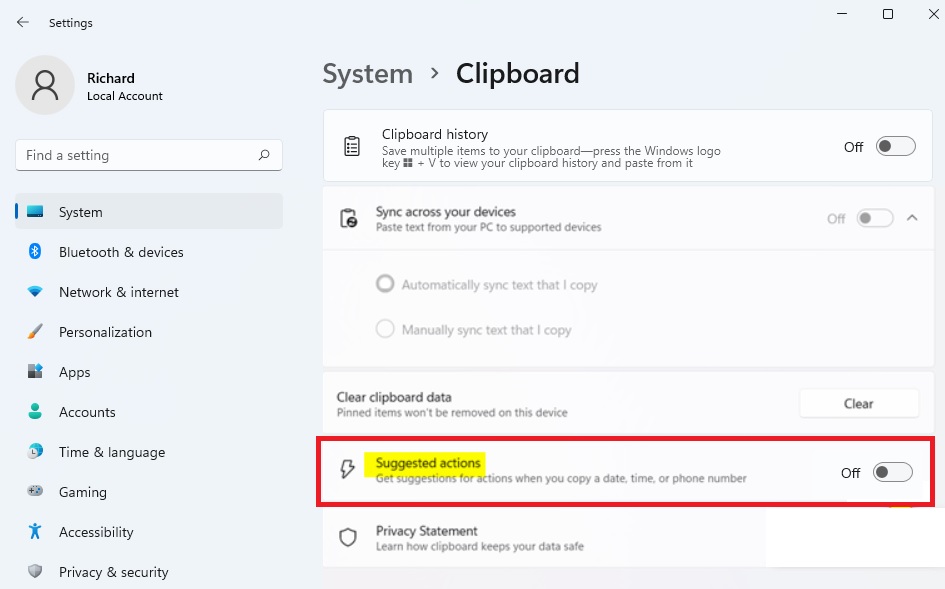
You can close the Settings window once you have made your choice.
Troubleshooting Suggested Actions
If you are trying to use this feature but it is not working, check these items:
- Region Settings: Ensure your PC region is set to a supported area, such as the United States or Canada.
- Windows Updates: Check for the latest Windows 11 update in Settings > Windows Update. If you are on a very new build, the feature may be gone.
- Clipboard History: Ensure Clipboard history is enabled in the same menu, as some actions depend on the clipboard service running correctly.
Summary
Suggested Actions was a productivity feature designed to create shortcuts for copied data. Due to Windows 11 feature deprecation, it is being phased out. Users should rely on the standard Clipboard history (Windows key + V) for managing copied content. If you cannot find the toggle in Settings > System > Clipboard, your version of Windows no longer supports this tool.
Was this guide helpful?

About the Author
Richard
Tech Writer, IT Professional
Richard, a writer for Geek Rewind, is a tech enthusiast who loves breaking down complex IT topics into simple, easy-to-understand ideas. With years of hands-on experience in system administration and enterprise IT operations, he’s developed a knack for offering practical tips and solutions. Richard aims to make technology more accessible and actionable. He's deeply committed to the Geek Rewind community, always ready to answer questions and engage in discussions.




No comments yet — be the first to share your thoughts!