

You can summarize a web page with Copilot in Microsoft Edge on Windows 11 to quickly grasp key information.
Copilot is Microsoft’s AI assistant, integrated directly into Edge, and it provides an AI-written summary of lengthy articles or complex content, saving you valuable time.
This feature is available in the latest versions of Microsoft Edge, allowing you to get concise overviews with just a click.
For instance, if you’re researching a long report or a detailed news article, Copilot’s summarization tool can instantly give you the main points without you needing to read every word.
To use this, ensure you have the “Show Copilot button in toolbar” option enabled in your Edge settings.
Click the Copilot icon on the toolbar and select “Summarize page,” or right-click anywhere on the page, choose “Ask Copilot,” then select “Summarize.” Copilot will then provide a summary in its pane.
Here’s How:
- Open Microsoft Edge.
- Go to a web page you want to summarize. Do one of the following:
- Click the Copilot menu arrow on the toolbar. Then click Summarize page.
- Right-click on an empty part of the page. Click Ask Copilot. Then click Summarize.
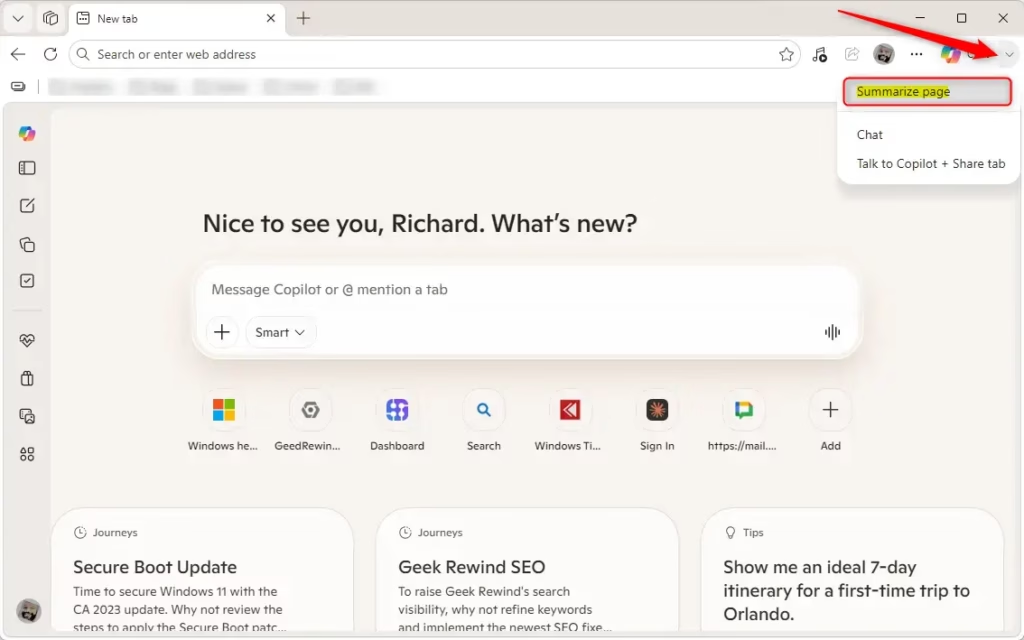
- Copilot will now show a summary of the page in the Copilot pane.
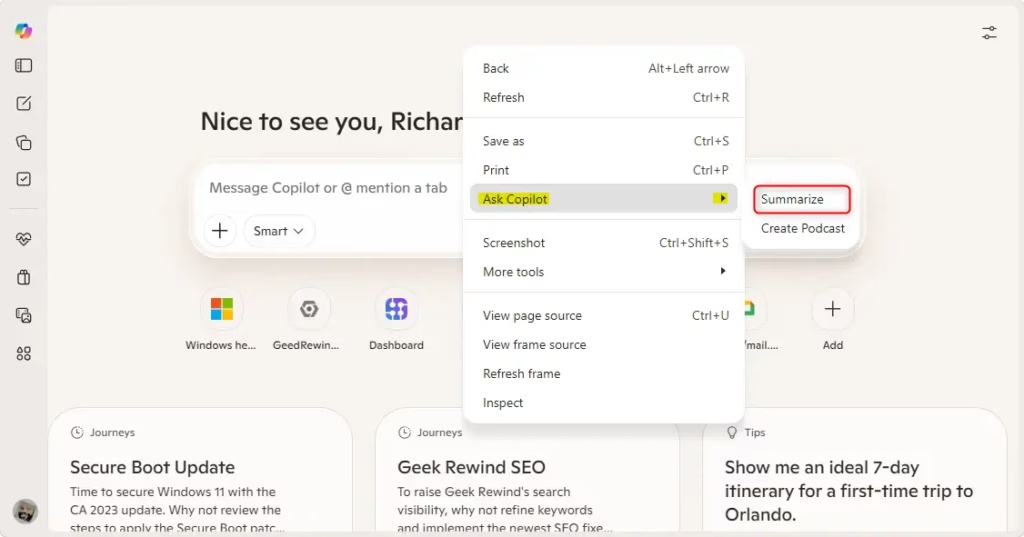
You can summarize a page using Copilot in Microsoft Edge by opening the browser and navigating to the webpage you want to condense.
Summarize Articles with Copilot | Microsoft Edge
Summary
This tutorial explained how to use Copilot in Microsoft Edge to summarize web pages. Once you enable the Copilot button and use the ‘Summarize page’ option, you can quickly get AI-generated overviews of online content, saving you time and making your research more efficient.
How to use Copilot to summarize a paper?
You can summarize by selecting a supported file (or up to 5 files), clicking on the Copilot button on the bottom-right of your OneDrive web page, and selecting Summarize this file. You can also summarize a file by hovering over any supported file, clicking on the Copilot button, and selecting Summarize.
How many pages can Copilot summarize?
Microsoft Copilot and Word has a great new feature rolling. Out in the past you were able to summarize a Word document.
What does Copilot do when summarizing an 8 page document?
Sometimes a Word document is long and you just want a quick idea of what it contains. You can ask Copilot to create a summary for you in Chat, or depending on your settings and license, you can see a summary at the top of the page when you open a Word document.
Was this guide helpful?

About the Author
Richard
Tech Writer, IT Professional
Richard, a writer for Geek Rewind, is a tech enthusiast who loves breaking down complex IT topics into simple, easy-to-understand ideas. With years of hands-on experience in system administration and enterprise IT operations, he’s developed a knack for offering practical tips and solutions. Richard aims to make technology more accessible and actionable. He's deeply committed to the Geek Rewind community, always ready to answer questions and engage in discussions.



No comments yet — be the first to share your thoughts!