How to Check if Printer Supports Windows Protected Print Mode

You can check if your printer supports Windows Protected Print (WPP) mode by looking for IPP (Internet Printing Protocol) support or Mopria certification.
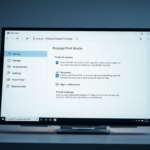
Windows Protected Print (WPP) mode is a new security feature in Windows 11. It makes printing safer by ditching old third-party drivers for a driverless system that uses IPP (Internet Printing Protocol).
This modern approach cuts down on malware risks and boosts stability because it talks directly to your printer, skipping those potentially vulnerable manufacturer drivers.
To ensure your printer works with WPP, it needs to be Mopria certified or explicitly support the IPP protocol.
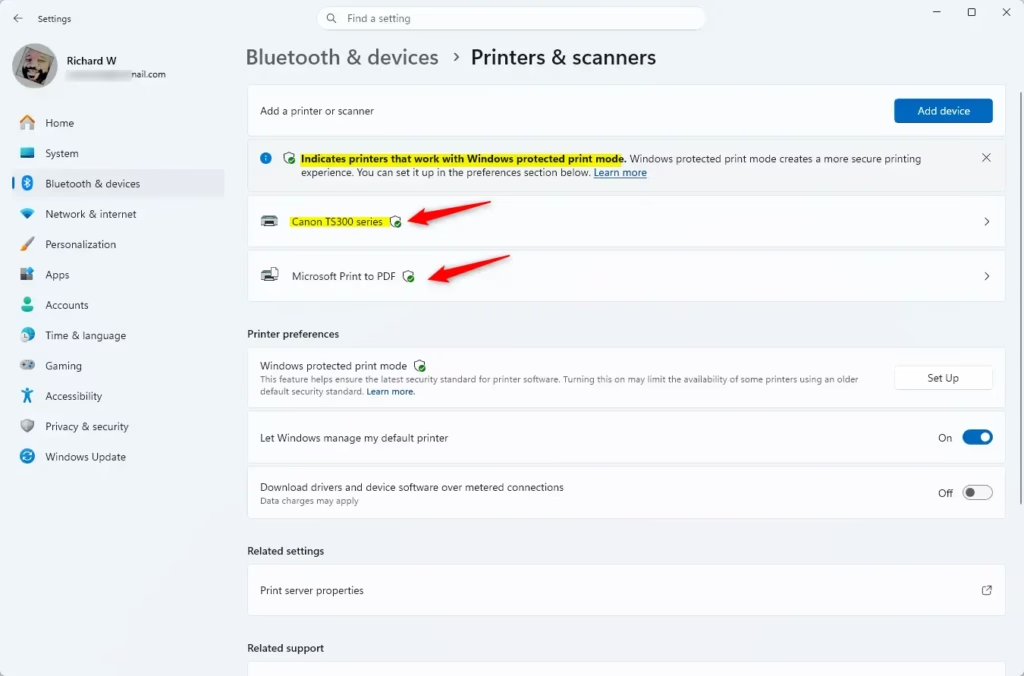
Check if your printer is Mopria certified or supports IPP. You can also look for the Windows Protected Print icon next to your printer in Windows 11 Settings under Printers & scanners.
Check if Your Printer Supports WPP
Before you enable this mode, you should verify that your hardware is ready. You can do this in two ways.
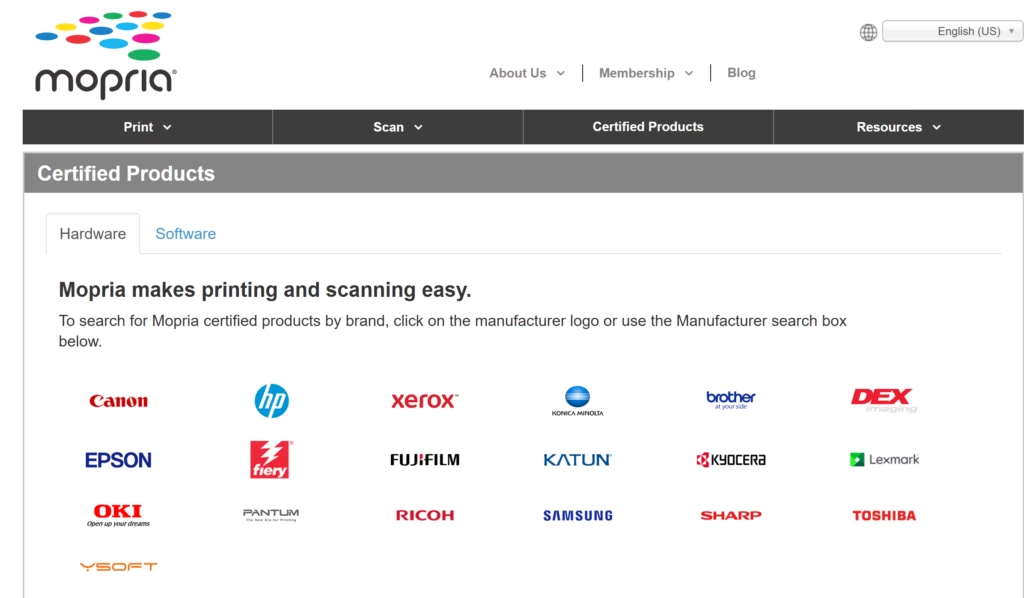
Option 1Use Mopria Certified Products list
Planning to buy a new printer or curious about your current one? Head over to the Mopria certified products website. Most modern printers are Mopria certified, which means they are fully compatible with WPP.
Option 2🪟 Windows 11 Settings
You can check your currently installed printers directly in Windows 11.
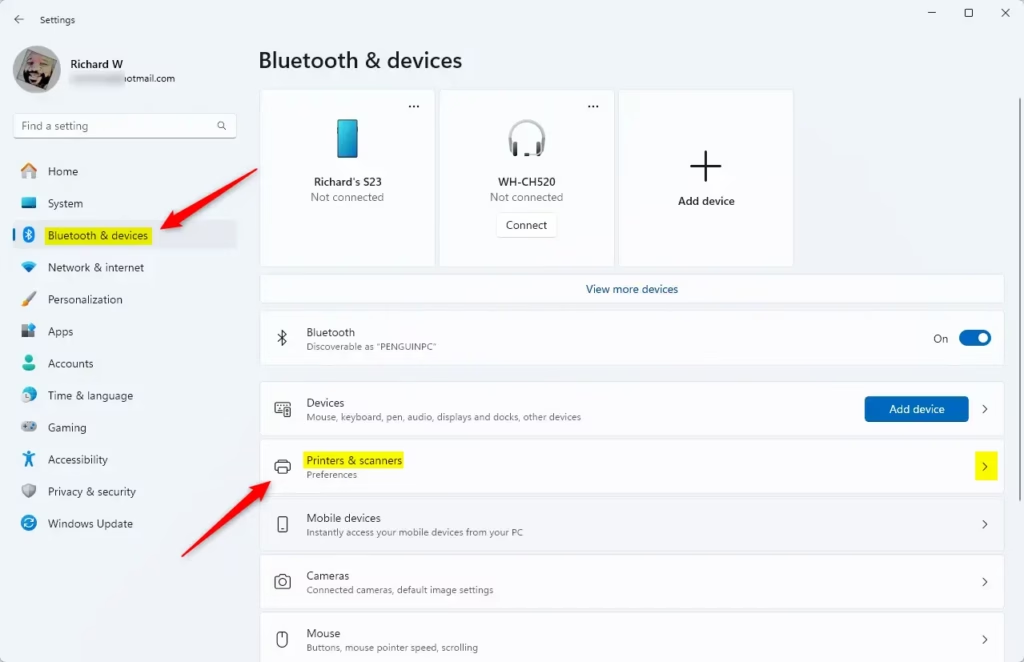
- Open Settings by pressing ⊞ Win+I.
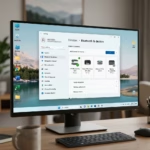
- Go to Bluetooth & devices and select Printers & scanners.
- Look for the WPP icon next to your printer name.
Open Printers & scanners settings
Enterprise Deployment and GPO
IT folks can use Group Policy Objects, or GPO, to manage Windows Protected Print across many computers at once, making sure everyone’s security settings are the same.
Summary
Windows Protected Print is a handy security feature built into Windows 11 that makes your printer safer to use. It helps your printer work correctly without needing extra software from the company that made it, which keeps your computer more secure.
References:
- Windows Protected Print Mode
- Making it easier to identify Windows protected print mode compatible devices | Microsoft Community Hub
For more technical details, visit the official Microsoft Learn documentation.
Does enabling WPP delete my existing printer drivers?
Enabling WPP does not permanently delete your drivers, but it stops Windows from using them. The system switches to a driverless printing stack. If you disable WPP later, your previous drivers should remain available for use, provided they were not manually uninstalled during the transition process.
Is Windows Protected Print Mode mandatory for all 🪟 Windows 11 users?
No, WPP is not mandatory for home users. It is an optional security feature that you can toggle on or off in your settings. However, Microsoft strongly recommends enabling it to protect your computer from vulnerabilities associated with older, third-party print drivers and legacy print infrastructure.
How does WPP affect network printers versus USB printers?
WPP works with both network and USB printers, provided they support the IPP standard. For USB printers, Windows uses IPP-over-USB to maintain a secure connection. If your printer supports the modern print stack, the connection method does not change the security benefits you receive from using WPP.
Was this guide helpful?

About the Author
Richard
Tech Writer, IT Professional
Richard, a writer for Geek Rewind, is a tech enthusiast who loves breaking down complex IT topics into simple, easy-to-understand ideas. With years of hands-on experience in system administration and enterprise IT operations, he’s developed a knack for offering practical tips and solutions. Richard aims to make technology more accessible and actionable. He's deeply committed to the Geek Rewind community, always ready to answer questions and engage in discussions.


No comments yet — be the first to share your thoughts!