
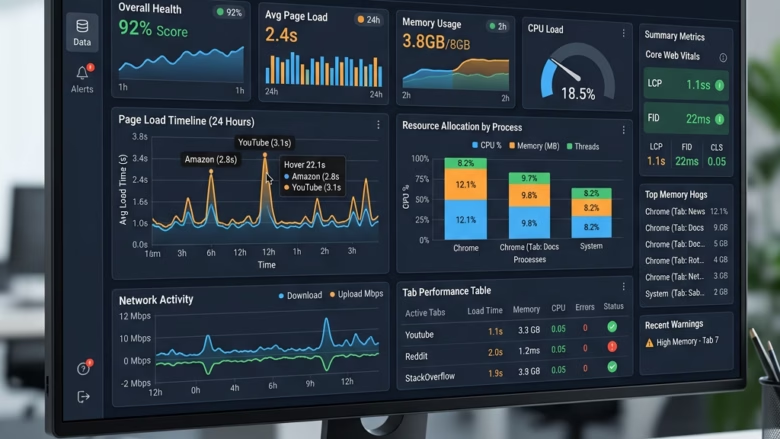
You enable or disable the Tab Performance detector in Microsoft Edge by adjusting a specific setting within the browser’s configuration pages.
The Tab Performance detector is a feature that helps you monitor and manage the resource usage of your open browser tabs, preventing them from consuming excessive CPU or memory, especially on older hardware or when running many tabs simultaneously.
You can access this setting through Edge’s experimental features, often found under `edge://flags` or specific configuration menus depending on the Edge version, such as recent builds of Microsoft Edge 114.
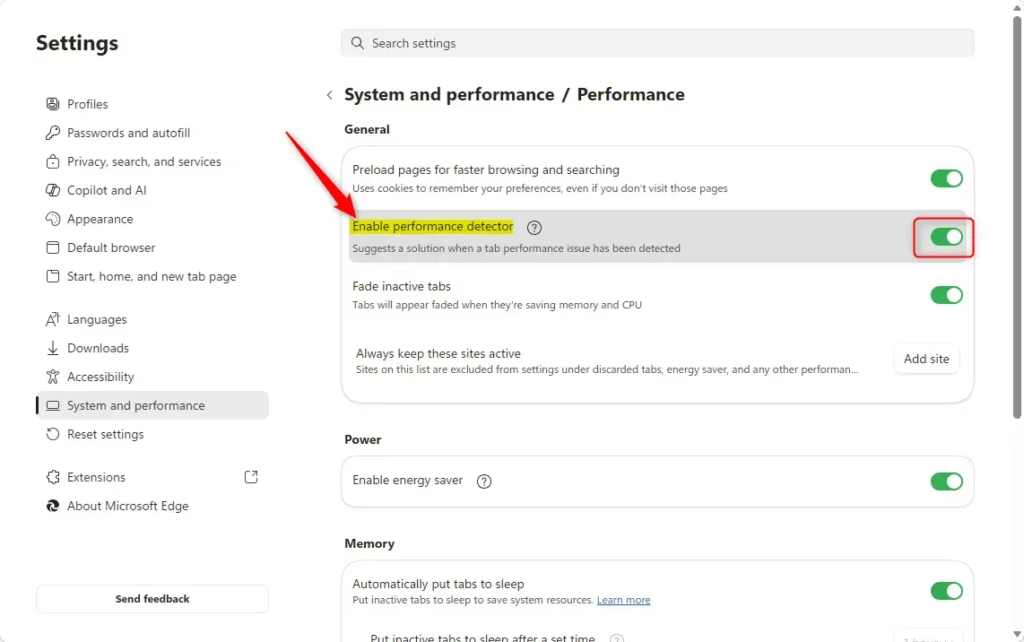
Go to Settings, then System and performance, and toggle “Enable performance detector” under the Performance section. This feature monitors tab resource usage and alerts you when tabs consume too much memory or CPU.
What is Microsoft Edge?
Microsoft Edge is a web browser based on Chromium. It came out on January 15, 2020. You can use it on Windows and macOS computers. It is fast, works well with websites and add-ons, and has built-in privacy and security features.
Why Use the Performance Detector?
The Microsoft Edge Performance Detector helps you spot tabs that hog your computer’s memory or processing power, making it easier to fix slowdowns and keep your browser running smoothly.
The Performance detector watches for tabs that use too much memory (RAM) or processing power (CPU). When it finds a problem, it alerts you so you can fix it.
How Does the Performance Detector Work?
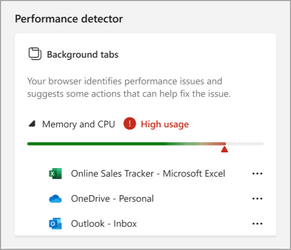
The Microsoft Edge Performance Detector keeps an eye on your browser tabs, showing a green gauge when everything’s fine and a red warning icon if a tab is using too much memory or CPU power.
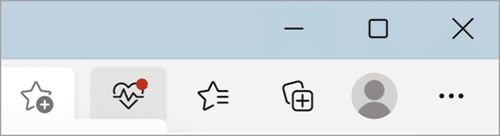
When Microsoft Edge detects that your background tabs are using too much memory or processing power, a heart pulse icon with a red dot will show up in the toolbar.
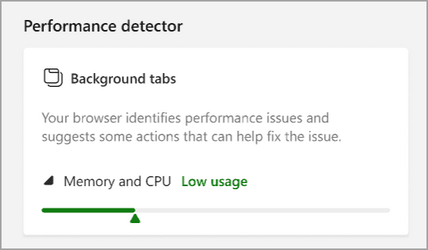
If you click this icon, the Performance detector will show High usage next to Memory and CPU. The gauge will turn red. You will see a list of tabs that are using the most memory or CPU.
You can use the Performance detector to close or put to sleep tabs that are using too much memory or CPU. This helps bring your computer back to normal performance.
Option 1Turn On or Off Tab Performance Detector in Microsoft Edge Settings
You can easily turn the Microsoft Edge Performance Detector on or off for your account by going into the browser’s settings and finding the Performance section.
- Open Microsoft Edge.
- Click the Settings and more (Alt+F) button. It looks like three dots in the top right corner. Then click Settings.
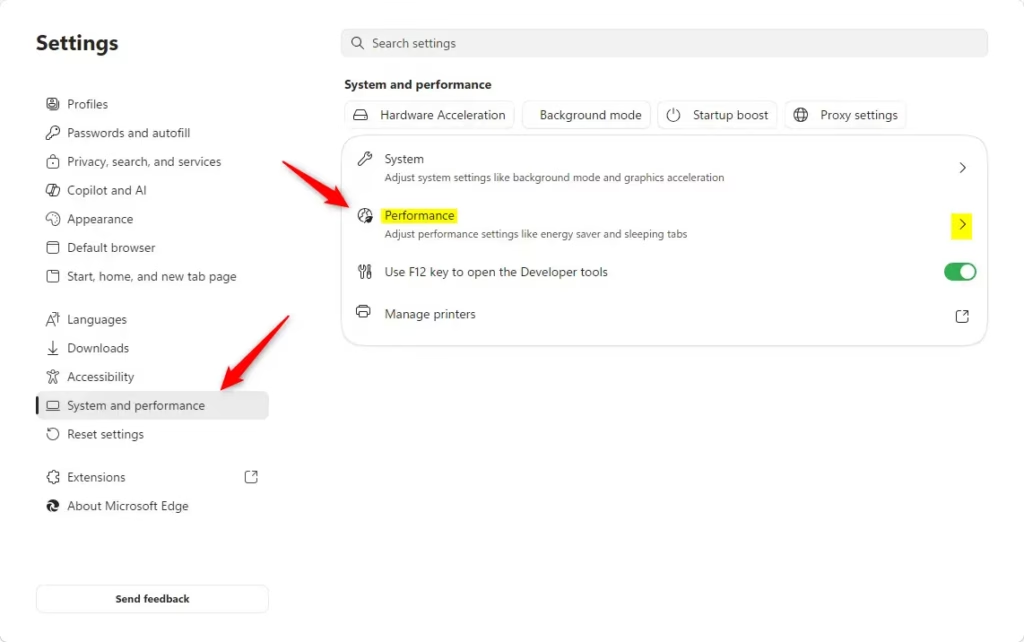
- Click System and performance in the left pane. Then click Performance in the right pane.
If you do not see a left pane, click the menu button (three bars) at the top left. Or make the Microsoft Edge window wider until you see the left pane.
- Under General, turn on or off Enable performance detector.

Option 2Turn On or Off Tab Performance Detector Using Registry [Requires Admin]
An administrator can turn the Microsoft Edge Performance Detector on or off for all users on a computer by editing a specific setting in the Windows Registry.
You must be signed in as an administrator to use this option.
Open Windows Terminal as an administrator and run the command below. Or you can go to the Registry Editor and edit the value directly.
This option uses the policy for Microsoft Edge.
Always Turn On Tab Performance Detector for All Users
This will override and gray out Option One.
reg add "HKEY_LOCAL_MACHINE\SOFTWARE\Policies\Microsoft\Edge" /v PerformanceDetectorEnabled /t REG_DWORD /d 1 /f
Always Turn Off Tab Performance Detector for All Users
This will override and gray out Option One.
reg add "HKEY_LOCAL_MACHINE\SOFTWARE\Policies\Microsoft\Edge" /v PerformanceDetectorEnabled /t REG_DWORD /d 0 /f
Default to User Choice for Tab Performance Detector
This is the default setting. It lets users control the Performance detector using Option One.
reg delete "HKEY_LOCAL_MACHINE\SOFTWARE\Policies\Microsoft\Edge" /v PerformanceDetectorEnabled /f
More Information
Learn about performance features in Microsoft Edge – Microsoft Support Learn about other performance features in Microsoft Edge. These include sleeping tabs, efficiency mode, and the Performance detector.
Summary
The Microsoft Edge Performance Detector helps you spot tabs hogging resources, and you can control it through browser settings for your account or via the Registry for all users.
How do I enable performance detector in Edge?
To enable the performance detector, open Microsoft Edge and navigate to Settings. Select the 'System and performance' tab from the left menu. Locate the 'Performance detector' section and toggle the switch to the 'On' position. This feature will now actively monitor your tabs for excessive CPU or memory usage.
Why does Edge have so many processes running?
Microsoft Edge uses a multi-process architecture to improve stability and security. Each open tab, extension, and plugin runs as a separate process. This design ensures that if one tab crashes or becomes unresponsive, the entire browser remains stable, and your other open tabs continue to function without any interruption.
Why is Microsoft Edge running so slowly?
Microsoft Edge might run slowly because of too many open tabs, old extensions, or a full cache, but the built-in Performance detector can help you find and fix resource-hungry tabs.
What does Ctrl+Shift+T do in Edge?
Pressing Ctrl+Shift+T in Microsoft Edge is a handy shortcut that instantly reopens the last tab you closed, helping you recover lost pages quickly.
Was this guide helpful?

About the Author
Richard
Tech Writer, IT Professional
Richard, a writer for Geek Rewind, is a tech enthusiast who loves breaking down complex IT topics into simple, easy-to-understand ideas. With years of hands-on experience in system administration and enterprise IT operations, he’s developed a knack for offering practical tips and solutions. Richard aims to make technology more accessible and actionable. He's deeply committed to the Geek Rewind community, always ready to answer questions and engage in discussions.



No comments yet — be the first to share your thoughts!