How to Add App to Run Automatically at Startup in Windows 11


You can add apps to run automatically at startup in Windows 11 by placing their shortcuts in a special folder.
This feature allows you to launch your favorite programs the moment your PC boots up, saving you precious time.
For example, you can ensure your antivirus software, communication tools like Discord, or your preferred web browser (like Chrome version 110 or later) starts immediately every time you log in.
This method works for any application you frequently use and want ready without manual intervention.
Why Add Startup Apps?
Startup apps are programs that open by themselves when you log in to Windows 11. This saves you time because you don’t have to manually open them each time you use your computer.
What Can You Add?
You can add almost anything as a startup item. This includes apps, shortcuts, folders, drives, files, and scripts.
Reference:
Configure Startup Applications in Windows – Microsoft Support
Learn how to optimize system performance by managing startup applications in Windows.
Important Note About Admin Apps
Some apps need special admin permissions to run. Windows 11 blocks these from starting automatically for security reasons. If you need an app like this to start up, you can create a special shortcut that has admin permission, then move it to the Startup folder (explained below).
Option One: Add Startup App for Your Account Only
- Open File Explorer by pressing Win+E.
- Copy this text:
shell:startupand paste it into the address bar at the top of File Explorer. Press Enter. This opens your Startup folder. (see screenshot below) - Add or create a shortcut of any app, folder, drive, file, or script you want to run at startup. Put it in this Startup folder.
For Microsoft Store apps: Go to Start menu > All apps. Find the Microsoft Store app you want. Drag and drop it into this Startup folder to create a shortcut.
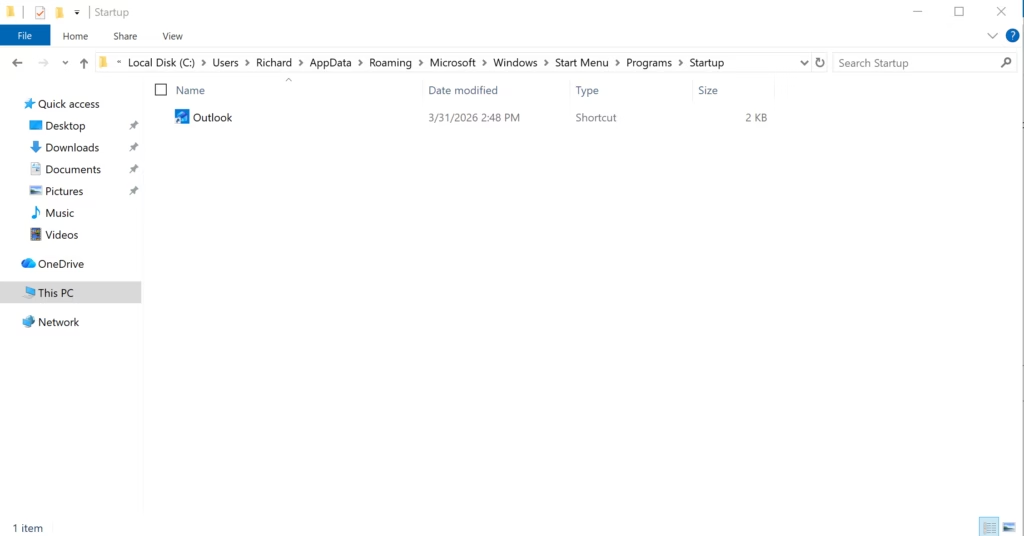
Option Two: Add Startup App for a Specific User
🔒 Admin privileges required
- Open File Explorer by pressing Win+E.
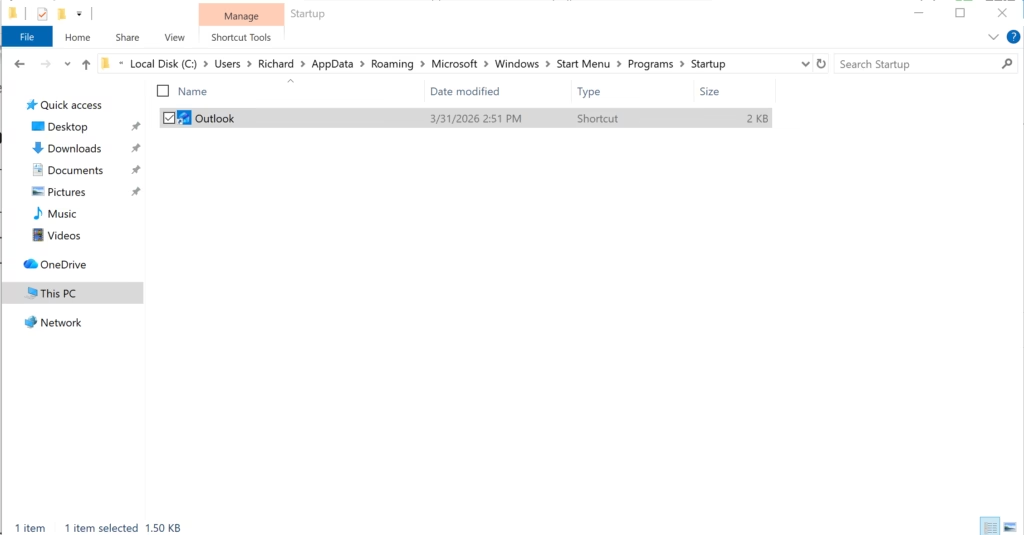
- Navigate to this folder in File Explorer (see screenshot below):
C:\Users\<username>\AppData\Roaming\Microsoft\Windows\Start Menu\Programs\StartupReplace <username> with the actual username. For example:
C:\Users\Richard\AppData\Roaming\Microsoft\Windows\Start Menu\Programs\StartupWindows may ask you to click Continue to open this folder. Click it to proceed.
- Add or create a shortcut of any app, folder, drive, file, or script you want to run at startup for this user. Put it in this Startup folder.
For Microsoft Store apps: Go to Start menu > All apps. Find the Microsoft Store app you want. Drag and drop it into this Startup folder to create a shortcut.
Option Three: Add Startup App for All Users
🔒 Admin privileges required
- Open File Explorer by pressing Win+E.
- Navigate to this folder in File Explorer:
C:\ProgramData\Microsoft\Windows\Start Menu\Programs\Startup - Copy or move a shortcut of any app, folder, drive, file, or script you want to run at startup for everyone. Put it in this Startup folder. (see screenshot below)
For Microsoft Store apps: Go to Start menu > All apps. Find the Microsoft Store app you want. Drag and drop it to your desktop to create a shortcut. Then copy or move that shortcut from your desktop into the Startup folder.
- Click Continue to approve copying or moving the shortcut into this Startup folder.
That’s it!
Summary
Adding apps to startup in Windows 11 is easy. You have three options depending on who needs the app to start automatically. For your account only, use the shell:startup command. For a specific user, navigate to that user’s Startup folder in C:\Users. For all users on the computer, use the C:\ProgramData Startup folder. Remember that admin-only apps need special permission shortcuts to work at startup. Just add or move shortcuts into the right Startup folder, and those apps will open automatically the next time you sign in.
Was this guide helpful?

About the Author
Richard
Tech Writer, IT Professional
Richard, a writer for Geek Rewind, is a tech enthusiast who loves breaking down complex IT topics into simple, easy-to-understand ideas. With years of hands-on experience in system administration and enterprise IT operations, he’s developed a knack for offering practical tips and solutions. Richard aims to make technology more accessible and actionable. He's deeply committed to the Geek Rewind community, always ready to answer questions and engage in discussions.



No comments yet — be the first to share your thoughts!