How to Set Up Fingerprint Sign-In on Your Windows 11 PC

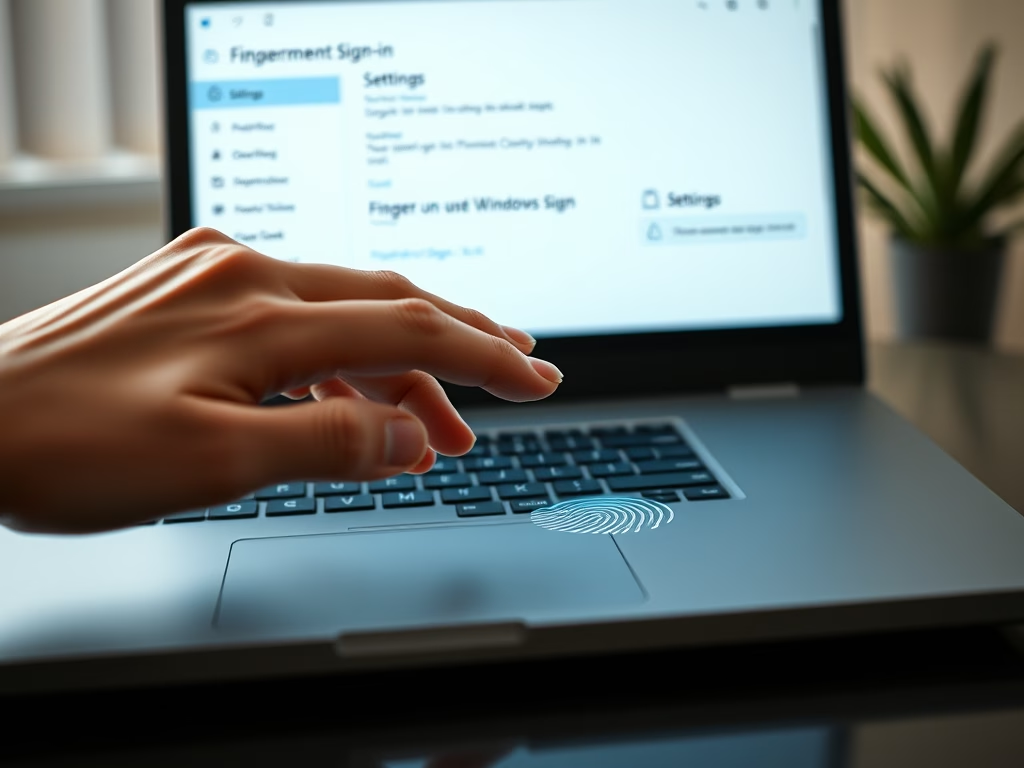
You can set up fingerprint sign-in on your Windows 11 PC using Windows Hello.
Windows Hello is a biometric authentication feature that allows you to unlock your device with your fingerprint, face, or a PIN, providing a faster and more secure login experience than traditional passwords.
To use fingerprint sign-in, your PC must have a compatible fingerprint reader, often built into laptops or available as a USB peripheral. Ensure your Windows 11 is updated to the latest version, ideally version 22H2 or later, for the smoothest setup.
Once configured, you’ll be able to log into your Windows 11 account simply by placing your registered finger on the reader.
Go to Settings, then Accounts, and select Sign-in options. Click Fingerprint recognition (Windows Hello) and choose Set up. Follow the on-screen prompts to scan your finger and confirm your PIN.
What You Need to Know First
- You must have a PIN set up on your account before adding fingerprint sign-in.
- Your Windows 11 PC needs to have a fingerprint sensor built-in or a connected fingerprint reader.
- Using your fingerprint is faster and safer than typing passwords every time.
Step-by-Step: Set Up Fingerprint Sign-In
Setting up fingerprint sign-in on your Windows 11 PC is straightforward and lets you log in with just a touch.Why Use Fingerprint Sign-In?
Using fingerprint sign-in on Windows 11 is a great idea because it’s much faster and more secure than typing your password every time.Need More Help?
Learn about Windows Hello fingerprint authentication
Check Windows Hello device requirements
Fix problems with Windows Hello
Enjoy logging in faster and safer with your fingerprint on Windows 11!
Summary
In summary, setting up Windows 11 fingerprint sign-in is a simple process that adds a layer of security and convenience to your daily computer use.
How to activate fingerprint Sign-in?
Select settings from the menu. From the left hand side click on accounts scroll down then choose sign in options. Click on fingerprint recognition. And then select set up.
Was this guide helpful?

About the Author
Richard
Tech Writer, IT Professional
Richard, a writer for Geek Rewind, is a tech enthusiast who loves breaking down complex IT topics into simple, easy-to-understand ideas. With years of hands-on experience in system administration and enterprise IT operations, he’s developed a knack for offering practical tips and solutions. Richard aims to make technology more accessible and actionable. He's deeply committed to the Geek Rewind community, always ready to answer questions and engage in discussions.



No comments yet — be the first to share your thoughts!