How to Turn On or Off the Touch Keyboard Sound in Windows 11

Ever find yourself wishing your Windows 11 touch keyboard would be quieter, or perhaps you miss that satisfying click? This guide will show you exactly how to control those sounds.
Go to Settings, then Time & language, and click Typing. Find the Touch keyboard section and toggle “Play key sounds as I type” on or off. Your selection is saved automatically.
Why This Matters
The touch keyboard sound in Windows 11 gives you audio feedback when you tap keys on your screen, which is helpful for devices without a physical keyboard.
While some users enjoy this auditory feedback, others prefer a silent typing experience. Fortunately, you have control over this.
The Easy Way: Using Settings
You can quickly turn the touch keyboard sound on or off in Windows 11 using the built-in Settings app, making it simple to adjust your typing experience.
Click the Start button, or press Win + I on your keyboard. The Settings app will open.
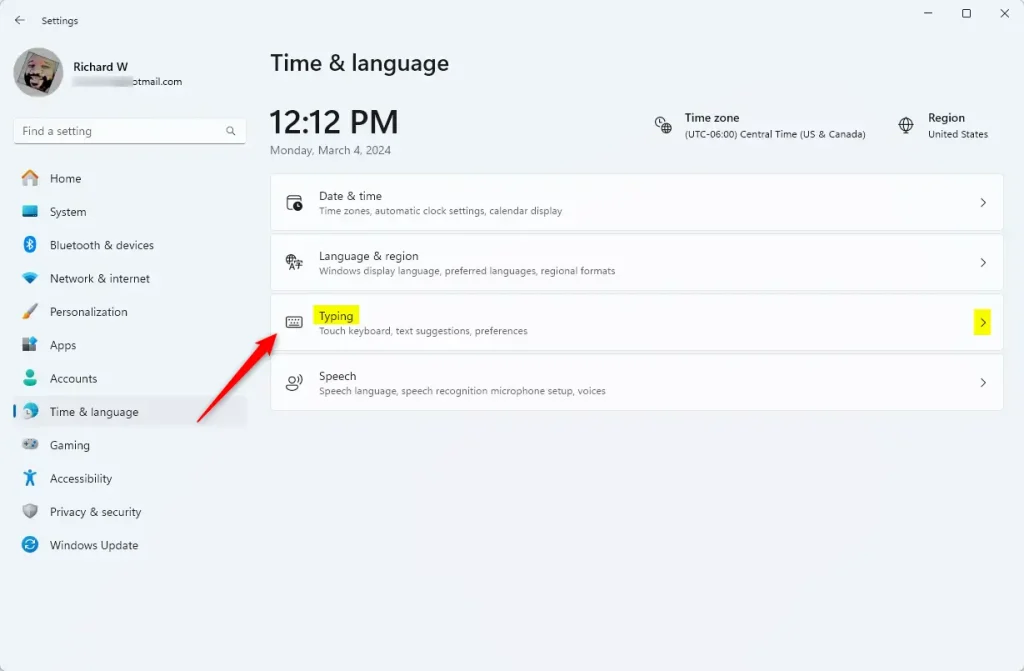
Step 2: Find Typing Settings
On the left side, click Time & language. Then, on the right side, click Typing.
Or use this shortcut: Open Typing Settings
Step 3: Open Touch Keyboard Options
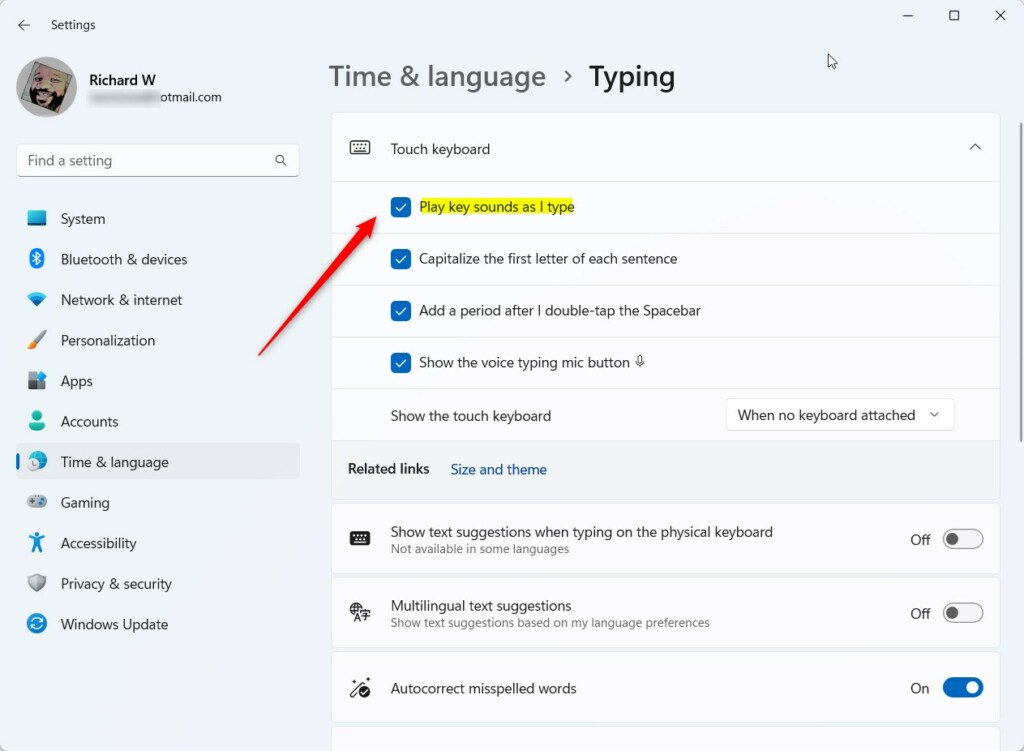
Find ‘Touch keyboard’ in the list. Click the arrow next to it to reveal more settings.
Step 4: Turn Sounds On or Off
You’ll see a toggle labeled Play key sounds as I type.
- Check the box to turn sounds ON.
- Uncheck the box to turn sounds OFF.
Step 5: You’re Done
Close the Settings window. Your selection is saved automatically.
The Advanced Way: Using the Registry
If you’re comfortable with more technical steps, you can change the touch keyboard sound in Windows 11 by editing the Registry, offering a direct way to control the setting.
To Turn Sounds ON:
Open the Command Prompt or PowerShell application. You’ll then need to type a specific command:
reg add "HKEY_CURRENT_USER\Software\Microsoft\TabletTip\1.7" /v EnableKeyAudioFeedback /t REG_DWORD /d 1 /fTo Turn Sounds OFF:
Open the Command Prompt or PowerShell application. You’ll then need to type a specific command:
reg add "HKEY_CURRENT_USER\Software\Microsoft\TabletTip\1.7" /v EnableKeyAudioFeedback /t REG_DWORD /d 0 /fAnother option: Save the code to a file with a .reg extension. Then double-click the file to apply the change.
Summary
Managing the touch keyboard sound in Windows 11 is simple, with the Settings app offering the easiest way to turn sounds on or off.
How do I turn off touch sound on my keyboard?
And open the keyboard. You'll see that key press sounds are no longer. Heard. I hope you found this waggle guide useful and learned something new.
Was this guide helpful?

About the Author
Richard
Tech Writer, IT Professional
Richard, a writer for Geek Rewind, is a tech enthusiast who loves breaking down complex IT topics into simple, easy-to-understand ideas. With years of hands-on experience in system administration and enterprise IT operations, he’s developed a knack for offering practical tips and solutions. Richard aims to make technology more accessible and actionable. He's deeply committed to the Geek Rewind community, always ready to answer questions and engage in discussions.


No comments yet — be the first to share your thoughts!