How to Turn On or Off Set Time Automatically in Windows 11

Keep your Windows 11 clock accurate by learning how to turn automatic time setting on or off.
Open Settings by pressing ⊞ Win+I, then go to Time & language > Date & time. Toggle “Set time automatically” to On or Off to control automatic time updates.
Why Does Time Matter on Your Computer?
Your computer’s clock, often called the system clock, is really important for keeping track of when you save or change files, much like your own daily schedule.
Important: You need to be signed in as an administrator, which is a user account with permissions to make significant changes to your computer, to adjust this setting. Also, for automatic time setting to work, ensure your Location services are enabled and that apps can access your location.
How to Turn On or Off Automatic Time Using Settings
You can easily turn the automatic time setting on or off in Windows 11 by opening the Settings app and going straight to the Date & time section.- Press
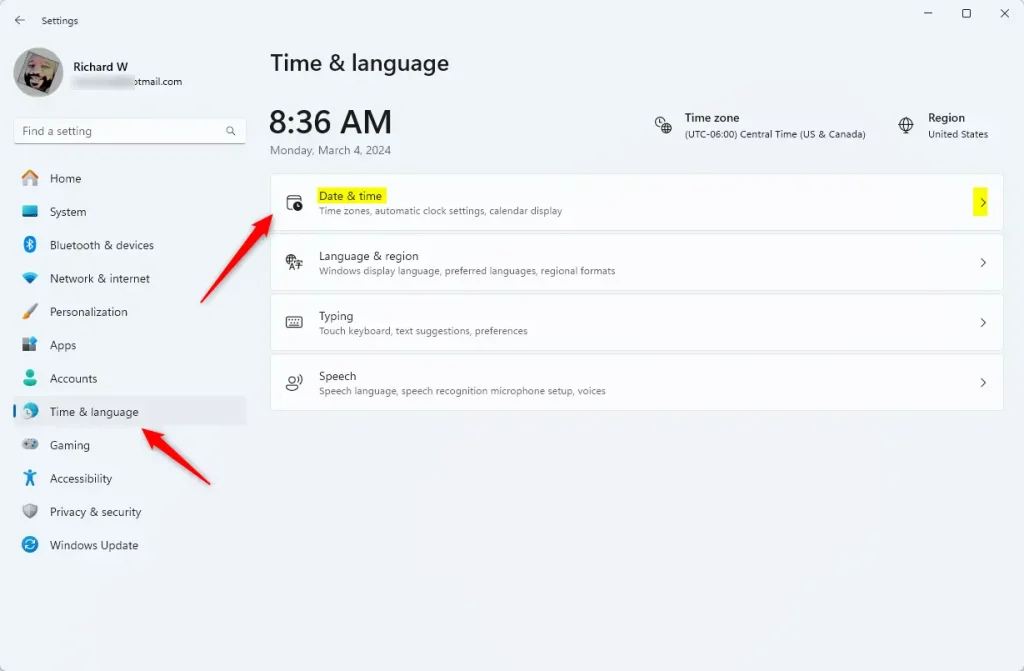
Win + Ion your keyboard to open the Settings window. - On the left side, click Time & language. Then on the right side, click Date & time.
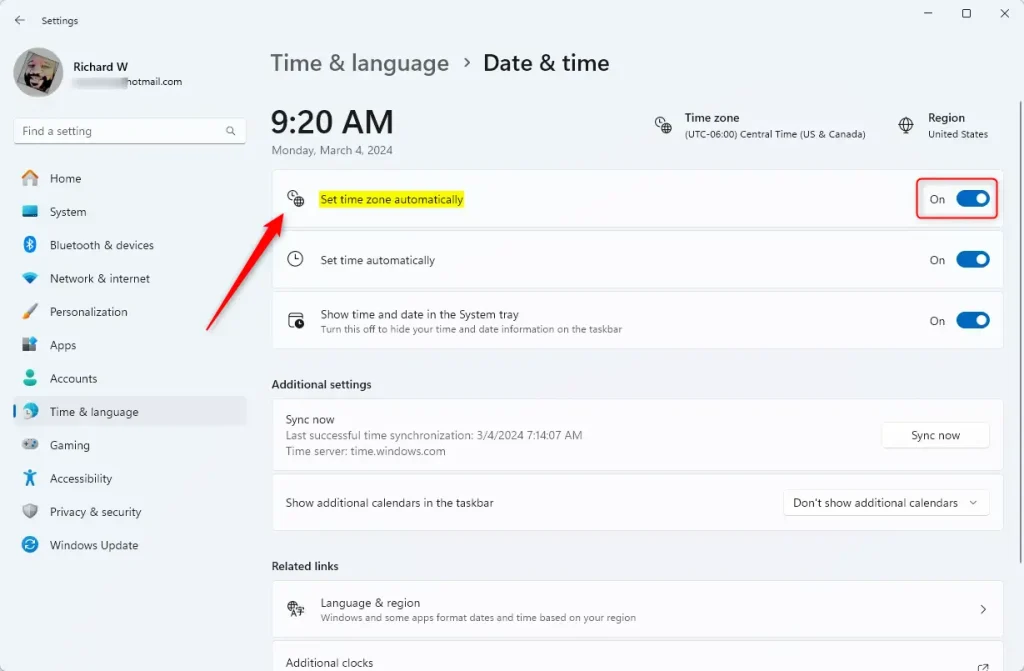
- Look for the option called Set time automatically.
- Switch it On if you want Windows to update your time automatically. Switch it Off if you want to set the time manually.
- Once done, you can close the Settings window.
How to Turn On or Off Automatic Time Using the Registry (Advanced)
If you’re comfortable with more technical tools, you can also change this setting by editing the Windows Registry. This part is best suited for advanced users and administrators. It’s crucial to back up your registry before you make any changes.
Turn On Automatic Time Setting (Default)
To turn on automatic time setting (this is the default), open Command Prompt as an administrator and type this command:
reg add "HKLM\SYSTEM\CurrentControlSet\Services\W32Time\Parameters" /v Type /t REG_SZ /d NTP /fTurn Off Automatic Time Setting
To turn off automatic time setting, open Command Prompt as an administrator and type this command:
reg add "HKLM\SYSTEM\CurrentControlSet\Services\W32Time\Parameters" /v Type /t REG_SZ /d NoSync /fSummary
Managing your automatic time settings in Windows 11 is straightforward, letting you choose if your computer updates the time itself or if you prefer to set it manually.
How to set automatic time on 🪟 Windows 11?
Set the date and time: Select Start > Settings > Time & language > Date & time. To set the date and time automatically, make sure the option Set time automatically is turned On.
Was this guide helpful?

About the Author
Richard
Tech Writer, IT Professional
Richard, a writer for Geek Rewind, is a tech enthusiast who loves breaking down complex IT topics into simple, easy-to-understand ideas. With years of hands-on experience in system administration and enterprise IT operations, he’s developed a knack for offering practical tips and solutions. Richard aims to make technology more accessible and actionable. He's deeply committed to the Geek Rewind community, always ready to answer questions and engage in discussions.



No comments yet — be the first to share your thoughts!