How to Enable or Disable Clipboard Sync Across Devices in Windows 11

You enable or disable clipboard sync across devices in Windows 11 through the system’s Settings app.
Clipboard sync lets you copy content on one Windows 11 device and paste it right onto another. You just need to make sure both devices are signed in with the same Microsoft account.
This powerful feature remembers your recent copy history, not just the last item, and can store up to 25 entries.
Syncing your clipboard lets you effortlessly transfer text, images, and other data between computers. It’s a real time-saver.
Open Settings by pressing ⊞ Win+I. Navigate to System, then Clipboard. Toggle “Clipboard history across your devices” to On or Off to enable or disable sync.
Why Use Clipboard Sync?
- Keep multiple copied items: Clipboard history saves up to 25 things you copy, like text or pictures.
- Pin important items: You can “pin” items so they don’t get deleted, even when you restart your PC.
- Sync across devices: Copy on one PC, paste on another automatically or choose what to sync.
- Support for different formats: Works for text, images, and HTML content.
Windows 11 clipboard sync lets you copy something on one device and paste it on another, making it super handy for moving information between your computers.
How to Turn On or Off Clipboard Sync (Easy Way)
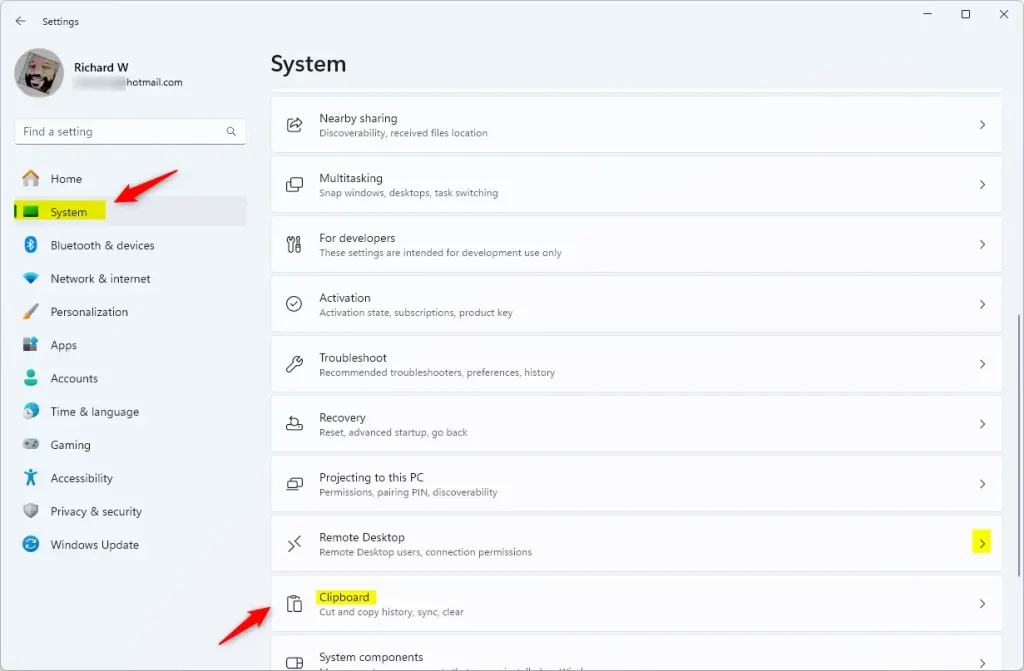
- Press ⊞ Win+I on your keyboard to open Settings.
- Click System on the left menu, then click Clipboard on the right.
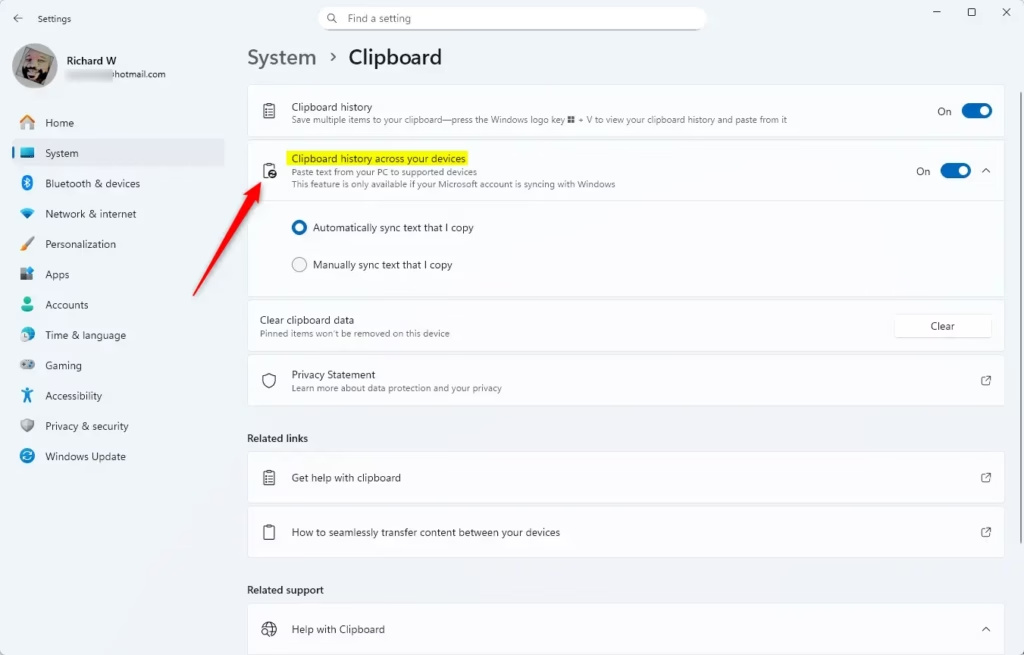
- Find the option Clipboard history across your devices.
- Turn it On or Off as you want.
- If you turn it on, choose between:
- Automatically sync text that I copy – your clipboard copies sync right away.
- Manually sync text that I copy – you pick which clipboard items to sync.
- Close Settings when done.
You can easily turn Windows 11 clipboard sync on or off right in the Settings app.
Using Clipboard History
Press ⊞ Win+V to open your clipboard history. You can see everything you copied. You can pin items or delete them.
More Advanced Options
Change Clipboard Sync Using Registry Files
If you’re comfortable making changes in the Windows Registry, you can use specific commands to turn Windows 11 clipboard sync on or off.
To enable automatic clipboard syncing:
reg add "HKEY_CURRENT_USER\Software\Microsoft\Clipboard" /v CloudClipboardAutomaticUpload /t REG_DWORD /d 1 /f
reg add "HKEY_CURRENT_USER\Software\Microsoft\Clipboard" /v EnableCloudClipboard /t REG_DWORD /d 1 /f
To enable clipboard syncing but let you choose what to sync manually:
reg add "HKEY_CURRENT_USER\Software\Microsoft\Clipboard" /v CloudClipboardAutomaticUpload /t REG_DWORD /d 0 /f
reg add "HKEY_CURRENT_USER\Software\Microsoft\Clipboard" /v EnableCloudClipboard /t REG_DWORD /d 1 /f
To disable clipboard syncing (default setting):
reg add "HKEY_CURRENT_USER\Software\Microsoft\Clipboard" /v EnableCloudClipboard /t REG_DWORD /d 0 /fChange Clipboard Sync for All Users via Group Policy (For 🪟 Windows 11 Pro, Enterprise, or Education)
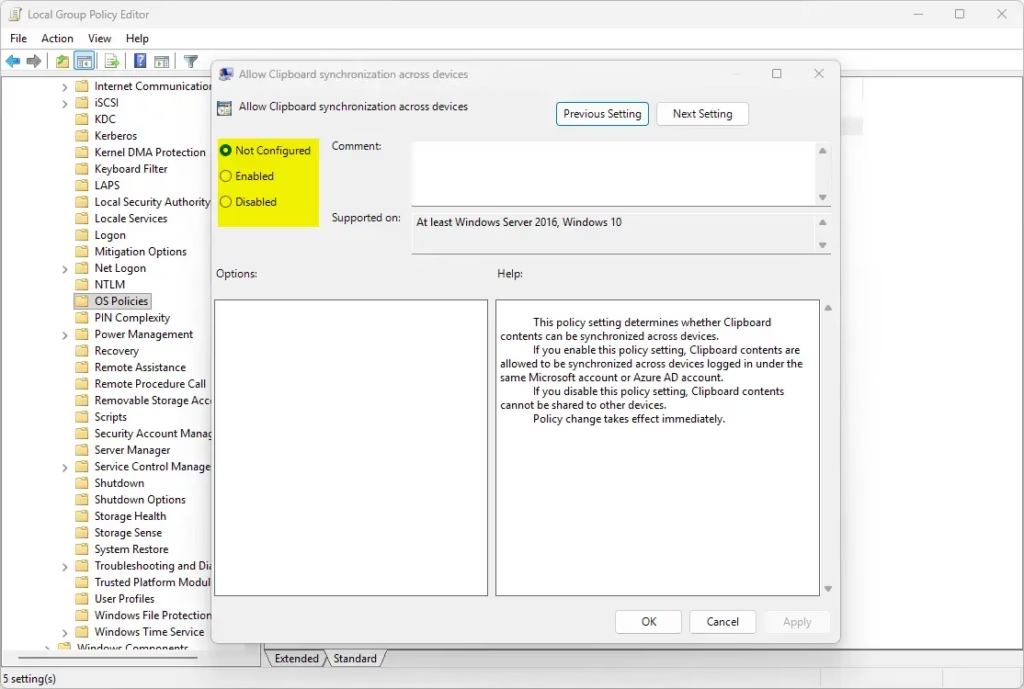
For Windows 11 Pro, Enterprise, or Education versions, you can control Windows 11 clipboard sync for all users through the Group Policy Editor.
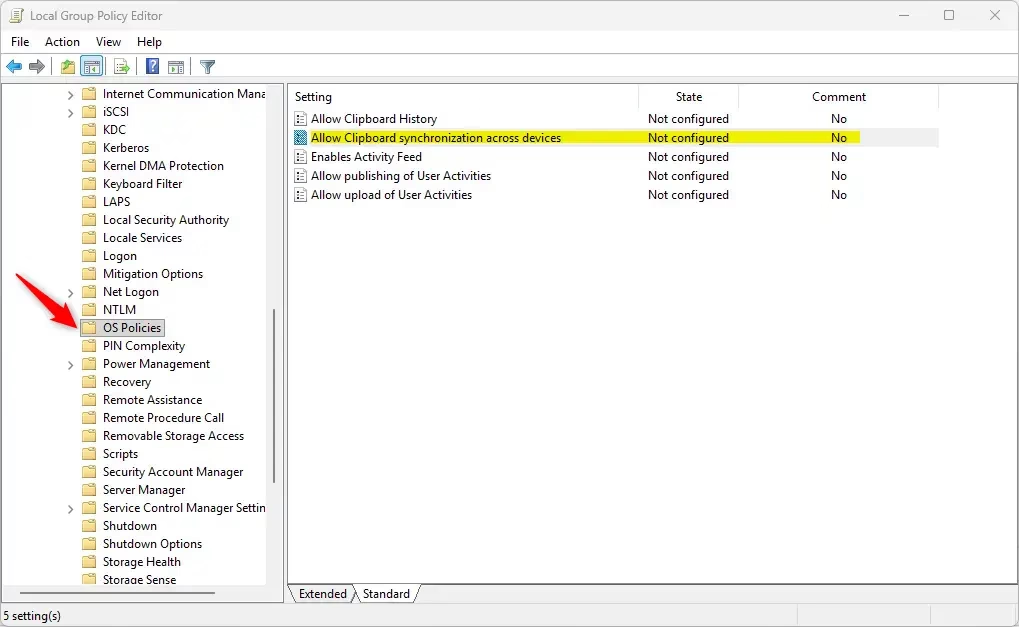
- Go to: Computer Configuration > Administrative Templates > System > OS Policies
- Double click on Allow Clipboard synchronization across devices.
- To enable syncing, select Not Configured. To disable syncing, select Disabled.
- Click Apply and then OK.
- Close the Group Policy Editor.
Change Clipboard Sync for All Users via Registry (Administrator access needed)
⚠️ ADMIN PRIVILEGES REQUIRED
To enable clipboard sync for all users:
reg delete "HKEY_LOCAL_MACHINE\SOFTWARE\Policies\Microsoft\Windows\System" /v AllowCrossDeviceClipboard /fTo disable clipboard sync for all users:
reg add "HKEY_LOCAL_MACHINE\SOFTWARE\Policies\Microsoft\Windows\System" /v AllowCrossDeviceClipboard /t REG_DWORD /d 0 /fSummary
- Clipboard history helps you save and manage many copied items at once.
- You can sync clipboard items across your Windows devices using your Microsoft or work account.
- Choose to sync automatically or manually.
- Pinned items stay saved even after you restart your PC.
- Clipboard supports text, images, and HTML formats.
- If you’re not signed in with a Microsoft or work account, clipboard syncing won’t work across devices.
Windows 11 clipboard sync lets you copy items on one device and paste them on another, with options to sync automatically or manually.
How do I sync clipboard history in 🪟 Windows 11?
To sync clipboard items to your PC, you’ll need to make sure the sync feature is turned on. Select Start > Settings > System > Clipboard. Set the Sync across devices toggle to On. Then, select Automatically sync text that I copy.
How do I turn off clipboard sync?
Press ⊞ Win+I to open Settings. Navigate to System > Clipboard. At the top of the page, toggle Clipboard history On to enable it or Off to disable it. Under Clipboard history across your devices, toggle On to allow syncing or Off to keep clipboard data local.
Was this guide helpful?

About the Author
Richard
Tech Writer, IT Professional
Richard, a writer for Geek Rewind, is a tech enthusiast who loves breaking down complex IT topics into simple, easy-to-understand ideas. With years of hands-on experience in system administration and enterprise IT operations, he’s developed a knack for offering practical tips and solutions. Richard aims to make technology more accessible and actionable. He's deeply committed to the Geek Rewind community, always ready to answer questions and engage in discussions.

No comments yet — be the first to share your thoughts!