How to Turn On or Off “Share Any Window” from the Taskbar in Windows 11

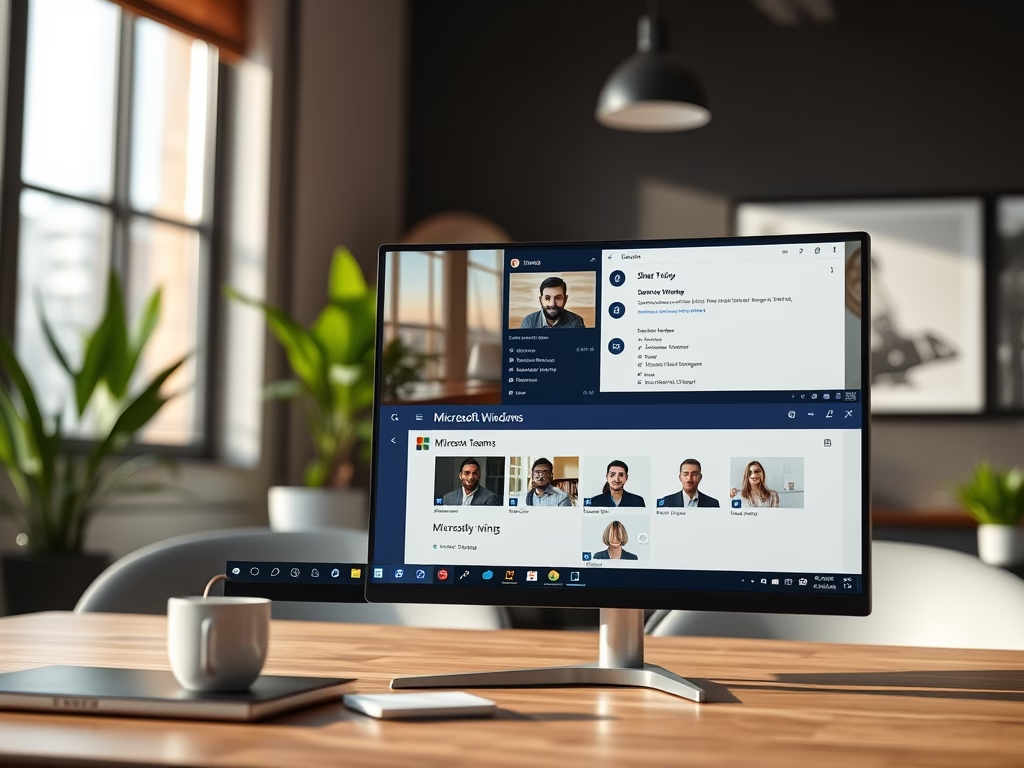
Want to quickly share a window during your meeting without switching between apps? Windows 11 lets you taskbar-in-windows-11/" class="sal-link" rel="noopener" target="_blank" data-sal-id="882">share open app windows right from the taskbar! This guide will show you how to turn this feature on or off in just a few simple steps.
What Is This Feature?
Starting with Windows 11 build 22499, Microsoft added an easy way to share any open app window directly from your taskbar during meetings. This works great with Microsoft Teams. You don’t have to keep switching between apps to share your screen or stop sharing it anymore.
Here’s how it works when you’re in a Microsoft Teams meeting:
- Hover your mouse over an app icon on the taskbar.
- A small preview of the app window pops up.
- You will see a new button like “Share this Window” to share it instantly.
- To stop sharing, hover again and click “Stop Sharing.”
Even if you’re showing a full-screen PowerPoint, just move your mouse to the bottom to bring up the taskbar. Then you can manage sharing without bothering your viewers.
Other apps that do meetings or chats can also add this sharing feature.
New in Windows 11 Builds 26100.7309 and 26200.7309
Hovering over taskbar icons now also shows a “Share with Copilot” button. This lets Copilot Vision look at your app’s content and give helpful suggestions.
How to Turn On or Off “Share Any Window” from the Taskbar
Option 1: Using Windows Settings (Easy Way)
- Press Win + I on your keyboard to open Settings.
- Click Personalization on the left menu.
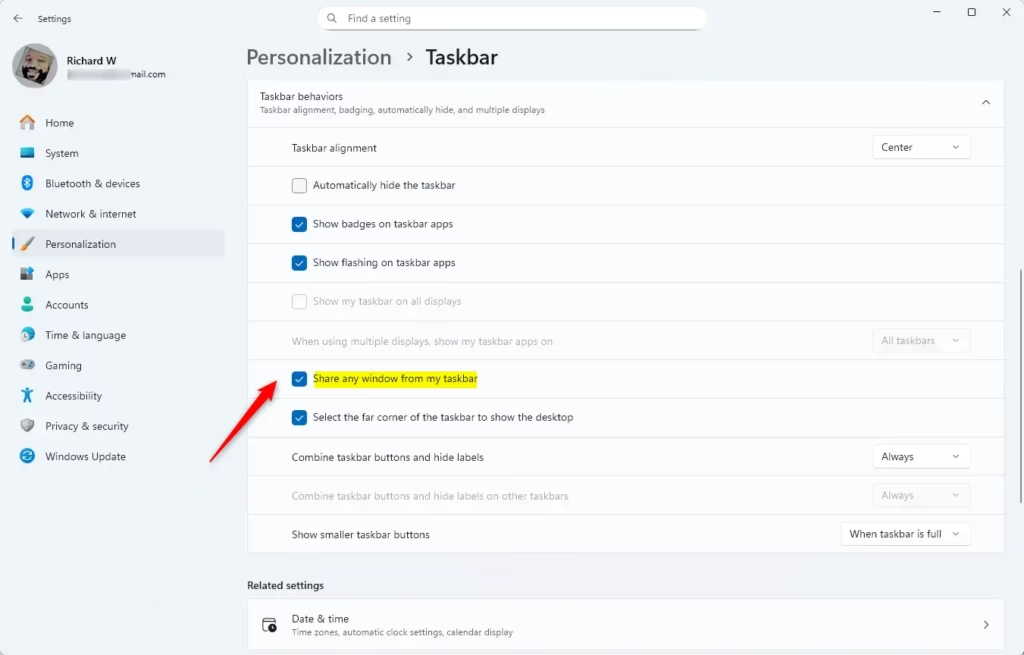
- Click Taskbar on the right side.
- Scroll down and click Taskbar behaviors to open more options.
- Look for Share any window from my taskbar and check it to enable or uncheck to disable.
- Underneath, choose who can use this feature from the dropdown:
- All apps (default)
- Communication apps (like Teams)
- Chat agent apps
- None (turn off sharing)
- Close Settings when done.

Option 2: Using Registry Editor (Advanced Users)
Note: This method won’t work if your PC has Administrator protection turned on.
Turn ON “Share any window” for All apps (default):
reg add "HKEY_CURRENT_USER\Software\Microsoft\Windows\CurrentVersion\Explorer\Advanced" /v TaskbarSn /t REG_DWORD /d 1 /fTurn ON “Share any window” for Communication apps only:
reg add "HKEY_CURRENT_USER\Software\Microsoft\Windows\CurrentVersion\Explorer\Advanced" /v TaskbarSn /t REG_DWORD /d 2 /fTurn ON “Share any window” for Chat agent apps only:
reg add "HKEY_CURRENT_USER\Software\Microsoft\Windows\CurrentVersion\Explorer\Advanced" /v TaskbarSn /t REG_DWORD /d 3 /fTurn OFF “Share any window”:
reg add "HKEY_CURRENT_USER\Software\Microsoft\Windows\CurrentVersion\Explorer\Advanced" /v TaskbarSn /t REG_DWORD /d 0 /fWhy Use This Feature?
- Save time: Share windows without switching apps during meetings.
- Easy to use: Manage sharing right from the taskbar.
- Works with popular apps: Like Microsoft Teams and others.
- Customizable: Choose which apps can use this sharing feature.
- Smooth presentations: Share and stop sharing without disrupting your viewers.
Try it out and make your online meetings simpler and more productive!
More Help
Want to learn more about taskbar features? Check out this official Microsoft page:
Customize the Taskbar in Windows – Microsoft Support
Example of Sharing a Window from Taskbar
Summary
The “Share Any Window” feature in Windows 11 makes sharing your screen during meetings easier than ever. You can share any open app directly from the taskbar without switching between programs. There are two ways to turn this feature on or off: using Windows Settings (the simple way) or using Registry Editor (for advanced users). You can customize who gets to use this feature by choosing between all apps, communication apps only, chat agent apps only, or turning it off completely. This feature works great with Microsoft Teams and saves you time during presentations and meetings.
Was this guide helpful?





Leave a Reply