How to Enable or Disable Notifications for New Bluetooth Devices in Windows 11

This guide shows you how to enable or disable the notification that appears when a new Bluetooth device tries to connect to your Windows 11 PC.
Open Settings, navigate to Bluetooth & devices, then Devices, and finally More Bluetooth settings. Under the Options tab, check or uncheck the “Alert me when a new Bluetooth device wants to connect” box to enable or disable these notifications.
What is Bluetooth?
Bluetooth is a handy wireless tech that lets devices like your computer and headphones share info without cables when they’re nearby.
You can connect many types of Bluetooth devices to your PC, like phones, headphones, speakers, fitness bands, mice, and keyboards. If you want to learn how to pair Bluetooth devices, check out this official guide from Microsoft: How to pair a Bluetooth device in Windows 11.
By default, Windows 11 shows a “Add a device” notification when a new Bluetooth device attempts to connect. This notification lets you approve or deny the connection.
If you don’t want to see these notifications, you can turn them off. Here’s how:
Option 1Turn On or Off Notifications Using Settings
- Open Settings by pressing ⊞ Win+I on your keyboard.
- Click on Bluetooth & devices in the left menu.
- Then click on Devices on the right side.
- You can also open this directly by clicking here: Open Bluetooth & devices settings.
- Scroll down and click More Bluetooth settings under the Related settings section.
- In the window that opens, go to the Options tab.
- Check the box Alert me when a new Bluetooth device wants to connect to turn notifications ON.
- Uncheck the box to turn notifications OFF.
- Click OK to save your choice.
- You can now close the Settings window.
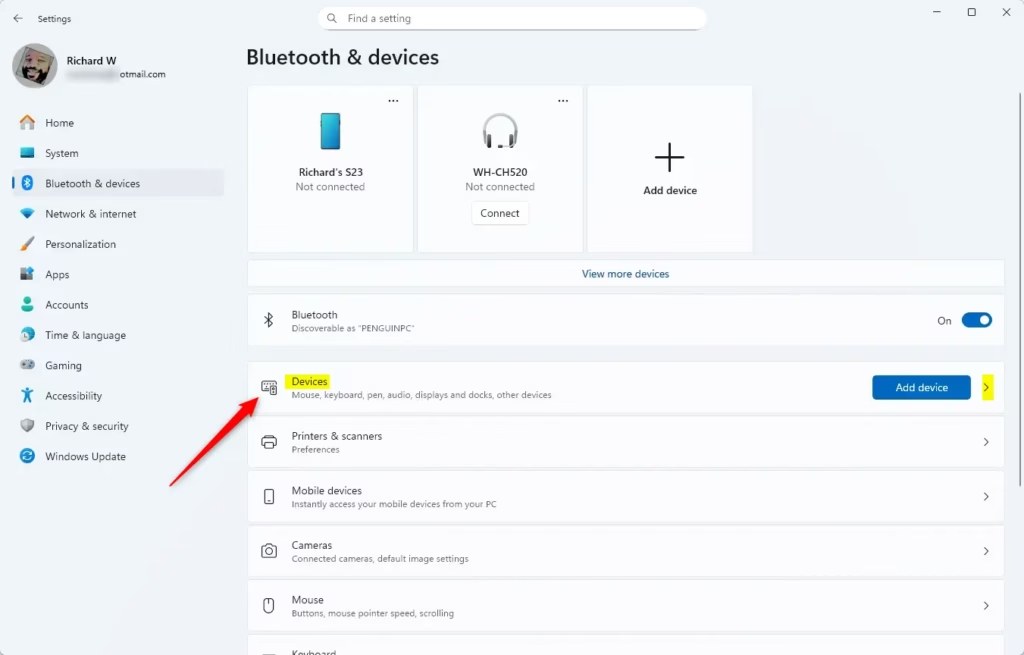
You can easily control Windows 11 Bluetooth notifications right in the Settings app.
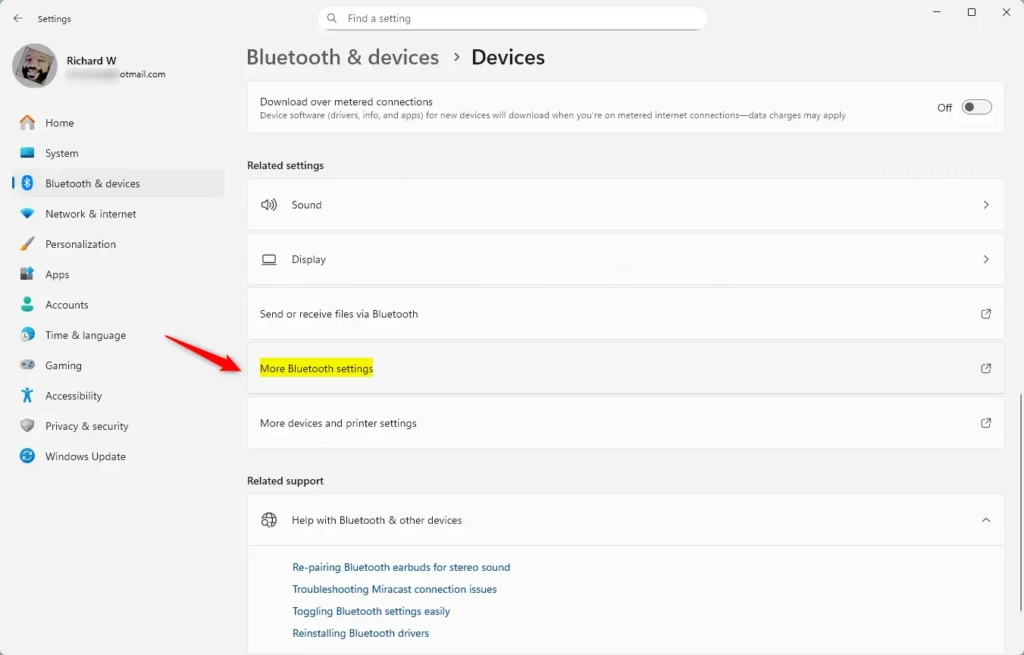
You can easily control Windows 11 Bluetooth notifications right in the Settings app.
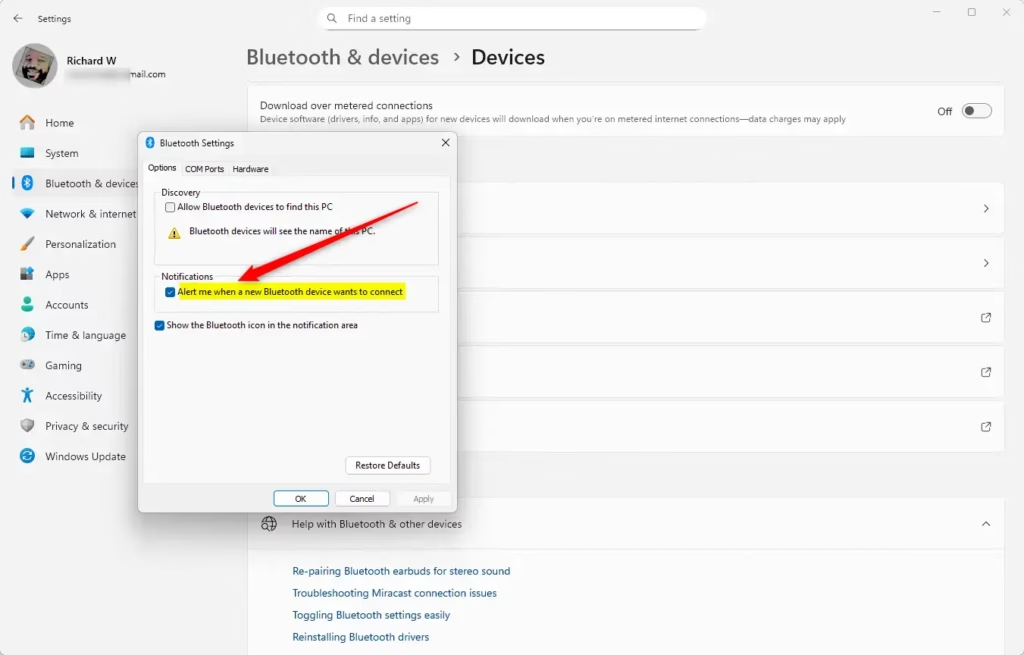
You can easily control Windows 11 Bluetooth notifications right in the Settings app.
Option 2Turn On or Off Notifications Using the Registry (Advanced)
For advanced users, you can change Windows 11 Bluetooth notifications by editing the Registry.
To turn ON notifications (default setting):
reg add "HKEY_CURRENT_USER\Software\Microsoft\BluetoothAuthenticationAgent" /v AcceptIncomingRequests /t REG_DWORD /d 1 /fTo turn OFF notifications:
reg add "HKEY_CURRENT_USER\Software\Microsoft\BluetoothAuthenticationAgent" /v AcceptIncomingRequests /t REG_DWORD /d 0 /fSummary
In Windows 11, you can choose whether or not to get notified when a new Bluetooth device tries to connect.
By default, notifications are ON to keep you in control of device connections. Turning notifications off can help reduce interruptions, but be sure you want to approve devices another way.
By following these steps, you can control how your Windows 11 PC alerts you about new Bluetooth connections and manage your devices more conveniently.
Was this guide helpful?

About the Author
Richard
Tech Writer, IT Professional
Richard, a writer for Geek Rewind, is a tech enthusiast who loves breaking down complex IT topics into simple, easy-to-understand ideas. With years of hands-on experience in system administration and enterprise IT operations, he’s developed a knack for offering practical tips and solutions. Richard aims to make technology more accessible and actionable. He's deeply committed to the Geek Rewind community, always ready to answer questions and engage in discussions.



No comments yet — be the first to share your thoughts!