How to Show or Hide Accent Color on Start Menu and Taskbar in Windows 11

Want to add some color to your Windows 11 taskbar-and-start-more-personal-in-windows-11/" class="sal-link" rel="noopener" target="_blank" data-sal-id="38658">Start menu and taskbar? This guide shows you how to turn the accent color on or off. Make your computer look exactly how you want it.
What is Accent Color?
Accent color is a bright color that Windows uses to highlight parts of your screen. You’ll see it on the Start menu, taskbar, and window borders. Windows gives you three color mode choices:
- Dark mode: A darker look. Great for low light or nighttime.
- Light mode: A brighter look. Perfect for daytime.
- Custom mode: A mix of both. You pick which parts are dark or light.
Note: You can only show accent colors on the Start menu and taskbar if you use Dark or Custom mode. Light mode doesn’t support this.
How to Turn Accent Color On or Off
- Press ⊞ Win+I to open Settings.
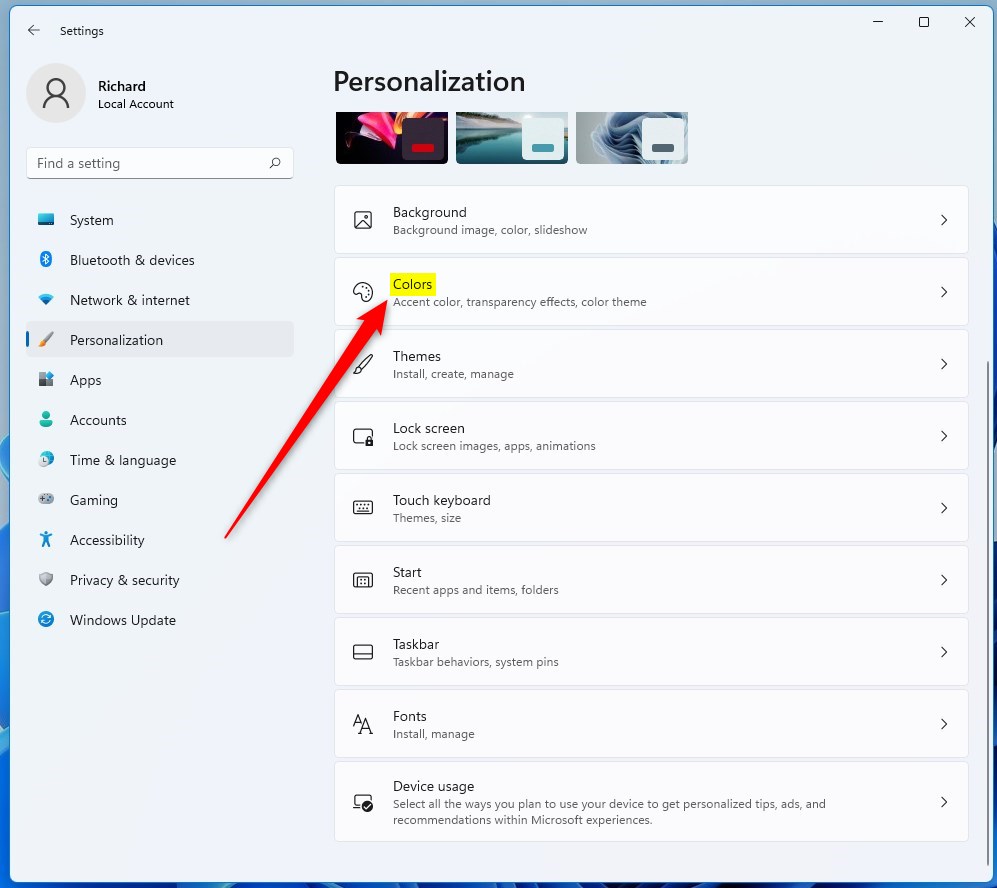
- Click Personalization in the left menu.
- Click Colors on the right side.
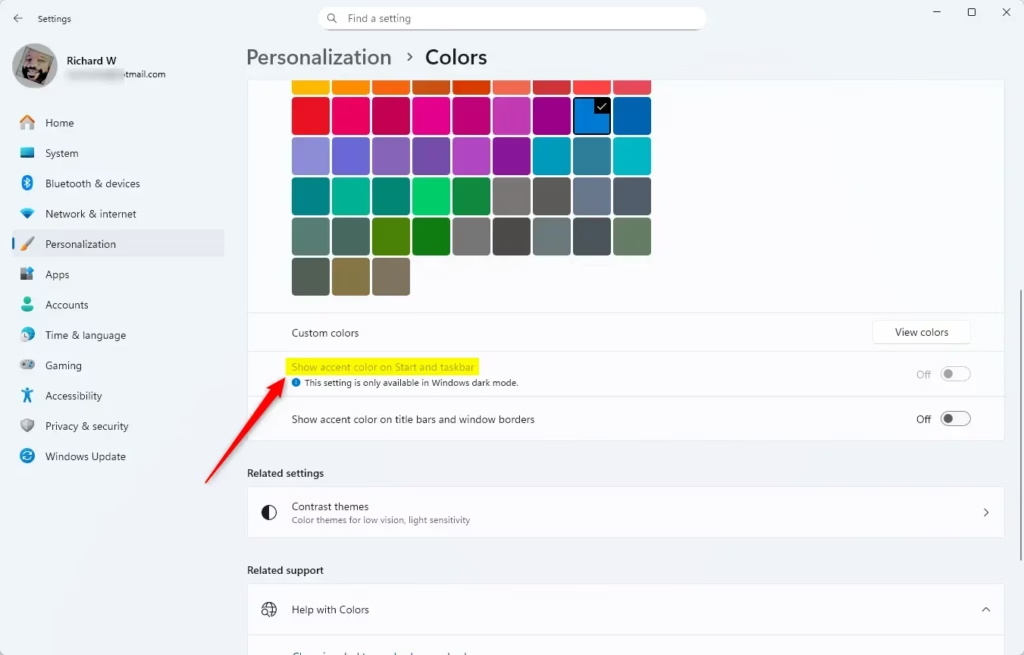
- Find the option called Show accent color on Start and taskbar.
- Turn it On or Off based on what you want.
You can also open Colors settings directly by clicking this link (it will open your Settings app): Open Colors Settings
Tip: If the option looks greyed out, you probably have Light mode selected. Switch to Dark or Custom mode to use it.
How to Change Accent Color Using the Registry (Advanced)
If you’re comfortable editing your computer’s registry (a hidden control center), you can change the accent color settings manually.
Warning: Be careful when using the Registry Editor. Changing the wrong thing can cause problems. Back up your registry first as a safety measure.
Open the Windows Terminal app as administrator and run one of the commands below. %📂%FLAG_ADMIN%%
Turn On Accent Color on Start Menu and Taskbar
reg add "HKEY_CURRENT_USER\Software\Microsoft\Windows\CurrentVersion\Themes\Personalize" /v ColorPrevalence /t REG_DWORD /d 1 /fTurn On Accent Color Only on Taskbar (Not Start Menu)
reg add "HKEY_CURRENT_USER\Software\Microsoft\Windows\CurrentVersion\Themes\Personalize" /v ColorPrevalence /t REG_DWORD /d 2 /fTurn Off Accent Color (Default Setting)
reg add "HKEY_CURRENT_USER\Software\Microsoft\Windows\CurrentVersion\Themes\Personalize" /v ColorPrevalence /t REG_DWORD /d 0 /fSummary
- Windows 11 has three color modes: Dark, Light, and Custom.
- Accent color works on the Start menu and taskbar only with Dark or Custom mode.
- You can change this setting easily in Settings.
- Advanced users can also use the Registry Editor to make changes.
- Try different colors and modes to make your PC look the way you want.
Was this guide helpful?

About the Author
Richard
Tech Writer, IT Professional
Richard, a writer for Geek Rewind, is a tech enthusiast who loves breaking down complex IT topics into simple, easy-to-understand ideas. With years of hands-on experience in system administration and enterprise IT operations, he’s developed a knack for offering practical tips and solutions. Richard aims to make technology more accessible and actionable. He's deeply committed to the Geek Rewind community, always ready to answer questions and engage in discussions.



No comments yet — be the first to share your thoughts!