How to Set BitLocker to Unlock Your Windows 11 PC Automatically

BitLocker is a built-in Windows 11 tool that protects your files by encrypting (scrambling) your hard drive. Think of it like a lock on a filing cabinet—only you can open it and see what’s inside.
Most of the time, BitLocker uses a special security chip in your computer called TPM (Trusted Platform Module) to unlock your PC automatically when you turn it on. This keeps your files safe without making you do extra work every time you restart.
However, if BitLocker is set up to ask for a USB drive and a PIN code every time you start your computer, you can change that. Here’s how to go back to automatic unlocking using TPM.
Steps to Turn Off USB and PIN Requirements and Enable Auto Unlock
- Open Control Panel: Click the Start button. Type
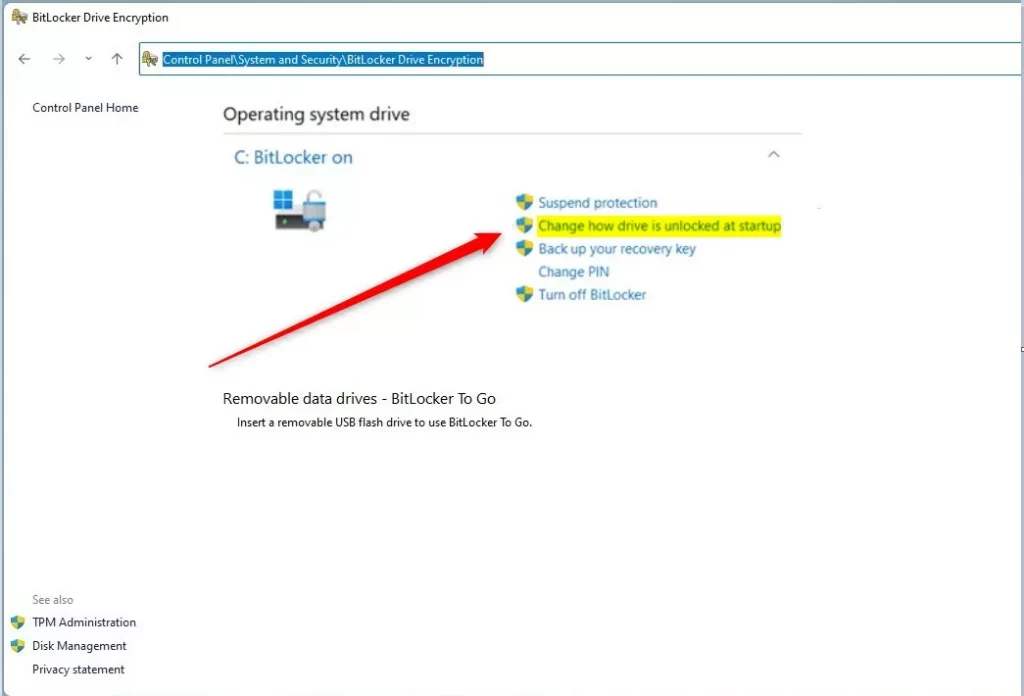
Control Panel. Click it from the list. Learn more about opening Control Panel - Find BitLocker: In Control Panel, click on System and Security. Then find and click BitLocker Drive Encryption.
- Locate your drive: Find your main Windows drive (usually called “OS Drive” or “C:”). Click the link that says “Change how drive is unlocked at startup.”
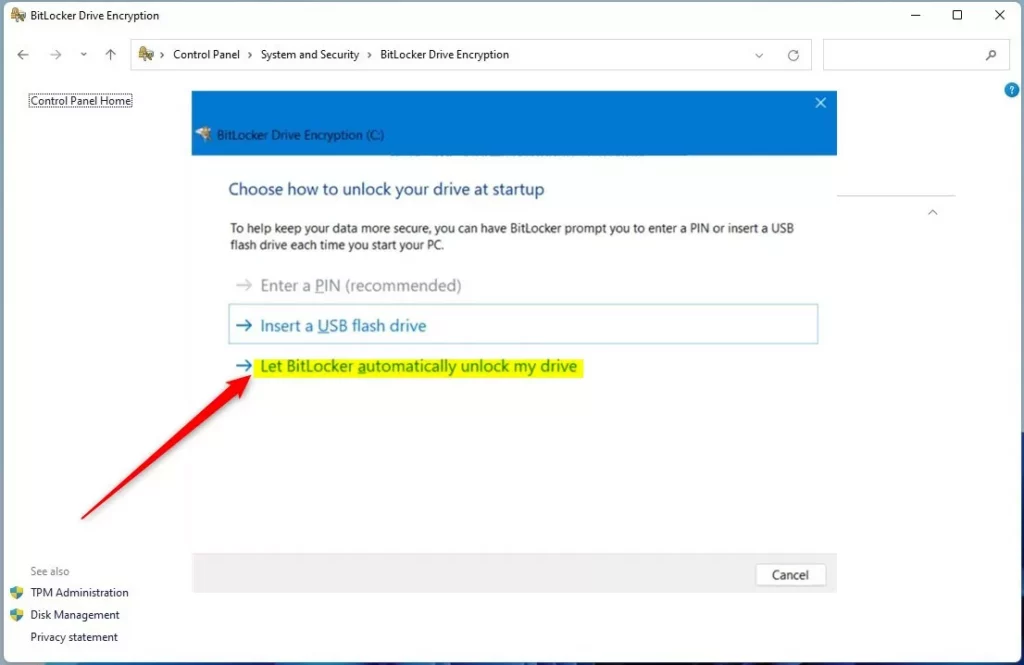
- Choose automatic unlock: On the next page, click the option that says “Let BitLocker automatically unlock my drive.”
- Save your changes: Click “Finish” to save what you just did.
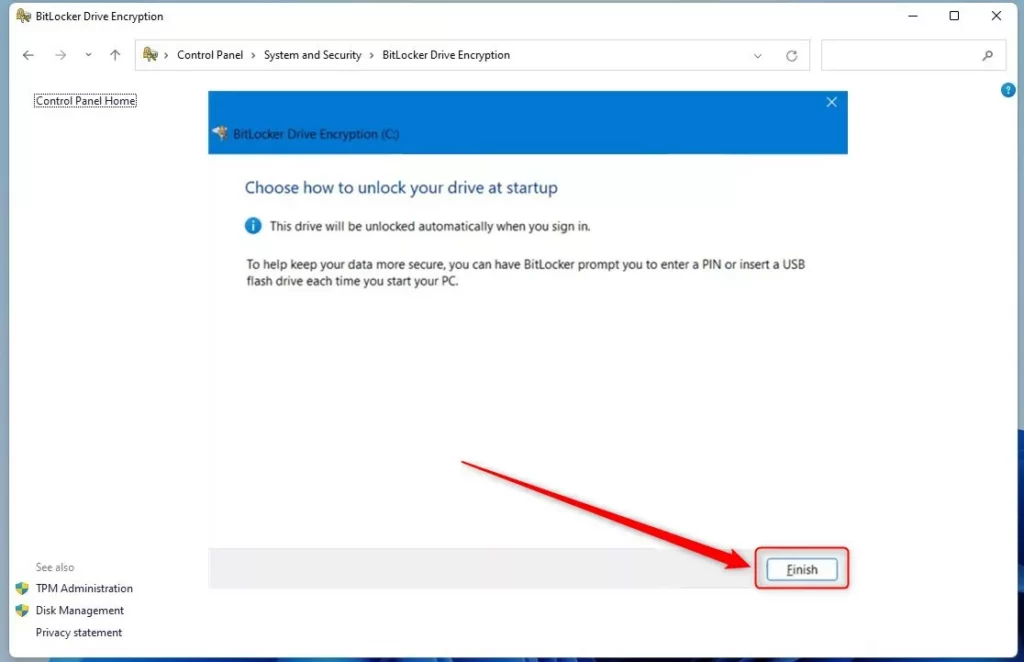
Now when you restart your computer, BitLocker will use the TPM chip to unlock your drive automatically. You won’t need to insert a USB key or type in a PIN when you start up anymore.
Why Use BitLocker Auto Unlock?
- Your files stay encrypted and safe on your drive.
- TPM checks that your PC hasn’t been tampered with before unlocking it.
- Auto unlock makes your computer start up faster and easier.
- You can still add extra security later if you want to, like a PIN or USB key requirement.
Want to learn more about BitLocker and other security options? Check out this helpful guide: How to Turn On BitLocker in Windows 11
Summary
BitLocker is Windows 11’s encryption tool that protects your hard drive. If your computer currently requires a USB drive and PIN code to unlock at startup, you can switch it to automatic unlocking using TPM instead. Just open Control Panel, go to BitLocker Drive Encryption, and select the option to let BitLocker automatically unlock your drive. This keeps your files safe while making your computer start up faster and easier.
Was this guide helpful?

About the Author
Richard
Tech Writer, IT Professional
Richard, a writer for Geek Rewind, is a tech enthusiast who loves breaking down complex IT topics into simple, easy-to-understand ideas. With years of hands-on experience in system administration and enterprise IT operations, he’s developed a knack for offering practical tips and solutions. Richard aims to make technology more accessible and actionable. He's deeply committed to the Geek Rewind community, always ready to answer questions and engage in discussions.



No comments yet — be the first to share your thoughts!