How to Enable or Disable Apps for Websites on Windows 11

Do you want certain websites to open directly in their apps instead of your web browser? Windows 11 has a feature called Apps for Websites that does exactly that.
Here’s a simple guide to turn this feature on or off. You’ll be able to choose how links to websites open on your computer.
What is “Apps for Websites”?
This feature lets Windows open a link in its related app instead of the web browser. But only if you have that app installed on your PC. For example, if you click a YouTube link, Windows can open the YouTube app instead of the browser.
Why use this? Apps often work faster and smoother than websites in a browser.
What happens? If you don’t have the app installed, the link will open in your web browser as usual.
How to Turn Apps for Websites On or Off Using the Settings App
- Open the Settings app. You can do this by:
- Clicking the Start menu and then selecting Settings.
- Or pressing
Windows + Ion your keyboard.
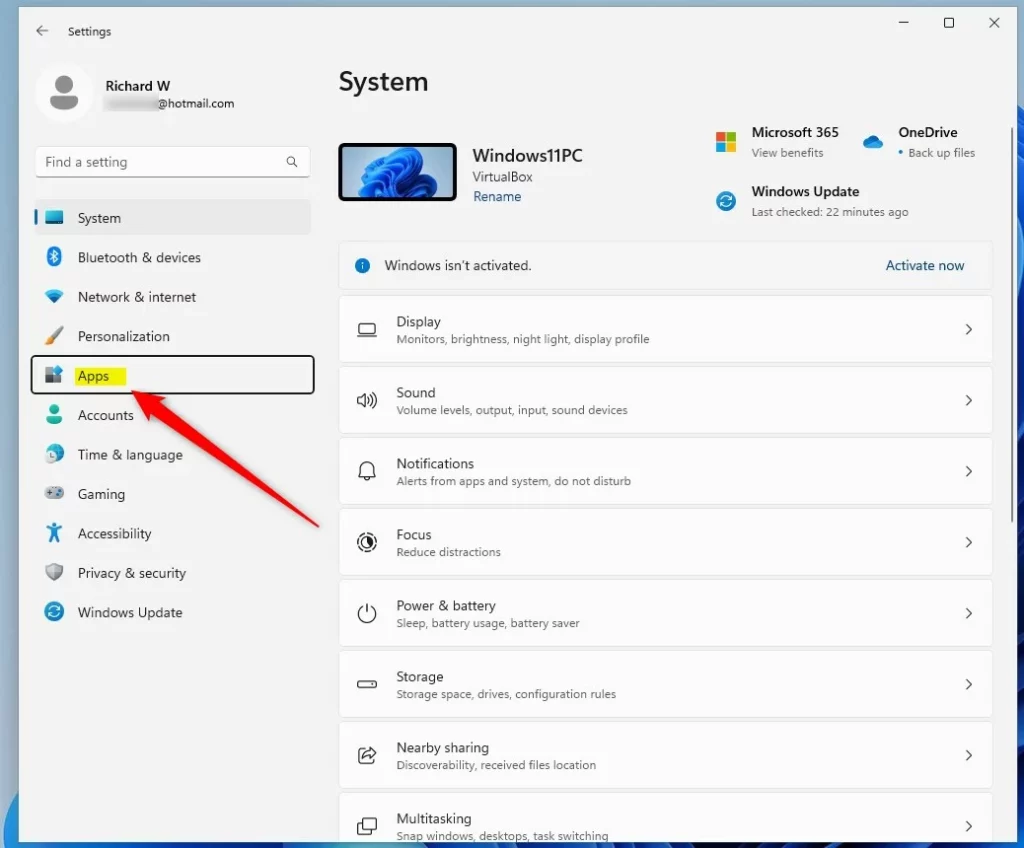
- In Settings, click Apps on the left side menu.
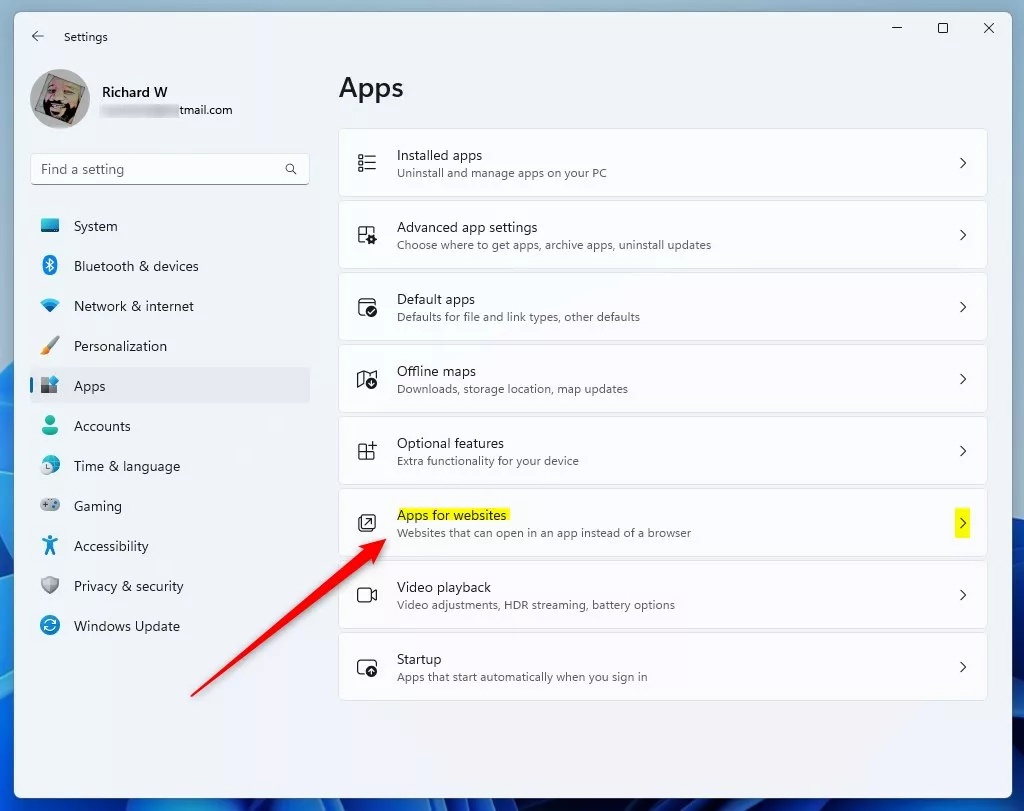
- On the right, click on Apps for websites.
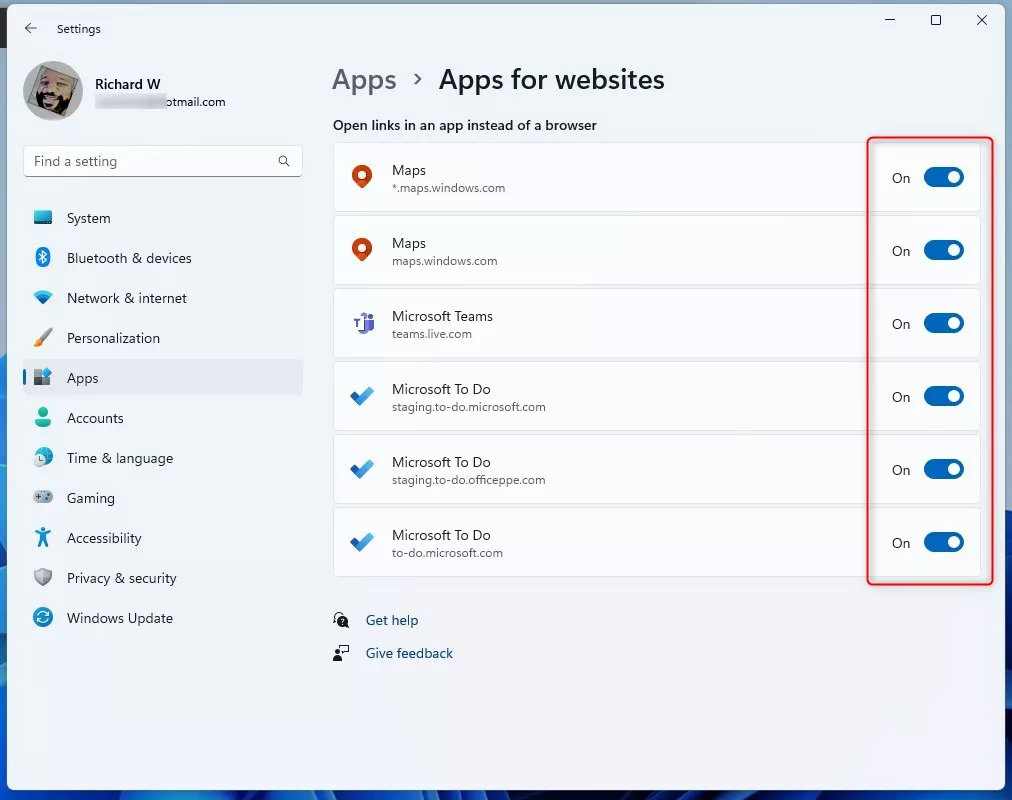
Now you will see a list of apps that can open links from websites.
- To turn the feature on or off for any app, just click the switch next to it.
- When you’re done, just close the Settings app.
How to Enable or Disable Apps for Websites Using Group Policy Editor
⚠️ This method requires admin privileges.
If you want to control this feature for your whole computer or if you are comfortable with advanced settings, you can use the Local Group Policy Editor.
Why use this method? You can control the feature for all users on your computer at once.
Here’s how:
- Open the Local Group Policy Editor. (If you don’t know how, check this guide).
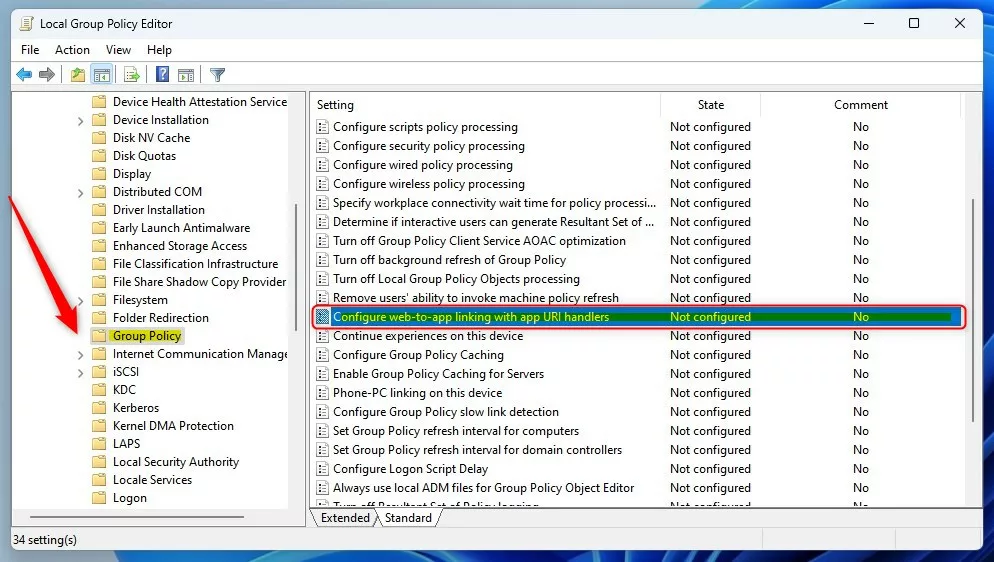
- In the left panel, go to:
Computer Configuration > Administrative Templates > System > Group Policy - Click on the Group Policy folder.
- On the right, double-click Configure web-to-app linking with app URI handlers.
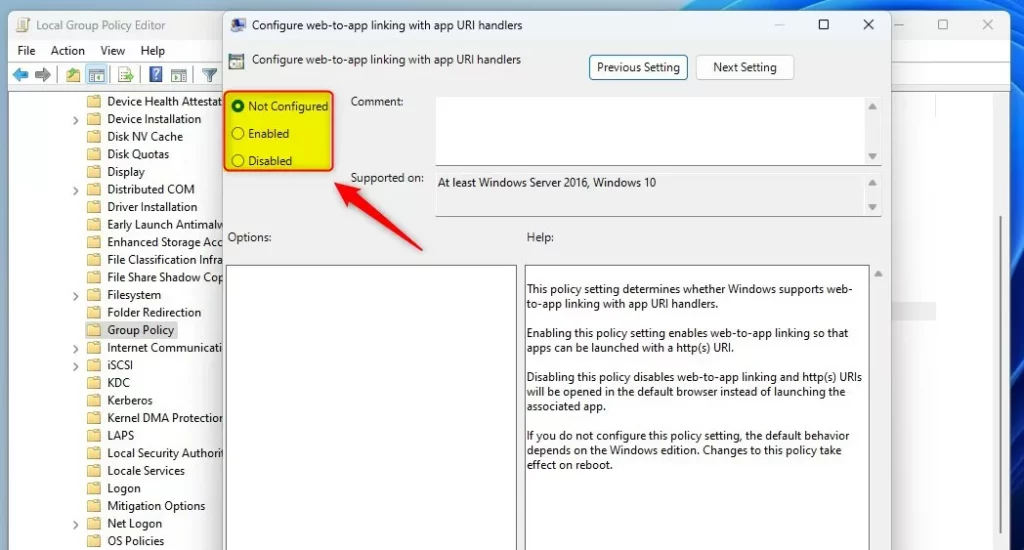
- Choose one of these options:
- Not Configured – This is the default, which means the feature is turned on.
- Enabled – Turns the feature on.
- Disabled – Turns the feature off.
- Click OK to save, then restart your computer for the change to take effect.
How to Turn Apps for Websites On or Off Using the Registry Editor
⚠️ This method requires admin privileges.
If you can’t use the Group Policy Editor, you can change the setting using the Windows Registry Editor. Be careful when making changes here!
Why use this method? Some computers don’t have Group Policy Editor available. The Registry Editor works on all Windows 11 computers.
Here’s how:
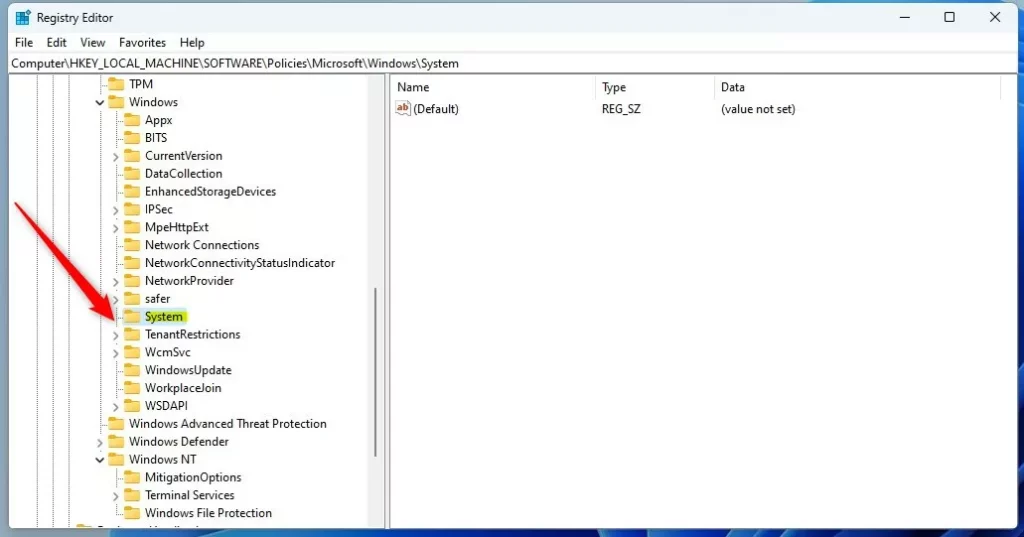
- Open Registry Editor by typing
regeditin the Start menu search and pressing Enter. (Registry Editor) - Navigate to this folder:
HKEY_LOCAL_MACHINE\SOFTWARE\Policies\Microsoft\Windows\System - If the System folder isn’t there, right-click on Windows, select New > Key, and name it System.
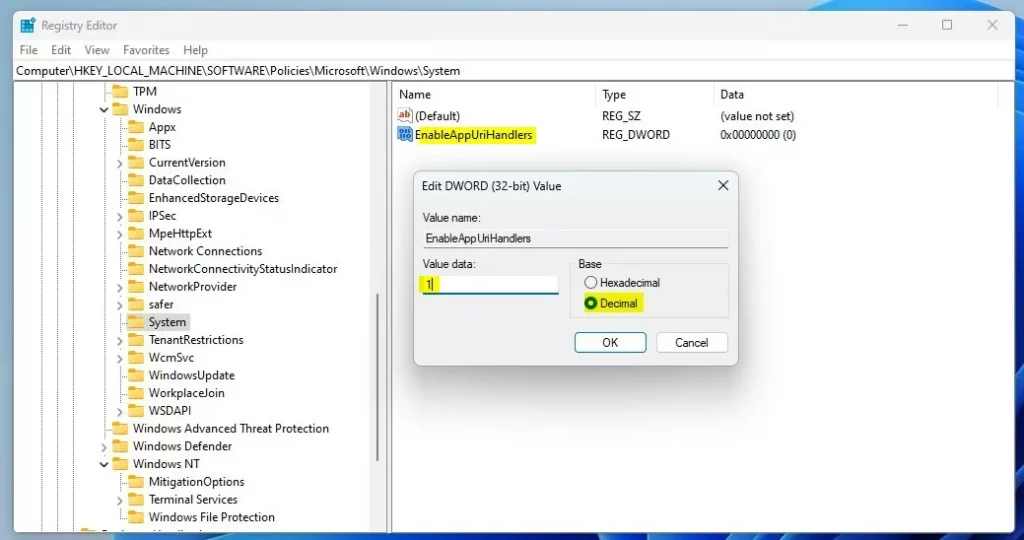
- Right-click inside the System folder on the right side. Choose New > DWORD (32-bit) Value. Name it EnableAppUriHandlers.
- Double-click the new value and set the Base to Decimal. Then enter:
- 1 to turn the feature ON
- 0 to turn the feature OFF
- Close Registry Editor and restart your PC for the change to work.
Summary
You can control whether Windows opens website links in apps or in the browser. The Settings app is the easiest way to switch this on or off for each app. If you want to apply it for all users or have more control, use Group Policy Editor or Registry Editor. Remember to restart your computer after making changes in Group Policy or Registry Editor.
Want to learn more? Check the official Microsoft guide here: Microsoft: Web-to-App Linking.
Was this guide helpful?

About the Author
Richard
Tech Writer, IT Professional
Richard, a writer for Geek Rewind, is a tech enthusiast who loves breaking down complex IT topics into simple, easy-to-understand ideas. With years of hands-on experience in system administration and enterprise IT operations, he’s developed a knack for offering practical tips and solutions. Richard aims to make technology more accessible and actionable. He's deeply committed to the Geek Rewind community, always ready to answer questions and engage in discussions.




No comments yet — be the first to share your thoughts!