How to Check, Turn On, or Turn Off TRIM for SSD Drives in Windows 11


TRIM is a command that optimizes SSD performance and lifespan in Windows 11.
This command tells your SSD which data blocks are no longer in use, allowing the drive to maintain peak efficiency.
You can check if TRIM is enabled for your Solid State Drive in Windows 11 by using a simple command prompt instruction.
Enabling or disabling TRIM is straightforward and can be done in just a few steps.
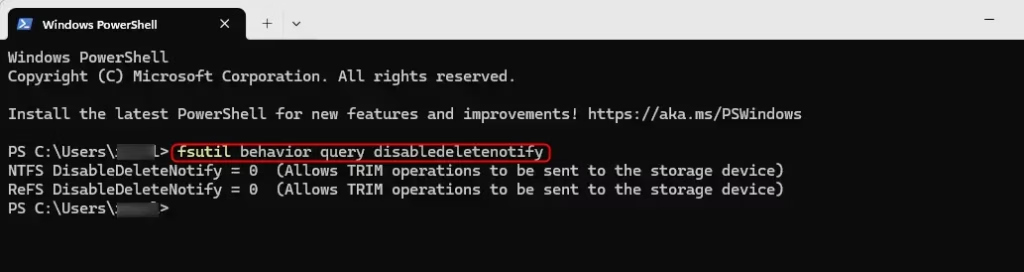
TRIM optimizes SSD performance and lifespan. To check, open Command Prompt as administrator and run ‘fsutil behavior query disabledeletenotify’. A result of 0 means TRIM is on; 1 means it’s off. To change it, use ‘fsutil behavior set disabledeletenotify 0’ to turn it on, or ‘1’ to turn it off.
What is TRIM and Why Does It Matter?
TRIM is a command that helps your Solid State Drive (SSD) manage deleted data, which is important for keeping it running fast and healthy.
Why is this good? SSDs need to erase old data before writing new data, so TRIM helps keep your drive fast and healthy by doing this cleanup ahead of time.
When Should You Use TRIM?
- Keep it ON: For everyday use, it’s best to keep TRIM enabled to keep your SSD working well and lasting longer.
- Turn it OFF temporarily: If you accidentally deleted files and want to try recovering them, turning off TRIM temporarily might help because TRIM can erase deleted data quickly.
How to Check If TRIM is Enabled on Your SSD
- Press ⊞ Win+X and choose Windows Terminal or Command Prompt.
- Type or copy-paste this command and press Enter:
fsutil behavior query disabledeletenotify - Look at the result:
Output What it Means DisableDeleteNotify = 0 TRIM is ON (good!) DisableDeleteNotify = 1 TRIM is OFF
How to Turn ON TRIM
⚠️ ADMIN REQUIRED: You need to be an administrator (have admin rights) to do this.
- Right-click the Start button and select Windows Terminal (Admin).
- Copy and paste the command below and press Enter to turn on TRIM:
fsutil behavior set disabledeletenotify 0

How to Turn OFF TRIM
Warning: Only turn off TRIM if you have a special reason, like trying to recover deleted files.
- Open Windows Terminal (Admin) again.
- Type this command and press Enter:
fsutil behavior set disabledeletenotify 1

Summary
TRIM is a key feature that keeps your SSD performing well, and it’s generally best to leave it turned on for everyday use in Windows 11.Learn More
fsutil behavior command (Microsoft Docs)
Is trimming good for SSDs?
Benefits of using TRIM Using the TRIM command reduces the amount of data an SSD needs to move during the garbage collection process and reduces the amount of erase cycles, enabling the drive to last longer.
Was this guide helpful?

About the Author
Richard
Tech Writer, IT Professional
Richard, a writer for Geek Rewind, is a tech enthusiast who loves breaking down complex IT topics into simple, easy-to-understand ideas. With years of hands-on experience in system administration and enterprise IT operations, he’s developed a knack for offering practical tips and solutions. Richard aims to make technology more accessible and actionable. He's deeply committed to the Geek Rewind community, always ready to answer questions and engage in discussions.




No comments yet — be the first to share your thoughts!