How to Enable or Disable Get the Latest Windows Updates Soon in Windows 11

You enable or disable the “Get the latest Windows updates soon” feature in Windows 11 to control how quickly your PC receives new feature updates and important fixes.
This setting lets Windows push new features and security fixes to your PC right when they’re ready, even before they’re part of the usual update schedule. For example, if Microsoft releases an update designed to enhance gaming performance or fix a critical security vulnerability, enabling this option means your system could get it days or even weeks before it reaches most users.
You’ll find this setting within Windows Settings, usually under the ‘Windows Update’ section.
Open Settings, click Windows Update, and toggle the “Get the latest updates as soon as they’re available” switch. Turn it on to receive feature updates faster, or turn it off to maintain the standard update schedule.
Why Update Your Windows?
Keeping your Windows PC updated is essential for security and smooth operation. These updates fix bugs and introduce improvements, usually installing automatically without any action from you. Now, let’s look at a new setting that gives you more control.
What Is This New Update Option?
Windows 11 now has a setting called “Get the latest updates as soon as they are available” that helps your PC download non-security updates faster.
What happens when you turn this on? Your computer will try to download new updates faster than normal. But this only works for updates that aren’t security-related.
Note: This feature might turn off automatically if your workplace or school manages your computer.
How to Turn This Option On or Off
You can easily turn the “Get the latest updates as soon as they are available” option on or off right from the Windows Settings app.
- Open Settings. Click the Start menu button and select Settings. Or press
Windows key + Ion your keyboard. - In the Settings window, click Windows Update on the left side.
- On the right side, find the option that says “Get the latest updates as soon as they’re available”.
- Toggle the switch to On to get updates faster. Toggle it to Off to stop.
- Close the Settings window when you’re done.
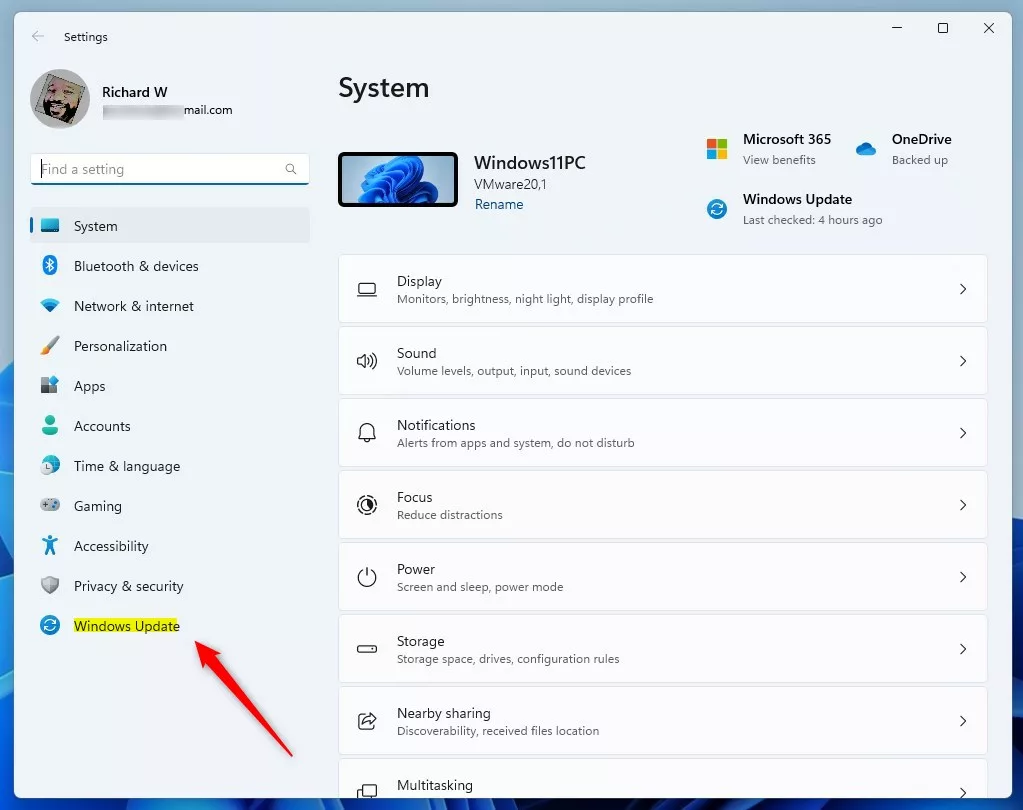
Click Windows Update in the Settings app.
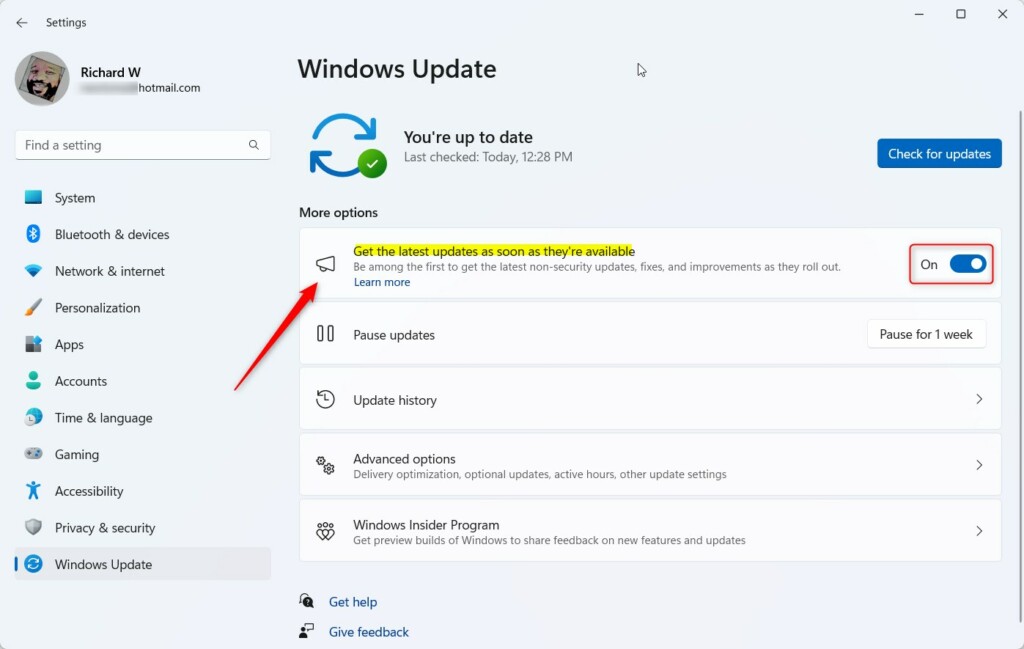
Turn this switch on to get updates faster.
How to Use the Windows Registry (For Advanced Users)
For those comfortable with advanced system changes, you can control the “Get the latest updates as soon as they are available” setting using the Windows Registry Editor.
Warning: Be careful when editing the Registry. Mistakes can cause problems with your PC.
Here’s how:
- ⚠️ Admin privileges required. Open the Registry Editor. Type
regeditin the Start menu search box and press Enter. For more help, see how to open Registry Editor. - Go to this folder path in the Registry Editor:
HKEY_LOCAL_MACHINE\SOFTWARE\Microsoft\WindowsUpdate\UX\Settings - If you don’t see the Settings folder, right-click on UX. Select New > Key. Name it Settings.
- Click on the Settings folder. In the right pane, right-click and choose New > DWORD (32-bit) Value.
- Name the new value
IsContinuousInnovationOptedIn. - Double-click
IsContinuousInnovationOptedIn. Set the Base to Decimal. Then enter:1to turn the feature ON0to turn the feature OFF
- Click OK and close the Registry Editor.
- Restart your computer to apply the change.
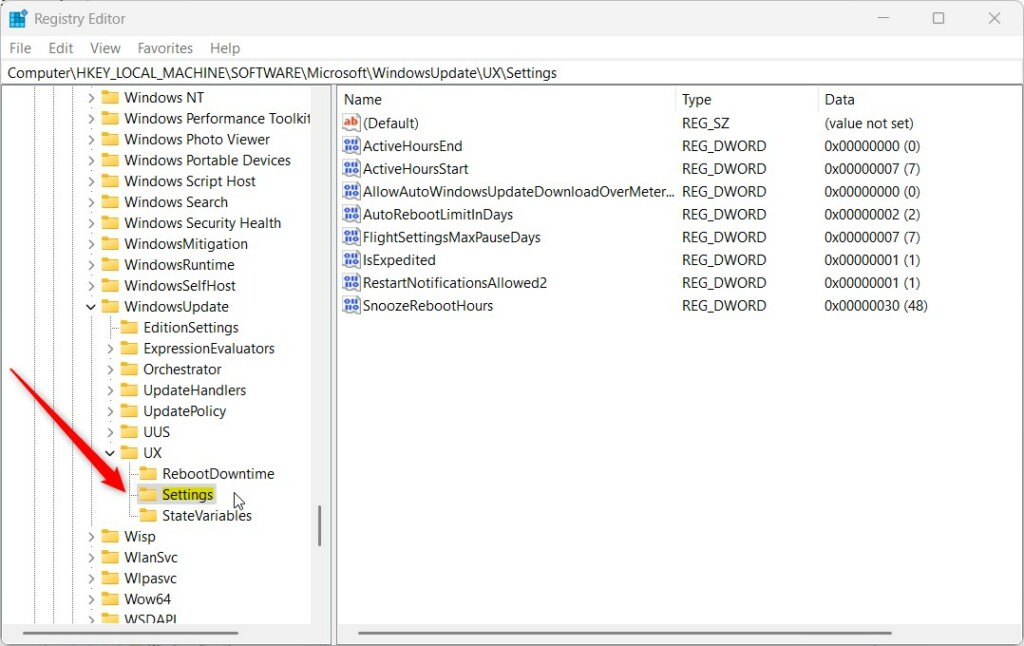
Navigate to this folder in Registry Editor.
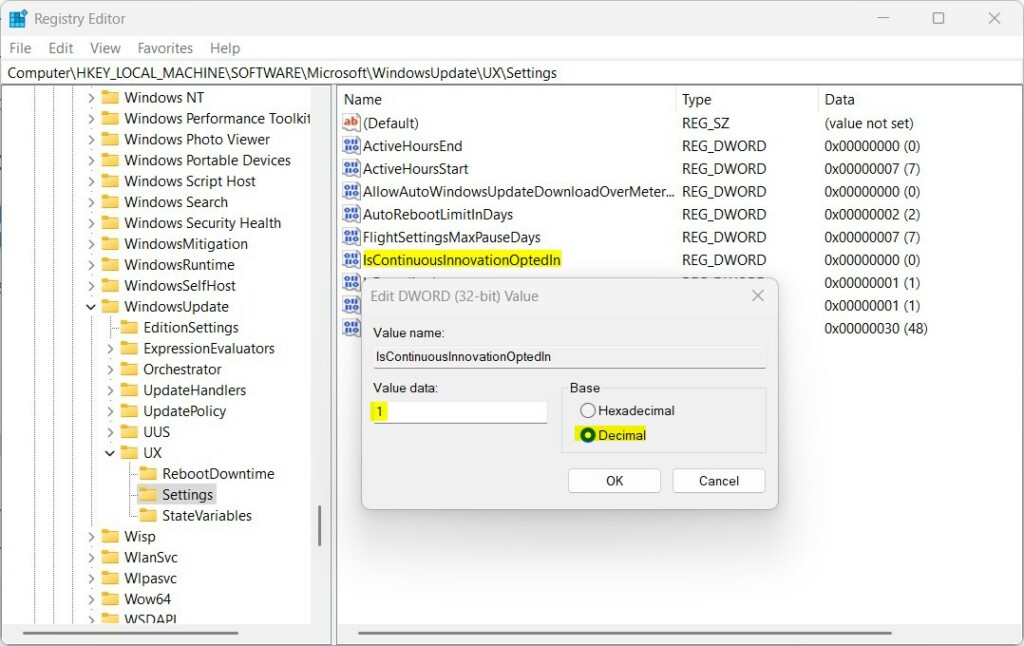
Set the Base to Decimal.
Summary
- You can get Windows 11 updates faster by turning on the new update option.
- Use the Settings app to easily turn it on or off.
- If you prefer, you can change this setting using the Registry Editor. This method is for advanced users.
- Choose the method that works best for you. Keep your PC updated the way you want.
Getting Windows 11 updates faster is simple by turning on the “Get the latest updates as soon as they are available” option in Settings or via the Registry.
Was this guide helpful?

About the Author
Richard
Tech Writer, IT Professional
Richard, a writer for Geek Rewind, is a tech enthusiast who loves breaking down complex IT topics into simple, easy-to-understand ideas. With years of hands-on experience in system administration and enterprise IT operations, he’s developed a knack for offering practical tips and solutions. Richard aims to make technology more accessible and actionable. He's deeply committed to the Geek Rewind community, always ready to answer questions and engage in discussions.



No comments yet — be the first to share your thoughts!