How to Change Offline Permissions on Windows 11

Want to play your Microsoft Store games or apps even when you’re not connected to the internet? Here’s how to change offline permissions on Windows 11.
Offline permissions are a setting that decides if apps from the Microsoft Store can work when your PC isn’t online.
Enabling offline permissions lets you use your purchased apps and games even if your Wi-Fi is down or you’re traveling. You can typically enable this setting once per device.
Open the Microsoft Store, click your Profile icon, select Settings, and toggle the Offline permissions switch. Ensure your PC is online for the initial setup, and launch each desired game once while connected to grant it offline access.
What is Offline Permissions?
The Microsoft Store is Windows 11’s app marketplace for games, apps, and movies. Many games let you play without internet.
To do this, you need to enable Offline permissions. This tells your PC it’s okay to run those apps without checking online every time.
Important Things to Know
- Some games that need online multiplayer or co-op will not work offline, even if Offline permissions are on.
- You must set up your device while connected to the internet before going offline.
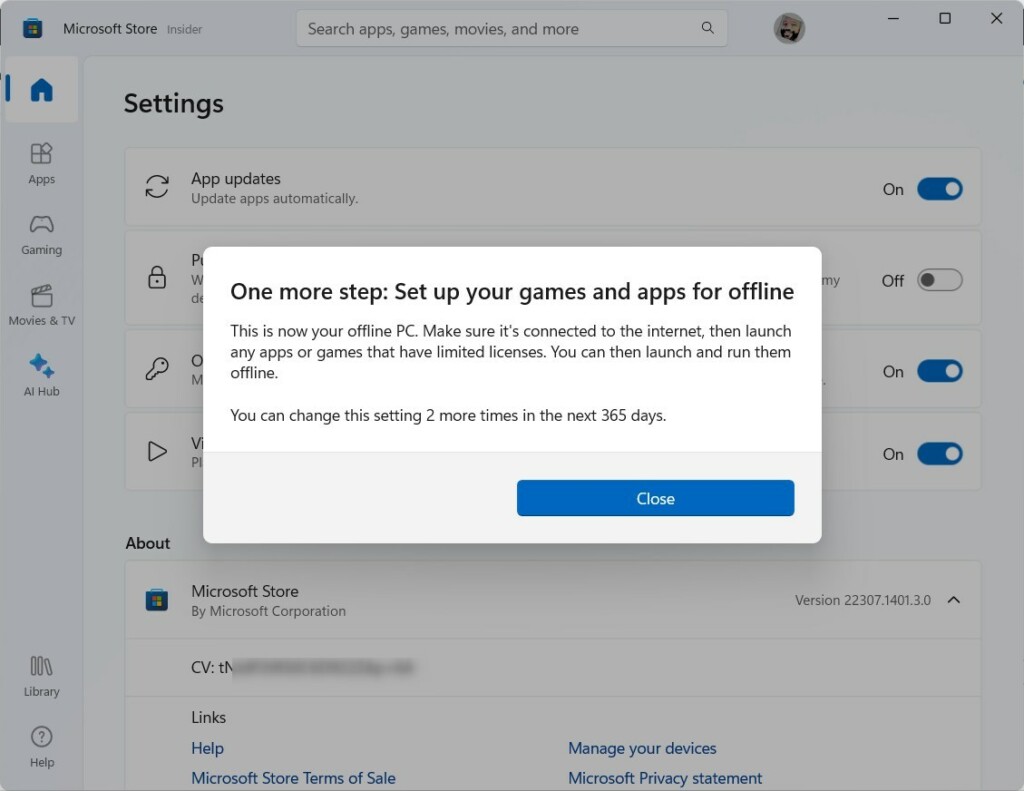
- You can only change which device is your designated offline device 3 times per year.
How to Turn On or Off Offline Permissions
- Make sure your PC is connected to the internet. It needs to be online to set this up.
- Open Microsoft Store:
Click the Microsoft Store icon on your taskbar or search for it in the Start menu. - Click your Profile icon at the top right, next to the search box.
- Choose Settings from the menu.
- Find and click on Offline permissions.
- Toggle the switch to On to enable offline play, or Off to disable it .
You can turn offline permissions on or off in Windows 11 to play games without an internet connection, but you need to be online first to set it up.

Prepare Your Games for Offline Play
To play your games offline in Windows 11, you must first open each game once while you’re connected to the internet and signed into your Xbox account.
- Make sure your device is online and set as your designated offline device (see steps above).
- Open the game you want to play offline.
- Sign in to your Xbox account when asked.
- Start playing the game for a few moments, then you can close it.
Repeat this for every game you want to play offline. After this setup, you can play those games anytime without needing an internet connection.
Switch Back to Online Play
When you want to go back to playing games online, open the Microsoft Store and turn the Offline permissions switch Off again.
Summary
- Offline permissions let you play Microsoft Store games without internet.
- You must set your device as the offline device while online.
- Each game needs to be opened once online and signed in to Xbox.
- You can only change your offline device 3 times a year.
- Turn Offline permissions off to switch back to online gaming.
Windows 11 offline permissions let you play games from the Microsoft Store without needing an internet connection, but you must set up your device and games while online first.
That’s it! Now you know how to use Offline permissions on Windows 11.
Does 🪟 Windows 11 allow offline accounts?
Yes, Windows 11 allows you to create an offline account, also known as a local account, during the initial setup process if you choose not to connect to a network.
Was this guide helpful?

About the Author
Richard
Tech Writer, IT Professional
Richard, a writer for Geek Rewind, is a tech enthusiast who loves breaking down complex IT topics into simple, easy-to-understand ideas. With years of hands-on experience in system administration and enterprise IT operations, he’s developed a knack for offering practical tips and solutions. Richard aims to make technology more accessible and actionable. He's deeply committed to the Geek Rewind community, always ready to answer questions and engage in discussions.




No comments yet — be the first to share your thoughts!