How to Launch Windows Terminal in the Center of Your Screen (Windows 11)

Windows Terminal is a modern app where you can run tools like Command Prompt, PowerShell, and even Linux commands through Windows Subsystem for Linux (WSL).
By default, Windows Terminal opens near the left edge of your screen. But if you want your windows to pop up right in the center, you can easily set it up that way. This helps you find and use the Terminal window more quickly, especially if you have a big screen.
How to Make Windows Terminal Open in the Center
Step 1Open Windows Terminal
Click the Start menu (the Windows icon in the bottom left corner). Type Terminal in the search box. Then click on Windows Terminal from the results.

Step 2Open Terminal Settings
Once Terminal opens, look at the top bar. Click the small down arrow (˅) next to the plus (+) tab button. Then click Settings from the dropdown menu. You can also press Ctrl + , on your keyboard.

Step 3Find the Launch Settings
In the Settings window, click on Appearance on the left side menu. Then scroll down and click to expand the section called Launch parameters.
Step 4Turn on “Center on launch”
Look for the option named Center on launch. Toggle the switch so it turns On.
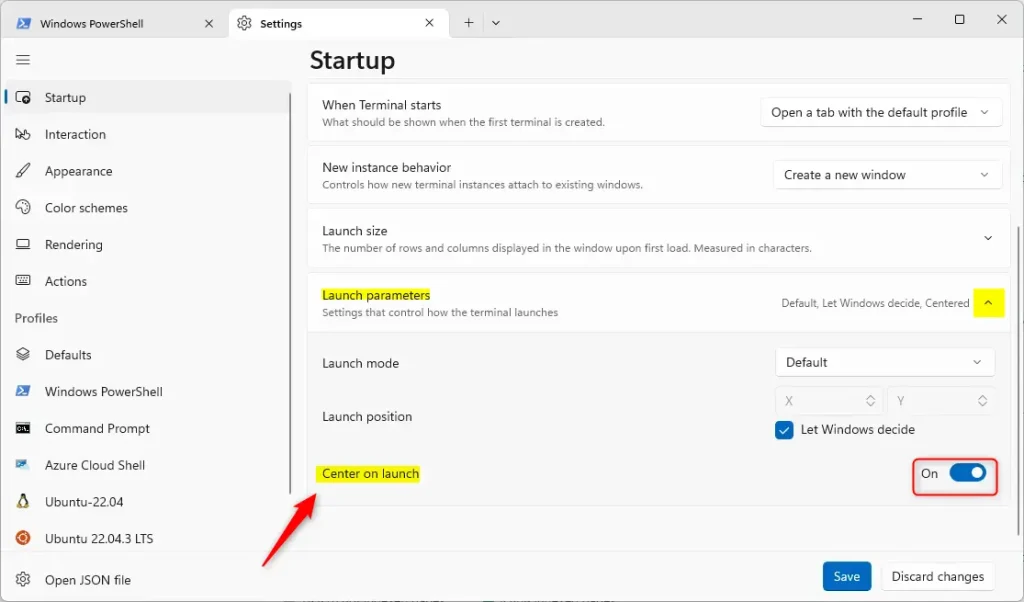
Step 5Save Your Changes
Scroll to the bottom and click the Save button. Now, when you open Windows Terminal, it will appear right in the middle of your screen!
Why Center the Terminal Window?
- It makes your screen look neat and organized.
- It’s easier to find and use the Terminal, especially if you have a large monitor.
- You can quickly access commands without hunting for the window on the side.
Summary
Centering Windows Terminal on your screen is a quick and simple change. Just open Terminal Settings, go to Appearance, expand Launch parameters, and toggle on “Center on launch.” Save your changes, and you’re done. Your Terminal window will now open in the middle of your screen every time, making it easier to find and use. This small adjustment helps keep your workspace organized and improves your workflow on Windows 11.
Was this guide helpful?

About the Author
Richard
Tech Writer, IT Professional
Richard, a writer for Geek Rewind, is a tech enthusiast who loves breaking down complex IT topics into simple, easy-to-understand ideas. With years of hands-on experience in system administration and enterprise IT operations, he’s developed a knack for offering practical tips and solutions. Richard aims to make technology more accessible and actionable. He's deeply committed to the Geek Rewind community, always ready to answer questions and engage in discussions.




No comments yet — be the first to share your thoughts!