How to Share Files from Windows 11 to Android with Nearby Sharing

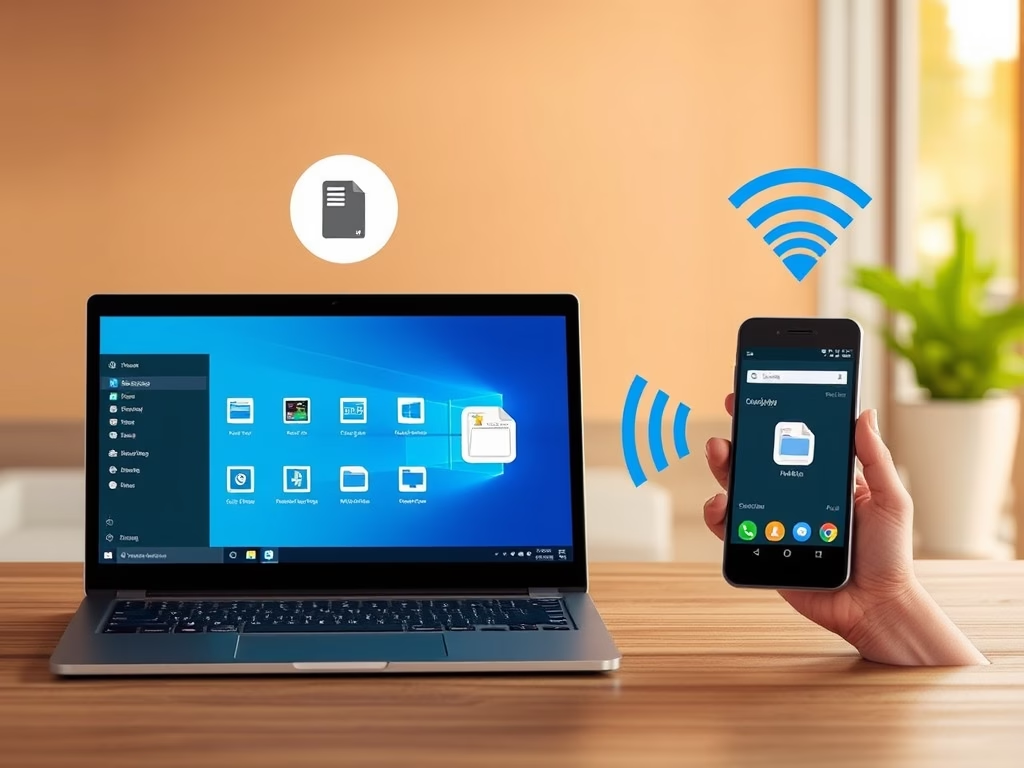
You can share files directly from Windows 11 to your Android device using the built-in Nearby Sharing feature.
Nearby Sharing uses Bluetooth or Wi-Fi Direct to send files like documents and photos wirelessly between your PC and phone. This means you won’t need cables or extra apps.
This handy tool is built into Windows 11, so sending files between your devices only takes a few clicks. For this to work, both your Windows 11 PC and your Android device need to have Bluetooth enabled and be within close proximity of each other.
Share files from Windows 11 to Android by right-clicking a file, selecting Share, and choosing Nearby Share. Then, select your Android device from the list to send the file. Accept the transfer on your phone when prompted.
What is Nearby Sharing?
Nearby Sharing is a handy Windows 11 feature that lets you send files and links to devices nearby using Bluetooth or Wi-Fi.
If you need a hand turning it on, check out our guide on enabling Nearby Sharing in Windows 11: How to Enable Nearby Sharing in Windows 11.
How to Connect Your Android Phone to Your Windows PC
Connecting your Windows 11 PC and Android phone is the first step for easy Windows 11 Android file sharing, letting you send files back and forth without cables.
- On your Windows PC, open the Phone Link app.
- On your Android phone, install and open Link to Windows.
- Follow the steps to connect the two devices using your Microsoft account.
Here’s a helpful article on linking your Android device to your PC: Link Your Android Mobile Device to Your Microsoft Account.
Share Files from 🪟 Windows 11 to Your Android Phone
Sharing files from Windows 11 to your Android phone is straightforward once they’re linked, letting you send documents, photos, or any file directly from your PC to your phone using Nearby Share.
- Find the file on your Windows PC that you want to send.
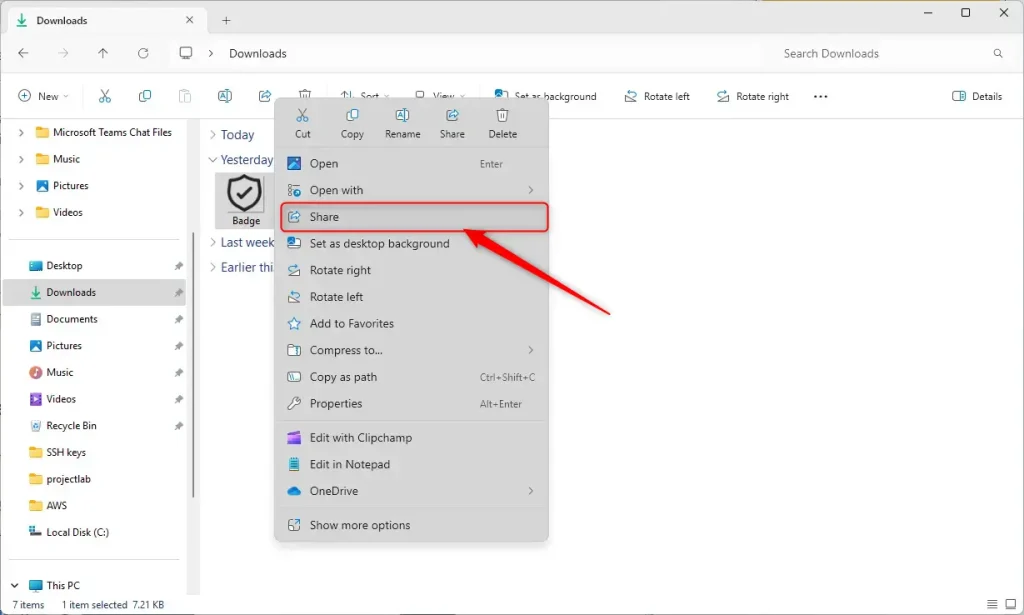
- Right-click the file to open the menu.
- Click the Share button.
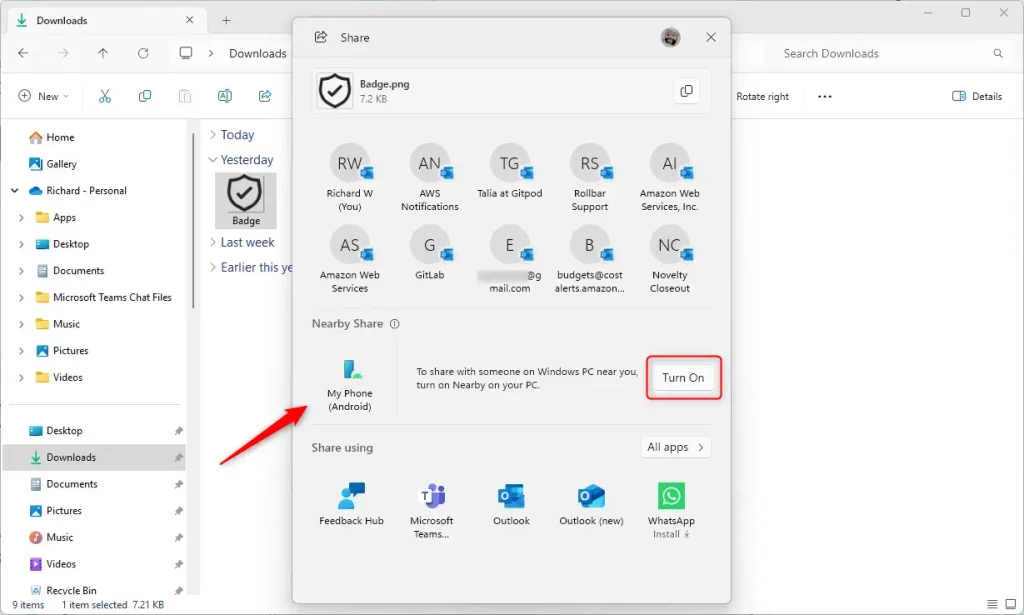
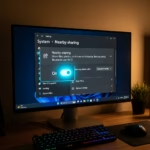
- In the sharing window, find Nearby Share and click the Turn On button.
- Select your Android phone from the list of devices.
- Your Android phone will get a notification asking to accept the file. Tap Accept to receive it.
Where Do Files Go on Your Android Phone?
Any files you receive from your Windows PC land in the Downloads folder, inside a subfolder named ‘Sent from your PC’. You can open these files anytime using your phone’s file manager or gallery app.
Summary
- Why use Nearby Sharing? It lets you send files from Windows 11 to Android devices easily using Bluetooth or Wi-Fi. No cables or email needed.
- What happens first? Make sure your Android phone is linked to your PC using the Phone Link and Link to Windows apps.
- What happens next? Right-click the file on your PC, click Share, turn on Nearby Share, and select your phone.
- What happens on your phone? Accept the file on your Android device when notified.
- Where do files go? Files will be saved in Downloads → Sent from your PC on your phone.
Nearby Sharing makes Windows 11 Android file sharing simple, letting you send files between your PC and phone using Wi-Fi or Bluetooth without needing cables or email.
Was this guide helpful?

About the Author
Richard
Tech Writer, IT Professional
Richard, a writer for Geek Rewind, is a tech enthusiast who loves breaking down complex IT topics into simple, easy-to-understand ideas. With years of hands-on experience in system administration and enterprise IT operations, he’s developed a knack for offering practical tips and solutions. Richard aims to make technology more accessible and actionable. He's deeply committed to the Geek Rewind community, always ready to answer questions and engage in discussions.


No comments yet — be the first to share your thoughts!