How to Search Local Files with Windows 11 Copilot

You can search your local files on Windows 11 directly using Copilot.
Copilot acts as an intelligent assistant, capable of finding documents, images, and other files stored on your PC. You simply describe the file you need in plain language.
As of recent updates (like version 1.25034.133.0), Copilot’s file search functionality supports a wide range of formats. This includes common types like .pdf, .docx, .xlsx, and image files such as .png and .jpeg.
Before Copilot can help, you must grant it permission to access and read your files. This authorization allows Copilot to scan your local storage effectively.
Open Copilot, go to Settings, and enable File search and File read permissions. Then, simply type your request in plain language, like “Show me my vacation photos,” and Copilot will find your local files.
How to Find Files Using Copilot in 🪟 Windows 11
You can easily search your local files using Windows 11 Copilot by turning on a couple of settings. First, open the Copilot app by clicking its icon on the taskbar or pressing ⊞ Win+C. Then, go to Settings within Copilot and find the Permissions section to turn on File search and File read.
- Open the Copilot app on your Windows 11 PC. You can click the Copilot icon on the taskbar or press
Win + Con your keyboard. - Go to the Settings page inside the Copilot app.
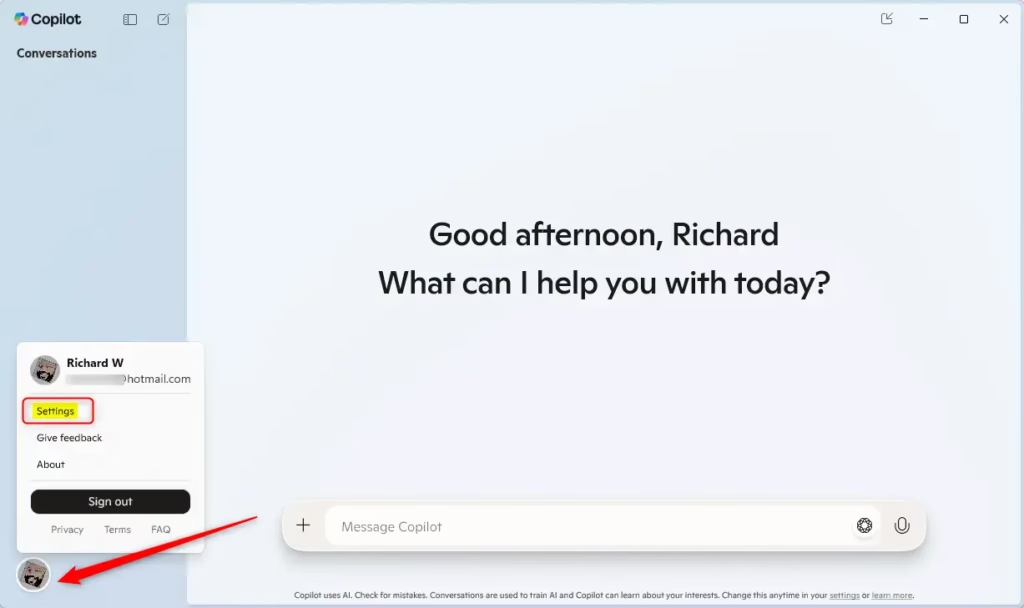
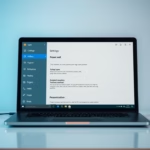
Copilot Settings button - Find the Permissions section.
- Turn on both File search and File read permissions.
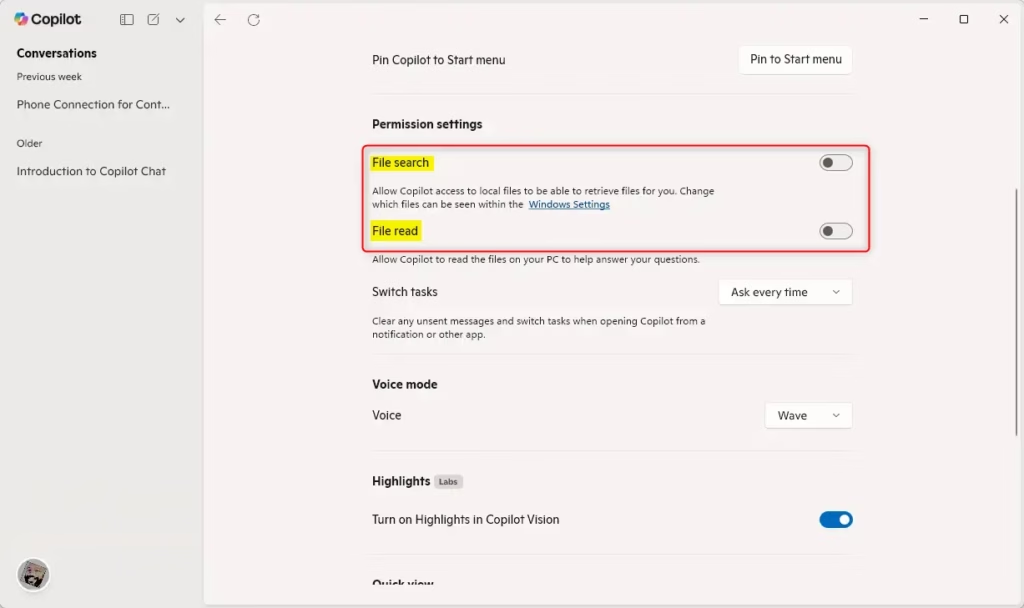
Enable File search and File read permissions - Now you’re ready! Just type in what you want to find. For example, type “Show me my vacation photos from last year” or “Find the report I worked on last week.” Copilot will quickly find your files.
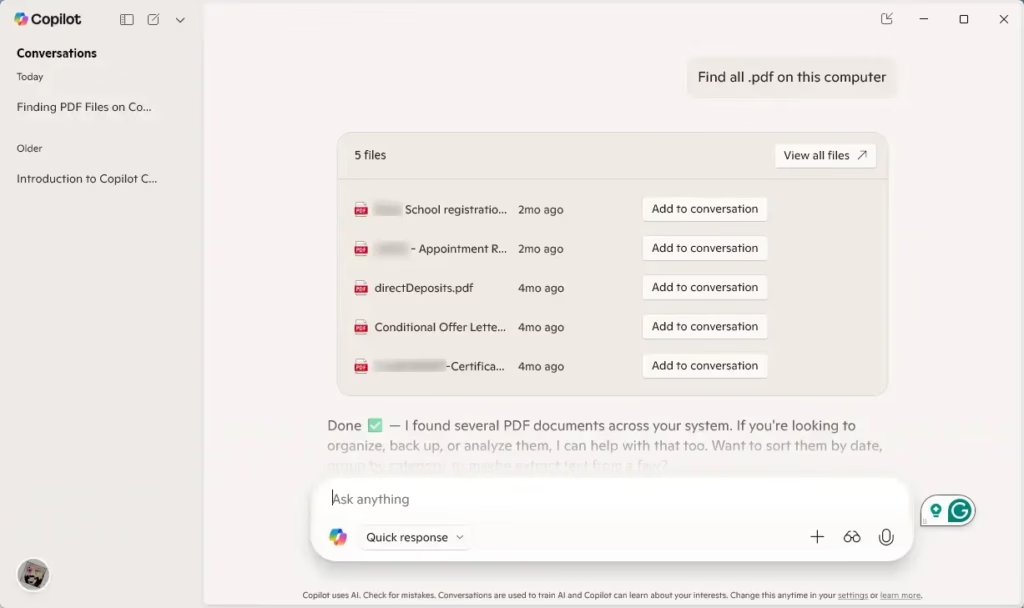
Copilot showing found documents
That’s it! You can now find files on your computer faster and easier using simple language with Windows 11 Copilot.
Why Use Copilot to Search Your Files?
- Easy Language: Just type or ask in everyday words. You don’t need to remember exact file names.
- Supports Many File Types: Works with pictures, documents, spreadsheets, and more.
- Simple Setup: Turning on permissions only takes a few clicks inside Copilot.
- Saves Time: Quickly find files so you can focus on what matters.
- Smart AI Search: Copilot uses AI to give you better and more accurate results.
Using Copilot to search your files is a great way to save time and find what you need quickly. You can just ask for files in plain language, like ‘show me my vacation photos,’ and Copilot understands. It supports many file types, from documents to pictures, and its smart AI helps you get accurate results without needing to know exact file names.
Summary
Windows 11 Copilot simplifies finding your local files, letting you search for documents, pictures, and more using everyday language. To use this feature, you first need to enable file search and read permissions in Copilot’s settings. Once set up, you can ask Copilot things like ‘Show me my vacation photos’ or ‘Find the report I worked on last week,’ and it uses AI to find them for you.
Can I use Copilot to search my files?
Search in the Microsoft 365 Copilot app is where you go to find people, chats, meetings, and files. You'll also see recommendations, access recently used files, and review items shared with you.
How do I disable Copilot search in 🪟 Windows 11?
If you want to disable Copilot’s ability to search your files in Windows 11, you can use the Local Group Policy Editor. Open it by typing ‘gpedit.msc’ into the Windows search bar and pressing Enter. Then, navigate to User Configuration > Administrative Templates > Windows Components > Windows Copilot and find the ‘Turn off Windows Copilot’ setting to change it.
Was this guide helpful?

About the Author
Richard
Tech Writer, IT Professional
Richard, a writer for Geek Rewind, is a tech enthusiast who loves breaking down complex IT topics into simple, easy-to-understand ideas. With years of hands-on experience in system administration and enterprise IT operations, he’s developed a knack for offering practical tips and solutions. Richard aims to make technology more accessible and actionable. He's deeply committed to the Geek Rewind community, always ready to answer questions and engage in discussions.


No comments yet — be the first to share your thoughts!