How to Enable Microsoft Defender in Windows 11

If you are using a Windows 11 computer, this guide will help you turn on Microsoft Defender, the built-in security tool that helps keep your computer safe from viruses and harmful software.
What is Microsoft Defender? It used to be called Windows Defender and comes with Windows 11 for free. It protects your PC from malware and hackers. If you don’t have any other antivirus program, it’s important to keep Microsoft Defender turned on.
How to Turn On Microsoft Defender
Follow these simple steps to make sure Microsoft Defender is turned on and protecting your computer:
Step 1Open Windows Settings
Press the Windows key and I on your keyboard at the same time. This will open the Settings window.
Or, click the Start button (the Windows icon on the bottom left), then click Settings.

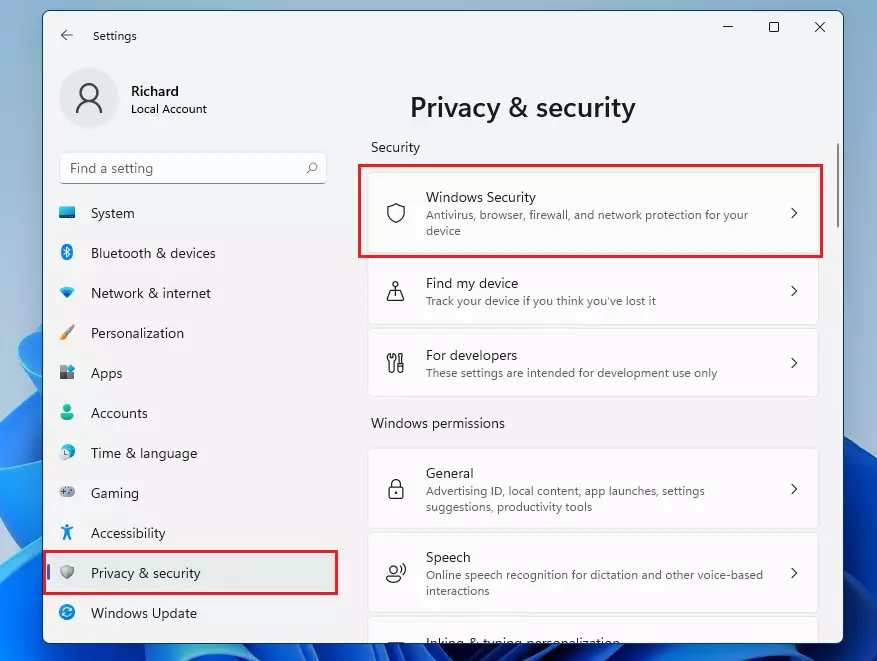
Step 2Go to Privacy & Security
In the Settings window, click on Privacy & security on the left side.
Then click Windows Security from the options on the right side.
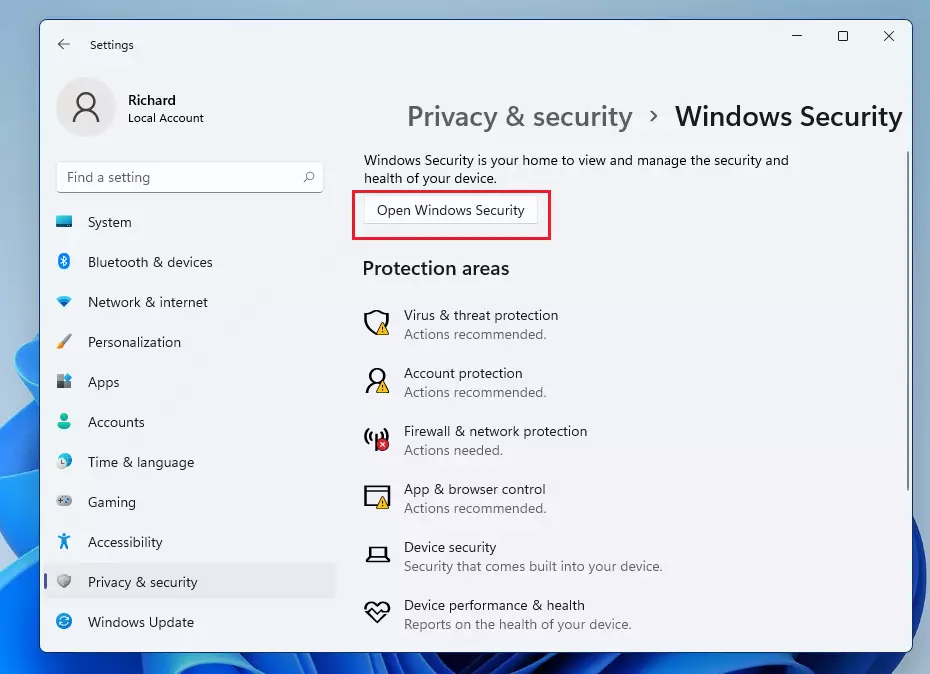
Step 3Open Windows Security
Click the button that says Open Windows Security.
Step 4Check Firewall & Network Protection
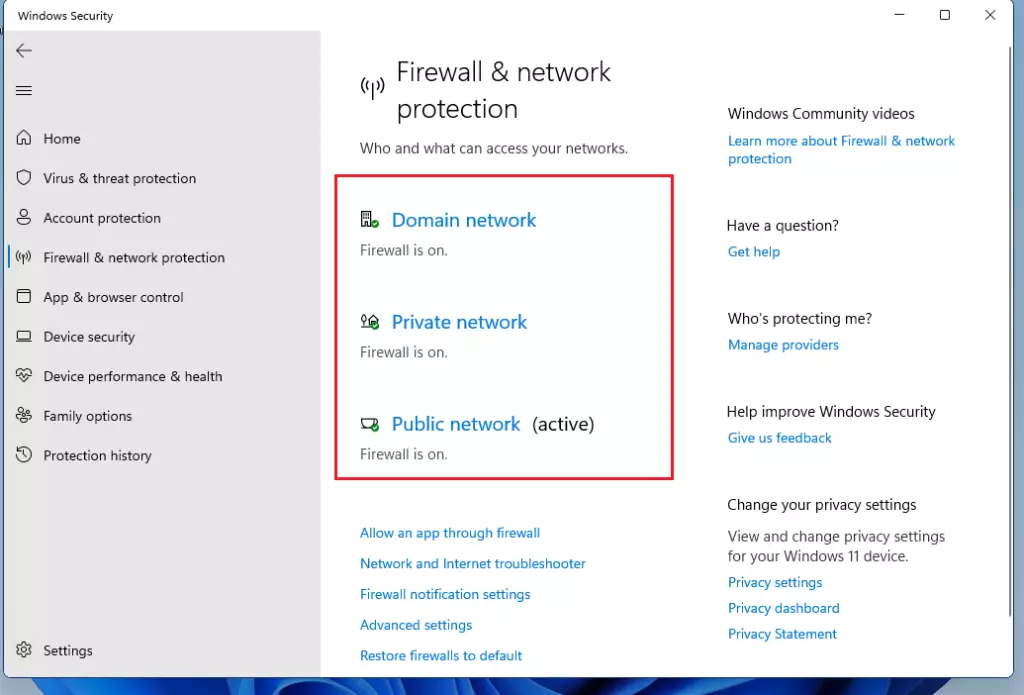
On the left side menu, click Firewall & network protection.
Here you’ll see three types of network settings:
- Domain network: Usually for work or school networks.
- Private network: Your home or trusted networks.
- Public network: Networks in public places like coffee shops or airports.
Click each network and make sure the firewall is turned On to help keep your PC safe.
Step 5Turn On Real-time Protection
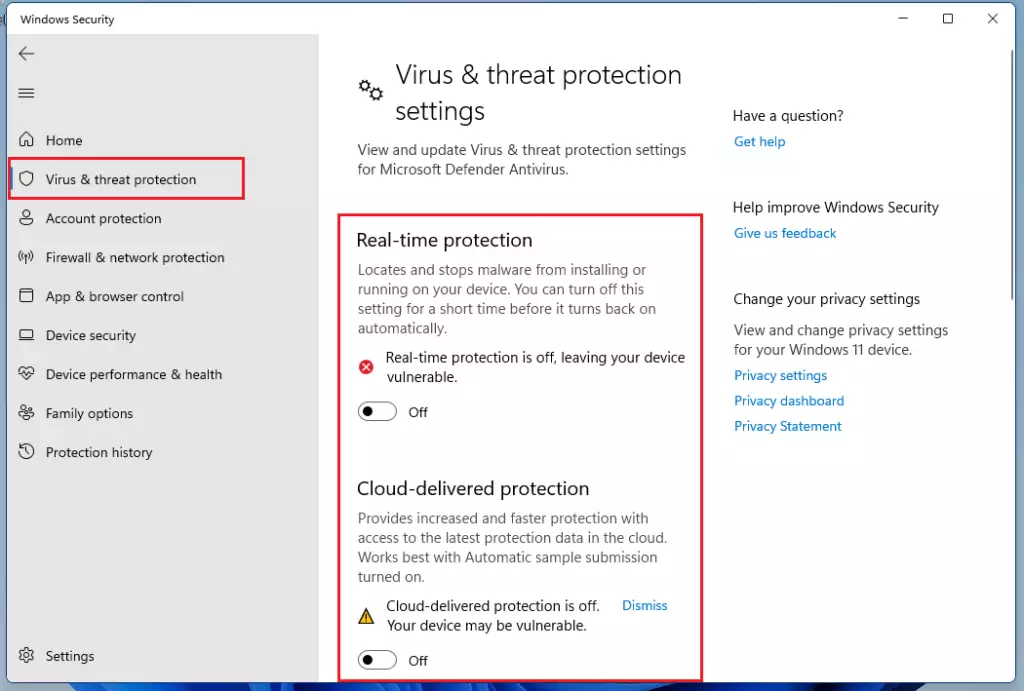
Next, from the left menu, click Virus & threat protection.
On the right side, click Manage settings under Virus & threat protection settings.
Turn on Real-time protection and Cloud-delivered protection. These help your PC stop threats as soon as they appear.
Step 6Optional – Check App & Browser Control
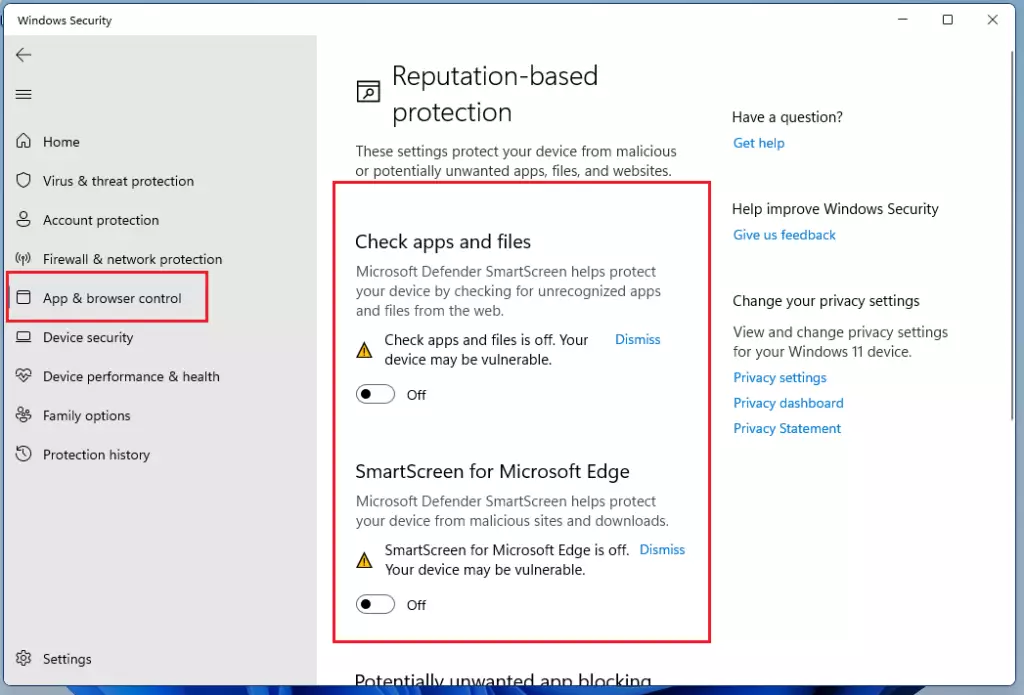
You can also check App & browser control from the left menu, which helps protect you from unsafe apps and websites.
Important Tips
- Keep Microsoft Defender turned on unless you have another antivirus program installed.
- If you have other antivirus software, sometimes you may need to turn Microsoft Defender off to avoid conflicts.
- Make sure your Windows and security software are always updated to protect your PC from the latest threats.
Summary
- Microsoft Defender helps protect your Windows 11 PC from viruses and malware.
- Use Windows Settings to find and open Windows Security.
- Turn on firewall and real-time protection for the best security.
- Keep Defender active unless you have another trusted security program.
- Regularly check your security settings to stay safe.
For more help, you can visit the official Microsoft Defender support page:
Microsoft Defender on Microsoft Support
Was this guide helpful?

About the Author
Richard
Tech Writer, IT Professional
Richard, a writer for Geek Rewind, is a tech enthusiast who loves breaking down complex IT topics into simple, easy-to-understand ideas. With years of hands-on experience in system administration and enterprise IT operations, he’s developed a knack for offering practical tips and solutions. Richard aims to make technology more accessible and actionable. He's deeply committed to the Geek Rewind community, always ready to answer questions and engage in discussions.

No comments yet — be the first to share your thoughts!