How to Change Your Password in Windows 11

Want to change your Windows 11 password? Or did you forget it and need to reset it? This guide will walk you through both options step by step.
Open Settings, go to Accounts, then Sign-in options, and click Change under the Password section. Enter your current password, then your new password twice to update it. If you forgot your password, use the reset options on the login screen or Microsoft’s website.
Changing Your Password (If You Remember It)
Know your current password and want to change it? Here’s how:
- Open Settings by clicking the Start menu (the Windows icon at the bottom left) and select Settings. Or press
Windows key + Ion your keyboard to open Settings quickly. - In Settings, click Accounts from the left menu.
- Then click Sign-in options on the right side.
- Under “Ways to sign in,” find the Password section and click Change.
- Follow the instructions: enter your current password, then type a new password twice.
- Click Finish or Submit, and your password will be updated.
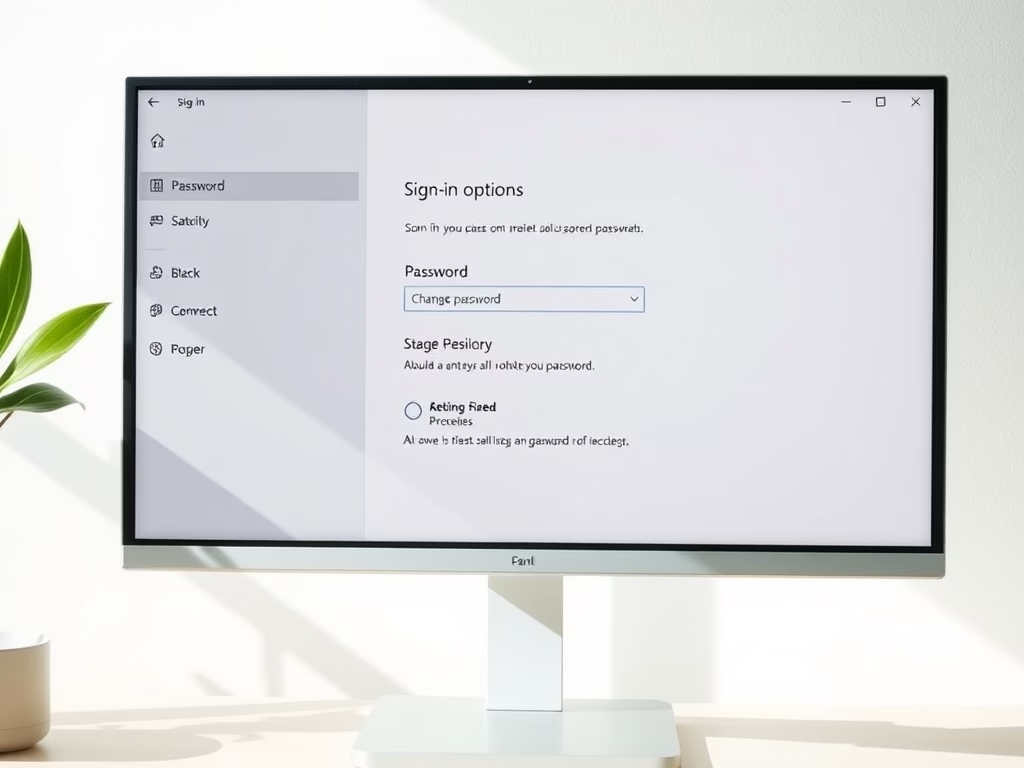
Here is what the Sign-in options screen looks like:

Note: You must know your current password to change it this way.
Resetting Your Password (If You Forgot It)
If you don’t remember your password, don’t worry! You can reset it. The steps depend on whether you use a Microsoft account or a local account to sign in.
If You Use a Microsoft Account
If you use a Microsoft account (it’s like an email account, for example user@outlook.com), you can reset your password online:
- Go to the Microsoft Account Password Reset page.
- Follow the instructions to verify your identity and create a new password.
- Use your new password to sign in to Windows 11.
If You Use a Local Account
A local account is one that only exists on your computer (not linked to an email). To reset your password:
- On the login screen, enter any password you think might work.
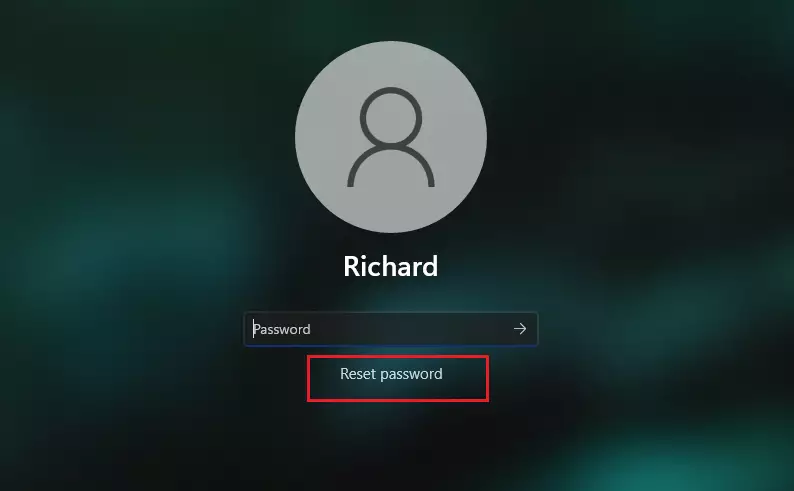
- If it’s wrong, click the Reset password link below the password box.
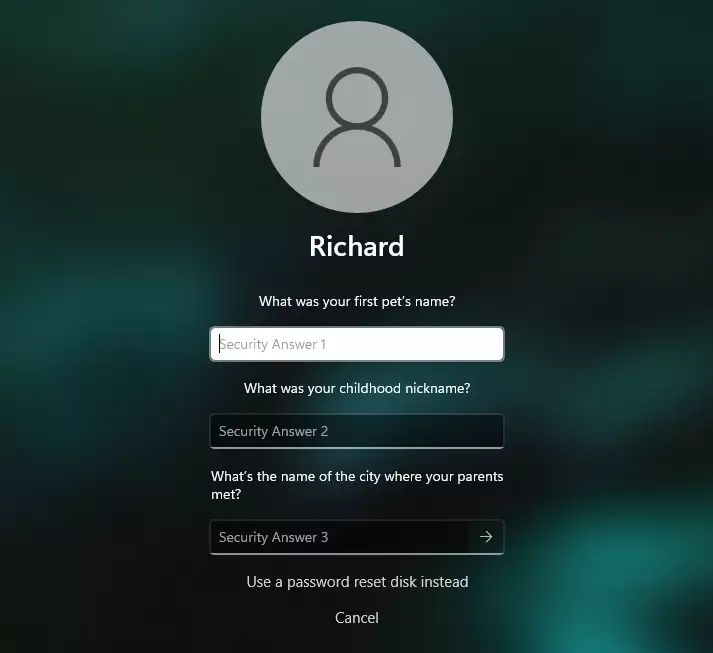
- Answer the security questions you set up when creating your account.
- Enter a new password and confirm it.
- Sign in with your new password.
Example of the Reset password link on the login screen:
Answer the security questions you set up when you created your account:
What If You Can’t Reset Your Password?
If you’re stuck – you can’t remember your password, can’t answer your security questions, and couldn’t reset your Microsoft account online – your last resort is to reset your entire computer.
Warning: This will erase all your files, programs, and settings, so use it only if you have no other choice.
How to Reset Your PC
⚠️ Admin privileges required for this step
- On the login screen, click the Power button (bottom-right corner).
- Hold down the
Shiftkey on your keyboard, then click Restart. - When the blue screen appears, click Troubleshoot.
- Select Reset this PC.
- Choose Remove Everything to erase all data and reset Windows.
- Follow the on-screen instructions to complete the reset.
Summary
- Change your password anytime from Windows Settings if you know your current password.
- If you forget your password, reset it using security questions (local account) or Microsoft’s online tools (Microsoft account).
- Always keep your security questions and account info updated to avoid problems.
- If everything else fails, reset your PC—but remember this deletes everything!
- Keeping your password safe and up-to-date helps protect your computer and personal data.
Where is the 🪟 Windows 11 login password stored?
In your Windows taskbar, click the Start button to access your Start menu. Search for “Credential Manager” in the Search bar. Then, click on it in the search results. Review items under both the Web Credentials and Windows Credentials tabs.
Was this guide helpful?

About the Author
Richard
Tech Writer, IT Professional
Richard, a writer for Geek Rewind, is a tech enthusiast who loves breaking down complex IT topics into simple, easy-to-understand ideas. With years of hands-on experience in system administration and enterprise IT operations, he’s developed a knack for offering practical tips and solutions. Richard aims to make technology more accessible and actionable. He's deeply committed to the Geek Rewind community, always ready to answer questions and engage in discussions.




No comments yet — be the first to share your thoughts!