
Narrator featured image icon

How to Enable Advanced Reading in Windows 11 Narrator

This article explains how to enable or disable the Narrator reading advanced details, like help text, on buttons, and other controls in Windows 11.

Narrator is a screen-reading app built into Windows that reads the text on your screen aloud and describes events for users with low vision or blindness.

When you use the Narrator app, you can turn on or off its keyboard shortcutslaunch it automaticallyadjust the voice, speed, and volumemanage natural voiceslower other apps volume when Narrator is speakingchange Narrator audio output devicechange verbosity levelemphasize formatted textenable or disable Narrators phonetic reading, pause for punctuation, and more.

Another setting one can configure with the Narrator is to enable or disable reading of advanced details such as help text, on button, and other controls.

Enabling advanced details with the Narrator can provide more detailed information about the screen, such as font size and color. This can be helpful for those who prefer a more detailed description of what is on the screen. On the other hand, turning off advanced details reading can simplify the reading experience and make it easier to focus on the main content on the screen.

Enable or disable advanced details reading with Narrator on Windows

As mentioned above, users can enable or disable the Narrator reading advanced details such as help text and button controls in Windows.

Here’s how to do it.

First, open the Windows Settings app.

You can do that by clicking on the Start menu and selecting Settings. Or press the keyboard shortcut (Windows key + I) to launch the Settings app.

When the Setting app opens, click the Accessibility button on the left and select the Narrator tile on the right to expand it.

Narrator tile in the Settings app

On the Narrator settings pane, under “Verbosity,” expand the “Verbosity level” tile, and toggle the box next to “Read advanced details, like help text, on buttons and other controls” On or Off to enable or disable it.
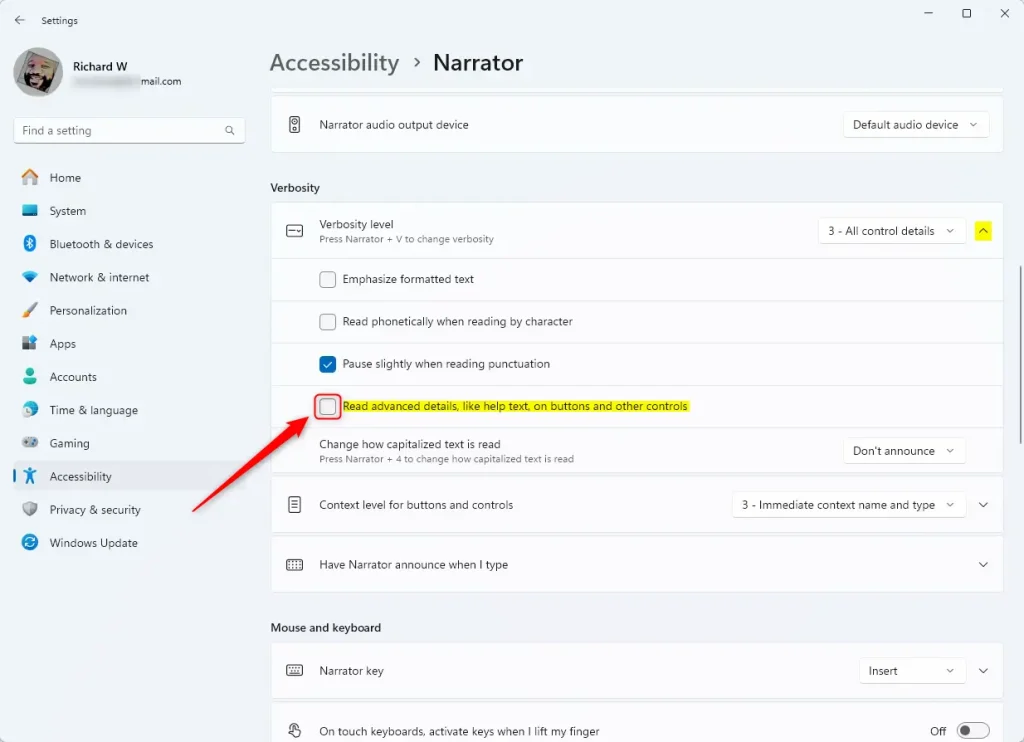
Narrator advanced details settings

Exit the settings app when you’re done.

That should do it!

Conclusion:

  • Enabling or disabling advanced details with Narrator in Windows 11 can enhance the user experience for individuals with visual impairments.
  • This feature allows for a more detailed description of on-screen content, including font size and color, providing valuable context for users.
  • Users can toggle the reading of advanced details on buttons and other controls, tailoring their experience to their specific needs.
  • By following the simple steps outlined in this article, users can effortlessly enable or disable the reading of advanced details with Narrator, promoting a more personalized and accessible computing environment.


Frequently Asked Questions

How do I enable advanced reading in Windows 11 Narrator?

To enable advanced reading in Windows 11 Narrator, open the Settings app, go to Accessibility, and select Narrator. Under the 'Verbosity' section, toggle the option for 'Read advanced details, like help text, on buttons and other controls' to On.

What is the purpose of advanced details reading in Narrator?

Advanced details reading in Narrator provides users with more comprehensive information about on-screen elements, such as help text and button descriptions. This feature is particularly beneficial for individuals with low vision or blindness, as it enhances their understanding of the interface.

Can I disable advanced details reading in Narrator?

Yes, you can disable advanced details reading in Narrator by following the same steps as enabling it. Simply toggle the option for 'Read advanced details, like help text, on buttons and other controls' to Off in the Narrator settings.

What are the benefits of using Narrator in Windows 11?

Narrator in Windows 11 helps users with visual impairments by reading text aloud and describing events on the screen. It offers customizable settings such as voice speed, volume, and verbosity levels, allowing users to tailor their experience to their specific needs.

Is Narrator available in all versions of Windows 11?

Yes, Narrator is a built-in feature available in all versions of Windows 11. It is designed to assist users with low vision or blindness, making the operating system more accessible to everyone.

Categories:

Tags:

5 responses to “How to Enable Advanced Reading in Windows 11 Narrator”

  1. […] formatted text, enable or disable Narrators phonetic reading, pause for punctuation, adjust how the Narrator read advanced details, and […]

  2. […] formatted text, enable or disable Narrators phonetic reading, pause for punctuation, adjust how the Narrator read advanced details, adjust the way capitalized text is read, add a braille display with Narrator, change the […]

  3. […] formatted text, enable or disable Narrators phonetic reading, pause for punctuation, adjust how the Narrator read advanced details, adjust the way capitalized text is read, add a braille display with Narrator, change the […]

  4. […] formatted text, enable or disable Narrators phonetic reading, pause for punctuation, adjust how the Narrator read advanced details, adjust the way capitalized text is read, add a braille display with Narrator, change the […]

  5. […] the Narrator app, you can enable or disable Narrator phonetic reading, pause for punctuation, adjust how the Narrator read advanced details, adjust the way capitalized text is read, add a braille display with Narrator, change input and […]

Leave a Reply

Your email address will not be published. Required fields are marked *

Exit mobile version
