How to Turn On or Off Hardware Accelerated GPU Scheduling in Windows 11

Hardware-accelerated GPU scheduling in Windows 11 lets your graphics card handle its own video memory. This can boost performance and cut down on delays.
Turning this setting on or off might give you smoother visuals, especially when you’re using demanding programs like games or video editing software.
For this feature to work, your graphics card needs to support hardware acceleration. You’ll also need a graphics driver that’s version WDDM 2.7 or newer.
You can change this setting in Windows 11’s Graphics settings. Just be aware that you’ll need to be signed in with administrator privileges to make the change.
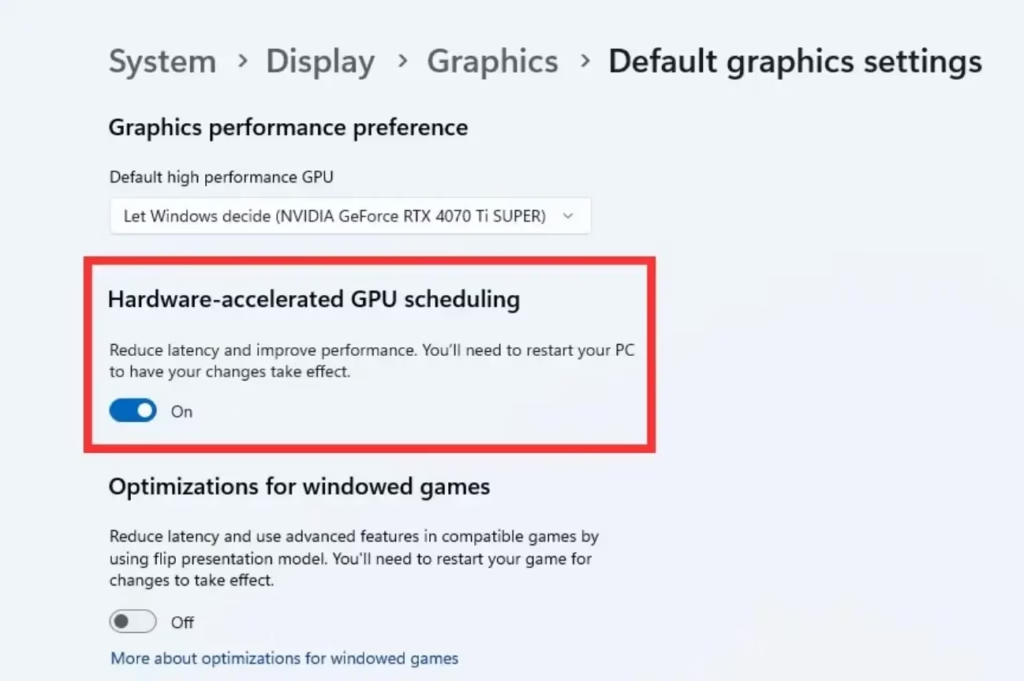
Navigate to Settings > System > Display > Graphics. Click “Change default graphics settings” and toggle “Hardware-accelerated GPU scheduling” on or off. A restart is required to apply changes.
Option 1Using Settings
Turn On or Off Hardware Accelerated GPU Scheduling in Settings
- Open Settings by pressing ⊞ Win+I.
- Click System on the left side. Then click Display on the right side. (See screenshot below)
- Click Graphics on the right side. (See screenshot below)
Open Graphics settings - Click the Change default graphics settings link. (See screenshot below)
You can easily turn hardware accelerated GPU scheduling on or off right in Windows 11 Settings. First, open Settings by pressing the Windows key and ‘I’ at the same time.
- Turn On or Off (default) Hardware-accelerated GPU scheduling based on what you want. (See screenshots below)
If you don’t see a Hardware-accelerated GPU scheduling option, your device doesn’t support it.
- ⚠️ Requires Admin: Restart your computer to apply the changes.
Option 2Using Registry Editor
Turn On or Off Hardware Accelerated GPU Scheduling Using Registry
⚠️ Requires Admin: Open the Terminal app with administrator privileges and enter the following commands.
To Turn On Hardware Accelerated GPU Scheduling
reg add "HKLM\SYSTEM\CurrentControlSet\Control\GraphicsDrivers" /v HwSchMode /t REG_DWORD /d 2 /f
To Turn Off Hardware Accelerated GPU Scheduling
This is the default setting.
reg add "HKLM\SYSTEM\CurrentControlSet\Control\GraphicsDrivers" /v HwSchMode /t REG_DWORD /d 1 /f
Summary
Hardware accelerated GPU scheduling is a Windows feature that helps your graphics card work better, which can reduce delays and improve how smoothly games and apps run. To use it, you generally need a newer graphics card and up-to-date drivers.
Was this guide helpful?

About the Author
Richard
Tech Writer, IT Professional
Richard, a writer for Geek Rewind, is a tech enthusiast who loves breaking down complex IT topics into simple, easy-to-understand ideas. With years of hands-on experience in system administration and enterprise IT operations, he’s developed a knack for offering practical tips and solutions. Richard aims to make technology more accessible and actionable. He's deeply committed to the Geek Rewind community, always ready to answer questions and engage in discussions.



No comments yet — be the first to share your thoughts!