
This article explains how to show file extensions in File Explorer on Windows 11.
File Explorer lets you browse, organize, and manage files and folders on your computer and connected devices. It gives you a visual way to access your hard drives, external storage devices, and network locations.
A recent Windows 11 update makes it easy to show file extensions in File Explorer using the new Settings app.
The Settings app in Windows 11 is simpler and easier to use. It has a menu on the left side. This makes it easier to find what you need. You’ll see options like System, Devices, Network & Internet, Personalization, Accounts, Time & Language, Gaming, Accessibility, and Privacy & Security.
Show file extensions in File Explorer
As mentioned, a recent update to Windows lets you show or hide file extensions in File Explorer using the Settings app.
Here’s how to do it.
Step 1: Open the Settings App
First, open the Windows Settings app.
You can do this by clicking the Start menu and selecting Settings. Or press Windows key + I on your keyboard to open the Settings app.
Step 2: Go to System Settings
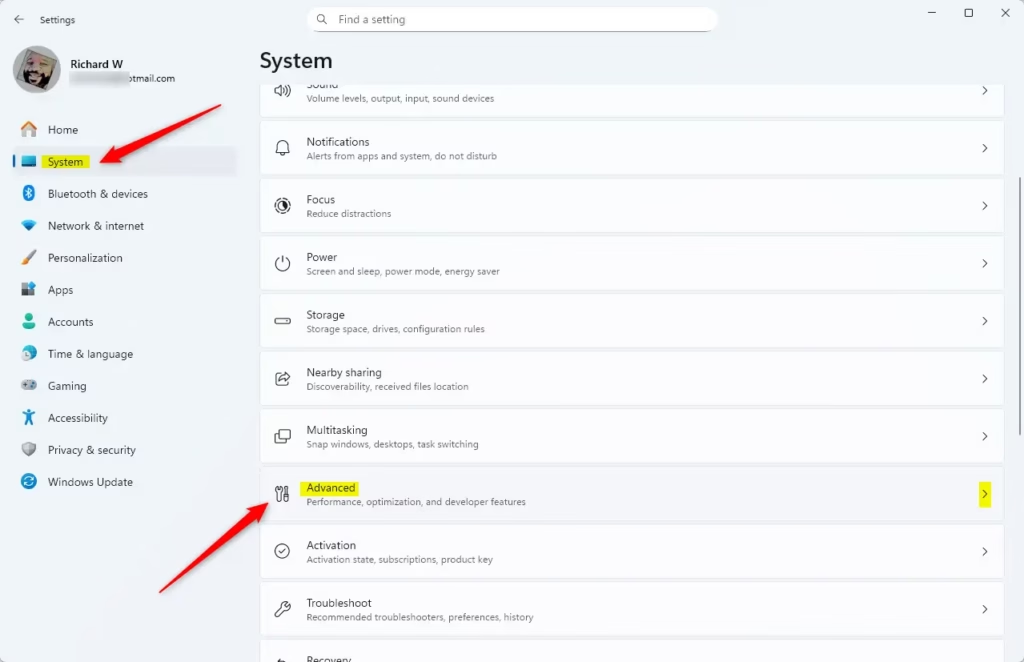
When the Settings app opens, click the System button on the left. Then, select the Advanced tile on the right to expand it.
Step 3: Find File Explorer Settings
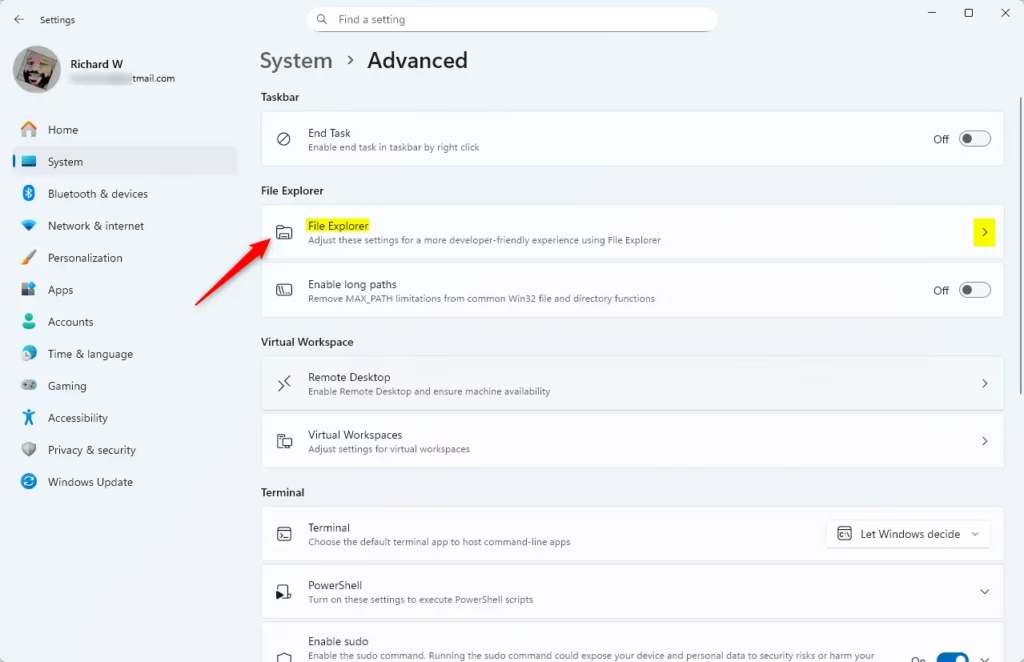
On the System > Advanced settings page, click on the File Explorer tile to expand it.
Step 4: Toggle File Extensions On
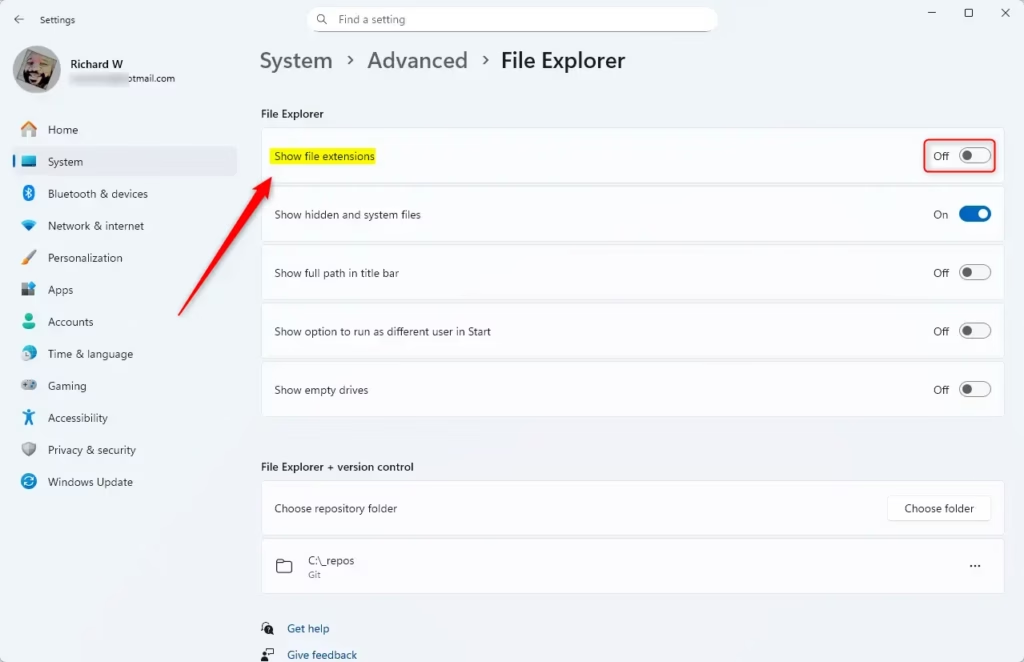
In the System > Advanced settings section, under File Explorer, you can toggle the “Show file extensions” option on or off.
Step 5: Close Settings
Close the Settings app when you’re done.
That’s it! File extensions will now be visible in File Explorer.
Why Show File Extensions?
File extensions tell you what type of file something is. For example, .txt is a text file and .jpg is an image. Showing extensions helps you understand your files better.
What Happens When You Enable This?
When you turn on file extensions, you’ll see the full name of each file. Instead of just seeing “MyDocument,” you’ll see “MyDocument.docx.” This makes it easier to organize your files and understand what each one is.
The Older Way (Folder Options)
Until recently, the way to enable this feature was through the File Explorer folder options settings.
Read the post below to learn how.
Turn on file extension using File Explorer folder options
Summary
Showing file extensions in File Explorer makes file management easier. You can see exactly what type of file you’re looking at.
The new Settings app in Windows 11 makes this simple. Just click a few buttons and toggle one switch in the Advanced settings.
This is much easier than the old way. It works for everyone, no matter what your computer skills are.
Keeping file extensions visible helps you stay organized. It also helps prevent confusion about what files do.



Leave a Reply