How to Access Devices and Printers in Windows 11

This guide helps you find the Devices and Printers folder in Windows 11.
Access Devices and Printers by opening Settings, navigating to Bluetooth & devices, then clicking More devices and printers settings. Alternatively, press ⊞ Win+R, type shell:PrintersFolder, and press Enter.
Why use the Devices and Printers folder?
This folder is a central hub for everything plugged into your computer. It lets you see all your connected hardware in one place. You can use it to check if your devices are working, fix connection errors, or change specific settings for your printers and scanners.
What happens when done?
Once you follow these steps, a window will pop up showing icons for all your connected hardware. You will be able to manage your equipment or remove devices you no longer use.
Settings App vs. Legacy Control Panel
| Feature | Settings App | Legacy Control Panel |
|---|---|---|
| Device Management | Basic | Advanced |
| Printer Properties | Limited | Full Access |
| Ease of Use | High | Low |
Method 1Open Devices and Printers from the Settings App
You can access the Devices and Printers window in Windows 11 directly through the Settings app.
- Open the Windows Settings app. Click the Start menu and select Settings, or press
Windows key + Ito open it quickly. Windows 11 Bluetooth and devices settings page - Click Bluetooth & devices on the left sidebar.
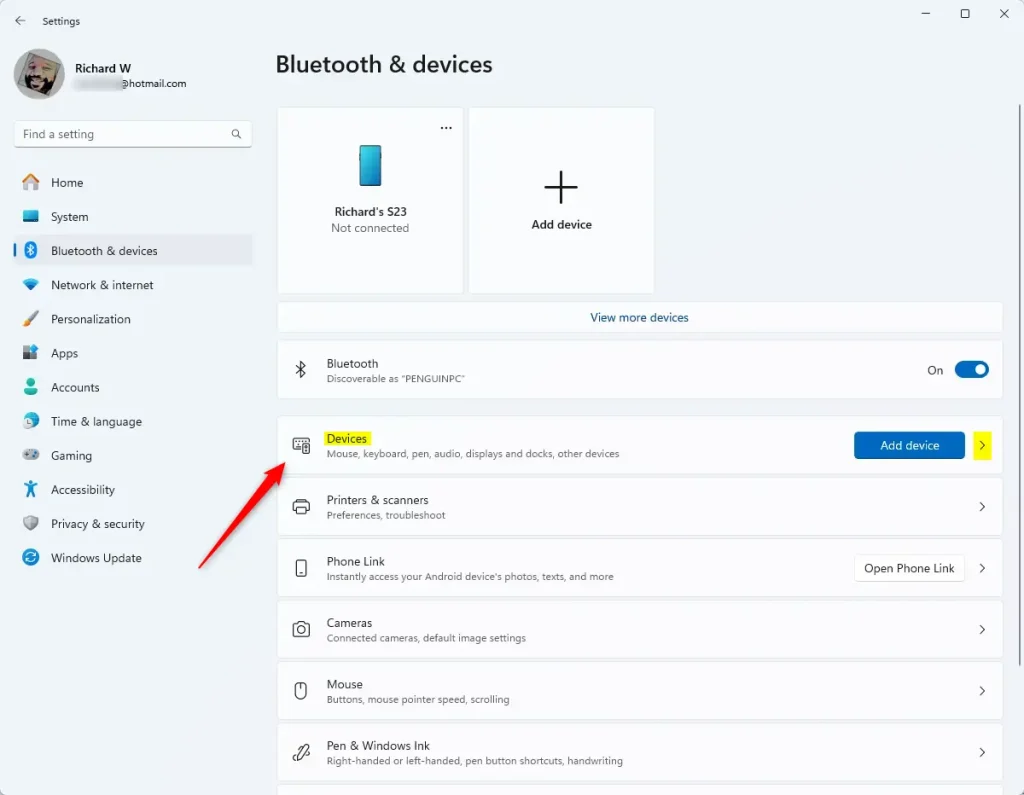
Windows 11 Settings menu showing the Devices tile selection - On the right side, click the Devices tile to see more options.
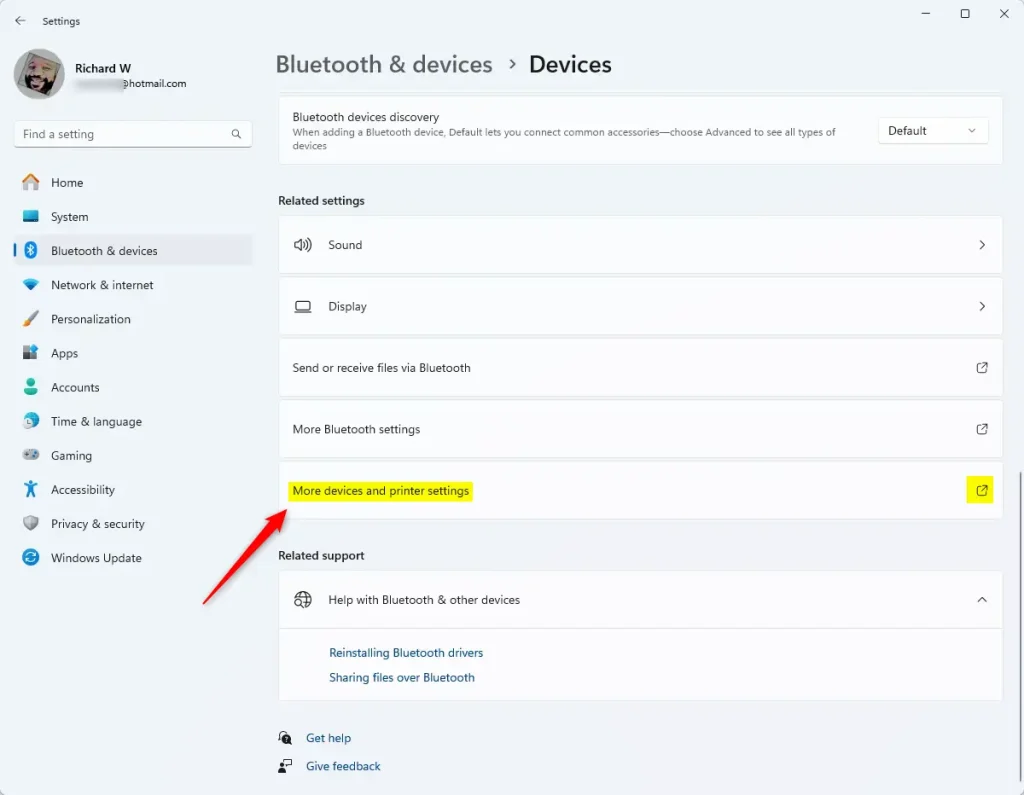
Selecting More devices and printers settings in Windows 11 - Scroll down and click More devices and printers settings.
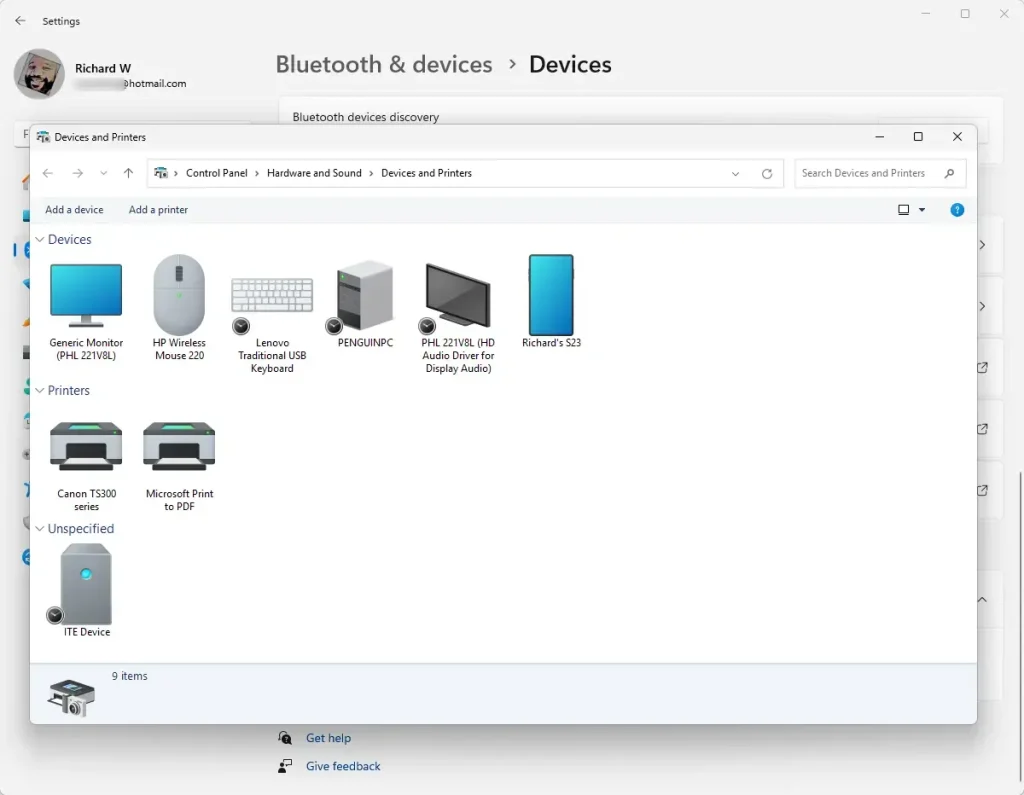
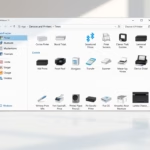
The open Devices and Printers folder interface in Windows 11
Method 2Open Devices and Printers Using the Run App
This is the fastest way to open the folder directly using the shell:PrintersFolder command.
- Press
Win+Ron your keyboard to open the Run box. - Type
shell:PrintersFolderand press Enter. 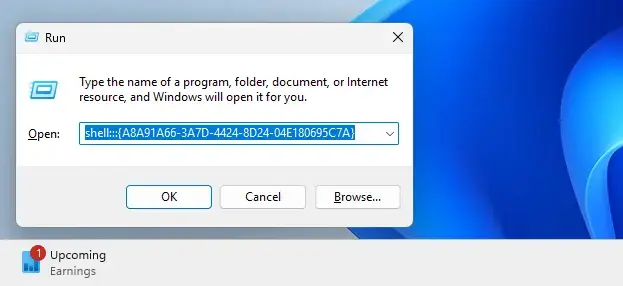
Run app box command for devices and printers
Troubleshooting Device Discovery
If your printer or device is missing, try these steps:
- Check if the device is turned on and plugged in.
- Ensure Bluetooth is enabled for wireless devices.
- Check Device installation settings to ensure Windows is allowed to download manufacturer apps.
- Run the Windows Troubleshooter in Settings > System > Troubleshoot.
Summary
The Devices and Printers folder remains a vital tool for managing hardware. While Windows 11 pushes users toward the Settings app, you can still access the legacy view using the shell:PrintersFolder command. Use the troubleshooting steps above if your devices fail to appear.
Why does Devices and Printers redirect to Settings?
Microsoft is migrating features from the legacy Control Panel to the modern Settings app to create a unified experience. In Windows 11, the old folder is being phased out, so the system redirects you to the Bluetooth & devices menu to manage your hardware in a more streamlined way.
How do I fix Bluetooth device settings missing?
If Bluetooth settings are missing, check if your PC supports Bluetooth. Open Device Manager, look for Bluetooth, and ensure the driver is updated. Also, verify that the Bluetooth Hands-free Telephony service is running in the Services app by typing services.msc in the Run dialog box.
Was this guide helpful?

About the Author
Richard
Tech Writer, IT Professional
Richard, a writer for Geek Rewind, is a tech enthusiast who loves breaking down complex IT topics into simple, easy-to-understand ideas. With years of hands-on experience in system administration and enterprise IT operations, he’s developed a knack for offering practical tips and solutions. Richard aims to make technology more accessible and actionable. He's deeply committed to the Geek Rewind community, always ready to answer questions and engage in discussions.



[…] way to share your printer with others is to use the Devices and Printers […]
[…] Open the Devices and Printers window: – Click the Start button or press the Windows key on your keyboard. – Type Control Panel and open it. – In Control Panel, select Devices and Printers. (If you want detailed help opening Devices and Printers, click here.) […]
[…] the Devices and Printers folder. You can search for “Devices and Printers” in the Start […]
[…] Open Devices and Printers from the Control Panel or Start […]