How to Share a Local Printer in Windows 11

You can share a local printer connected to your Windows 11 PC with other devices on your network.
Sharing a printer allows multiple users to print documents from a single machine, saving you the cost and hassle of buying additional printers.
To share your printer, you’ll need administrative access to the Windows 11 computer hosting the printer and ensure File and Printer Sharing is enabled in your network settings.
Remember, the host computer must remain powered on and accessible for others to print successfully.
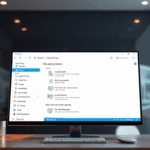
Share your printer through Settings > Bluetooth & devices > Printers & scanners. Select your printer, then click Printer properties and the Sharing tab. Check “Share this printer” and click OK. The host computer must remain powered on and accessible.
Method 1Share Your Printer Using Windows Settings
Sharing your printer in Windows 11 using the Settings app is straightforward. You can easily make your printer available to other computers on your network by following a few simple steps within the system’s menus.
- Open Settings by clicking the Start menu and choosing Settings, or press
Windows key + Ion your keyboard. - Click Bluetooth & devices on the left side.
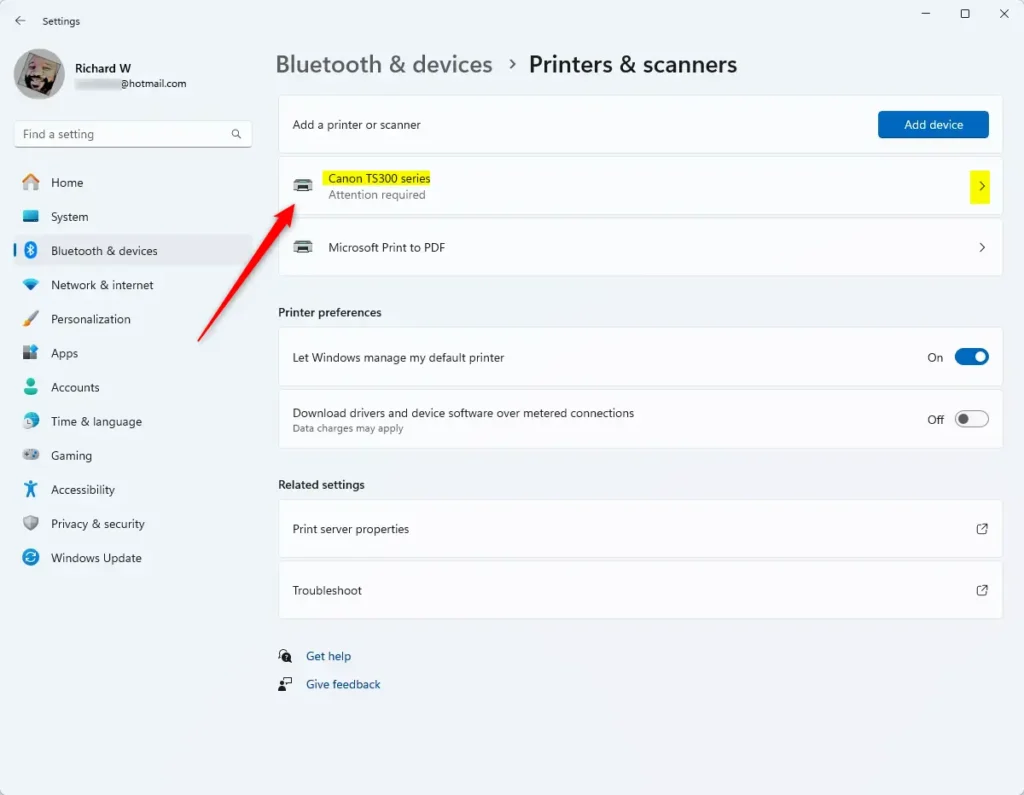
- On the right, click Printers & scanners.
- Click on the printer you want to share.
- Click Printer properties.
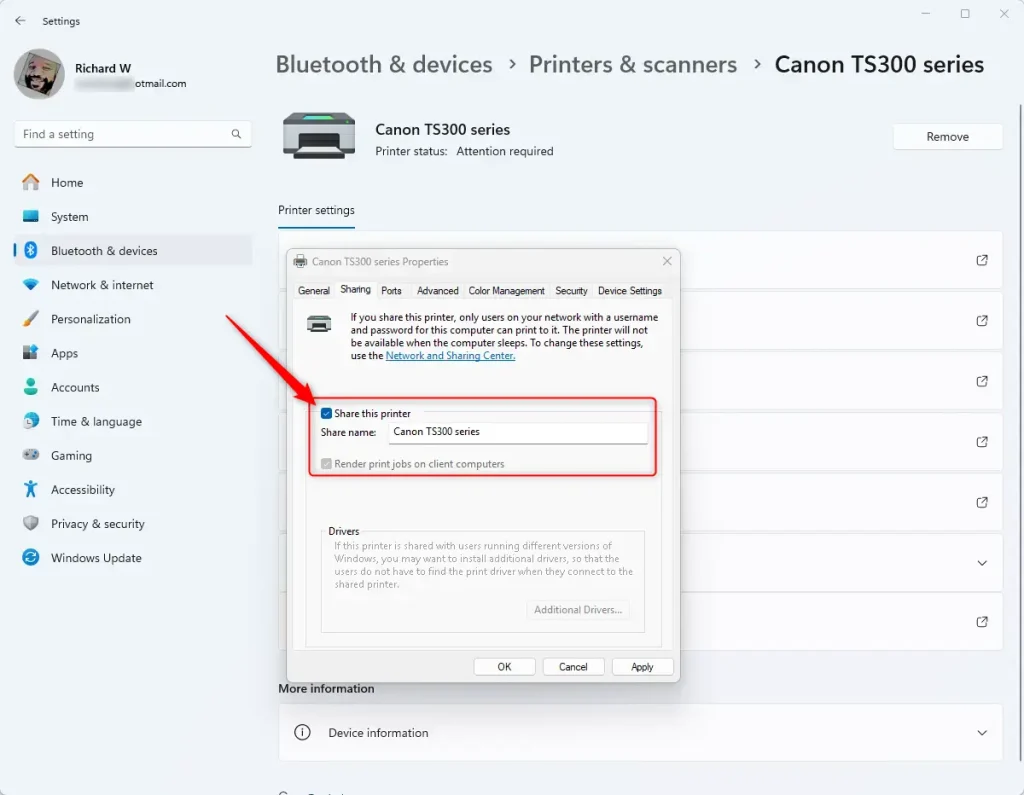
- Select the Sharing tab in the new window.
- Click the Change Sharing Options button.

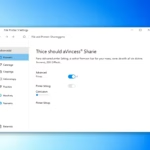
- Check the box that says Share this printer.
- Give it a share name if you want—this is what others will see when they look for your printer.
- Click OK to save your settings.
Your printer is now shared! Other computers on your network can find and use it.
Method 2Share Your Printer Using Devices and Printers
You can share your printer using the older ‘Devices and Printers’ window, a method familiar to many Windows users. This approach lets you quickly set up printer sharing through the Control Panel interface.
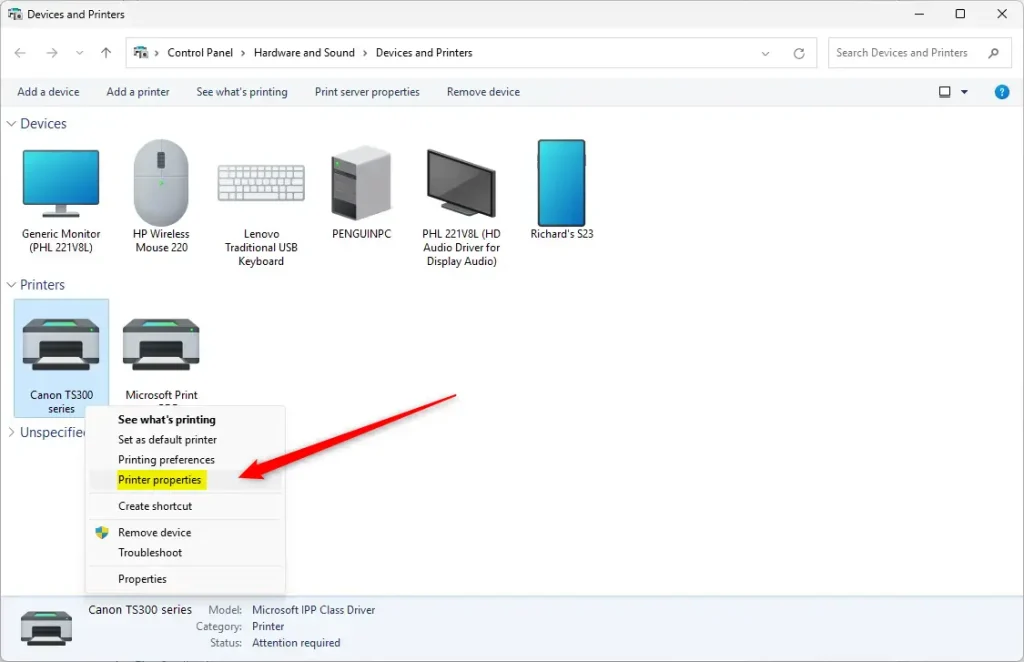
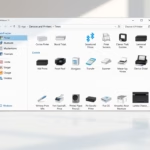
- Open Open Devices and Printers from the Control Panel or Start menu.
- Right-click the printer you want to share and select Printer properties.
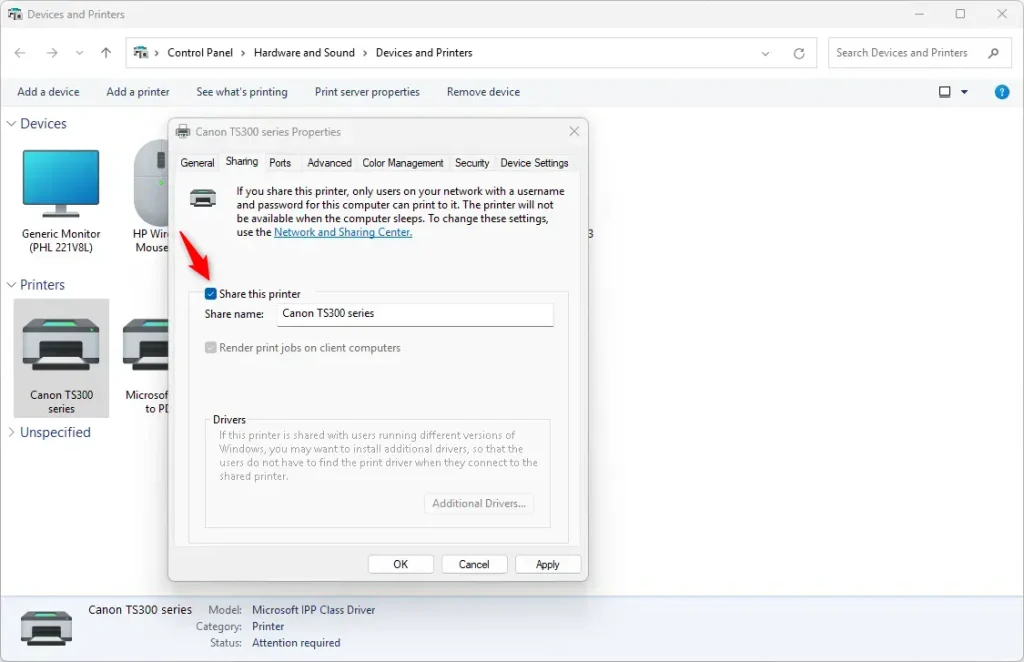
- Go to the Sharing tab.
- Click Change Sharing Options.
- Check the box Share this printer.
- Click OK to save.
Method 3Share Your Printer Using PowerShell (Advanced)
For those comfortable with command lines, sharing a printer in Windows 11 can be done using PowerShell. This advanced method requires administrator privileges and involves running specific commands to set your printer as shared.
- ⚠️ Requires admin privileges: Open Windows PowerShell as an administrator.
- Type this command to see all printers on your PC:PowerShell
Get-Printer | Format-List Name,ShareName,Shared - Find the exact name of the printer you want to share. Then run this command:PowerShell
Set-Printer -Name "Your Printer Name" -Shared $TrueReplace
Your Printer Namewith your printer’s actual name. - If you want to set a custom share name, use this command instead:PowerShell
Set-Printer -Name "Your Printer Name" -Shared $True -ShareName "New Share Name"
Your printer will now be shared on the network!
Summary
Sharing your printer in Windows 11 lets everyone on your network print without needing separate devices. To do this, ensure your PC is on, you have admin rights, and file and printer sharing is enabled, then use Settings, Devices and Printers, or PowerShell.Does 🪟 Windows 11 allow printer sharing?
Printers installed on a Windows device can be shared with other Windows devices on the same network, allowing multiple users to print without installing the printer on each PC. To share a printer in Windows, the printer must be: Connected to a primary Windows device.
Was this guide helpful?

About the Author
Richard
Tech Writer, IT Professional
Richard, a writer for Geek Rewind, is a tech enthusiast who loves breaking down complex IT topics into simple, easy-to-understand ideas. With years of hands-on experience in system administration and enterprise IT operations, he’s developed a knack for offering practical tips and solutions. Richard aims to make technology more accessible and actionable. He's deeply committed to the Geek Rewind community, always ready to answer questions and engage in discussions.
No comments yet — be the first to share your thoughts!