Installing OpenSSH on Ubuntu 24.04


OpenSSH lets you control your Ubuntu 24.04 computer from another device on your network using secure remote logins and safe file transfers. It is the standard tool that keeps your data private while you manage your system from afar.
The setup runs through the Ubuntu terminal and blocks direct root logins by default using the setting PermitRootLogin prohibit-password to keep your system safe from hackers.
Install OpenSSH server on Ubuntu 24.04 by opening the terminal and running ‘sudo apt update’ followed by ‘sudo apt install openssh-server’. This enables secure remote access to your machine.
Install OpenSSH server
OpenSSH packages are available in Ubuntu default repositories so there’s no need to install additional packages.
Run the command below to install OpenSSH server.
sudo apt update
sudo apt install openssh-server
Once installed, access is granted to users on the computer. Users with valid credentials can then log on.
Configure OpenSSH
You configure OpenSSH Ubuntu 24.04 by editing the main configuration file located at /etc/ssh/sshd_config using a text editor like nano. This file controls server security settings, such as allowing password logins, changing the default port number, and blocking root access from remote computers.
You can enhance your device's security by editing the settings in this configuration file. An example would be denying the root account login without password authentication.
As mentioned, the root user cannot log on by default when you install OpenSSH server using a password, due to the [PermitRootLogin prohibit-password] setting. However, you can further enhance your device security by prohibiting the root account from logging in via other means.
To do that, open the OpenSSH configuration file by running the command below.
To stop the root user from logging on, change the `PermitRootLogin` setting. You will find this setting by uncommenting and changing the highlighted line to `no`. This change helps make your server more secure.
#line 33
PermitRootLogin no
Save and exit.
Then, restart OpenSSH server.
sudo systemctl restart ssh
Access OpenSSH server
You access your OpenSSH Ubuntu 24.04 server from another computer by using an SSH client and the server's IP address or hostname. Windows 11 users can run the built-in ssh command inside the Terminal app, while others can download tools like PuTTY to connect securely.
On Windows 11, open the Terminal app and run the ssh command.
ssh richard@srv1.example.com
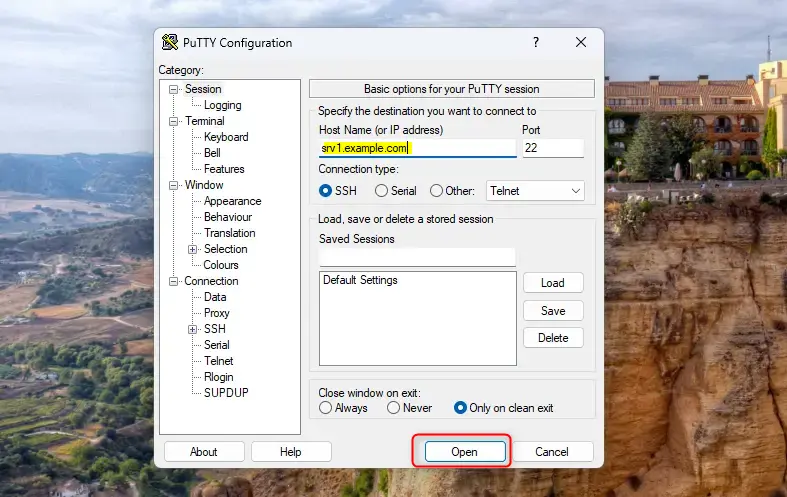
Using PuTTY, enter the server hostname and click Open.
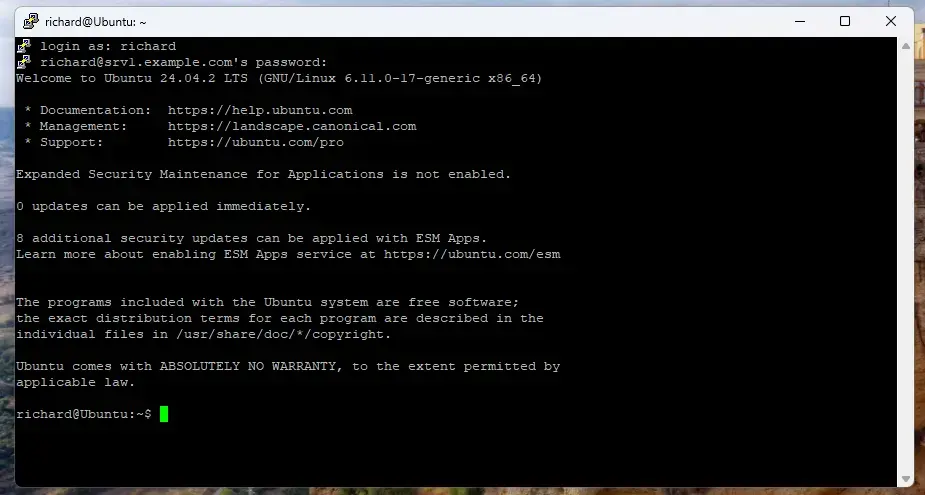
Access should be granted after entering the correct username and password.
That completes the setup.
Conclusion:
Getting OpenSSH running gives your server a reliable security baseline. Encrypted connections keep traffic private, while disabled root password logins fend off automated attacks. Reviewing these access methods periodically keeps the server locked down against unauthorized entry.
- OpenSSH provides secure access to servers through encrypted connections.
- Password authentication is enabled by default upon installation, simplifying the login process.
- For improved security, the root account is prohibited from logging in with password authentication.
- Configuration adjustments in the
/etc/ssh/sshd_configfile can further enhance security. - Remote access is possible using SSH commands or tools like PuTTY.
- Ensuring you manage your user accounts and authentication methods is crucial for maintaining a secure server environment.
Setting up the OpenSSH server on Ubuntu 24.04 creates a strong, secure connection. This process helps you tailor security settings to your specific needs.
Was this guide helpful?

About the Author
Richard
Tech Writer, IT Professional
Richard is a writer at Geek Rewind who turns complex IT tasks into clear, step-by-step guides. He draws on years of hands-on experience in system administration and enterprise IT operations, focusing on Windows, Linux and WordPress: the problems people actually run into, and the fixes that work. His server and WordPress guides come from systems he runs himself. Richard builds and maintains the platform behind Geek Rewind, from its Ubuntu servers and Nginx configuration to its custom WordPress plugins. Many new tutorials start with readers' questions, and he's always glad to answer them in the comments.



[…] How to install OpenSSH server on Ubuntu […]