Install UNetbootin on Ubuntu 24.04: A Step-by-Step Guide

UNetbootin makes a regular USB flash drive into a bootable installer by copying your operating system files directly onto the drive. This free tool lets you install a new system on Ubuntu 24.04 without needing a physical disc.
You need the Ubuntu 24.04 ISO installation file downloaded from the official Ubuntu site before you start. Pick your ISO file and your USB drive inside the program to complete the transfer.
Install UNetbootin by adding its PPA and updating packages. Open the terminal and run “sudo add-apt-repository ppa:gezakovacs/ppa”, then “sudo apt-get update” followed by “sudo apt-get install unetbootin”.
Run UNetbootin without installing
Running UNetbootin on Ubuntu 24.04 without a full installation is possible by downloading and running the standalone binary file directly. This method works well if you only need to create a single bootable drive and want to skip adding software repositories to your system.
To do that, visit the UNetbootin download page.
Download the binary version (the executable program file) for your system.
Using the terminal to download the UNetbootin file remains an option. Run the `wget https://sourceforge.net/projects/unetbootin/files/UNetbootin/6.6b/unetbootin-linux-66b` command to perform this download for your Ubuntu 24.04 system.
wget https://github.com/unetbootin/unetbootin/releases/download/702/unetbootin-linux64-702.bin
Next, run the command below to make the file executable, then launch the utility.
chmod +x ./unetbootin-linux*
sudo ./unetbootin-linux*
Proceed to build a bootable drive.
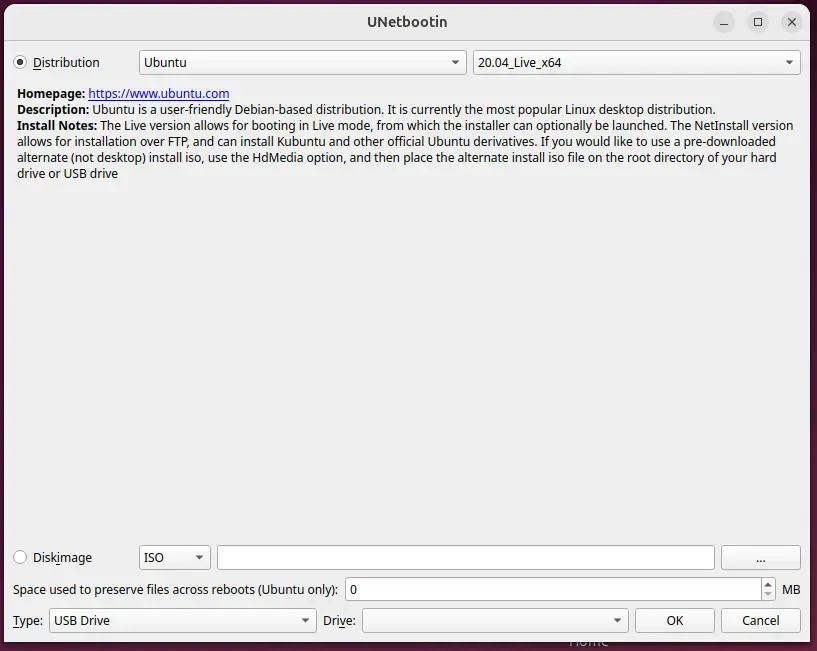
Install UNetbootin on Ubuntu
Installing UNetbootin on Ubuntu 24.04 requires adding a personal package archive to your system sources using the terminal. This setup lets you download and install the software and its required updates directly through the standard package manager.
Run the command below to add the Personal Package Archive (PPA, a third-party software source) to your system.
sudo add-apt-repository ppa:gezakovacs/ppa
Next, execute the command below to update Ubuntu packages and install UNetbootin.
sudo apt-get update
sudo apt-get install unetbootin
That completes the installation process.
Conclusion:
UNetbootin serves as a reliable utility for building bootable USB drives on Ubuntu. Review these key takeaways:
- Versatility: It supports a variety of Linux distributions, making it useful for different users.
- Ease of Use: Both the runnable and installable versions are straightforward to use.
- Time-Saving: Quickly set up USB drives for installations or live sessions without complications.
- PPA Support: The availability of a Personal Package Archive simplifies the installation process.
- Accessibility: It can be run directly from the download link, freeing users from the need for installation if needed only once.
UNetbootin allows the creation of a bootable USB drive from an ISO file. Testing or deploying new operating systems happens without altering the current setup. Prepare a USB drive featuring Ubuntu 24.04 for deployment using this workflow.
Was this guide helpful?

About the Author
Richard
Tech Writer, IT Professional
Richard, a writer for Geek Rewind, is a tech enthusiast who loves breaking down complex IT topics into simple, easy-to-understand ideas. With years of hands-on experience in system administration and enterprise IT operations, he’s developed a knack for offering practical tips and solutions. Richard aims to make technology more accessible and actionable. He's deeply committed to the Geek Rewind community, always ready to answer questions and engage in discussions.




No comments yet — be the first to share your thoughts!