How to Install Moodle with Apache on Ubuntu 24.04


- 24 steps
- Needs administrator rights
Installing Moodle with Apache on Ubuntu 24.04 gives you your own private online learning system. Moodle is free software for building and managing online courses. Apache is the web server that delivers those pages to students’ browsers.
This guide uses Moodle 4.3 on Ubuntu 24.04 LTS (Long Term Support). You run the whole stack yourself: Apache for the web server, MariaDB for the database, and PHP to run Moodle. That means you control the courses, the users and the data. Before you start, you need a server with Ubuntu 24.04, a user account that can run sudo, and an internet connection. For HTTPS later, you also need a domain name that points to the server.
Install Moodle 4.3 with Apache on Ubuntu 24.04 by running sudo apt update, then sudo apt install apache2 and sudo apt install mariadb-server to set up the web server and database. Apache and MariaDB start automatically after installation, and you confirm Apache by opening http://localhost and seeing the Apache2 Default Page.
Install Apache HTTP server on Ubuntu Linux
Moodle needs a web server, and this guide uses Apache. On Ubuntu 24.04, open your terminal and run sudo apt update followed by sudo apt install apache2 to set up the software. Apache starts automatically once the installation finishes, so it is ready to host your web pages straight away.
Follow these steps to install Apache:
- Open the Ubuntu terminal. On a desktop install, press Ctrl+Alt+T. On a remote server, connect over SSH.
- Run the commands in the block below to refresh the package list and install Apache.
- Wait for the prompt to return. If apt asks you to confirm, type Y and press Enter.
sudo apt update
sudo apt install apache2
Apache normally starts and enables itself during installation. Still, it is worth knowing how to control it. Once Apache is installed, the commands below can start, stop, and enable the Apache web server to start automatically when your server boots up.
Run the start command if Apache is stopped. Run the enable command so Apache comes back after a reboot. You will also use the stop and restart commands later, whenever you change Apache’s configuration.
sudo systemctl stop apache2
sudo systemctl start apache2
sudo systemctl enable apache2
Next, test that the Apache web server is running:
- Open a web browser. You can use the server itself or any computer on the same network.
- In the address bar, type the server’s address. On the server itself, you can use localhost. From another computer, use the server’s IP address, as in the example below.
- Press Enter.
http://localhost
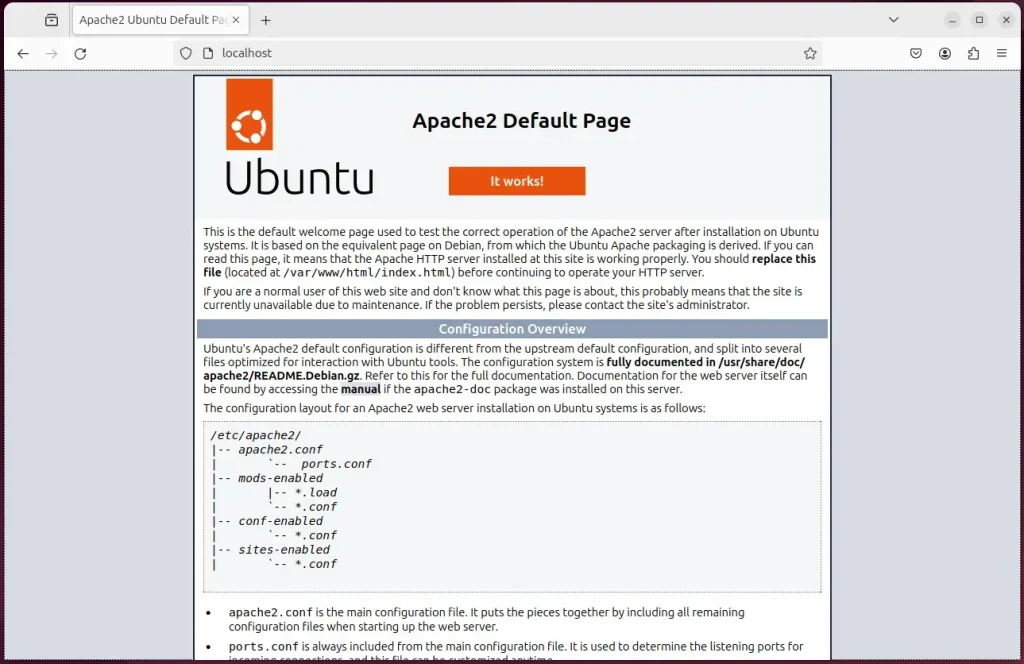
When you see the Apache2 Default Page, the Apache HTTP server is installed and working.
If the page does not load from another computer but works on the server, a firewall is probably blocking port 80. Allow web traffic through the firewall and try again.
Additional help on installing Apache on Ubuntu is in the link below.
Install MariaDB database server on Ubuntu Linux
Moodle stores its courses, users and settings in a database. This guide uses MariaDB. On Ubuntu 24.04, open your terminal and run sudo apt update followed by sudo apt install mariadb-server. This installs the database system you need before you can create the Moodle database.
To install and use the MariaDB database server, use the instructions below.
Install MariaDB like this:
- Open the Ubuntu terminal.
- Run the commands in the block below to install the MariaDB database server.
- Confirm any prompt from apt and wait for the installation to finish.
sudo apt update
sudo apt install mariadb-server
Once the MariaDB database server is installed, use the commands below to stop, start, and enable the MariaDB server to start automatically when the server boots. The enable command matters most. Without it, Moodle would lose its database after every reboot.
sudo systemctl stop mariadb
sudo systemctl start mariadb
sudo systemctl enable mariadb
Run the following commands to check that the MariaDB database server is installed and running.
sudo mariadb
When you run the commands above, you are logged on to the MariaDB console. It displays a message similar to the one below.
Welcome to the MariaDB monitor.  Commands end with ; or g.
Your MariaDB connection id is 32
Server version: 10.11.2-MariaDB-1 Ubuntu 23.04

Copyright (c) 2000, 2018, Oracle, MariaDB Corporation Ab and others.

Type 'help;' or 'h' for help. Type 'c' to clear the current input statement.

MariaDB [(none)]>
This message tells you the server is installed and accepting connections. If you see an error instead, check that the MariaDB service is running before you go on.
Additional help on installing MariaDB.
- How to install MariaDB on Ubuntu Linux
- MariaDB without password prompt
Create a Moodle database
Moodle needs its own database and its own database user. Create a database named moodledb and a user called moodledbuser. Then log in at the database prompt and run the SQL commands that give this user full permissions over the new database. That lets Moodle save its data properly.
First, you create a database named moodledb and a matching user account named moodledbuser.
Finally, you grant moodledbuser full access to the moodledb database. The user gets no access to any other database, which keeps the rest of the server safe if Moodle is ever compromised.
You do all of this with the commands below:
But first, log on to the MariaDB database server:
sudo mariadb
Once you are at the MariaDB prompt, run the commands below to create the database, create the user and grant the permissions. Each SQL statement ends with a semicolon.
CREATE DATABASE moodledb CHARACTER SET utf8mb4 COLLATE utf8mb4_general_ci;
CREATE USER moodledbuser@localhost IDENTIFIED BY 'type_your_password_here';
GRANT ALL ON moodledb.* TO moodledbuser@localhost WITH GRANT OPTION;
FLUSH PRIVILEGES;
exit
Pick a strong one, and note it down. You will type it again in the Moodle installer.
Install PHP on Ubuntu Linux
Moodle runs on PHP and needs several extra PHP modules. On Ubuntu 24.04, run sudo apt install php libapache2-mod-php php-intl php-mysql php-curl php-cli php-zip php-xml php-gd php-common php-mbstring php-xmlrpc php-json php-sqlite3 php-soap in your terminal to get everything at once.
Run the commands below to install PHP. Moodle's installer checks for these modules later. If it reports one as missing, install that module and reload the installer page.
Check which PHP versions your Moodle release supports. If you plan to use Moodle 4.3, see its system requirements page before you install.
sudo apt install php libapache2-mod-php php-intl php-mysql php-curl php-cli php-zip php-xml php-gd php-common php-mbstring php-xmlrpc php-sqlite3 php-soap php-zip
Additional help on installing PHP
Download Moodle files
Next, download the Moodle files to your Ubuntu server and place them in the right Apache directory so visitors can load your site. In the terminal, fetch the Moodle archive, extract it, and move the folder into the Apache web root.
The command block below downloads Moodle and creates a new Moodle folder in the Apache root directory. It works in three stages:
- Create a moodle folder in the Apache root directory.
- Download the Moodle archive into the /tmp directory.
- Unzip the archive, then move the unzipped content into the moodle folder in your Apache web server's root directory.
- Change the ownership and permissions of the Moodle files. This lets the Apache web server read and write them. If the installer later says it cannot create a folder or write the configuration file, wrong permissions are almost always the cause.
Moodle releases new versions regularly, and the version in the commands may be out of date by the time you read this. Get the latest download link from the official download page. Replace the link in the download command with the new one so you get the latest features and security updates.
cd /tmp/
wget https://download.moodle.org/download.php/direct/stable403/moodle-4.3.zip
sudo unzip -d /var/www moodle-*.zip
sudo mkdir -p /var/www/moodledata
sudo chown -R www-data:www-data /var/www/moodledata/
sudo chown -R www-data:www-data /var/www/moodle/
Once you have completed all the steps above, configure the Apache web server to serve the Moodle content. Apache does this with a virtual host file, which tells it which address to answer for and where the site files are.
Run the commands below to create an Apache virtual host file for Moodle. The file is new, so it starts empty and normally opens in a text editor.
sudo nano /etc/apache2/sites-available/moodle.conf
Then copy the content block below and paste it into the empty file. Change the server name or IP address in it so it matches your own server or domain.
<VirtualHost *:80>
  ServerName moodle.example.com
  ServerAlias www.moodle.example.com
  ServerAdmin admin@example.com
  DocumentRoot /var/www/moodle

  <Directory /var/www/moodle/>
       Options FollowSymlinks
       AllowOverride All
       Require all granted
  </Directory>

       ErrorLog ${APACHE_LOG_DIR}/error.log
       CustomLog ${APACHE_LOG_DIR}/access.log combined

</VirtualHost>
Save the file. If the editor is nano, press Ctrl+O, then Enter to confirm the name, then Ctrl+X to exit.
Now enable the virtual host for the Moodle website and restart the Apache web server, using the commands below. Apache only reads a new site configuration when it is restarted. After that, Moodle is reachable on your Ubuntu 24.04 server. If Apache fails to restart, recheck the virtual host file for typos.
sudo a2ensite moodle.conf
sudo systemctl restart apache2
Setup Let’s Encrypt SSL/TLS for Moodle
Set up Let's Encrypt SSL/TLS for Moodle to secure your site with HTTPS and protect your users' logins and data. Install the Certbot tool on your Ubuntu server and run its Apache plugin command. It automatically requests, downloads and configures a free security certificate.
Let's Encrypt only issues certificates for a real domain name that points to your server. It will not work with a bare IP address or localhost. If you want HTTPS, do this step before you run the Moodle installer below. Moodle saves the site address during installation, so the installer then records the HTTPS address from the start.
Please read the post below for more on installing and creating Let's Encrypt SSL certificates for Apache.
How to set up Let’s Encrypt SSL certificate for Apache on Ubuntu Linux
Once Apache has restarted, start the Moodle web installer:
- Open your browser.
- Browse to the server hostname or IP address defined in the Apache server block.
http://moodle.example.com
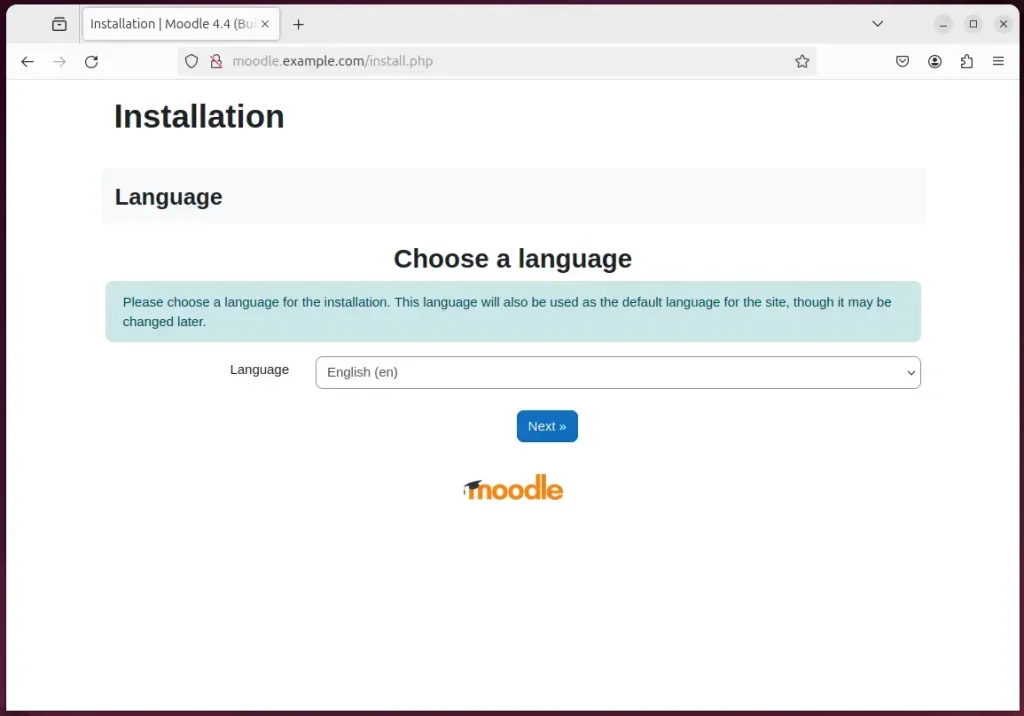
A Moodle installation wizard page should appear. Select the installation language and click Next. If you see the Apache default page or an error instead, check the virtual host file and make sure the new site is enabled.
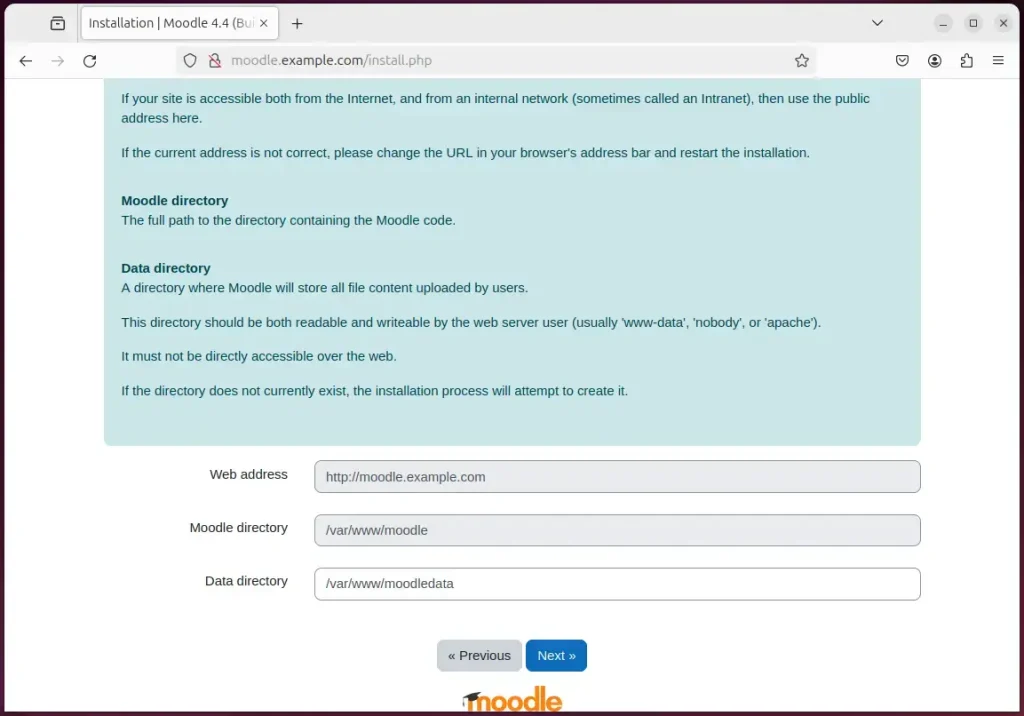
The next page shows the installation paths. Confirm the web address, the Moodle directory and the data directory, then click Next. If the wizard says it cannot create the data directory, fix the folder permissions and reload the page.
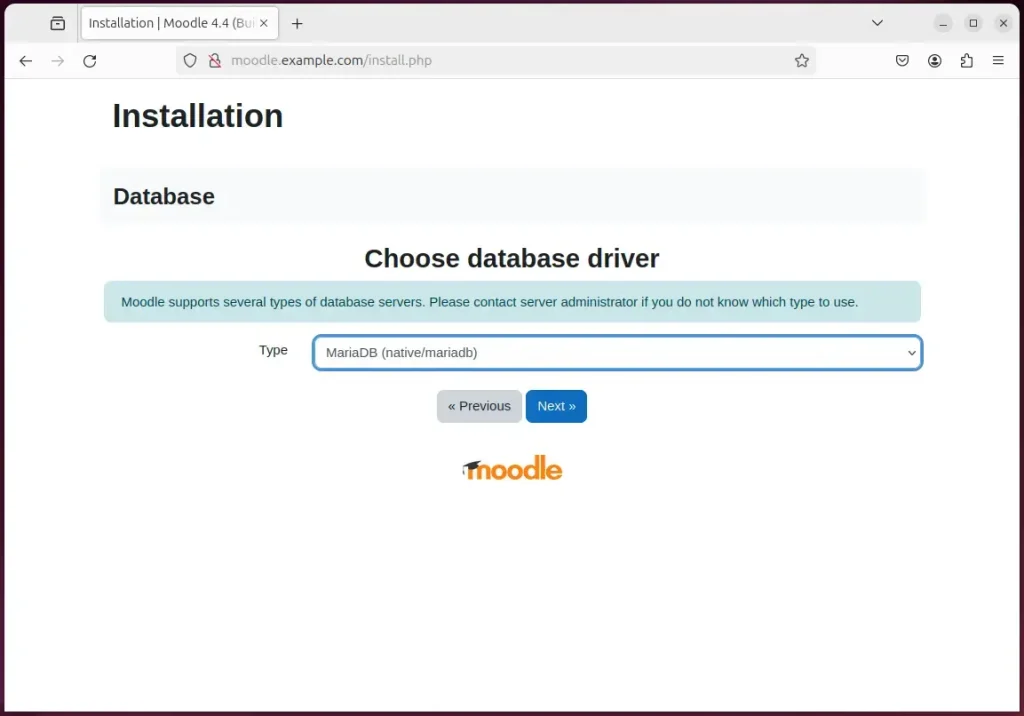
Next, choose the database driver. Select MariaDB and click Next.
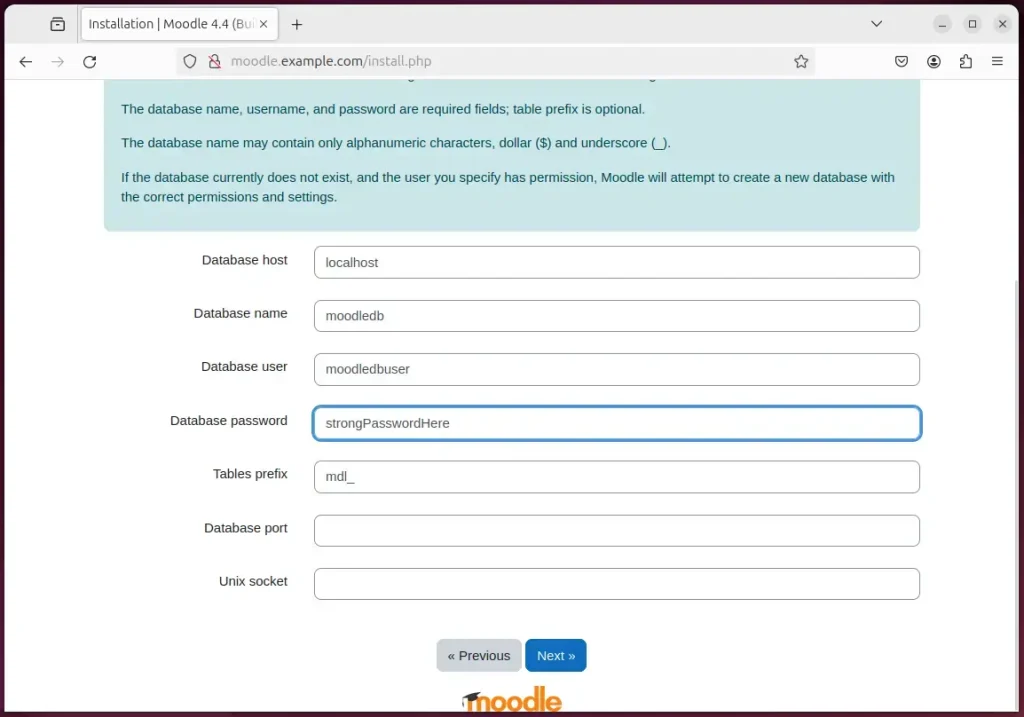
On the next page, fill in the database details you created earlier:
- Leave Database host as localhost, because the database runs on the same server.
- Type moodledb in Database name.
- Type moodledbuser in Database user.
- Type the password you chose in Database password.
- Click Next.
The installer now checks the server against Moodle's requirements. Confirm all requirements are met and click Continue. Anything marked as failed must be fixed before you can go on.
A common failure is an error that "max_input_vars" must be at least 5000. This is a PHP setting, and the default is too low for Moodle. To fix it:
- Run the command in the first block below. It changes the setting in the PHP configuration file that Apache uses.
- Make sure the command applies to the PHP version you actually installed. The version number is part of the file path. On Ubuntu 24.04 that is normally 8.3.
- Restart Apache with the same restart command you used earlier. Apache only reads the new PHP value after a restart.
- Reload the installer page. The error should be gone.
sudo sed -i "s/;max_input_vars = .*/max_input_vars = 5000/" /etc/php/8.3/apache2/php.ini
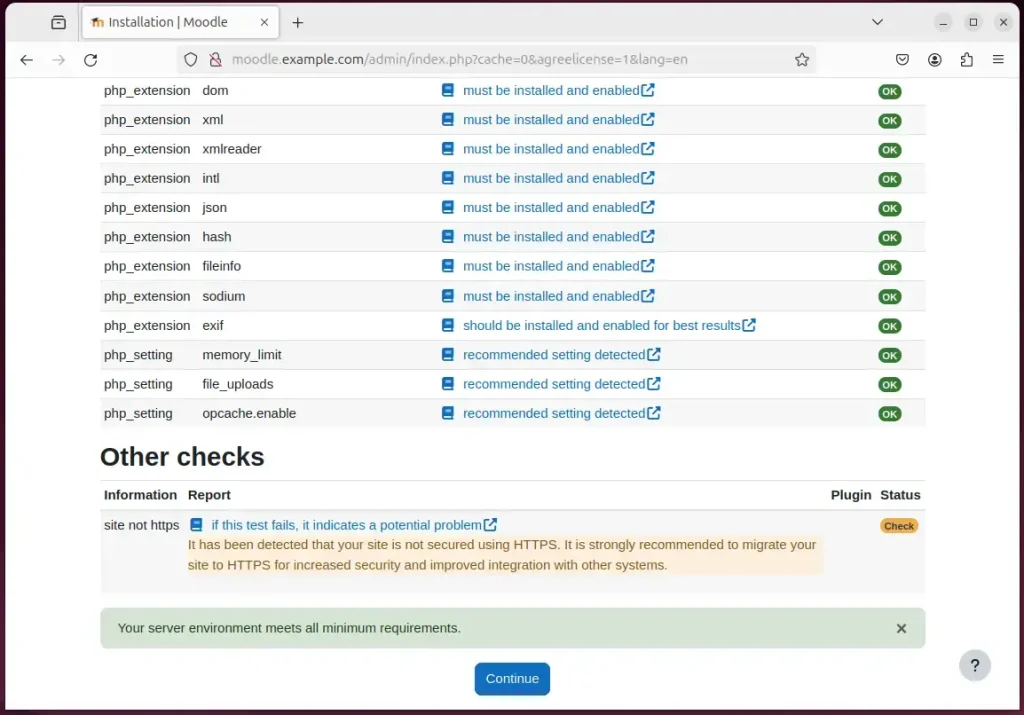
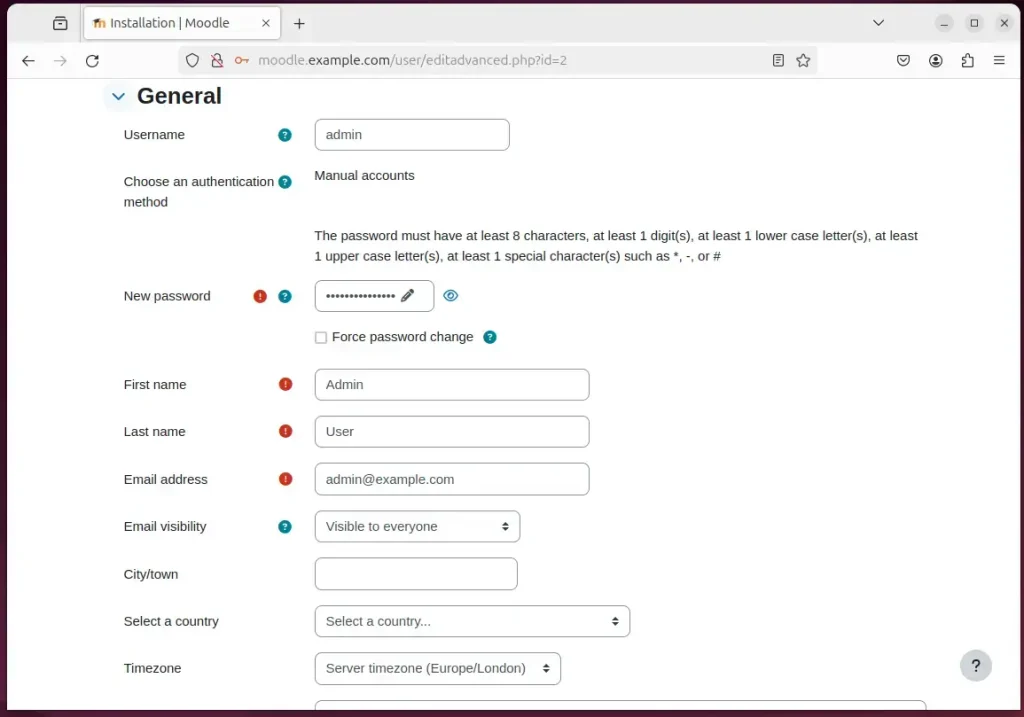
Once the checks pass, the installer sets up the database tables. This can take a few minutes, so let it finish. Next, set up your admin account by entering a username, a strong password and your email address, then continue. Moodle then asks for basic site details, such as the site name. Fill them in and save.
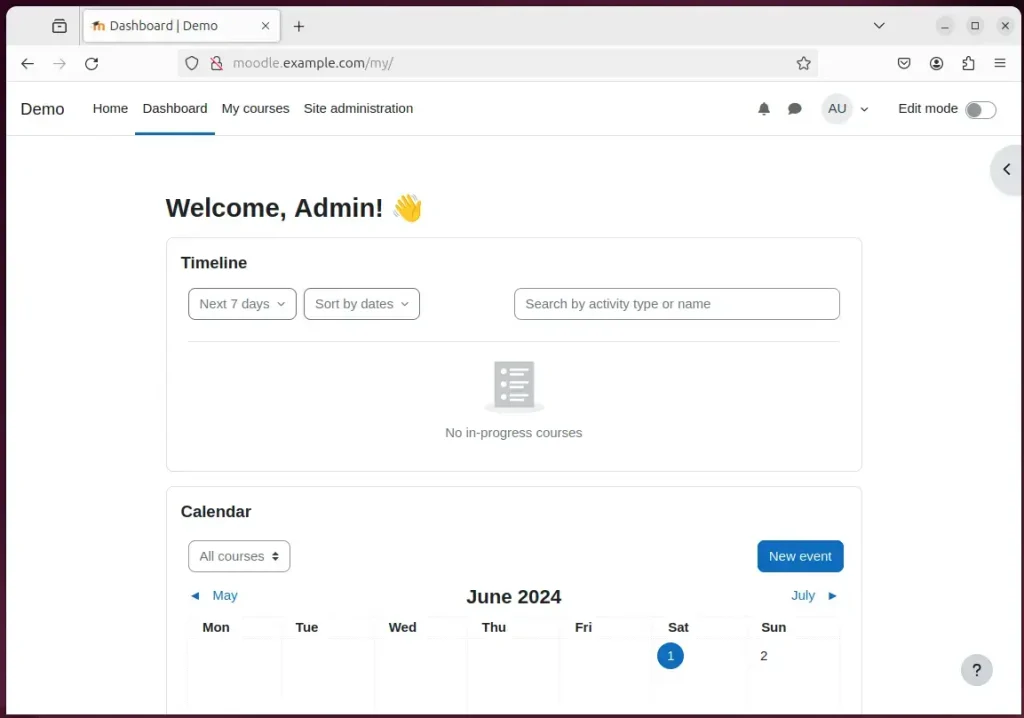
Your Moodle site should now be set up and ready to use. Sign in with the admin account you just created. From there you can add courses, create users and change site settings.
That should do it!
Conclusion:
- This guide covered installing Moodle with Apache on Ubuntu 24.04. It used the Apache web server, the MariaDB database server, PHP, and Let's Encrypt SSL/TLS for HTTPS.
- Each component has its own steps and a check, so you can confirm that Apache, MariaDB and PHP work before moving on. That makes problems much easier to trace, and it gives you a stable base for your e-learning content.
- Once the site is running, Apache serves it, MariaDB stores its data and PHP runs the application. After the install, check Moodle's documentation for scheduled tasks (cron), which Moodle needs for things like email notifications and course housekeeping.
- The links under each component lead to more detailed guides if you want to go deeper on one part of the setup.
- If you hit an error, or have something to add, use the comments section to share it.
Have a question about this guide?
Answered by AI from this guide. Good questions may be added to this page — please don't include personal details.
Did this guide fix your problem?

About the Author
Richard
Tech Writer, IT Professional
Richard is a writer at Geek Rewind who turns complex IT tasks into clear, step-by-step guides. He draws on years of hands-on experience in system administration and enterprise IT operations, focusing on Windows, Linux and WordPress: the problems people actually run into, and the fixes that work. His server and WordPress guides come from systems he runs himself. Richard builds and maintains the platform behind Geek Rewind, from its Ubuntu servers and Nginx configuration to its custom WordPress plugins. Many new tutorials start with readers' questions, and he's always glad to answer them in the comments.
No comments yet — be the first to share your thoughts!