Install b2evolution on Ubuntu 24.04 with Nginx


b2evolution is a self-hosted blogging platform. It is open-source PHP software that runs on your own server, so you don’t pay for a hosted blogging service. From one dashboard you can run multiple blogs, forums, and photo galleries.
This guide builds the whole stack on Ubuntu 24.04: Nginx as the web server, MariaDB for the database, and PHP to run the application. It then adds an SSL certificate and finishes with the b2evolution install wizard. You need a server with Ubuntu 24.04, a user with sudo rights, and a terminal session open on it. If you want a public site with HTTPS, also have a domain name pointed at the server’s IP address.
Install Nginx and MariaDB servers using apt commands. Create a b2evolution database and user in MariaDB with specified SQL commands. Install PHP and necessary extensions using apt.
Install Nginx HTTP server on Ubuntu
Nginx is the web server that serves your b2evolution site. Ubuntu 24.04 has it in its standard repositories, so there is nothing to add manually. You refresh the package list from the terminal and then install the package.
- Open the Ubuntu terminal on your server.
- Run the commands below to update the package list and install the Nginx web server.
If the install finishes without errors, you are back at the prompt. Nginx normally starts by itself after installation.
sudo apt update
sudo apt install nginx
Once Nginx is installed, use the commands below to start it, stop it, and enable it. Enabling it makes Nginx start automatically each time the server boots. Without that, your site would stay offline after every reboot until you started Nginx by hand.
sudo systemctl stop nginx
sudo systemctl start nginx
sudo systemctl enable nginx
To test that Nginx is running, open a web browser and browse to the server’s localhost or IP address.
- On the server itself, use the localhost address. From another computer, use the server's IP address instead.
- Type the address into the browser's address bar and press Enter.
http://localhost
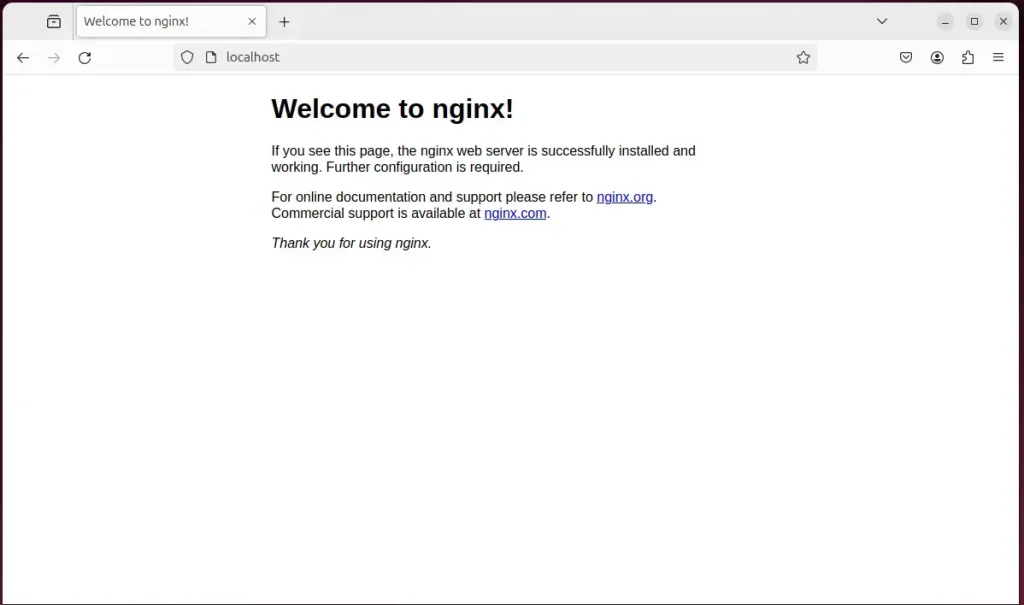
When you see Welcome to nginx!, the Nginx HTTP server is installed and working.
If the page does not load from another computer, the server's firewall may be blocking port 80. Ubuntu's firewall (UFW) is off by default, but if you have turned it on, a rule for web traffic is covered later in this guide. Also check that you typed the correct IP address.
Additional help on installing Nginx on Ubuntu is in the link below.
Install the MariaDB database server on Ubuntu
MariaDB stores everything b2evolution saves, including posts, comments, and user accounts. It is a drop-in, open-source database server, and Ubuntu 24.04 includes it in its standard repositories. You install it from the terminal with the package manager.
To install and use the MariaDB database server, use the instructions below.
- Open the Ubuntu terminal.
- Run the commands below to install the MariaDB database server.
sudo apt update
sudo apt install mariadb-server
Once MariaDB is installed, use the commands below to stop, start, and enable the MariaDB server. As with Nginx, enabling it makes the database start automatically when the server boots. If the database is down, b2evolution cannot load any page that needs data.
sudo systemctl stop mariadb
sudo systemctl start mariadb
sudo systemctl enable mariadb
Run the following commands to confirm that the MariaDB database server is installed and working.
sudo mariadb
After you run the commands above, you are logged on to the MariaDB console. It displays a message similar to the one below.
Welcome to the MariaDB monitor.  Commands end with ; or g.
Your MariaDB connection id is 32
Server version: 10.11.2-MariaDB-1 Ubuntu 23.04

Copyright (c) 2000, 2018, Oracle, MariaDB Corporation Ab and others.

Type 'help;' or 'h' for help. Type 'c' to clear the current input statement.

MariaDB [(none)]>
The message tells you that the server is installed and running.
Additional help on installing MariaDB.
- How to install MariaDB on Ubuntu Linux
- MariaDB without password prompt
Create a b2evolution HRM database
b2evolution needs its own database, kept separate from anything else on the server. You create it from the MariaDB command line. There you run SQL statements that set up a new database, a user account, and the permissions that connect the two.
In this guide, we will create a b2edb database and a user account called b2edbuser.
The b2evolution installer requires b2edbuser to have full access to the b2edb database. With that permission, b2evolution can create its own tables and manage all its data, including posts, comments, and user information. The user only has rights on this one database, so it cannot touch anything else on the server.
You can do all of the database steps above with the commands below:
But first, log on to the MariaDB database server. If you are not already logged on from the earlier test, run this:
sudo mariadb
Then run the commands below to create the database, the user, and the permissions. Each statement should return a short confirmation, such as a "Query OK" line.
CREATE DATABASE b2edb CHARACTER SET utf8mb4 COLLATE utf8mb4_general_ci;
CREATE USER b2edbuser@localhost IDENTIFIED BY 'type_your_password_here';
GRANT ALL ON b2edb.* TO b2edbuser@localhost WITH GRANT OPTION;
FLUSH PRIVILEGES;
exit
Replace ‘type_your_password_here’ with your own password. Use a long, unique one, and write it down. You will type it again in the b2evolution installation wizard. When the statements have run, leave the MariaDB console and return to the normal shell prompt.
Install PHP on Ubuntu Linux
PHP runs the b2evolution code. Nginx does not execute PHP itself. It passes PHP requests to a separate PHP process (PHP-FPM), so the PHP install must include that component plus the extensions b2evolution needs. You install all of it with one apt command.
Run the commands below to install PHP and the required modules. On Ubuntu 24.04, the default repositories provide PHP 8.3.
sudo apt install php-fpm php-intl php-mysql php-curl php-cli php-zip php-xml php-gd php-common php-mbstring php-xmlrpc php-bcmath php-sqlite3 php-soap php-zip php-ldap php-imap
Additional help on installing PHP
Download b2evolution HRM files
The b2evolution application files have to be on your server before you can run the installer. You download the release archive from the official site into the temporary directory. Then you extract its contents into a folder under the Nginx web root.
To always install the latest version, check the download page for b2evolution. Copy the download link for the archive. You can download the package to your computer, or pass the link to the server's terminal as shown in the commands below. Then extract it.
- Go to the /tmp/ directory.
- Download the b2evolution files.
- Extract the contents into the b2evolution folder in the Nginx root directory.
The last step is to change the permissions. The Nginx web server runs under its own user account. That account must be able to read the files, and b2evolution must be able to write to certain folders, such as its configuration folder during setup. Correct ownership gives the server the access it needs without opening the files to everyone.
Run the commands below to change the permissions on the b2evolution folder under the Nginx root. If the installer later complains that it cannot write its configuration file, check this step first.
cd /tmp
wget https://b2evolution.net/media/blogs/downloads/v7/b2evolution-7.2.5-stable-2022-08-06.zip
sudo unzip b2evolution-*.zip -d /var/www
sudo chown -R www-data:www-data /var/www/b2evolution/
With all of the steps above done, continue below by configuring Nginx to serve the b2evolution content.
Run the commands below to create an Nginx virtual host file for b2evolution. The command opens a new, empty file in a text editor.
sudo nano /etc/nginx/sites-available/b2evolution.conf
Then copy and paste the content block below into the file. Change the server name in the block to your own domain name or server IP address. Check that the folder paths and the PHP version in the block match what you installed.
server {
    listen 80;
    listen [::]:80;
    root /var/www/b2evolution;
    index  index.php;
    server_name  b2evolution.example.com;

    access_log /var/log/nginx/example.com.access.log;
    error_log /var/log/nginx/example.com.error.log;

    location / {
        try_files $uri $uri/ /index.php?$args;
    }

    location ~ .php$ {
         include snippets/fastcgi-php.conf;
         fastcgi_pass unix:/var/run/php/php8.3-fpm.sock;
         fastcgi_param SCRIPT_FILENAME $document_root$fastcgi_script_name;
         include fastcgi_params;
    }

}
Save the file and close the editor.
Next, enable the virtual host and apply the changes. Run the commands below. They open the firewall for web traffic with sudo ufw allow 'Nginx Full' and restart Nginx with sudo systemctl restart nginx. That lets Nginx serve the b2evolution application and read your new virtual host. If UFW is not active on your server, the firewall rule has no effect, and you can safely leave it that way. If Nginx fails to restart, the cause is usually a typo in the virtual host file, so re-open it and check it.
sudo ln -s /etc/nginx/sites-available/b2evolution.conf /etc/nginx/sites-enabled/
sudo systemctl restart nginx.service
Setup Let’s Encrypt SSL/TLS for b2evolution
An SSL/TLS certificate encrypts the connection between your visitors and the web server, and browsers warn people away from sites that lack one. You can set up a free Let's Encrypt certificate for your b2evolution site on Nginx. The certbot tool requests the certificate and can edit your server blocks for you. Your domain name must already point to the server before you request a certificate, so Let's Encrypt can verify that you control it.
Please read the post below for more on installing and creating Let’s Encrypt SSL certificates for Nginx.
How to set up Let’s Encrypt SSL certificate for Nginx on Ubuntu Linux
Once you have restarted the Nginx web server, open your browser and browse to the server hostname or IP address defined in the Nginx server block. If you set up a certificate, use the https:// address.
http://b2evolution.example.com/install/index.php
The b2evolution installation wizard should appear. If you see the default Nginx page or an error instead, the virtual host is probably not active yet, or the server name in it does not match the address you typed.
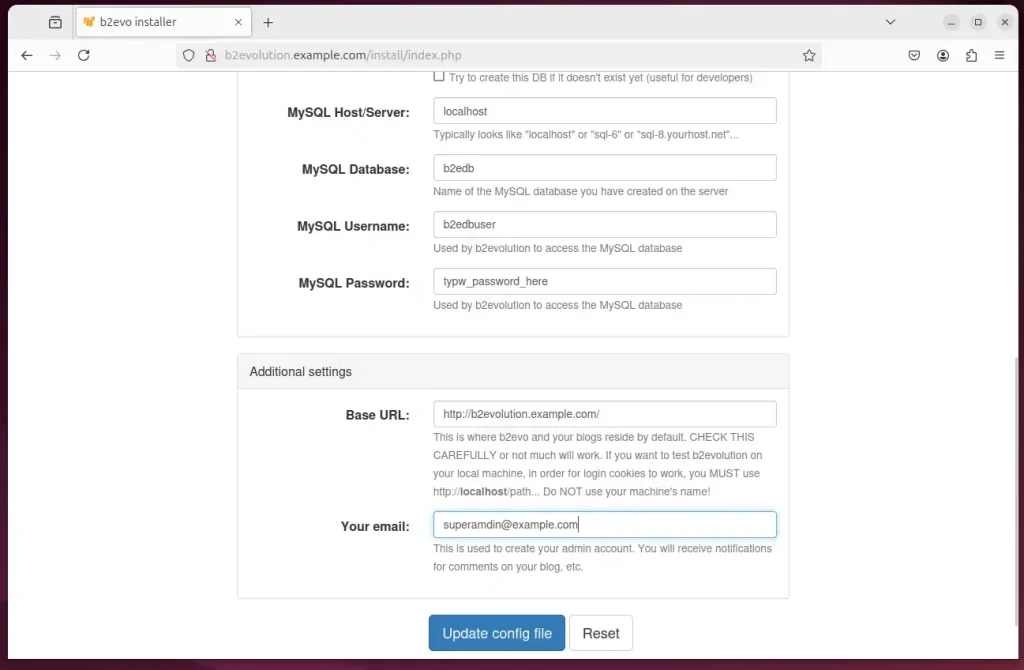
- Type in the database details you created earlier: the database name (b2edb), the database user (b2edbuser), and the password you chose. Leave the database host at its default unless your database runs on another machine.
- Click the Update config file button.
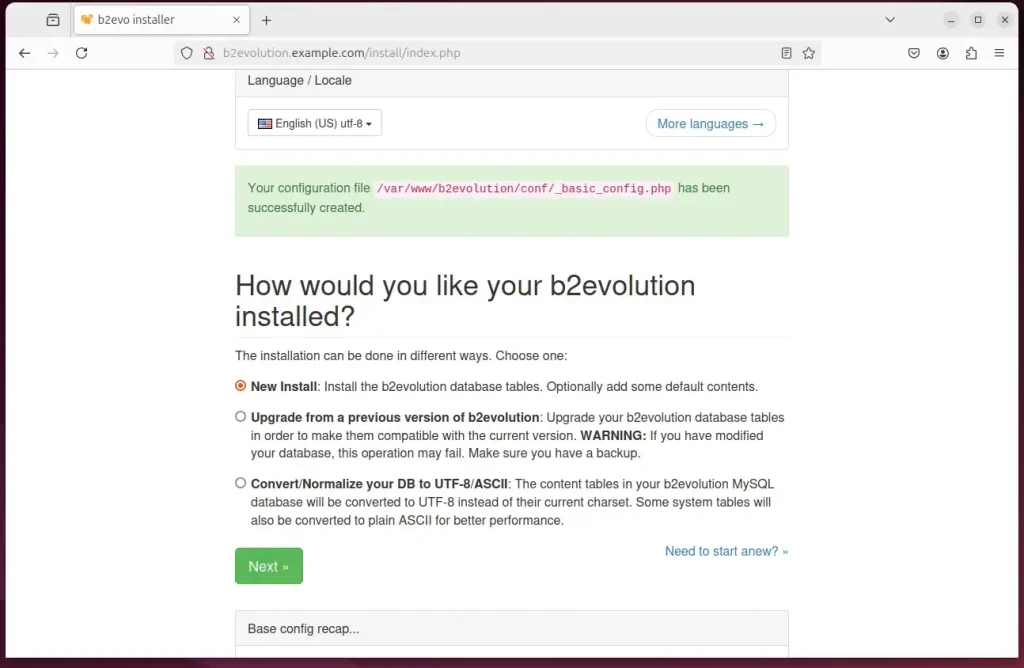
The wizard saves these details to its configuration file and moves on to the next step. If it cannot write the file, go back and check the folder permissions.
- Select New Install.
- Click Next.
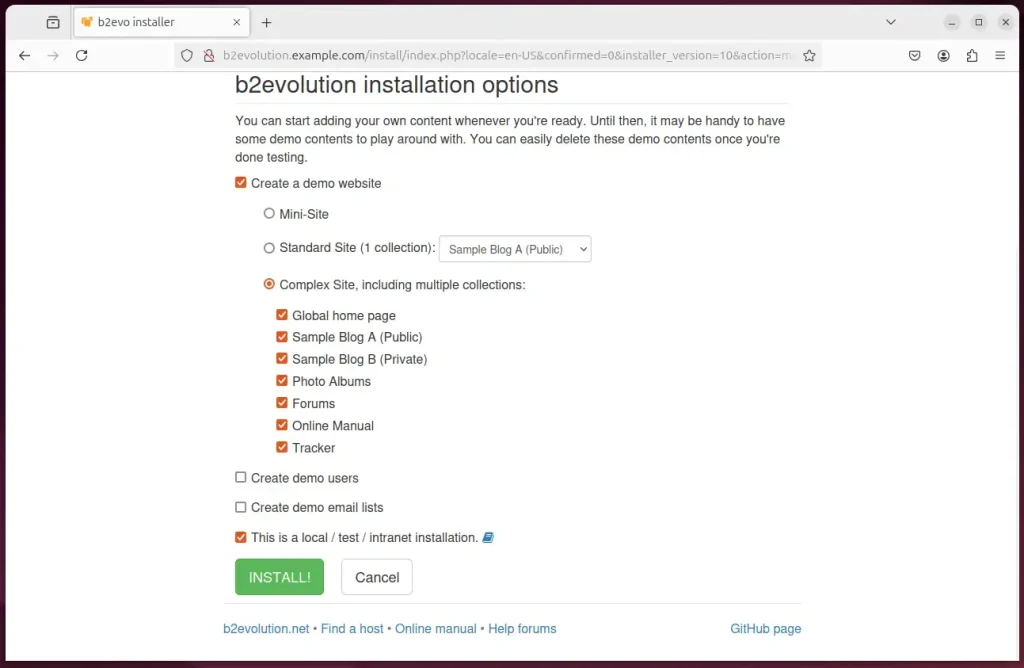
Click Install to begin. The wizard creates the database tables and the default content. This can take a short while, so wait for it to finish.
b2evolution should now be ready to use. Note the administrator login details the wizard shows on the final screen, and sign in to the dashboard to start setting up your first blog.
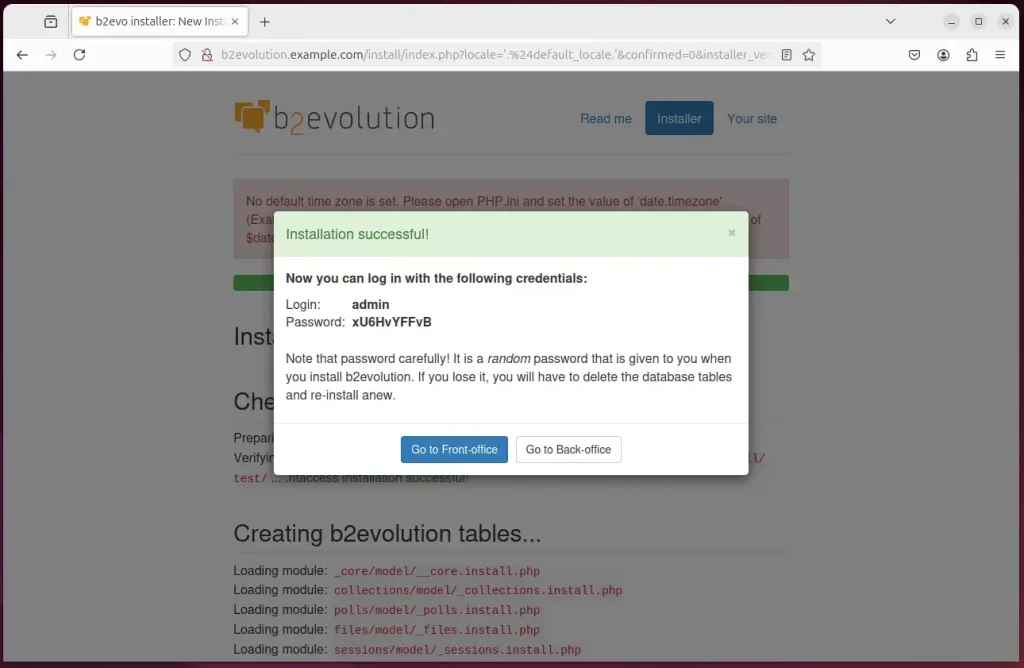
That should do it!
Conclusion:
Installing b2evolution with Nginx on Ubuntu gives you an efficient blogging and content management platform that you control yourself. Here are the key takeaways:
- Nginx Performance: Nginx handles many visitors at once with modest resources, which suits running multiple blogs and high traffic.
- MariaDB Integration: MariaDB as the database server provides reliable storage for your posts, comments, and user accounts.
- PHP Support: Installing PHP with the required modules gives b2evolution the features and compatibility it needs.
- Secure Setup: SSL/TLS with Let’s Encrypt secures your site and protects user data in transit.
- Flexible Configuration: The virtual host file lets you adjust the setup to fit your hosting needs.
- User-Friendly Installation: The b2evolution installation wizard keeps the final setup simple, even for beginners.
With these steps done, your server is ready for your blogs, forums, and galleries. Enjoy your new site!
Have a question about this guide?
Answered by AI from this guide. Good questions may be added to this page — please don't include personal details.
Did this guide fix your problem?

About the Author
Richard
Tech Writer, IT Professional
Richard is a writer at Geek Rewind who turns complex IT tasks into clear, step-by-step guides. He draws on years of hands-on experience in system administration and enterprise IT operations, focusing on Windows, Linux and WordPress: the problems people actually run into, and the fixes that work. His server and WordPress guides come from systems he runs himself. Richard builds and maintains the platform behind Geek Rewind, from its Ubuntu servers and Nginx configuration to its custom WordPress plugins. Many new tutorials start with readers' questions, and he's always glad to answer them in the comments.
No comments yet — be the first to share your thoughts!