How to Turn “Show new tab menu” On or Off in Microsoft Edge


The “Show new tab menu” feature in Microsoft Edge adds a shortcut button to your toolbar for quick access to tab groups, recent history, and closed tabs. You can turn this button on or off in just a few clicks through the Microsoft Edge appearance settings.
Hiding the menu clears extra clutter from your browser bar, while keeping it turned on gives you fast shortcuts for everyday web browsing.
Open Microsoft Edge, click the three dots menu, go to Settings , then Appearance. Under Customize toolbar, toggle the “Show new tab menu” option on or off.
Add or remove the “New tab menu” in Edge
You can show or hide the Microsoft Edge new tab menu by changing a quick switch in your browser settings. To do this, open the menu with the three dots in the top right corner, pick Settings, and find the Appearance section where you can turn the Microsoft Edge new tab menu on or off instantly.
- Open the Microsoft Edge browser.
- Click the Settings and more button (the three dots icon) in the top right corner.
- Select Settings from the menu.

Microsoft Edge browser has more options and settings - On the left side of the screen, click Appearance.
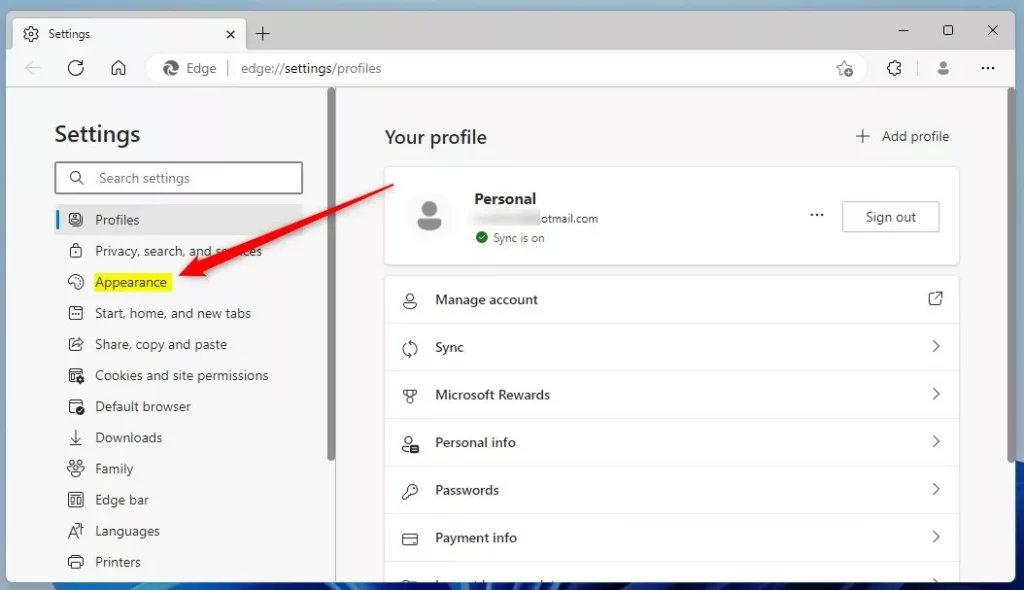
Microsoft Edge settings appearance - Look for the Customize toolbar section on the right.
- Find the Show new tab menu option.
- Click the toggle switch to turn it On or Off.
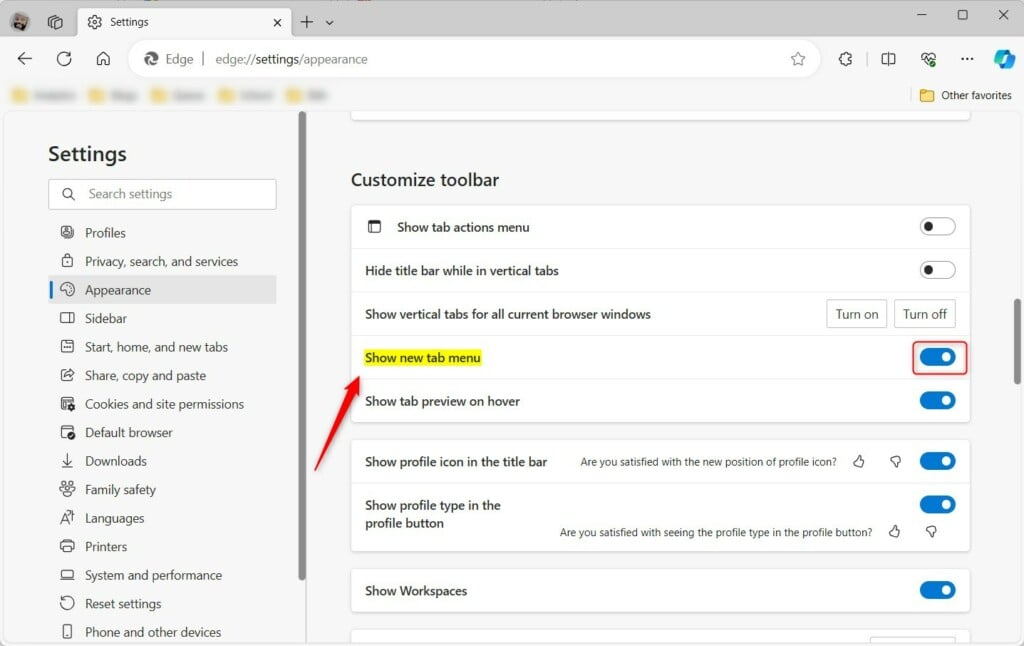
Add or remove the New tab menu in Edge
If you turn it on, the menu icon will appear on your toolbar immediately. 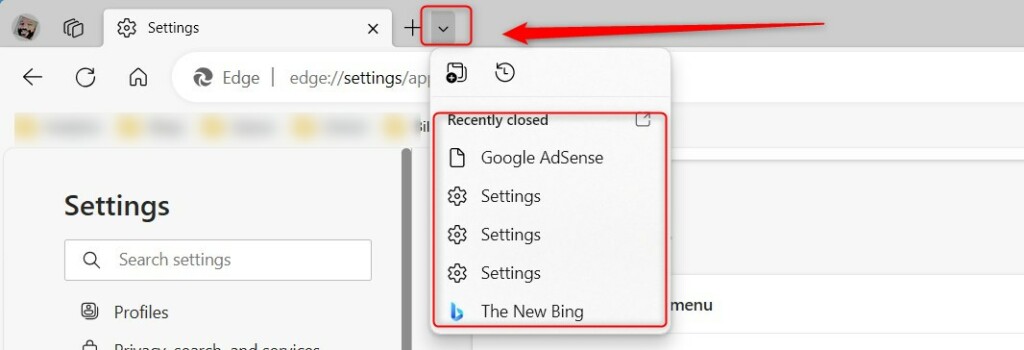
Conclusion
Enabling the “New tab menu” makes it easier to keep your tabs grouped and organized. If you prefer a cleaner look with fewer buttons, you can easily turn it off to keep your toolbar simple.
Can you customize the new tab page?
At the bottom right of a New Tab page, click Customize Chrome . Under “Appearance,” select from the available options. When you select a theme, Chrome suggests colors that pair together.
How do I choose the default feed for Microsoft Edge new tab page?
Click 'Start, home, and new tab page' on the left-hand list. Click on the Customize button under “New tab page” to manage the Microsoft Edge news feed. Turn on Show content to enable the news feed (default setting). Select your preferred layout to customize your feed.
Was this guide helpful?
0% of readers found this helpful (1 votes)

About the Author
Richard
Tech Writer, IT Professional
Richard is a writer at Geek Rewind who turns complex IT tasks into clear, step-by-step guides. He draws on years of hands-on experience in system administration and enterprise IT operations, focusing on Windows, Linux and WordPress: the problems people actually run into, and the fixes that work. His server and WordPress guides come from systems he runs himself. Richard builds and maintains the platform behind Geek Rewind, from its Ubuntu servers and Nginx configuration to its custom WordPress plugins. Many new tutorials start with readers' questions, and he's always glad to answer them in the comments.

No comments yet — be the first to share your thoughts!