How to Enable or Disable Text Suggestions in Windows 11

Text suggestions in Windows 11 predict words as you type to speed up writing emails and messages across apps like web browsers and text editors. Also called typing suggestions, this built-in feature shows a list of word choices right above your cursor so you can pick one with a single click or tap.
You can turn this feature on or off in the Windows Settings app under Time & language and then Typing. Windows 11 supports text suggestions in dozens of languages.
Open Settings, navigate to Time & language, then Typing. Toggle “Show text suggestions when typing on the physical keyboard” to enable or disable the feature. You can also manage multilingual suggestions here.
How to Use Text Suggestions
Windows 11 text suggestions appear above your cursor as you type so you can pick the right word quickly. To use text suggestions, click your chosen word with the mouse, tap it on a touch screen, or use the keyboard arrow keys to highlight the word and press Enter. This feature helps you type faster and reduces spelling mistakes across all your apps.
When you select a suggestion, Windows types the word for you automatically.
To select a suggestion:
- Click on it with your mouse or tap it on a touch screen.
- Use your keyboard arrows: Press the Up arrow to open suggestions. Then press Left and Right to choose. Press Enter to select.
- If you do not want to use a suggestion, click outside the suggestion box or press Esc.
Turn On or Off Text Suggestions Using Settings
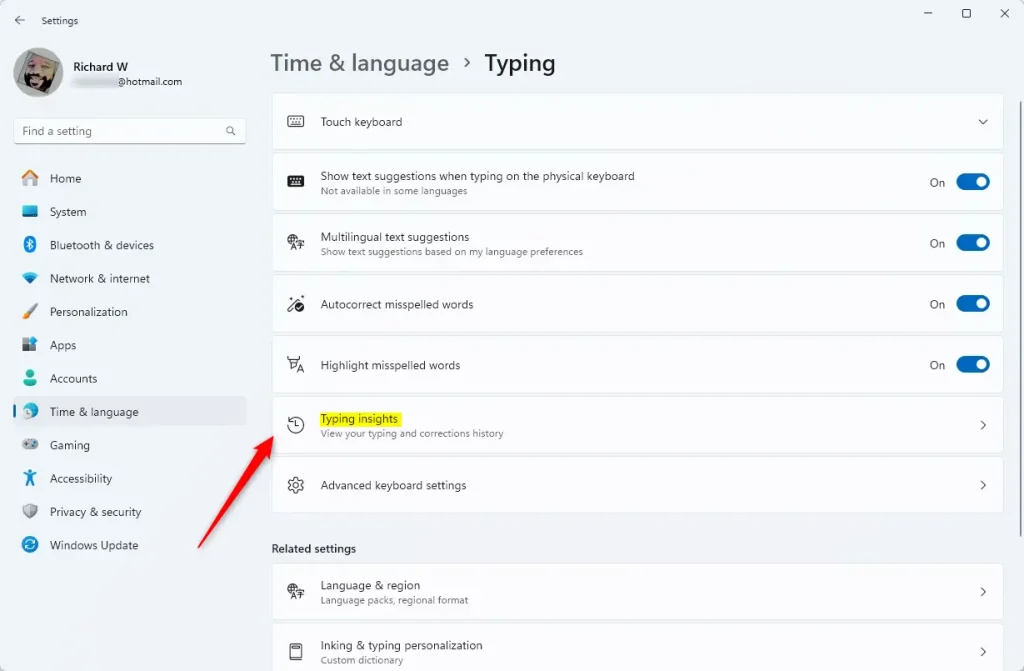
Windows 11 text suggestions can be turned on or off through the main Settings app in just a few clicks. Open Settings , go to Time & language, choose Typing, and toggle the switch for text suggestions to change your typing preferences right away. Your choice takes effect immediately in all text boxes and apps.
What happens next: Windows will use or stop using text suggestions as you type.
- Open Settings by pressing Win + I on your keyboard.
- Click on Time & language in the left menu.
- Choose Typing on the right.
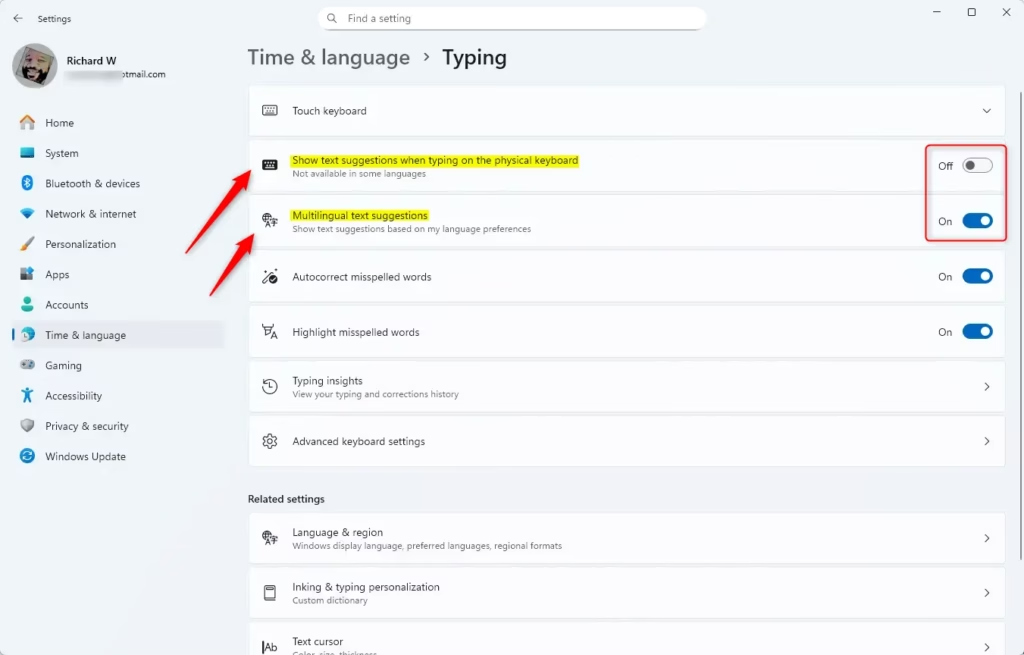
- Find Show text suggestions when typing on the physical keyboard and turn it On or Off depending on what you want.
- You can also turn on Multilingual text suggestions if you want suggestions in multiple languages. Note: This only works if text suggestions are turned on.
Typing settings are accessible directly by clicking this link, which opens your Settings app: Open Typing Settings
Turn On or Off Text Suggestions Using Registry (Advanced)
Backing up your Registry first remains a smart precaution.
Why use Registry? Advanced users might prefer this method for controlling text suggestions.
What happens? Windows uses these settings to enable or disable suggestions.
To Turn On Text Suggestions:
reg add "HKEY_CURRENT_USER\Software\Microsoft\Input\Settings" /v EnableHwkbTextPrediction /t REG_DWORD /d 1 /fTo Turn On Multilingual Text Suggestions:
reg add "HKEY_CURRENT_USER\Software\Microsoft\Input\Settings" /v MultilingualEnabled /t REG_DWORD /d 1 /fTo Turn Off Text Suggestions (default):
Windows 11 text suggestions help users type faster by predicting words and phrases. Microsoft's support page, "Enable text suggestions in Windows," offers official step-by-step instructions for users to turn this word prediction feature on or off within Windows 11.

Was this guide helpful?

About the Author
Richard
Tech Writer, IT Professional
Richard is a writer at Geek Rewind who turns complex IT tasks into clear, step-by-step guides. He draws on years of hands-on experience in system administration and enterprise IT operations, focusing on Windows, Linux and WordPress: the problems people actually run into, and the fixes that work. His server and WordPress guides come from systems he runs himself. Richard builds and maintains the platform behind Geek Rewind, from its Ubuntu servers and Nginx configuration to its custom WordPress plugins. Many new tutorials start with readers' questions, and he's always glad to answer them in the comments.




No comments yet — be the first to share your thoughts!