
Do you use cloud storage like OneDrive or Dropbox on Windows 11? You might see a warning message when you delete files that live only in the cloud. This guide shows you simple ways to turn that warning on or off.
What is File Explorer?
File Explorer is the tool on your Windows computer that helps you find, copy, move, delete, and organize your files and folders. It shows files stored on your PC and in the cloud.
What are Online-Only Cloud Files?
When you use cloud services like OneDrive or Dropbox, some files may be stored only in the cloud to save space on your computer. These are called “online-only” files.
Why Do You See a Delete Warning?
When you delete an online-only file, Windows shows a warning to make sure you really want to delete it. Why? Because the file will be removed permanently and won’t go to the Recycle Bin. You can’t get it back easily.
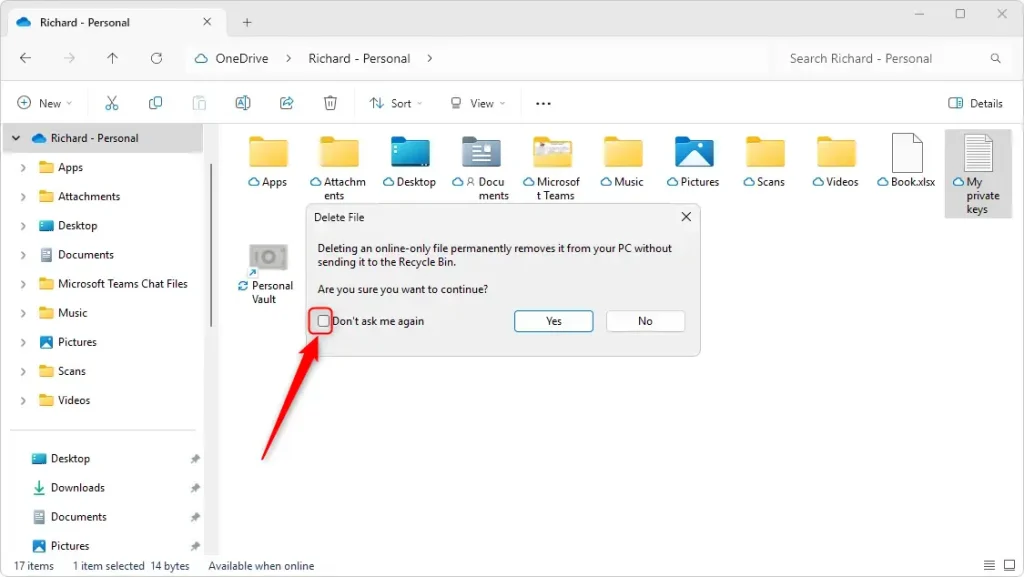
How to Turn the Delete Warning On or Off in File Explorer
When you delete an online-only file, the warning popup appears. Here’s what to do:
- Look for the box that says “Don’t ask me again”.
- To keep seeing warnings: Make sure this box is unchecked.
- To stop seeing warnings: Check this box, and you won’t be asked again.
How to Turn the Delete Warning On or Off Using the Registry Editor
You can also change this setting using the Windows Registry. But be careful! Making wrong changes can cause problems. Always back up your registry or create a system restore point before you start.
⚠️ Admin privileges required for the following steps.
Follow these steps:
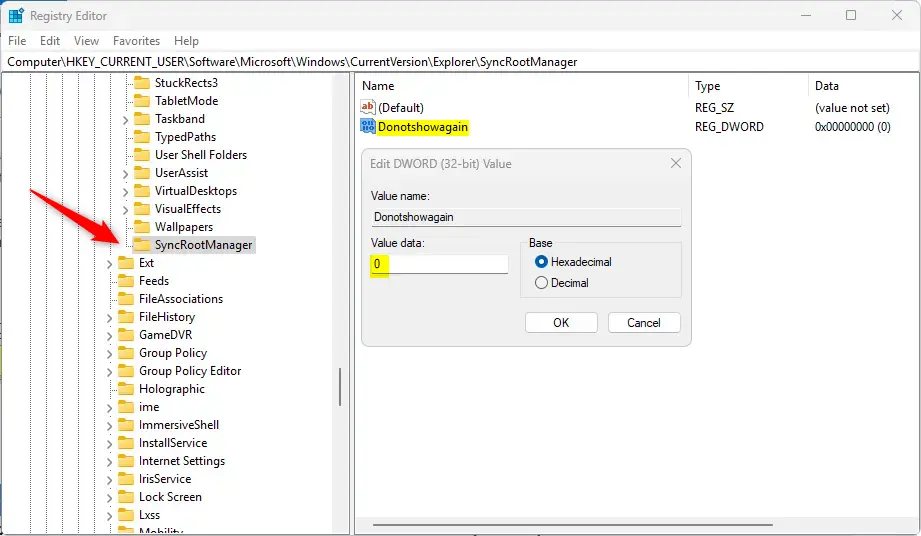
- Open the Registry Editor by typing
regeditin the Start menu search and pressing Enter. - Go to this folder path:
Computer\HKEY_CURRENT_USER\Software\Microsoft\Windows\CurrentVersion\Explorer\SyncRootManager - Right-click on
SyncRootManager, choose New > DWORD (32-bit) Value. - Name the new value
Donotshowagain. - Double-click
Donotshowagainand set the value to:0to enable the delete confirmation prompt (you will see the warning).1to disable the prompt (no warning will appear).
- Close Registry Editor and restart your computer to apply changes.
Summary
- The delete confirmation helps prevent accidentally deleting important cloud files.
- If you delete files often and don’t want interruptions, you can turn off the warning.
- You can toggle this setting either when the warning pops up or by using the Registry Editor.
- Always back up your system before making registry changes.
- Understanding these settings helps you manage your cloud files safely and easily.
That’s it! Now you know how to control the delete warning for your cloud files in Windows 11.



Leave a Reply