How to Enable or Disable Advanced Bluetooth Discovery in Windows 11

- 24 steps
- Needs administrator rights
- Includes a restart or sign-out
Bluetooth device discovery in Windows 11 is controlled by the Bluetooth devices discovery setting, found under Settings Bluetooth & devices > Devices. Set it to Advanced and Windows lists every Bluetooth device it can detect nearby, not just the common ones.
By default, Windows shows only common Bluetooth devices in the pairing list. That hides many older speakers, game controllers, fitness trackers and other niche accessories. This post covers two ways to switch advanced mode on or off: the Settings app and the Registry Editor.
To turn on advanced Bluetooth device discovery in Windows 11, open Settings, go to Bluetooth & devices Devices, click Bluetooth devices discovery, and choose Advanced from the drop-down. Windows then lists every nearby Bluetooth device, including older speakers, controllers and trackers. Choose Default to switch back. No restart is needed.
Why Use Advanced Bluetooth Discovery?
Standard scans filter out devices that don’t advertise themselves in a typical way. If your accessory is switched on and in pairing mode but never shows up, the default filter is a likely cause. Advanced discovery removes that filter, so stubborn accessories can appear in the list.
The trade-off is a longer, noisier list. Expect to see neighbors’ phones, TVs and unnamed devices alongside your own. Once your accessory is paired, you can switch back to the default mode.
It does not change whether other devices can see your PC. That second control, often called the discoverability setting, is separate. In the older Bluetooth Settings window, opened from More Bluetooth settings on the same Devices page, it is the Allow Bluetooth devices to find this PC option.
Turn On Advanced Bluetooth Discovery Using the Settings App
The Settings app is the most direct way to change this, and it works the same on Windows 11 Home and Pro. Before you start, make sure Bluetooth is turned on and your PC has a working Bluetooth adapter. Without an adapter, the Bluetooth pages in Settings will not appear at all.
The numbered steps below turn on advanced Bluetooth device discovery so your PC lists every nearby Bluetooth device. A screenshot follows each group of steps so you can check what you should see.
- Open the Settings app . You can do this by:
- Clicking the Start menu and choosing Settings.
- Or pressing Win+I on your keyboard.
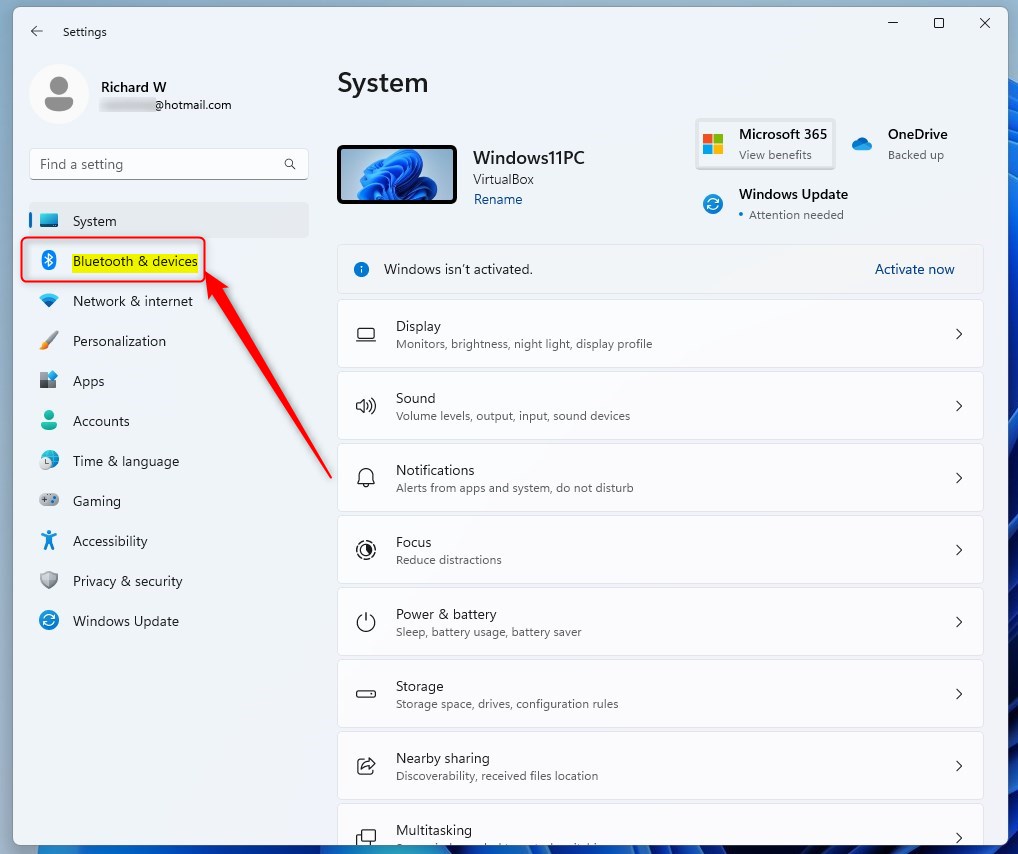
- In Settings, click on Bluetooth & devices on the left side.
- Look for the Devices section and click to open it.
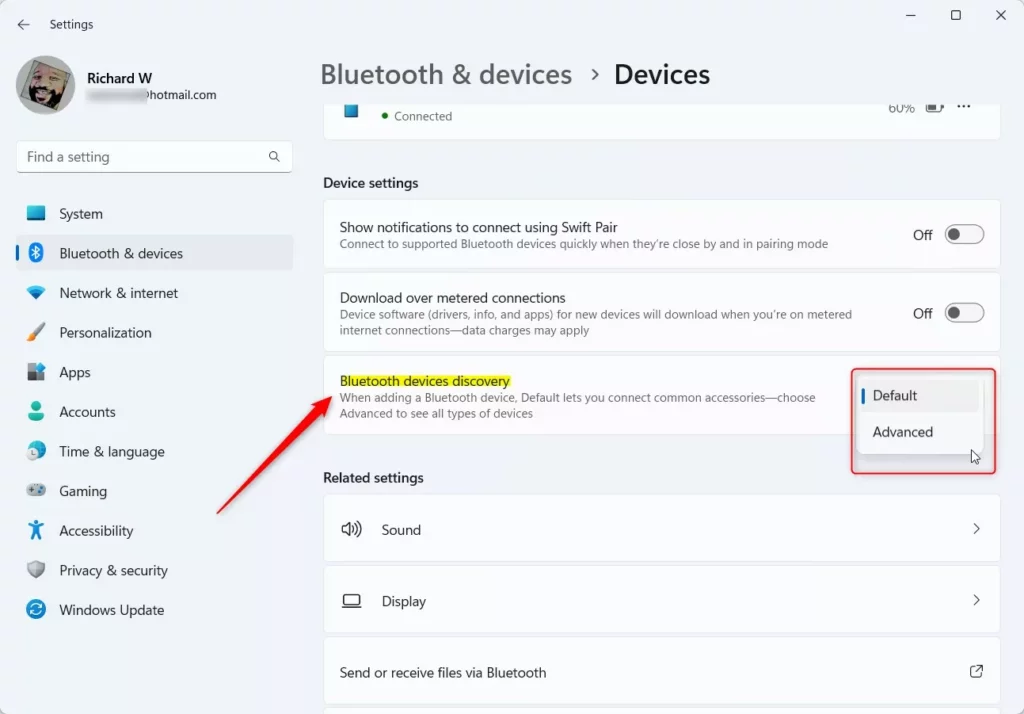
- Find and click on the Bluetooth devices discovery option.
- From the drop-down menu, select Advanced to allow your PC to find all types of Bluetooth devices.💡If the Advanced option is missing from the drop-down
Advanced Bluetooth discovery has been removed from recent versions of Windows, so the Advanced option won't appear in the menu. You can still find your accessory with the normal scan:
- Open Settings and click Bluetooth & devices.
- Click Add device, then choose Bluetooth .
- Put your accessory in pairing mode and keep it close to the PC.
Wait up to a minute. If it still doesn't show, charge the accessory and check its manual for how to make it discoverable. The Registry Editor steps below no longer apply.
- If you want to switch back to normal discovery later, just pick Default from the menu.
- When you’re done, simply close the Settings app.
Turn On Advanced Bluetooth Discovery Using the Registry Editor (For Advanced Users)
If the discovery option is missing from Settings, check three things. First, confirm Bluetooth is on and the PC has a Bluetooth adapter. Second, install any pending Windows updates, because this option only appears in newer builds of Windows 11.
Third, update the Bluetooth driver from your PC or adapter manufacturer. A driver is the software that lets Windows talk to the adapter, and an old one can hide features.
To undo the change, go back to the same setting and choose Default. No restart is needed for this method.
The Registry Editor is the fallback for when the Settings option is missing or won’t stay changed. It works on both Home and Pro, but you need administrator rights. The registry is the database where Windows stores its settings.
In the steps below, you browse to the correct key and change one value to turn on enhanced device searching.
⚠️ Admin Privileges Required
A wrong edit in the registry can cause problems that are hard to trace, and a backup lets you reverse it quickly. Make only the change described in the steps.
These steps turn on advanced Bluetooth discovery through the registry:
- Open the Registry Editor. You can search for
regeditin the Start menu and open it. - Go to this folder path:
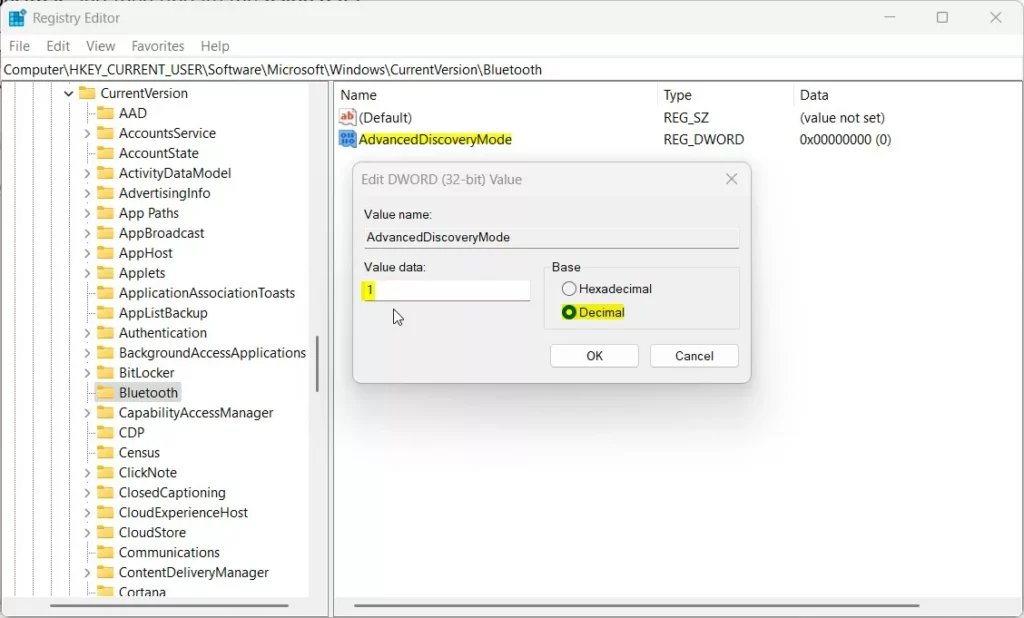
HKEY_CURRENT_USER\Software\Microsoft\Windows\CurrentVersion\Bluetooth💡If you can't find Advanced Bluetooth discoveryAdvanced Bluetooth discovery has been removed from Windows, so there is no Advanced option in Settings and no matching registry key to edit. Changing AdvancedDiscoveryMode no longer has any effect, and there is no direct replacement. To find your accessory with the normal scan:
- Open Settings and click Bluetooth & devices.
- Click Add device, then choose Bluetooth .
- Put your accessory in pairing mode, keep it close to the PC, and wait up to a minute.
If it still doesn't appear, check the accessory's manual for how to make it discoverable.
- If you don’t see the Bluetooth folder there, right-click on CurrentVersion, choose New Key, and name it Bluetooth .
- Click on the Bluetooth folder. In the right side panel, right-click and select New DWORD (32-bit) Value.
- Name the new value
AdvancedDiscoveryMode. - Double-click on
AdvancedDiscoveryMode. In the box that pops up:- Set the Base to Decimal.
- Enter 1 to turn on advanced discovery.
- Enter 0 to turn it off.
- Click OK, close the Registry Editor, and restart your computer.
What Happens When You Enable Advanced Discovery?
Registry changes may not take effect until you restart the PC, or at least sign out and back in. If the setting still doesn’t apply, restart before you troubleshoot further.
To undo the change, set the value back to what it was before, or import the backup you exported earlier. Then restart the PC.
Once the setting applies, Windows starts a broader search whenever you scan for devices. These steps pair your accessory with the wider scan:
- Open Settings Bluetooth & devices. The Bluetooth toggle at the top should be set to On.
- Select Add device. A window opens listing the types of device you can add.
- Choose Bluetooth. Windows starts scanning for nearby devices.💡If you can't find Advanced Bluetooth discovery
Advanced Bluetooth discovery has been removed from Windows, so you won't find it in Settings or the Registry Editor, and there is no direct replacement. Changing the
AdvancedDiscoveryModevalue no longer has any effect. To look for your accessory with the normal scan:- Open Settings and click
Bluetooth & devices. - Click
Add device, then chooseBluetooth. - Put your accessory in pairing mode, keep it close to the PC, and wait up to a minute.
If it still doesn't appear, check the accessory's manual for how to make it discoverable.
- Open Settings and click
- Put your accessory in pairing mode. Wait a little longer than usual, because the broader scan takes more time.
- Select your device in the list and finish pairing. Devices that were hidden before should now appear.
Summary
Advanced Bluetooth discovery in Windows 11 widens the range of hardware your PC can find and pair with. Switch it on through the Settings app, or through the Registry Editor if the Settings option is missing. Either way, you can return to the default mode once your accessory is paired.
Frequently asked questions
How to make Bluetooth discoverable?
To make your PC discoverable, open Settings, go to Bluetooth & devices, and select Devices. Choose More Bluetooth options, open the Options tab, and tick Allow Bluetooth devices to find this PC. Click Apply, then OK. Nearby devices can now see your PC until you clear that box.
How to put Bluetooth in discovery mode?
To put Bluetooth in discovery mode on Windows 11, turn on Bluetooth in Settings. Then open More Bluetooth options and tick Allow Bluetooth devices to find this PC on the Options tab. For an accessory, press and hold its pairing button until its light flashes. Then select Add device in Settings to find it.
How to turn off PC discoverability Windows?
To turn off PC discoverability, open Settings, go to Bluetooth & devices, select Devices, and choose More Bluetooth options. On the Options tab, clear the Allow Bluetooth devices to find this PC box, then click Apply and OK. Your PC stays paired with existing devices but stops appearing in nearby scans.
How to discover Bluetooth devices on 🪟 Windows 11?
To discover Bluetooth devices on Windows 11, turn on Bluetooth, then open Settings and select Bluetooth & devices. Click Add device and choose Bluetooth. Put your accessory in pairing mode, and Windows will list nearby devices. Select yours and follow the prompts. If it still doesn't appear, turn on advanced Bluetooth discovery.
How to turn on Bluetooth?
To turn on Bluetooth in Windows 11, open Settings, select Bluetooth & devices, and switch the Bluetooth toggle to On. You can also press Windows key + A to open Quick Settings and select the Bluetooth tile. If the toggle is missing, check Device Manager for a disabled Bluetooth adapter.
How do I make Bluetooth discoverable?
Open Settings, go to Bluetooth & devices, and select Devices. Click More Bluetooth options, then open the Options tab. Tick Allow Bluetooth devices to find this PC, and click Apply, then OK. Nearby devices can now find your PC during a scan. Clear the box later to hide it again.
Is Advanced Bluetooth discovery still in Windows 11?
Asked by a reader
No. Microsoft has removed Advanced Bluetooth discovery from Windows, so the Advanced option is gone from Settings, and the AdvancedDiscoveryMode registry value no longer does anything. There is no direct replacement. To find a hidden accessory, open Settings, select Bluetooth & devices, click Add device, and choose Bluetooth. Put the accessory in pairing mode, keep it near the PC, and wait up to a minute. If it still doesn't show, check the accessory's manual.
Why is there no Advanced option in the Bluetooth devices discovery menu?
Asked by a reader
Windows has removed the Advanced Bluetooth discovery option from recent versions, so it no longer appears in the drop-down menu. To find a device that isn't listed, open Settings, go to Bluetooth & devices, and click Add device, then choose Bluetooth. Put the accessory in pairing mode, keep it close to your PC, and wait up to a minute. If it still doesn't appear, charge it and check its manual to confirm how to make it discoverable. The registry method in this guide no longer applies.
Still have a question?
Answered by AI from this guide. Good questions may be added to this page — please don't include personal details.
Did this guide fix your problem?

About the Author
Richard
Tech Writer, IT Professional
Richard is a writer at Geek Rewind who turns complex IT tasks into clear, step-by-step guides. He draws on years of hands-on experience in system administration and enterprise IT operations, focusing on Windows, Linux and WordPress: the problems people actually run into, and the fixes that work. His server and WordPress guides come from systems he runs himself. Richard builds and maintains the platform behind Geek Rewind, from its Ubuntu servers and Nginx configuration to its custom WordPress plugins. Many new tutorials start with readers' questions, and he's always glad to answer them in the comments.
No comments yet — be the first to share your thoughts!