How to Enable or Disable Windows 11 Startup Sound

The Windows 11 startup sound is that familiar chime that plays as your PC boots up, before you even reach the login screen.
You control this audio cue, or turn it off completely, directly within the Sound settings panel on Windows 11.
Some people like hearing the startup sound, while others prefer a quiet boot-up, especially if they work in shared spaces. Thankfully, Windows 11 provides a straightforward way to manage this sound.
You can find the “Play Windows Startup sound” option buried within the main Sound settings.
Open Settings, go to System, then Sound, and click More sound settings. In the Sounds tab, uncheck “Play Windows Startup sound” and click OK. This will disable the startup chime.
Turn Off Windows Startup Sound Using Settings
You can turn off the Windows 11 startup sound easily through the Settings app. This is the simplest and safest way to stop your PC from making noise when it starts up. Your computer will then boot up quietly without any startup chime.
What happens when done? Your PC will start quietly without the Windows startup sound playing.
Follow these easy steps to disable the startup sound:
- Open Windows Settings. Click the Start menu (the Windows icon in the bottom-left corner), then click Settings. Or, press Windows key + I on your keyboard to open Settings quickly.
- In Settings, click on System on the left side.
- Then, click Sound on the right.

Windows Sound tile in Windows Settings app - Scroll down and click More sound settings at the bottom.
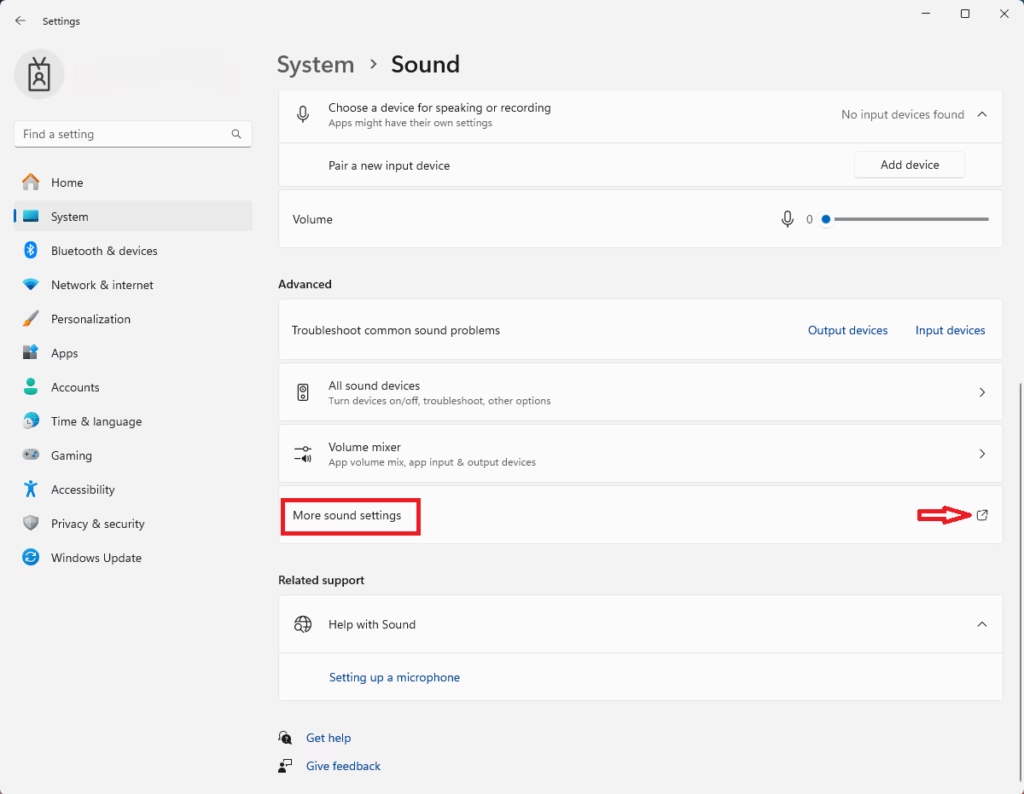
More sound settings link - A new window will open. Click the Sounds tab at the top.
- Find the box that says Play Windows Startup sound and uncheck it.
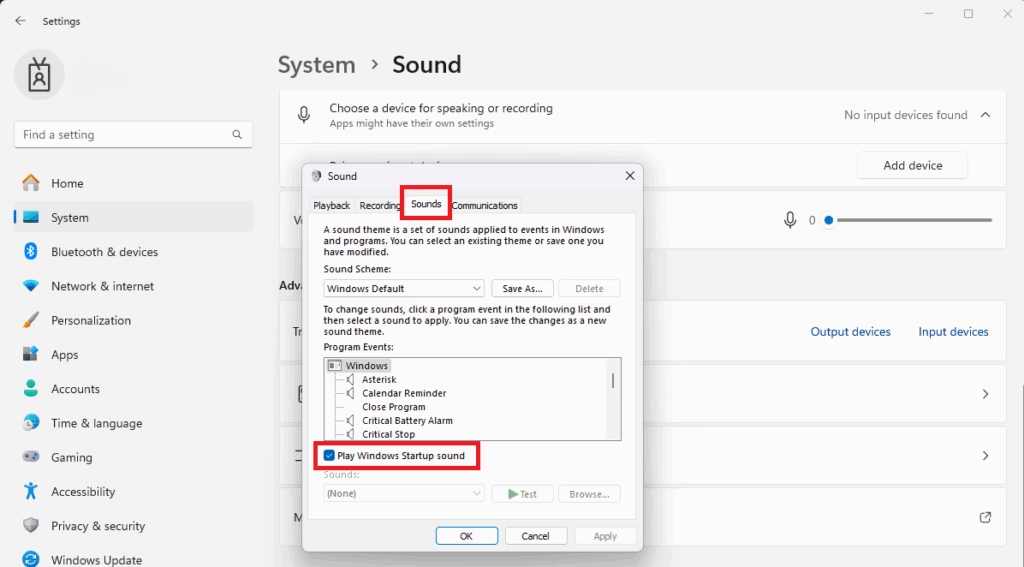
Disable startup sound checkbox - Click OK to save your changes.
Now, your PC will start quietly without the Windows startup sound!
Turn Off Windows Startup Sound Using Registry Editor (Advanced)
Editing the Registry lets you turn off the Windows 11 startup sound for good, even after updates. This advanced method requires careful steps, so only use it if you’re comfortable changing system settings. Making mistakes in the Registry can cause issues, so proceed with caution.
What happens when done? Your startup sound will be disabled and stay off even after updates.
- Click the Search icon (magnifying glass) on the taskbar, type
regedit, and press Enter.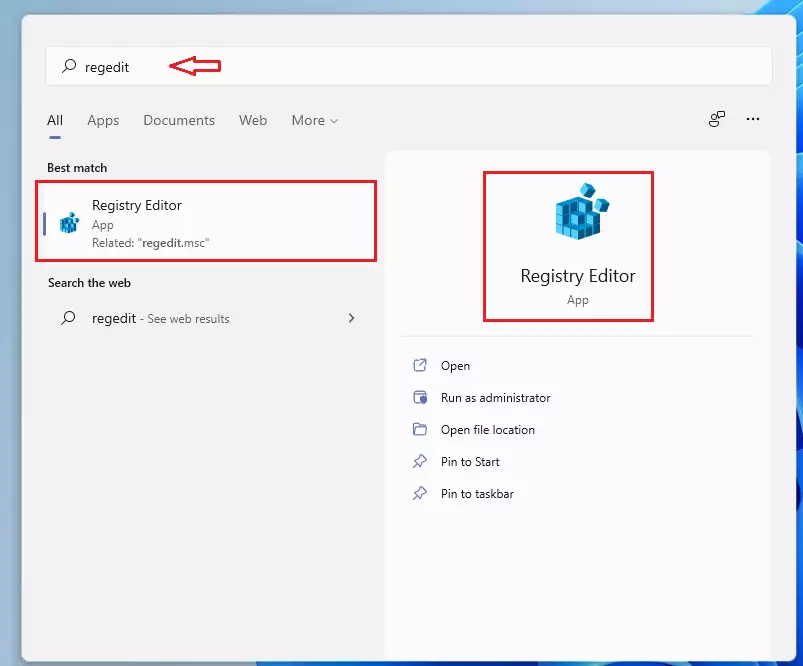
regedit in windows 11 - ⚠️ ADMIN PRIVILEGES REQUIRED: If a warning pops up, click Yes to continue.
- In the Registry Editor window, use the left side panel to go to this folder path:
HKEY_LOCAL_MACHINE\SOFTWARE\Microsoft\Windows\CurrentVersion\Authentication\LogonUI\BootAnimation - On the right side, find DisableStartupSound and double-click it.
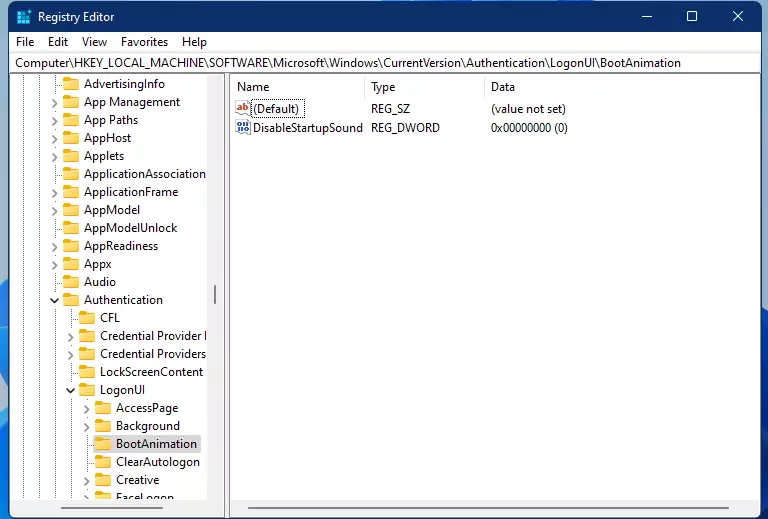
windows 11 disable sound registry - Change the number in the box to 1 to turn off the startup sound. (Setting it to 0 will turn it back on.)
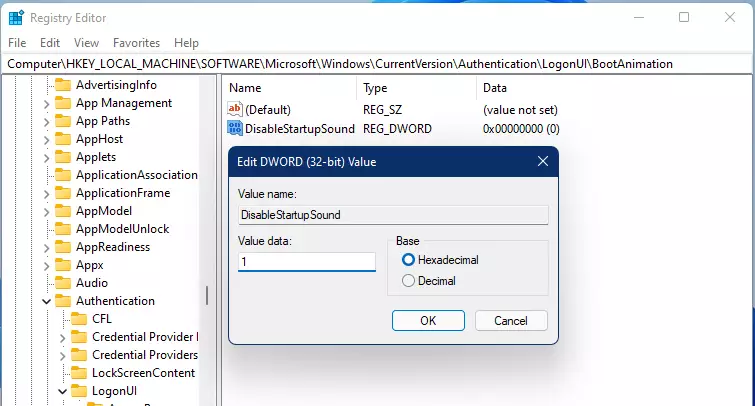
windows 11 disable registry sound - Click OK and close the Registry Editor.
Summary
Managing the Windows 11 startup sound is straightforward, with the Settings app offering the easiest and safest method for most people. This app gives you direct control to turn the startup sound on or off, letting you decide if you want audio cues when your computer starts.
Windows 11 startup sound management uses the Settings app. This Settings app method offers a safe and simple approach for users to turn the startup sound on or off, ensuring clear control over audio cues at system boot.
If you like, you can also use the Registry Editor method. But only try it if you feel comfortable with advanced settings.
Once turned off, your PC will start quietly without the startup sound.
Enjoy a quieter start to your Windows 11 computer!
How to disable boot beep sound?
Sound down here at the bottom If that's checkarked. You want to go ahead. And uncheck that and select apply and okay to then turn it. Off And that's all you have to do So pretty straightforward.
Was this guide helpful?

About the Author
Richard
Tech Writer, IT Professional
Richard, a writer for Geek Rewind, is a tech enthusiast who loves breaking down complex IT topics into simple, easy-to-understand ideas. With years of hands-on experience in system administration and enterprise IT operations, he’s developed a knack for offering practical tips and solutions. Richard aims to make technology more accessible and actionable. He's deeply committed to the Geek Rewind community, always ready to answer questions and engage in discussions.



No comments yet — be the first to share your thoughts!