How to Turn On or Off Focused Inbox in Outlook

You turn on or off Focused Inbox in Outlook to automatically sort your emails into “Focused” and “Other” tabs, making it easier to prioritize important messages.
Focused Inbox is an Outlook feature that intelligently separates your most relevant emails from less important ones. It learns from your email habits to ensure your key communications land in the “Focused” tab, while newsletters, notifications, and other less urgent mail go to the “Other” tab.
Implementing Focused Inbox in Outlook versions like the current Microsoft 365 or Outlook 2019 separates your inbox into two distinct sections: “Focused” and “Other.” Disabling it consolidates all your incoming mail into a single list, simplifying your email management without deleting any messages.
How to Toggle Focused Inbox on Windows 11
Follow these steps to adjust your settings in the new Outlook app:
- Open the Outlook app on your computer.
- Click the Settings gear icon in the top right corner.

- Select Mail and then Layout.
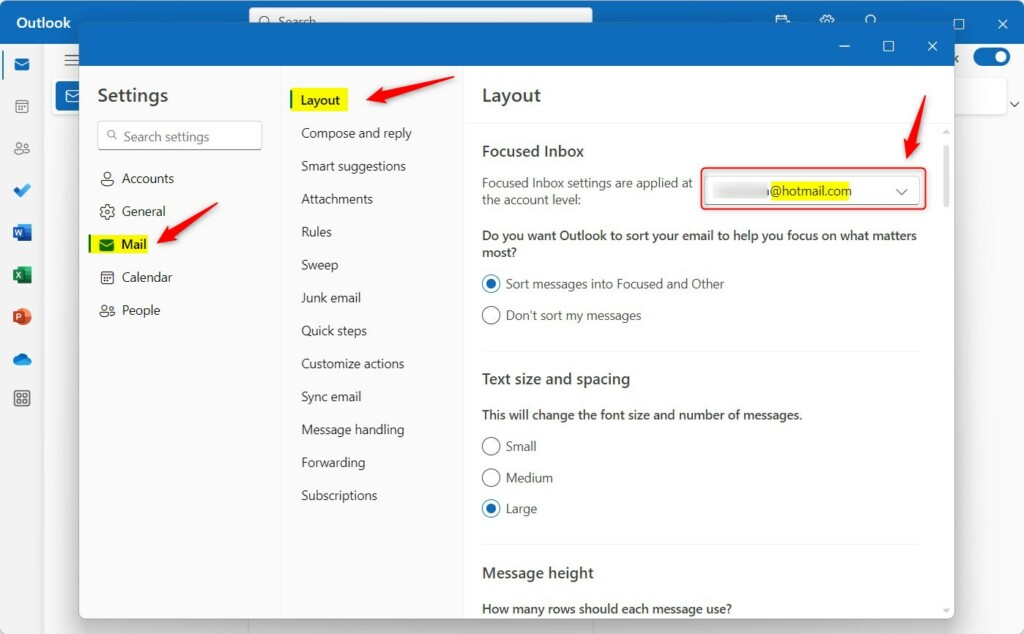
- Choose your email account.
- Under Focused Inbox, select Sort messages into Focused and Other or Don’t sort my messages.
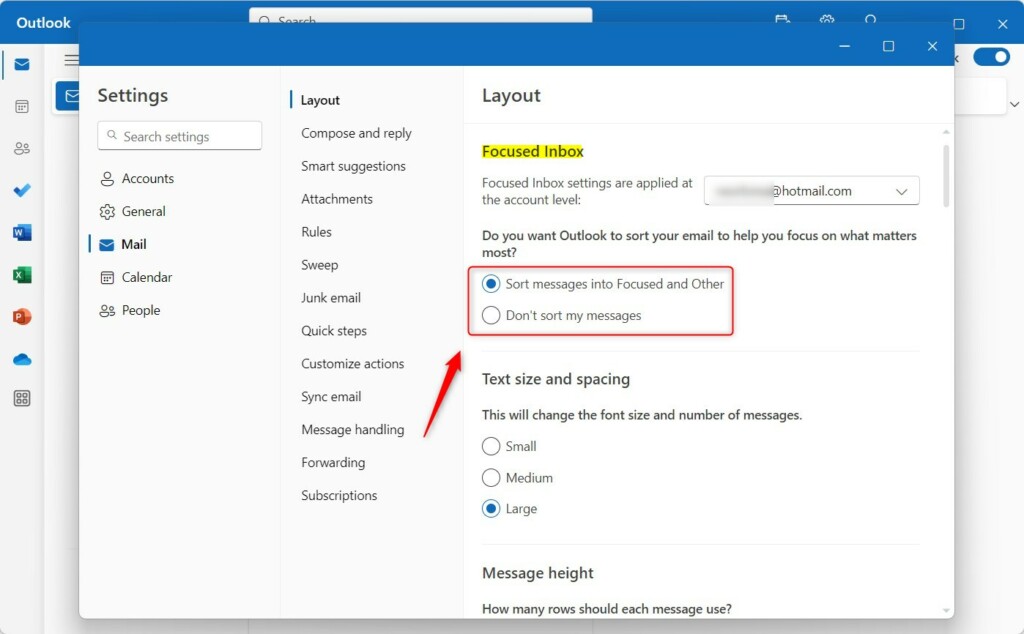
- Save your changes and restart the app.
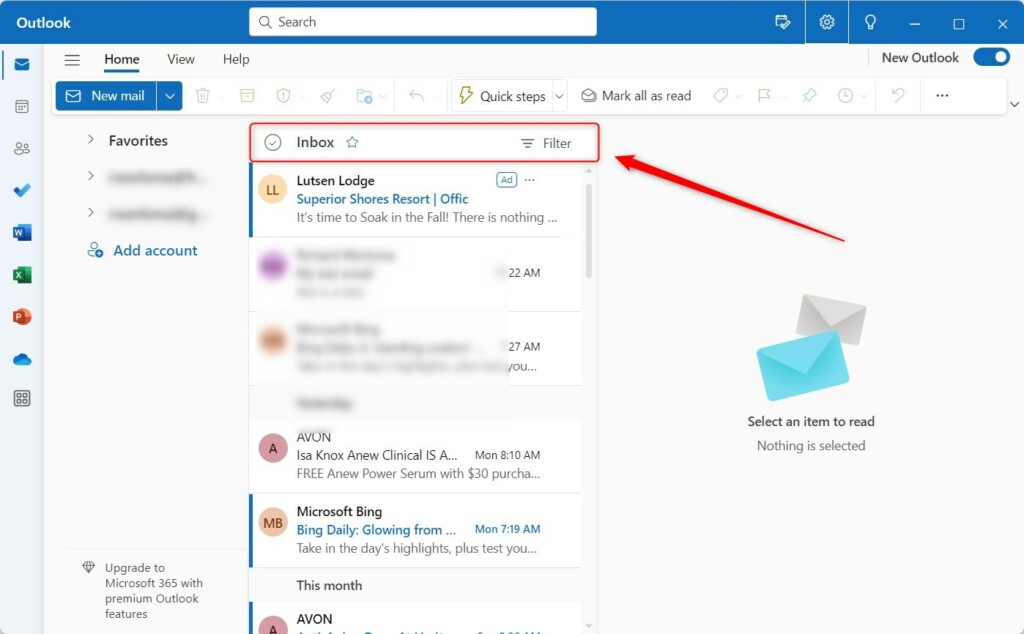
Managing Focused Inbox on Mobile
If you use Outlook for iOS or Android, the steps are slightly different:
- Open the Outlook app on your phone.
- Tap your profile icon or the Home icon in the top left.
- Tap the Settings (gear) icon at the bottom.
- Find Focused Inbox and toggle the switch to On or Off.
Why: This ensures your mobile experience matches your desktop workflow. What happens: Your notifications will now only alert you for emails that land in the Focused tab.
How to Reclassify Emails
Sometimes the algorithm makes a mistake. You can teach it your preferences easily:
- Right-click an email in the “Other” tab.
- Select Move to Focused.
- To move from “Focused” to “Other,” select Move to Other.
The system learns from these actions to improve your future email organization.
Summary
Focused Inbox is a powerful tool for inbox management. By separating important mail from newsletters, you can focus on what matters. Whether you are on Windows 11, the web, or mobile, you can customize your view to suit your needs. Remember to reclassify emails when the filter gets it wrong to help the system learn your habits. For more details, visit the official Microsoft support site.
Does Focused Inbox work with non-Microsoft email accounts?
Yes, Focused Inbox works with most email providers, including Gmail and Yahoo, when added to the Outlook app. It uses the same smart filtering technology to sort your messages regardless of the email host, helping you maintain consistent email productivity across all your connected accounts.
Will turning off Focused Inbox delete my emails?
No, turning off Focused Inbox will not delete your emails. It simply merges the “Focused” and “Other” tabs back into a single, chronological list. All your messages remain safely in your inbox, and you can toggle this setting back on at any time without losing data.
Was this guide helpful?

About the Author
Richard
Tech Writer, IT Professional
Richard, a writer for Geek Rewind, is a tech enthusiast who loves breaking down complex IT topics into simple, easy-to-understand ideas. With years of hands-on experience in system administration and enterprise IT operations, he’s developed a knack for offering practical tips and solutions. Richard aims to make technology more accessible and actionable. He's deeply committed to the Geek Rewind community, always ready to answer questions and engage in discussions.



[…] signatures, external email accounts, setting out-of-office automatic replies, email sorting, subscription management, email forwarding, Blind Carbon Copy (Bcc), and […]
[…] signatures, external email accounts, setting out-of-office automatic replies, email sorting, subscription management, email forwarding, setting default From […]
[…] signatures, external email accounts, setting out-of-office automatic replies, email sorting, subscription management, email forwarding, setting default From […]
[…] signatures, external email accounts, setting out-of-office automatic replies, email sorting, subscription management, email forwarding, setting default From address, choosing […]
[…] signatures, external email accounts, setting out-of-office automatic replies, email sorting, subscription management, email forwarding, setting default From address, and […]
[…] signatures, external email accounts, setting out-of-office automatic replies, email sorting, subscription management, email forwarding, switching layout ribbons, and […]
[…] signatures, external email accounts, setting out-of-office automatic replies, email sorting, subscription management, email forwarding, setting default From […]
[…] support for email signatures, external email accounts, setting out-of-office automatic replies, email sorting, and subscription […]
[…] The app has many features, including support for email signatures, external email accounts, setting out-of-office automatic replies, and email sorting. […]
[…] signatures, external email accounts, setting out-of-office automatic replies, email sorting, subscription management, email forwarding, setting default From […]