How to Switch between HTML & Plain Text in Outlook

This guide shows you how to switch between HTML and Plain text when writing emails in the new Outlook app for Windows 11.
In New Outlook, click the Settings gear, go to Mail > Compose and reply, and choose your message format. In Classic Outlook, go to File > Options > Mail, then select your format from the dropdown. You can also change the format for a single email via the Format Text tab.
Applies to
This guide covers Classic Outlook, New Outlook for Windows, and Outlook on the Web (OWA). Knowing how to adjust your Outlook message format settings makes sure your emails look just right, whether you’re sending professional newsletters or plain text messages.
Why change the email format?
You might want to change your email format in Outlook between HTML and Plain Text for a few reasons. HTML lets you add colors, pictures, and fancy text, making emails look professional. Plain Text strips away all that formatting, showing just the words, which is useful for certain technical groups or older systems.
What happens when you are done?
Once you update your default email format in Outlook, all your future emails will use that style automatically. Changing this doesn’t affect emails you’ve already sent, but it will change how your signature appears if it includes images or complex formatting.
Quick Summary Table
| Format | Best For | Pros | Cons |
|---|---|---|---|
| HTML | Marketing & Business | Visual appeal, branding | Can trigger spam filters |
| Plain Text | Technical & Accessibility | High deliverability, fast | No styling options |
| Rich Text | Internal Exchange | Advanced layout control | Not compatible with all apps |
How to change format in New Outlook for Windows
1. Open the New Outlook app.
2. Click the gear icon for Settings, usually found in the top right corner.
3. Navigate to Mail > Compose and reply.

4. Scroll to Message format and select your preference.
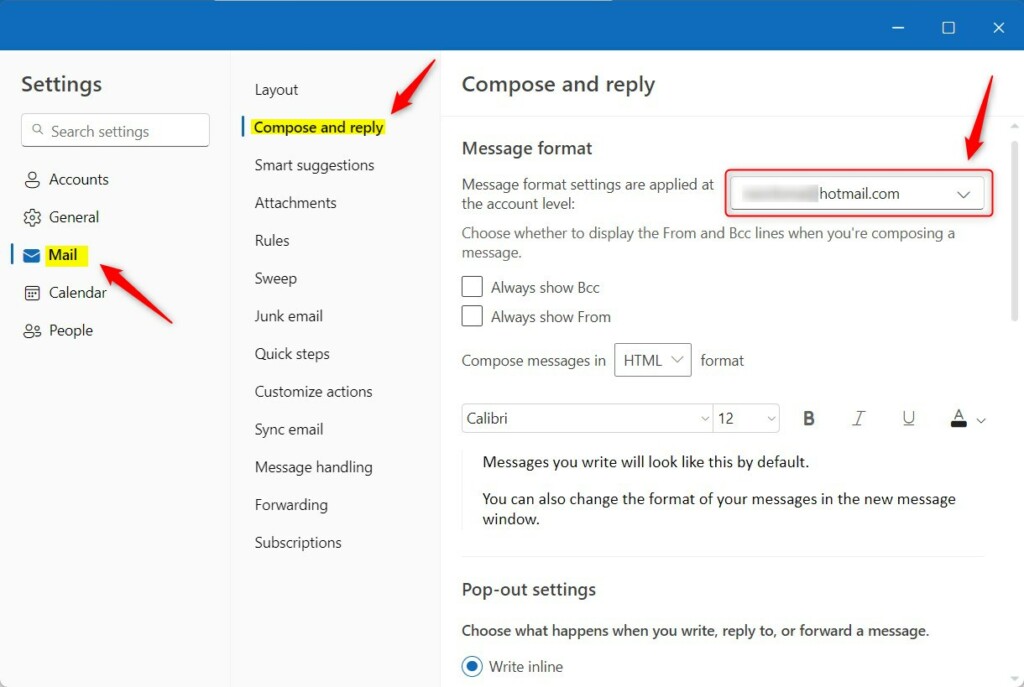
5. Click Save.
How to change format in Classic Outlook
1. Open Classic Outlook.
2. Go to File > Options > Mail.
3. Under Compose messages, use the dropdown menu to select HTML, Plain Text, or Rich Text.
4. Click OK.
How to change format for a single email
If you prefer not to change your global settings, you can switch the format while drafting a specific email. In the message window, click the Format Text tab in the top ribbon. Then, select HTML, Plain Text, or Rich Text from the Format group.
Summary
Managing your Outlook formatting options is essential for professional communication. Whether you need the visual power of HTML or the reliability of Plain Text, you can adjust these settings in the Compose and reply menu. For more help, see our guides on managing email signatures and troubleshooting email delivery.
Why does my Outlook automatically convert HTML to Plain Text?
Outlook might automatically change your emails from HTML to Plain Text mainly because of security rules. Your work’s IT department might set it up this way to block potentially harmful links or tracking in emails. It’s a safety measure to ensure only plain text gets through, so check your settings or ask your IT person.
Why do some recipients see my email as a winmail.dat attachment?
Getting a winmail.dat attachment when you send an email usually means you used Outlook’s Rich Text Format (RTF) on a non-Microsoft email program. Other email apps can’t read this special Microsoft format, so they show it as a generic file. To avoid this, it’s best to stick with sending emails in HTML or Plain Text from Outlook.
Was this guide helpful?

About the Author
Richard
Tech Writer, IT Professional
Richard, a writer for Geek Rewind, is a tech enthusiast who loves breaking down complex IT topics into simple, easy-to-understand ideas. With years of hands-on experience in system administration and enterprise IT operations, he’s developed a knack for offering practical tips and solutions. Richard aims to make technology more accessible and actionable. He's deeply committed to the Geek Rewind community, always ready to answer questions and engage in discussions.




No comments yet — be the first to share your thoughts!