How to Shutdown Your Windows 11 PC

You shut down your Windows 11 PC to completely power it off, close all running applications, and clear your active memory. This essential process halts all system operations, ensuring a clean slate for your next boot and protecting against potential data corruption.
Unlike Sleep mode, which pauses your session, or Hibernate, which saves your state to the hard drive, a shutdown fully cuts power to all components, including your motherboard and peripherals.
Performing a full shutdown at least once a week is a recommended practice to maintain optimal performance and prevent minor software issues from accumulating.
Click the Start button, then the power icon, and select Shut down. Alternatively, press Alt+F4 on your desktop and select Shut down from the menu.
Using the Start Menu
Most people turn off their PC using the Start menu. Click the Start button on your Taskbar, click the power icon, and select Shut down.
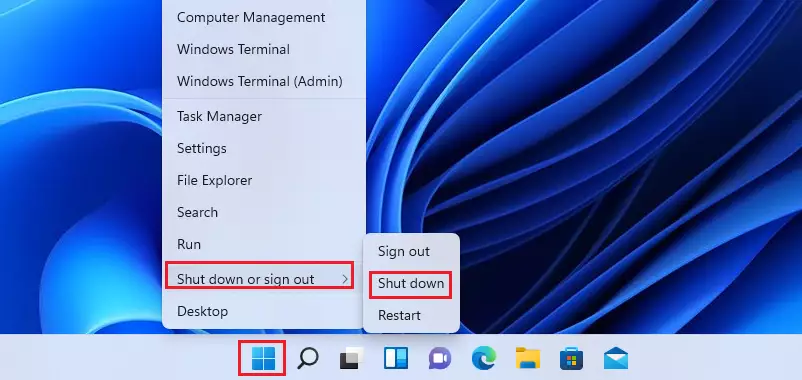
You can also right-click the Start button, click Shut down or sign out, and then select Shut down.
Keyboard Shortcuts
You can quickly shutdown Windows 11 using your keyboard with simple shortcuts like Alt+F4 or Ctrl+Alt+Del.
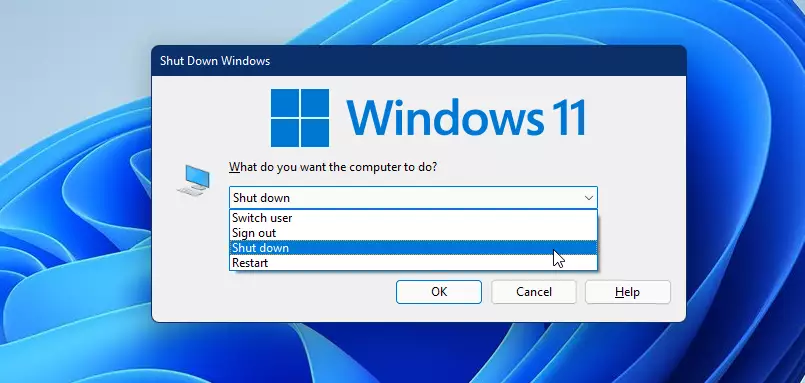
- Press Alt+F4 while on your desktop to open the shutdown menu. Select Shut down from the list.
- Press Ctrl+Alt+Del to open the security menu. Click the power icon in the bottom right corner and choose Shut down.

Using the Command Prompt
Advanced users can use the command line to turn off the computer. Note: Depending on your system settings, you might need administrator privileges for this method.
Open the Command Prompt, then type the following command:
shutdown /s /t 0
Creating a Shutdown Shortcut
You can create a desktop icon to shut down your PC with one click. Right-click your desktop, select New > Shortcut. Type shutdown /s /t 0 in the box and click Next. Name it “Shutdown” and click Finish.
Troubleshooting Stuck Shutdowns
If your Windows 11 PC gets stuck when you try to shut it down, the most common reason is a setting called Fast Startup.
If a program is stuck, use Task Manager (Ctrl+Shift+Esc) to end the process. You can also check the Event Viewer (a log of system events) under Windows Logs > System to see if a specific driver is preventing the shutdown.
Frequently Asked Questions
Summary
- Start Menu: The standard way to turn off your PC.
- Shortcuts: Use Alt+F4 for quick access.
- Automation: Create a desktop shortcut for one-click shutdowns.
- Troubleshooting: Disable Fast Startup if your PC refuses to turn off .
- Safety: Always save your work before shutting down to avoid data loss.
Shutting down your Windows 11 PC is simple using the Start Menu, keyboard shortcuts like Alt+F4, or a custom shortcut for one-click shutdowns.
Why does my 🪟 Windows 11 PC restart instead of shutting down?
This often happens because of the Fast Startup feature. Windows saves the system state to a file to boot faster later. If this file is corrupted or a driver is misbehaving, the computer may restart. Disabling Fast Startup in Power Options usually fixes this issue.
Is it safe to hold the power button to shut down 🪟 Windows 11?
Holding the power button is a hard shutdown. It cuts power instantly without letting Windows save your data or close background tasks. While it is safe for the hardware, it can cause file system errors or data loss. Only use this if your computer is frozen.
Was this guide helpful?

About the Author
Richard
Tech Writer, IT Professional
Richard, a writer for Geek Rewind, is a tech enthusiast who loves breaking down complex IT topics into simple, easy-to-understand ideas. With years of hands-on experience in system administration and enterprise IT operations, he’s developed a knack for offering practical tips and solutions. Richard aims to make technology more accessible and actionable. He's deeply committed to the Geek Rewind community, always ready to answer questions and engage in discussions.




[…] when the lid is closed. However, you can customize these settings to have your laptop stay awake, shut down, or hibernate when the lid is […]
[…] you have an app open with tasks running and try to shut down, restart or sign out of your desktop, Windows will not automatically follow through with your […]
[…] on the sign-in screen that allows you to put your computer to sleep, hibernate, shut down, […]
[…] can safely unplug the disks from the computer if they are external. If the disks are internal, turn off the computer and physically remove […]
[…] you left off without losing your work or sessions. On most PCs, one can resume using the power button. Pressing any key on the keyboard or opening a lid on the laptop may wake the PC from […]
[…] on your hard drive before turning off the computer. On most PCs, one can resume using the power button. Sometimes, pressing any key on the keyboard or opening a lid on the laptop may wake the PC […]
[…] Down: Shut down the PC when the power button is […]
[…] most PCs, one can resume using the power button. However, in many cases, pressing any key on the keyboard or opening a lid on the […]
[…] If the keyboard light comes on and pressing the Windows key + CTRL + SHIFT + B keys doesn’t resolve the issues, press and hold the power button on your PC for 10 seconds to turn it off. […]
[…] can read this post to learn how to shut down your computer. Then turn it back on to see if it fixes the […]
[…] that, restart Windows Explorer, or restart your PC for the changes to take […]
[…] when you try to turn off, restart, or sign out of your Windows 11 computer while an app is busy, Windows waits before it […]
[…] Shut down your computer […]
[…] your disk is inside the computer (internal), turn off your PC before removing the […]
[…] How to Shut Down a Windows 11 PC […]
[…] Users can also specify what action to take when the sleep button is pressed on a Windows 11. A normal shutdown is when Windows waits for background processes to finish or allows users to save documents before […]