How to Enable or Disable Fast Startup in Windows 11

Fast Startup in Windows 11 speeds up your PC’s boot time after a shutdown.
This feature uses a hybrid shutdown, saving your system state to the hiberfil.sys file. When you turn your PC back on, Windows loads this saved data instead of performing a full cold boot, making your startup significantly faster.
Enabling Fast Startup can reduce your Windows 11 boot times by as much as 30%. You might want to disable it if you experience certain boot-related issues or need to ensure a clean system restart for updates.
Enable or disable Fast Startup in Windows 11 via Control Panel > Hardware and Sound > Power Options > Change what the power button does. Click “Change settings that are currently unavailable,” then check or uncheck “Turn on fast startup.
Pros and Cons of Fast Startup
Pros: Faster boot times and improved convenience for daily users. Cons: It can cause issues with dual-booting, prevent full system refreshes, and may take up a small amount of storage space on your drive for the hibernation file.
How to Enable or Disable Fast Startup
You can turn Fast Startup on or off in Windows 11 using the Control Panel to make your computer start up quicker after you shut it down.
- Open the Start menu and search for “ Control Panel.” Select it from the list.
windows 11 control panel search - Click on Hardware and Sound.
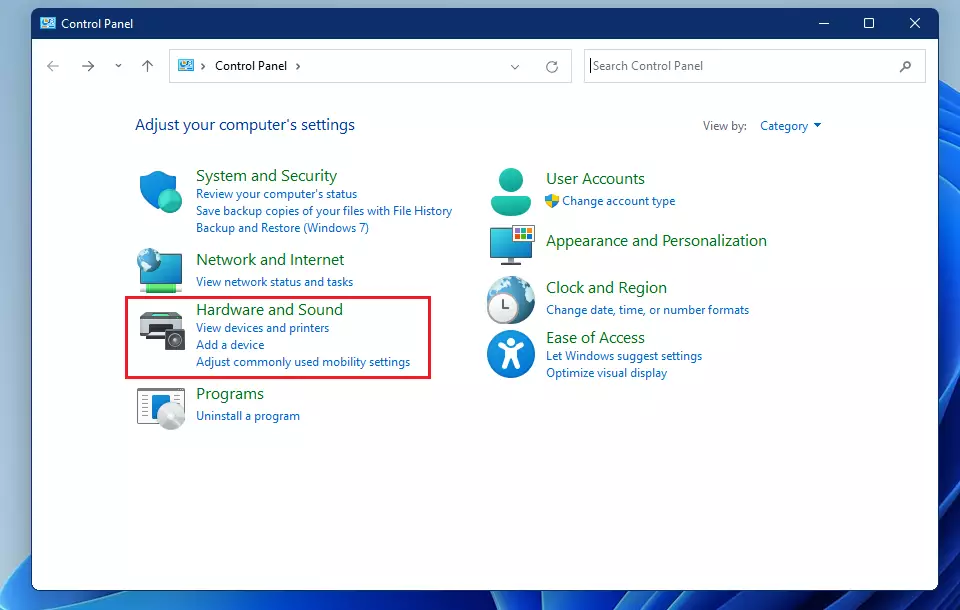
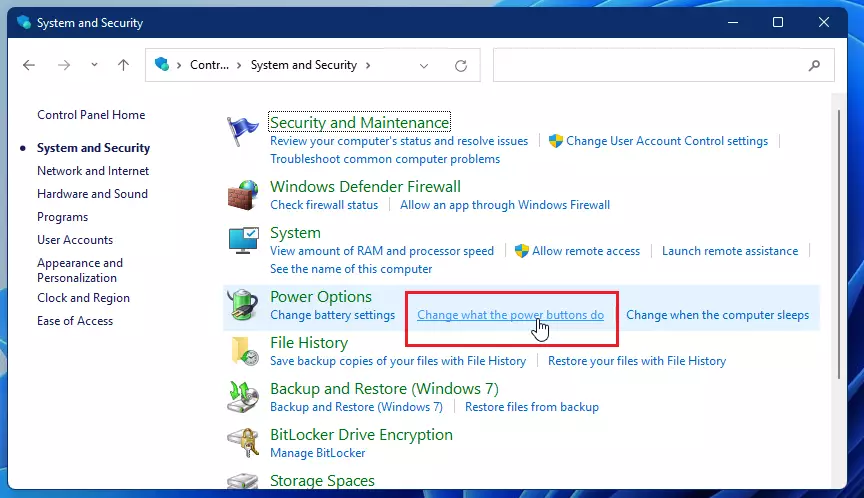
windows 11 contorl panel hardware and sound group - Under Power Options, click the link that says Change what the power button does.
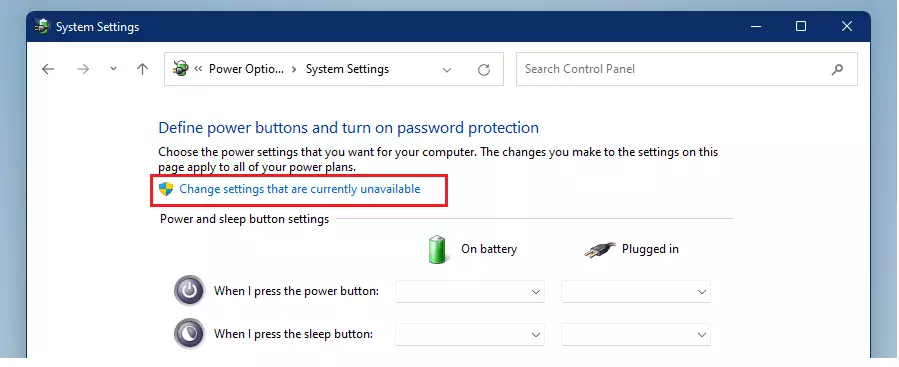
windows 11 change what the power buttons do - Click the link at the top labeled Change settings that are currently unavailable.
windows change settings that are currently unavailable windows 11 - Check the box next to Turn on fast startup (recommended) to enable it . Uncheck it to disable the feature.

turn on fast startup recommended in windows 11 - Click Save changes and restart your computer.
What if the Option is Missing?
If you can’t find the Fast Startup option in Windows 11, it’s probably because hibernation is off. You can easily turn it back on using the Command Prompt to get the option back.
- Press the Windows key and type “cmd.”
- Right-click Command Prompt and select Run as administrator.
- Type the following command and press Enter:
powercfg /h on - Restart your Control Panel window, and the option should now appear.
Performance: SSDs vs. HDDs
Whether you should enable Fast Startup in Windows 11 depends on your storage drive; it makes a big difference on older hard drives (HDDs) but less so on fast solid-state drives (SSDs).
Advanced: Using the Registry Editor
If you’re comfortable with advanced settings, you can turn Fast Startup on or off in Windows 11 by making a small change in the Registry Editor.
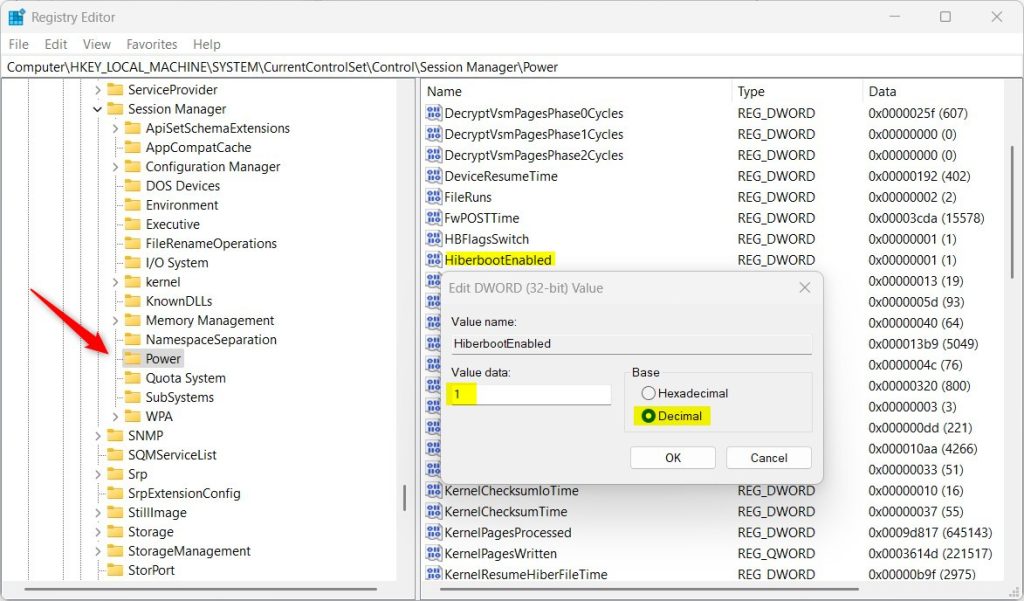
Navigate to the following path:
HKEY_LOCAL_MACHINE\SYSTEM\CurrentControlSet\Control\Session Manager\Power
Find the HiberbootEnabled item in the right pane. Double-click it and change the value to 1 to enable it, or 0 to disable it. If you do not see HiberbootEnabled, right-click in the empty space, select New > DWORD (32-bit) Value, and name it HiberbootEnabled.
Summary
Fast Startup in Windows 11 is a useful feature that speeds up your computer’s startup time, though some users who dual-boot or have update issues might prefer to turn it off.
Is Fast Startup enabled by default?
Yes, Fast Startup is enabled by default on most Windows 11 computers that support hibernation. It is designed to provide a quicker user experience by keeping the system kernel ready in a saved state on your storage drive whenever you perform a standard shutdown.
Does Fast Startup cause update problems?
Sometimes, yes. Because Fast Startup does not perform a full shutdown, some system updates may not install correctly until a full restart is performed. If you are having trouble applying Windows updates, try clicking ‘Restart’ instead of ‘Shut down’ to force a complete system refresh.
Should I disable Fast Startup to save storage space?
You can disable it to save space, but it is rarely necessary. The hiberfil.sys file takes up space equal to a portion of your RAM. Unless you are extremely low on storage, the benefit of faster boot times outweighs the small amount of disk space reclaimed.
Was this guide helpful?

About the Author
Richard
Tech Writer, IT Professional
Richard, a writer for Geek Rewind, is a tech enthusiast who loves breaking down complex IT topics into simple, easy-to-understand ideas. With years of hands-on experience in system administration and enterprise IT operations, he’s developed a knack for offering practical tips and solutions. Richard aims to make technology more accessible and actionable. He's deeply committed to the Geek Rewind community, always ready to answer questions and engage in discussions.

This is for Windows 10, not 11.
Surprise! They are the same.
No, they’re not. These options are not shown in Windows 11.
I’m on Windows 11, they are the same.
I’m on 11. Fast startup is gone for me as well. Was there on 10
Have to turn “hibernate” on from command prompt and the fast boot option will then start appearing as shown above. Make sure the command prompt is run as an admin or it won’t work.