How to Remove Microsoft Teams from Windows 11 Taskbar

This guide shows you how to manage the Microsoft Teams app on your Windows 11 Taskbar in 2026.
By default, Windows 11 pins several apps to your Taskbar. You might find the Teams icon cluttering your workspace. Why do this? Removing unused icons makes your computer screen look cleaner and helps you focus on the tools you actually use. What happens when done? The Teams icon will vanish from your Taskbar, and the app will stop taking up space in your view.
Remove Microsoft Teams from the Taskbar in Windows 11
You can easily remove the Teams icon from your Taskbar. You do not need a special settings toggle to do this anymore.
To get to your settings, press the Windows key + I on your keyboard or click Start > Settings, as shown below:
Alternatively, type Settings into the search box on your Taskbar.
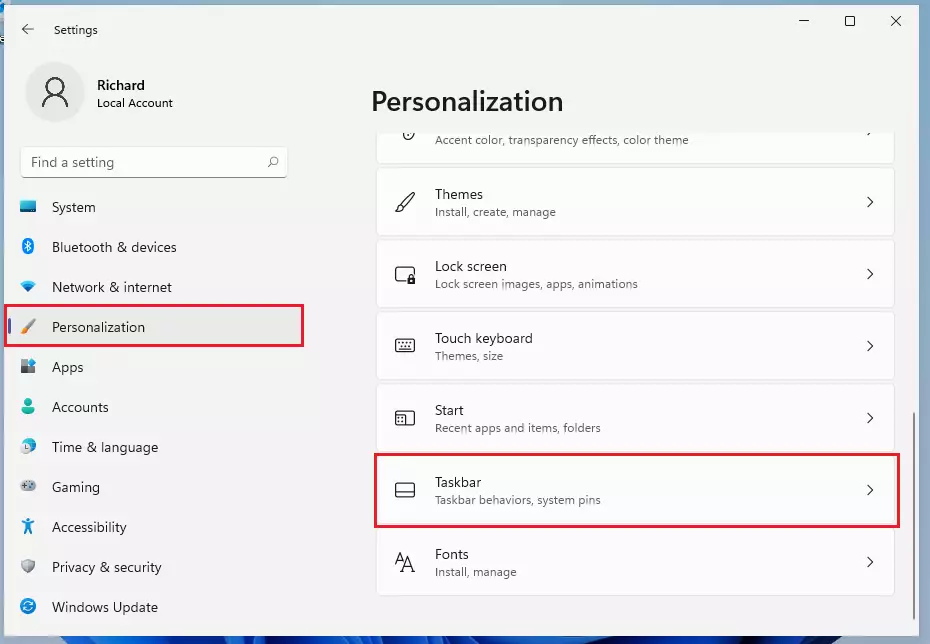
In the Settings window, click on Personalization and then select Taskbar on the right side of your screen, as shown here:
To remove the Teams icon, simply right-click the Teams icon directly on your Taskbar. Select Unpin from taskbar from the menu that appears. This will remove the icon from your view immediately.
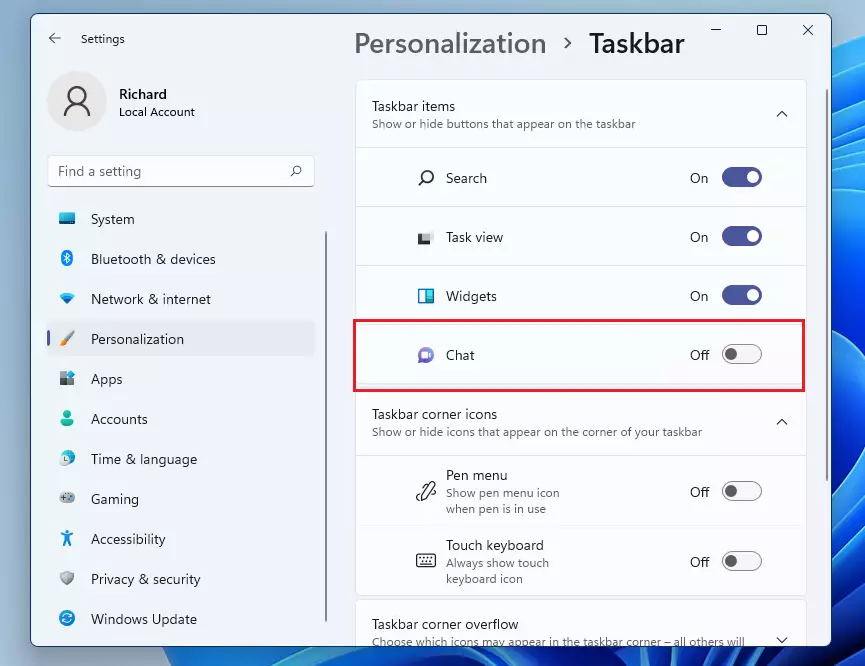
How to Uninstall Microsoft Teams Chat in Windows 11
If you want to remove the app from your computer entirely, follow these steps.
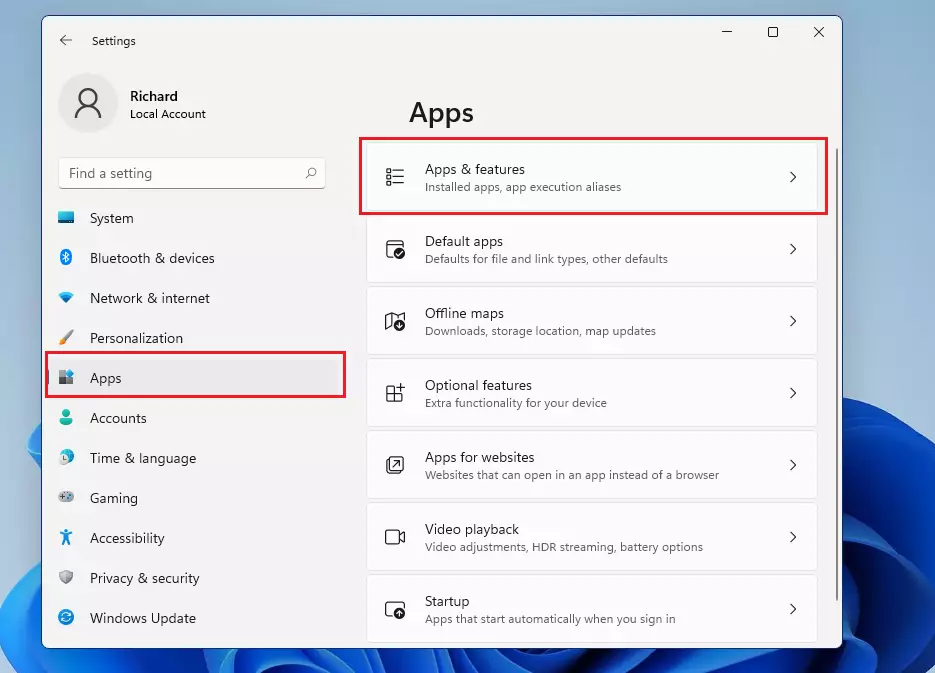
Go to Start > Settings. From the menu on the left, select Apps, then click on Installed apps, as highlighted below:
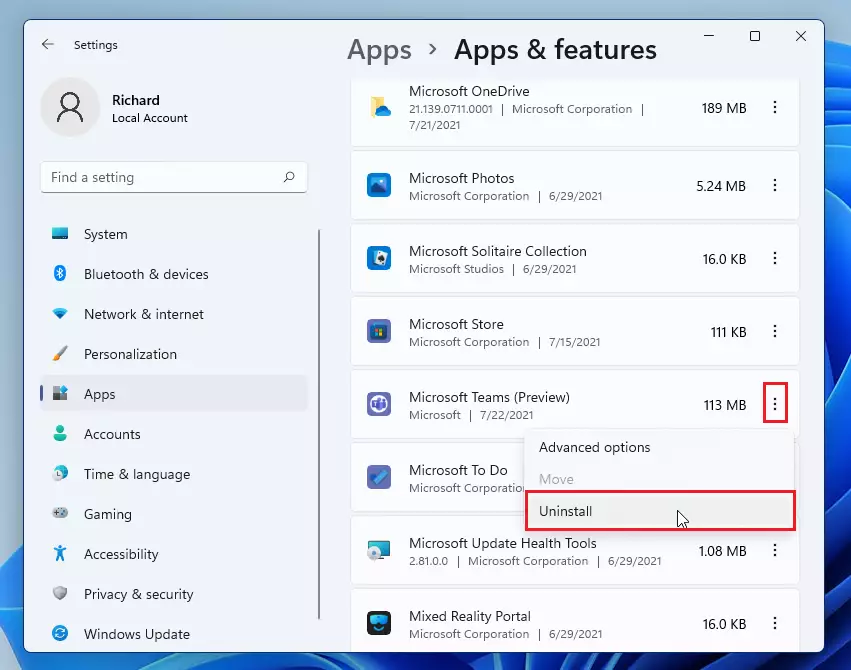
Find Microsoft Teams in the list. Click the three dots (ellipsis) next to the app name and select Uninstall, as shown in the image below:
How to Disable Microsoft Teams Chat in Windows 11
If you prefer to keep the app but stop it from running in the background, use this method.
Go to Settings > Apps > Installed apps. Find the Teams app in the list and click the three dots (ellipsis) next to it. Select Advanced options from the menu.
Note that the layout of this menu may look different depending on your specific version of Windows 11, but the options remain the same. Under the Background apps permissions section, choose Never. Also, look for the Runs at log-in setting and toggle the switch to Off.
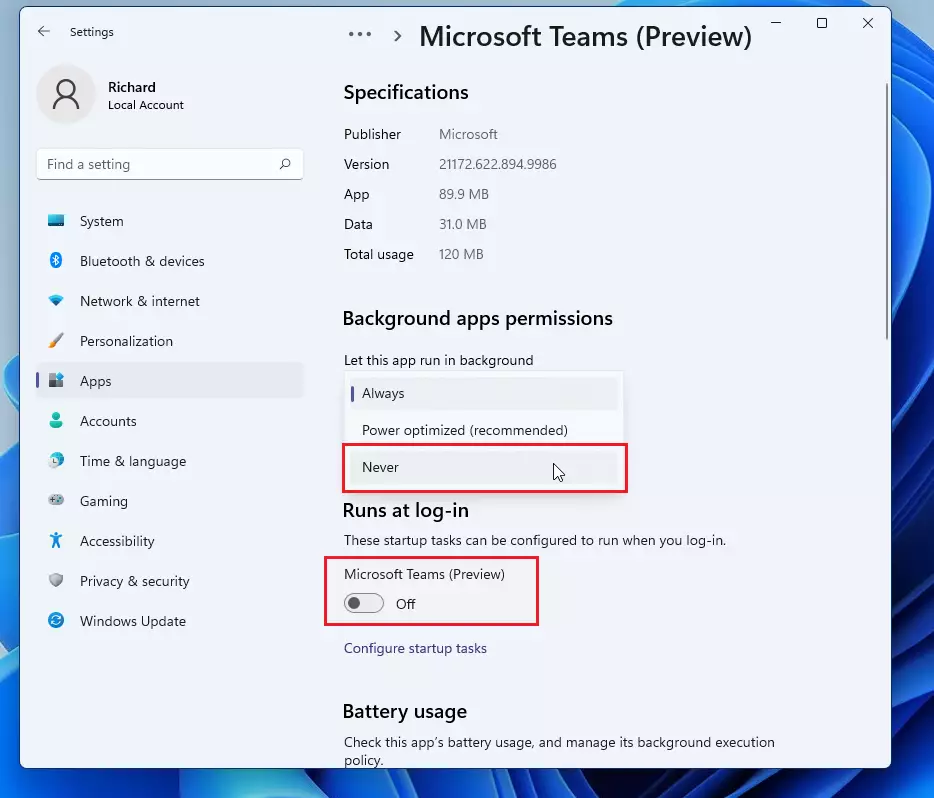
This prevents the app from starting up automatically when you turn on your computer.
Conclusion
You can effectively manage Microsoft Teams in Windows 11 by following these simple steps %%LNK0%%. Here is a quick recap:
- Unpin Teams: Remove the icon from your Taskbar to declutter your workspace.
- Uninstall Teams: Completely remove the consumer version of the app from your system if you do not use it.
- Disable Background Running: Stop the app from starting automatically to save system resources.
Note: Please be careful if you use a work or school account. This guide applies to the consumer version of Teams. If you have the enterprise version installed as part of Microsoft 365, uninstalling it may affect your ability to use other Office features %%LNK1%%.
Was this guide helpful?

About the Author
Richard
Tech Writer, IT Professional
Richard, a writer for Geek Rewind, is a tech enthusiast who loves breaking down complex IT topics into simple, easy-to-understand ideas. With years of hands-on experience in system administration and enterprise IT operations, he’s developed a knack for offering practical tips and solutions. Richard aims to make technology more accessible and actionable. He's deeply committed to the Geek Rewind community, always ready to answer questions and engage in discussions.



Great! I don’t want to eat something forcefully, you maniac Windows! Right click then Unpin and all the people were happy!
[…] Windows displays the Start menu, Widgets, Windows Search box, Microsoft Teams Chat, File Explorer, Windows Store app, and a few other apps’ icons. It is also […]
[…] on the screen and shows the Start menu, Search, Task View, Widgets, Teams Chat, File Explorer, Microsoft Edge, and Microsoft Store buttons by […]
[…] Taskbar in Windows displays the Start menu, Widgets, Windows Search box, Microsoft Teams Chat, File Explorer, Windows Store app, and a few other apps’ icons. It is also centered in the […]
[…] will pop up an inline light dismissible UI that suggests ways to call the phone number using Teams or create the event using supported calendar […]
[…] you are on a meeting call through Microsoft Teams, hover over the apps running on your taskbar, and you will see a new button that allows you to […]
[…] you’re in a meeting using Microsoft Teams or a similar […]
[…] Windows 11 taskbar shows the Start menu, Search, Task View, Widgets, Teams Chat, File Explorer, Microsoft Edge, and Microsoft Store buttons by […]