How to Show Taskbar Apps on All Displays in Windows 11

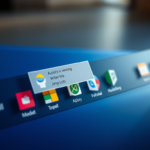
You can show the Windows 11 taskbar on all your connected displays to make multitasking easier.
This feature allows you to access the Start menu, search, and running applications from any monitor, significantly speeding up your workflow.
By default, Windows 11 shows the taskbar only on your primary display.
To enable this multi-display taskbar functionality, you need to adjust settings within Windows 11’s Personalization section, specifically under “Taskbar behaviors.”
You can then choose whether to display all your pinned and open apps across every screen or just on the monitor where the app is actively running.
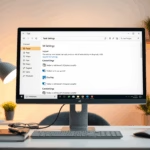
Open Settings, go to Personalization, then Taskbar, expand Taskbar behaviors, and check “Show my taskbar on all displays.” You can then select how apps appear on each taskbar from the dropdown menu.
Advanced Configuration via Registry Editor
You can change how your Windows 11 taskbar shows apps on multiple displays by editing the registry, but you need to be careful. This advanced method lets you force specific settings for your Windows 11 taskbar across different screens.
You can force these settings by editing the registry. Press ⊞ Win+R, type regedit, and press Enter. You’ll then need to navigate to:
🗝️HKEY_CURRENT_USER\Software\Microsoft\Windows\CurrentVersion\Explorer\Advanced
Look for the DWORD value named MMTaskbarEnabled. Set its value to 1 to get the taskbar showing on all your displays.
Troubleshooting Common Issues
If the taskbar option is greyed out, ensure your display mode is set to ‘Extend’ rather than ‘Duplicate’. If the taskbar fails to appear, restart the Windows Explorer process via Task Manager. Right-click the taskbar, select Task Manager, find Windows Explorer, and click Restart.
Summary
Showing your Windows 11 taskbar apps on all displays makes it easier to work by keeping all your open programs visible on every screen. This helps you find what you need faster and improves your workflow, giving you a taskbar on each monitor with custom rules for how your apps appear.- Why: To improve your workflow and stop jumping between screens to find your open apps.
- What: You gain a taskbar on every monitor with custom rules for how your apps appear.
- Customization: You can choose to show all apps everywhere or keep your taskbars cleaner by only showing active programs.
- Efficiency: These settings turn a multi-monitor setup into a seamless desktop experience.
Why is the taskbar option greyed out in 🪟 Windows 11 settings?
This usually happens if your display settings are set to ‘Duplicate’ mode. In this mode, Windows mirrors the main screen, making a separate taskbar unnecessary. Change your display settings to ‘Extend’ mode in the System > Display menu to unlock the multi-monitor taskbar options.
Can I hide the taskbar on secondary monitors?
Yes. Navigate to Settings > Personalization > Taskbar > Taskbar behaviors and uncheck the box labeled ‘Show my taskbar on all displays’. This will restrict the taskbar to your primary monitor only, providing a cleaner look for your secondary screens.
Was this guide helpful?

About the Author
Richard
Tech Writer, IT Professional
Richard, a writer for Geek Rewind, is a tech enthusiast who loves breaking down complex IT topics into simple, easy-to-understand ideas. With years of hands-on experience in system administration and enterprise IT operations, he’s developed a knack for offering practical tips and solutions. Richard aims to make technology more accessible and actionable. He's deeply committed to the Geek Rewind community, always ready to answer questions and engage in discussions.


No comments yet — be the first to share your thoughts!