Remove Image Background in Windows 11 Photos App


The Windows 11 Photos app can cut the main subject out of a picture and erase everything behind it. Microsoft added the background removal tool in Photos version 2023.11090.13001.0, so you don’t need separate photo editing software.
A clean cutout is easy to drop into another picture, share online, or save as a new file. If you don’t see the tool, update Photos first. Open Microsoft Store Library, select Get updates, and let Photos finish updating. Then reopen the app.
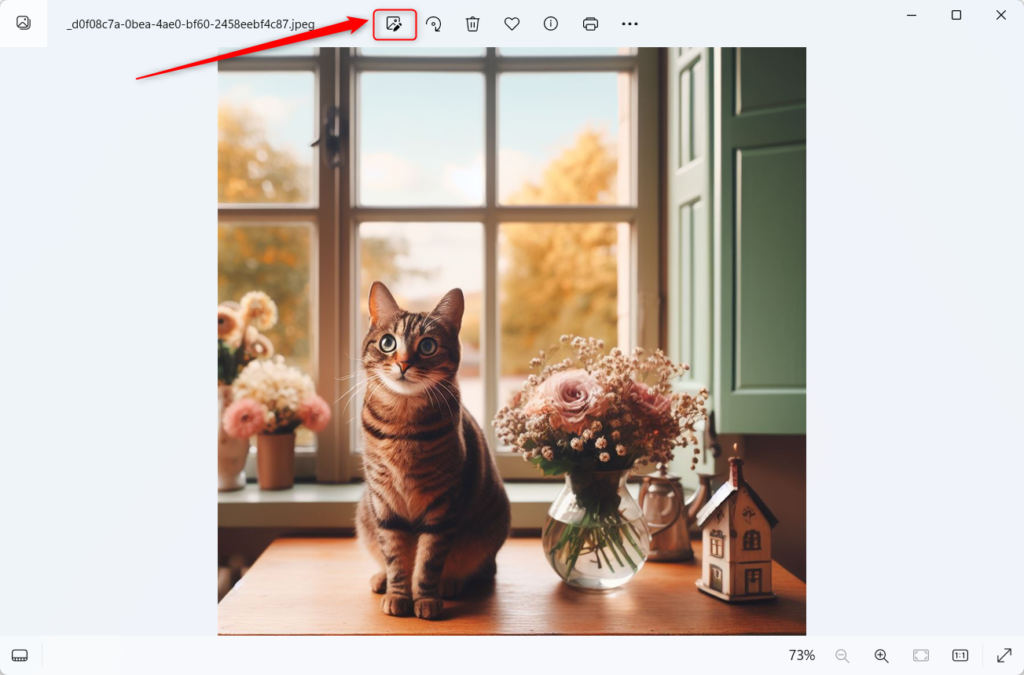
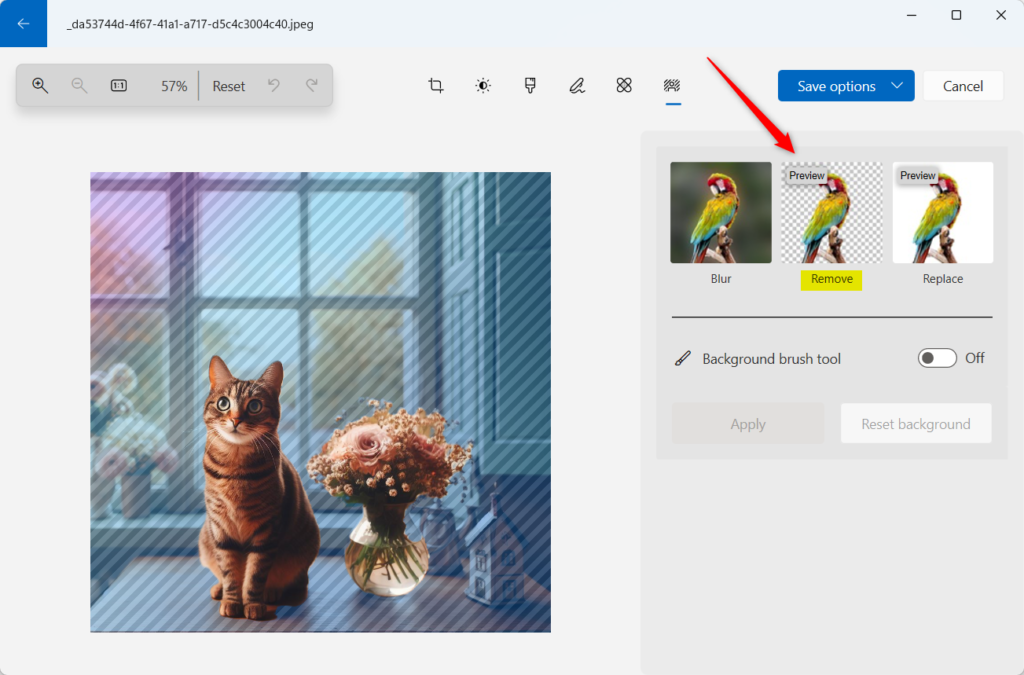
Open your image in the Photos app, click Edit image, then select the Background tab. Click Remove to let the app automatically remove the background, or use the Background brush tool for manual adjustments. Click Apply and then Save a copy.
Remove an image background using the Photos app
You can do all of this inside the Microsoft Photos app. Follow these steps to open the editor with your picture loaded.
- Open the Photos app and click the picture you want to edit. The photo opens in the viewer.
- Press Ctrl+E on the keyboard, or click the Edit image button on the toolbar at the top.
- Wait for the editor to load. You should see your photo with editing tools along the top of the window.
The shortcut and the button do the same thing. Use whichever you find quicker.
The editing tools are grouped into tabs. Look for the one you need next.
- Find the Background tab on the toolbar and click it.
- Wait a moment. The app starts looking for the main subject as soon as the tab opens.
If you don’t see a Background tab, your Photos app is probably older than version 2023.11090.13001.0. Update it from the Microsoft Store as described above. The tool may also be hidden for some file types, so try again with a standard JPG or PNG.
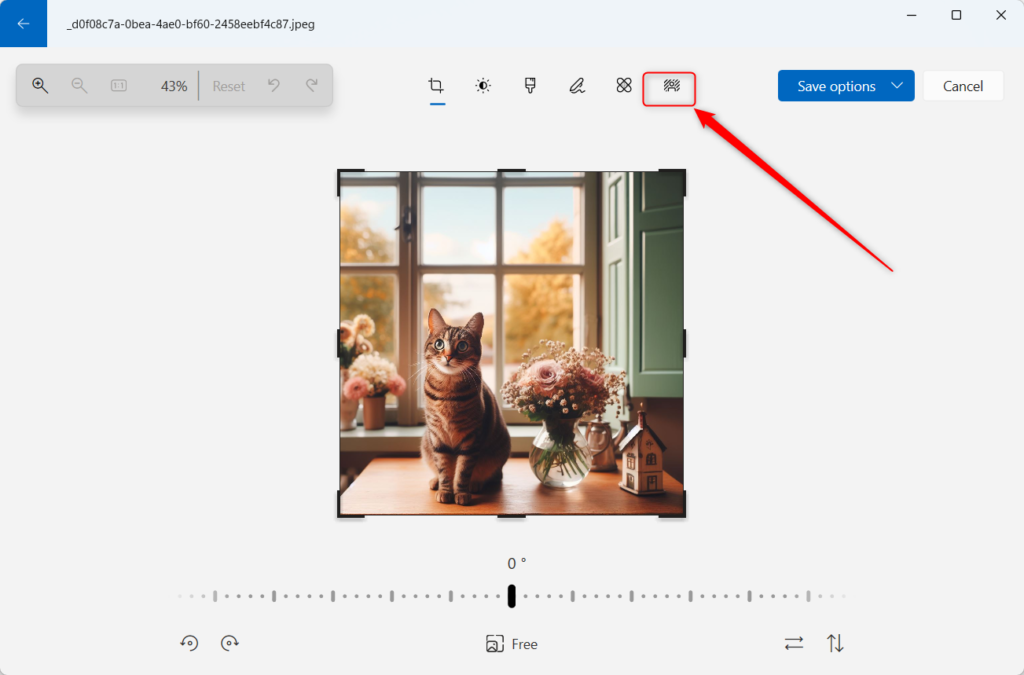
You don't have to select the subject yourself. Detection runs automatically when the tab opens.
- Watch the picture while the app finds the subject. It should lock onto the main object or person.
- Click OK once the focus locks on.
- Select Remove to wipe out the background. The area behind your subject should now show as transparent.
If the edges look rough or part of the subject has gone missing, don't start over. The next step shows how to fix it by hand.
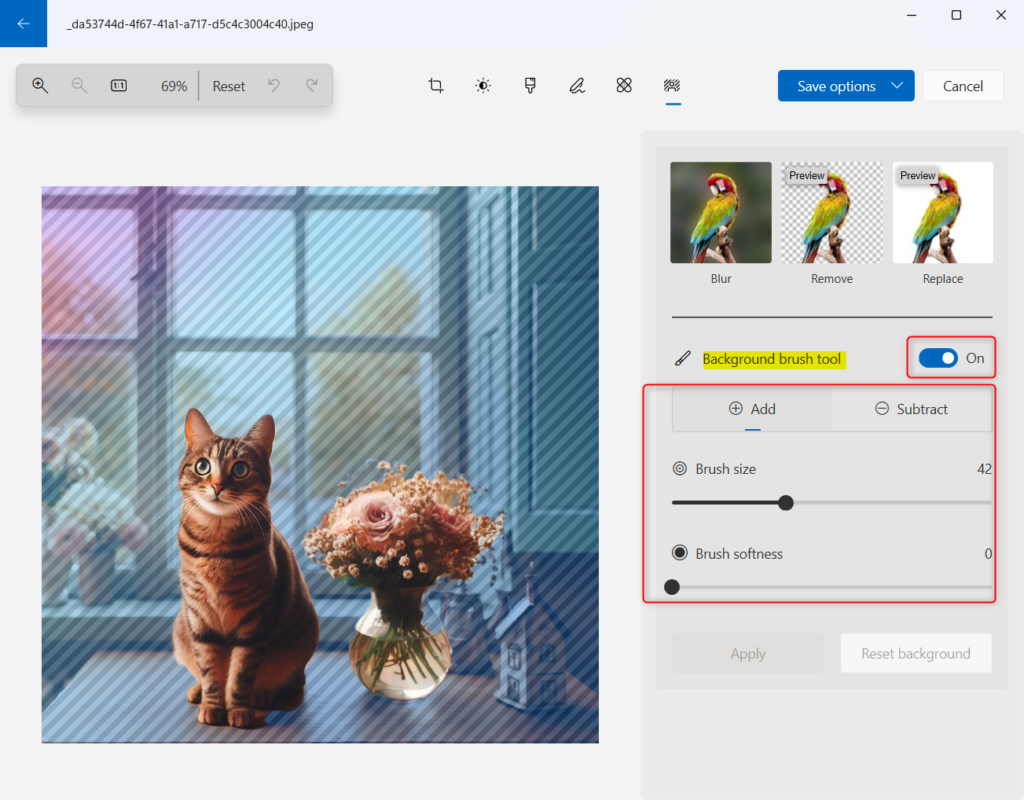
Automatic detection works best when the subject stands out clearly from the background. Busy backgrounds, hair and fine edges often need a touch-up. The brush tool lets you correct the mask yourself.
- Toggle on the Background brush tool. Your cursor becomes a brush.
- Set the Brush size. Use a smaller brush for fine edges and a larger one for big areas.
- Adjust the softness level. A softer edge blends more gently, and a harder edge is sharper and more precise.
- Paint over the parts of the picture you want to change. Painting adds areas to the mask or subtracts them, depending on the mode you pick.
- Check the result and keep painting until the outline looks right. Zooming in helps with small details.
If you make a mistake, undo it with Ctrl+Z. When you're happy with the cutout, save it as a copy so your original photo stays untouched. A transparent background only survives in a format that supports transparency, such as PNG.
Confirm the changes by clicking the Apply button. Preserve the new version by selecting the Save a copy button.
The built-in Photos app keeps your workflow local without requiring external downloads.
The Microsoft Photos app in Windows 11 offers a built-in feature to remove image backgrounds, eliminating the need for third-party tools.
- The Microsoft Photos app in Windows 11 offers a built-in feature to remove image backgrounds, eliminating the need for third-party tools.
- This functionality enables users to create visually appealing images for various purposes, such as presentations, social media, and other projects.
- With easy-to-follow steps, users can utilize the Photos app to isolate the subject of their photos and achieve a professional look without additional software or technical expertise.
- The process involves utilizing the Background tab, the Background brush tool, and the Apply and Save a copy buttons to make and save changes effectively.
Have a question about this guide?
Answered by AI from this guide. Good questions may be added to this page — please don't include personal details.
Did this guide fix your problem?

About the Author
Richard
Tech Writer, IT Professional
Richard is a writer at Geek Rewind who turns complex IT tasks into clear, step-by-step guides. He draws on years of hands-on experience in system administration and enterprise IT operations, focusing on Windows, Linux and WordPress: the problems people actually run into, and the fixes that work. His server and WordPress guides come from systems he runs himself. Richard builds and maintains the platform behind Geek Rewind, from its Ubuntu servers and Nginx configuration to its custom WordPress plugins. Many new tutorials start with readers' questions, and he's always glad to answer them in the comments.
[…] can use the Photos app to replace an image background, remove an image background, import photos and videos, show iCloud in the app, change mouse wheel behavior, and […]
[…] can use the Photos app to replace an image background, remove an image background, import photos and videos, show iCloud in the app, change mouse wheel behavior, use filmstrip, […]