How to Access Xbox Game Bar in Windows 11

Xbox Game Bar is a built-in Windows 11 overlay that lets you record video clips, take screenshots, and check your PC’s performance by pressing the Win+G keys together. Microsoft includes this tool on every Windows 10 and Windows 11 computer so you can capture gameplay without installing extra software. It works the same on Windows 11 Home and Pro.
The overlay also gives you a quick way to control background music, connect with friends, and check system resources without leaving your game. Everything sits on top of the app you are using, so you never have to switch windows.
Press Win+G to open the Xbox Game Bar. This built-in overlay lets you record gameplay, monitor performance, and manage audio. You can also access it via the Start Menu or an Xbox controller.
How to open the Xbox Game Bar
You can open the Xbox Game Bar in Windows 11 by pressing the Win and the G key on your keyboard at the same time. This built-in overlay shortcut works instantly from anywhere on your computer, whether you are playing a PC game, running an application, or sitting on your desktop.
When it works, a dimmed overlay appears over your screen with a toolbar along the top and several small widget windows. Press Win+G again, or press Esc, to close it. If nothing happens, the feature is probably switched off. The troubleshooting section further down covers that. The other ways to open it are listed below.
- Keyboard Shortcut: Press the Win+G at the same time. This works while you are in a game, an app, or on your desktop. You should see the Game Bar overlay appear over whatever is on screen. On some laptops you may need to hold the Fn key as well.
- Start Menu : Click the Start button, select All apps, and scroll down to find Xbox Game Bar. Click it and the overlay opens on top of your current window.
-

Windows 11 Start menu All app button -
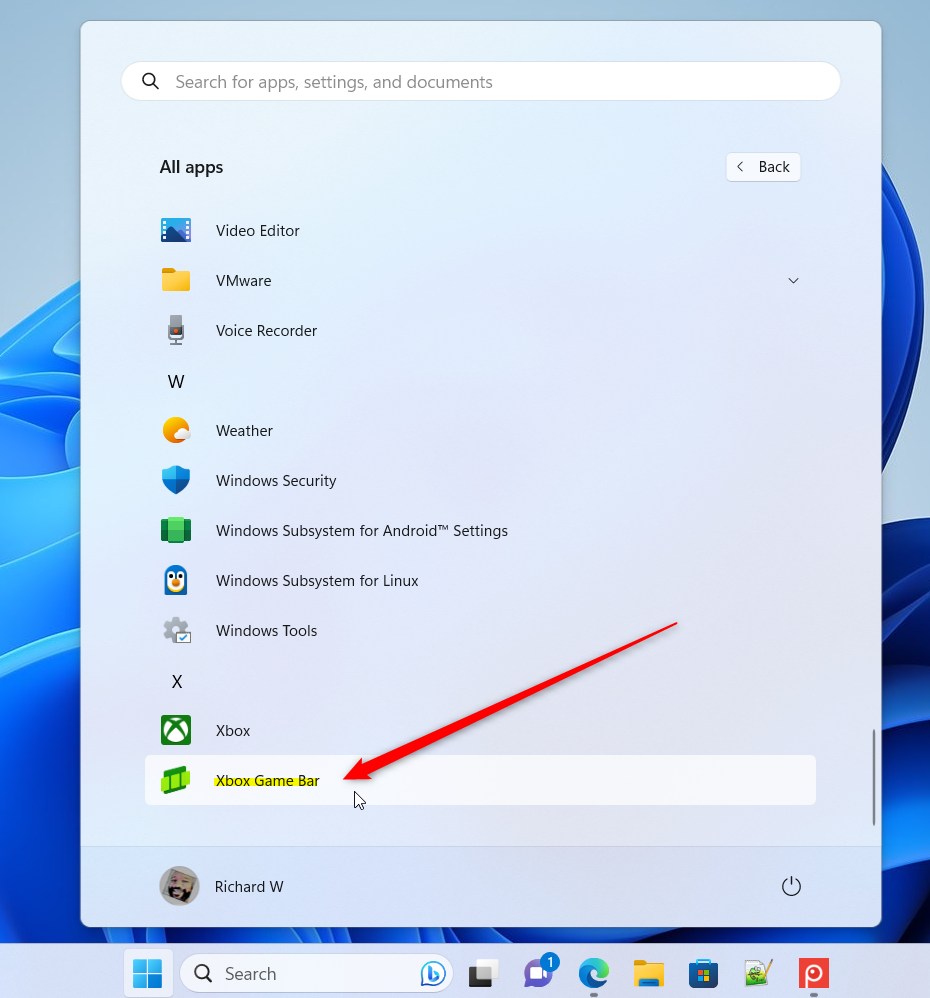
Xbox Game Bar menu item in Windows 11 - Game Controller: If you have an Xbox controller plugged in, simply press the Xbox button in the center. This only works if the controller option is turned on in Settings Gaming Game Bar If the button does nothing, check that setting.
-
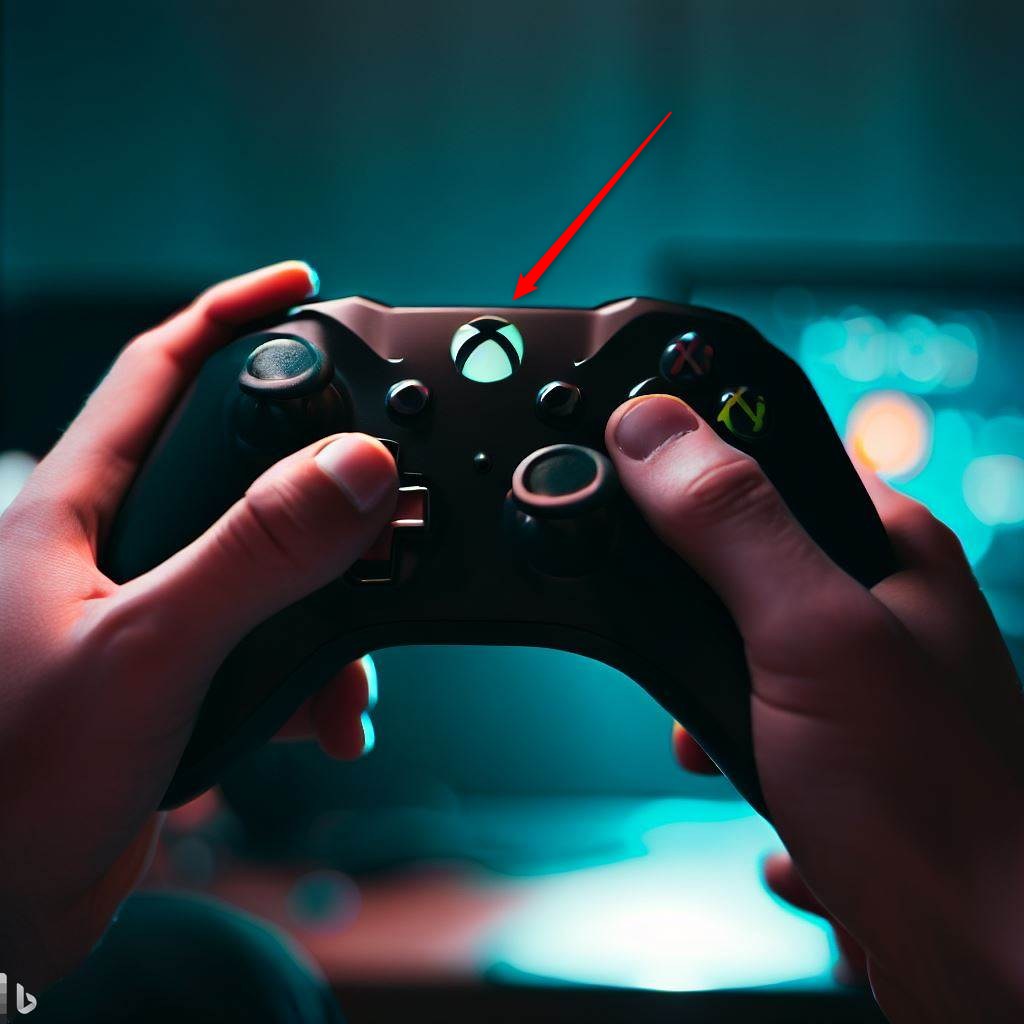
Xbox game controller in hand
Essential Keyboard Shortcuts
Mastering shortcuts saves time. Use these to control your gaming overlay quickly. The capture shortcuts work best when a game or app window is in focus, because Game Bar records the active window rather than the whole desktop. You can change any of these key combinations in the Game Bar settings, under the shortcuts options.
- Win+G: Open the Game Bar. Press it again to close the overlay.
- Win+Alt+R: Start or stop screen recording. A small capture timer appears while a recording is running.
- Win + Alt + Print Screen: Take a screenshot. Windows shows a short notification once the image is saved.
- Win+Alt+M: Toggle your microphone on or off. This only affects the microphone in your recording, not the mic setting in the game itself.
Performance Metrics and Resource Monitoring
The Xbox Game Bar’s Performance widget helps you keep an eye on your computer’s CPU, GPU, and RAM usage while you play games. It is a quick way to see whether a slowdown comes from the processor, the graphics card, or memory. To open it:
- Press Windows key + G to open the Game Bar.
- Click the Widget menu icon in the top toolbar, then choose Performance. The Performance widget appears on screen with live usage graphs.
- Click the Pin icon in the widget's title bar if you want it to stay visible after you close the overlay.
The first time you use it, the widget may show a button asking for access to additional performance data, such as frame rate. Click it and approve the prompt if you want those numbers. To remove a pinned widget, open the overlay again and click the pin icon a second time.
Configuration and Settings
- Press Windows key + G to open the Game Bar.
- Click the Settings (gear) icon in the top toolbar. The Settings window opens.
- Open the capturing section and adjust the options. You can change things such as audio quality, video frame rate, and video quality.
- Close the window. Changes apply right away, and you do not need to restart Windows.
You can also review capture options in Settings Gaming Captures By default, recordings and screenshots are saved to your Videos folder, in a folder named Captures. To store them somewhere else, right-click that Captures folder in File Explorer, choose Properties, open the Location tab, and use Move. To undo a quality change, open the same settings and set the option back.
Troubleshooting Xbox Game Bar
If your Xbox Game Bar isn't working in Windows 11, you can usually fix it by checking if it's turned on in settings or by resetting the app. Try these steps in order:
- Open Settings Gaming Game Bar and make sure the Game Bar option is turned On. The exact label differs a little between Windows 11 versions. If it was off, press Windows key + G to test again.
- Restart your PC and try the shortcut again. This clears most temporary glitches.
- Open Settings Apps Installed apps, find Xbox Game Bar, click the three-dot menu next to it, and select Advanced options.
- Scroll down to the Reset section and click Repair first. Repair does not delete the app's data. Test the shortcut again.
- If it still fails, click Reset in the same section. Reset clears the app's data, so your Game Bar settings go back to their defaults.
Also keep in mind that recording needs a game or app window in focus. Game Bar will not capture the desktop or File Explorer. On a work or school PC, an administrator may have disabled the feature by policy, and in that case you will need to ask your IT team.
Does Xbox Game Bar affect gaming performance?
However, recording high-quality video can use system resources. If you have a lower-end computer, you might notice a small dip in performance while recording. To minimize this, lower your capture resolution in the settings menu.
A few other changes also help on older hardware. Drop the video frame rate to 30, choose the standard video quality, and close apps you do not need before you start recording. If you do not use background recording, turn it off in the capture settings so Windows is not saving footage while you play. The Performance widget will show you whether those changes make a difference.
Summary
The Xbox Game Bar is a handy tool for Windows 11 users, letting you easily record your screen, check performance, and mix audio using shortcuts like Win + G. It is already installed, so you can start using it right away. If it ever stops responding, check the Game Bar setting first, then use Repair or Reset.
Was this guide helpful?

About the Author
Richard
Tech Writer, IT Professional
Richard is a writer at Geek Rewind who turns complex IT tasks into clear, step-by-step guides. He draws on years of hands-on experience in system administration and enterprise IT operations, focusing on Windows, Linux and WordPress: the problems people actually run into, and the fixes that work. His server and WordPress guides come from systems he runs himself. Richard builds and maintains the platform behind Geek Rewind, from its Ubuntu servers and Nginx configuration to its custom WordPress plugins. Many new tutorials start with readers' questions, and he's always glad to answer them in the comments.



[…] Assist is accessed via Game Bar, a gaming overlay that lets you use in-game widgets, including Xbox Social for connecting with […]
[…] The Xbox Game Bar on Windows devices has a Controller Bar feature that allows you to quickly access games and apps using any Xbox controller, including standard controllers, the Elite Controller Series 2, and the Xbox Adaptive Controller. […]
[…] Xbox Game Bar on Windows devices is designed to make gaming easier. Usually, if you are playing a game and press […]
[…] Xbox Game Bar on your PC has a special feature called the Controller Bar. It lets you get to your games and apps […]
[…] Xbox Game Bar on Windows devices includes a Controller Bar. This handy tool lets you launch your favorite games […]