
This simple guide will help you make the Notification Center and Quick Settings stay open on your screen until you decide to close them in Windows 11.
What Are Notification Center and Quick Settings?
Notification Center shows your new alerts and messages. You can open it by pressing Win + N or clicking the date and time in the bottom-right corner of your screen.
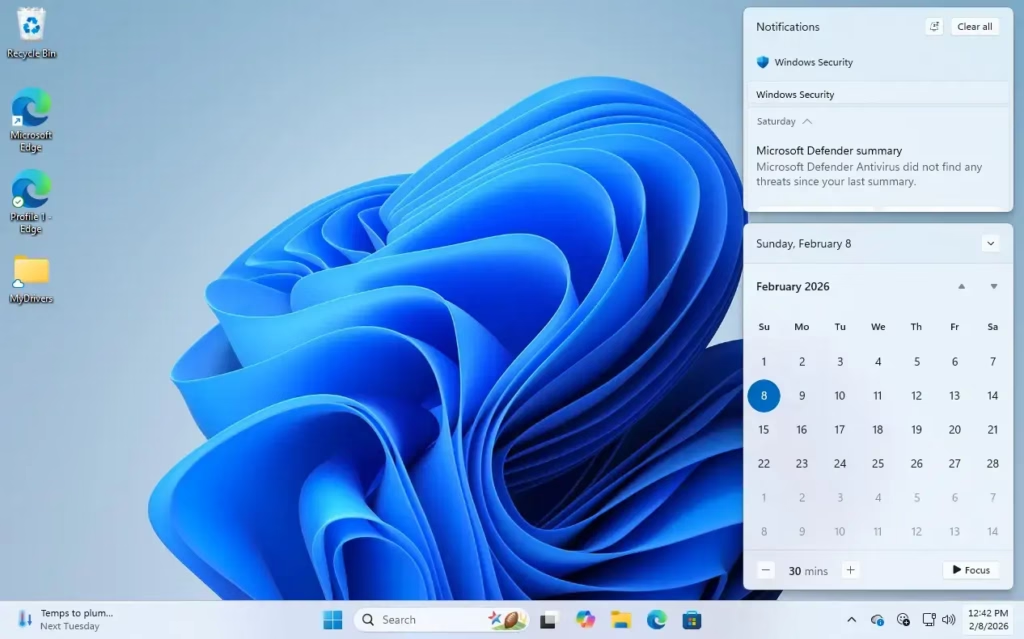
Quick Settings gives you easy access to important settings like volume, Wi-Fi, brightness, Bluetooth, and more. Open it by pressing Win + A or clicking the network, sound, or battery icons in the taskbar corner.
What Happens Normally?
By default, both Notification Center and Quick Settings close automatically when you click or tap anywhere outside of them.
How to Make Them Stay Open Until You Close Them
To change this behavior, you need to make a small change in Windows Registry. This means editing some system settings, so please follow the steps carefully.
Note: You need to be signed in as an administrator on your PC to do this.
Step 1: Backup Your Registry (Important!)
Before making any changes, it’s smart to backup your registry or create a System Restore point. This helps you fix things if something goes wrong.
Step 2: Open Registry Editor
Press Win + R, type regedit, and press Enter. If asked, click Yes to allow changes.
Or follow this guide to open it safely: How to Open Windows Registry Editor
Step 3: Go to the Key Location
In the Registry Editor window, use the left sidebar to navigate to this folder:
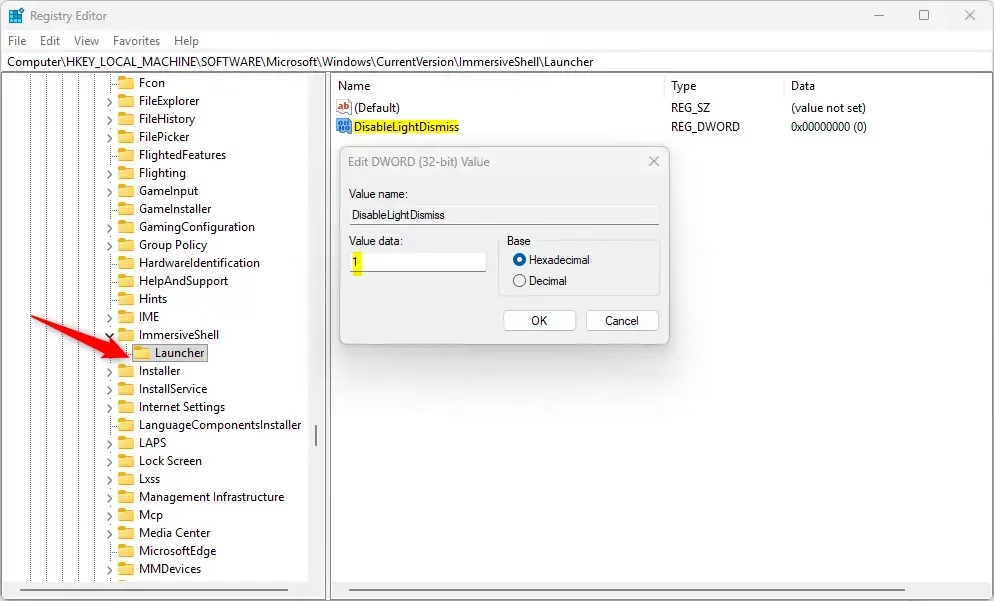
ComputerHKEY_LOCAL_MACHINESOFTWAREMicrosoftWindowsCurrentVersionImmersiveShellLauncher
Step 4: Create a New Value
- Right-click on the Launcher folder.
- Choose New > DWORD (32-bit) Value.
- Name the new value: DisableLightDismiss
Step 5: Change the Value
- Double-click on DisableLightDismiss.
- Choose Decimal under Base.
- Type 1 in the Value data box.
- Click OK.
Step 6: Restart Your PC
Close Registry Editor and restart your computer to apply the changes.
How to Undo This Change
If you want to go back to the default setting where Notification Center and Quick Settings close automatically, simply:
- Open Registry Editor again.
- Go back to the Launcher folder.
- Right-click the DisableLightDismiss value and choose Delete.
- Restart your PC.
Summary
- Keep Notifications and Settings Always Visible: No more closing when you accidentally click away.
- Better Workflow: Access your notifications and settings easily while working.
- Easy to Change: Just one registry setting controls it.
- Be Careful: Always back up before editing the Registry.
- Reversible: You can undo the change anytime.
Now you can have the Notification Center and Quick Settings stay open on your screen until you decide to close them. This can make managing your Windows 11 experience smoother and more convenient!


Leave a Reply