How to Install Odoo 17 on Ubuntu 24.04


- 7 steps
- Needs administrator rights
Installing Odoo 17 on Ubuntu 24.04 gives you a complete open-source enterprise resource planning (ERP) platform. It brings sales, accounting, inventory and project management together in one dashboard, on your own server or PC.
The install takes roughly 20 minutes from the command line. You update the system packages, set up a PostgreSQL database (the software Odoo uses to store its data), download Odoo 17, and run it as a background service. You need a user with sudo rights and an internet connection. A fresh Ubuntu 24.04 server is the cleanest starting point, because an existing web or database stack can conflict with the steps below.
Install Odoo 17 on Ubuntu 24.04 from the command line in about 20 minutes. First run sudo apt update and sudo apt install with the listed Python 3.11 and build packages, then set up a PostgreSQL database account, download Odoo 17 into the /opt/odoo17 home directory, and run it as a background service.
Install Odoo prerequisites
Start with the prerequisites. Odoo 17 needs a handful of supporting packages before it will install or run: Git to download the source, Node.js, and Python with its build tools. Without them, the Python requirements step later on fails with compiler or missing-header errors.
Run the update command first, then the install command, in the order shown below. Updating first makes sure Ubuntu pulls the newest package versions from its repositories. Both commands need sudo, and you may be asked for your password.
Next, run the commands below to install the supporting dependencies for Odoo. The download can take a few minutes on a slow connection. Wait until you are back at the command prompt before you run anything else.
sudo apt update
sudo apt install build-essential wget git python3.11-dev python3.11-venv libfreetype-dev libxml2-dev libzip-dev libsasl2-dev node-less libjpeg-dev zlib1g-dev libpq-dev libxslt1-dev libldap2-dev libtiff5-dev libopenjp2-7-dev libcap-dev
If the commands fail because python3.11 can’t be installed, run the command below and try again. Ubuntu 24.04 ships with a newer default Python, so python3.11 may not be in the standard repositories on your system. The command below fixes that. Once it finishes, repeat the install step that failed.
sudo apt-get install software-properties-common
sudo add-apt-repository ppa:deadsnakes/ppa
Create an Odoo system user on Ubuntu
Create a dedicated system user to run Odoo. Running the application under its own restricted account keeps it away from your main administrator rights. If the service is ever compromised, the damage stays limited to what that account can reach. The account also gets its own home directory at /opt/odoo17, and that is where the application files will live.
Run the command below to create a system account called odoo. A system account is meant for running services, so it has no normal interactive login. That is what you want here.
The account home directory will be /opt/odoo17
sudo /usr/sbin/adduser --system --shell /bin/bash --gecos 'Odoo user' --group --home /opt/odoo17 odoo17
Install PostgreSQL on Ubuntu
Odoo 17 uses PostgreSQL to store all company data, user accounts and app configuration, so the database server has to be installed and running before Odoo starts. Install the database package first, then enable and start the service so Odoo can connect to it. Enabling makes PostgreSQL start on every boot. Starting runs it right now.
sudo apt install postgresql
After the database server is installed, enable and start it with the commands below. If you want to confirm it is running before you go on, check the service status. It should report as active.
sudo systemctl enable --now postgresql.service
Next, create a PostgreSQL database account for Odoo. Run the commands below to create a new database account called odoo17. Odoo uses this account to create and manage its own databases, and the same name goes into the Odoo configuration file later. Keep the two spellings identical.
sudo su - postgres -c "createuser -s odoo17"
If you want more PostgreSQL help, such as managing databases and accounts, use the link below.
Install Wkhtmltopdf on Ubuntu
Odoo 17 needs the Wkhtmltopdf package to produce PDF reports. It renders HTML pages into PDF files, which is how invoices, quotes and other printable documents are made. If you skip it, Odoo still runs, but PDF reports come out broken or fail to print. That often goes unnoticed until the first invoice.
Package versions change over time. Check this link to make sure you always get the latest version, and update the download in the commands below if a newer one is listed.
To install the package, run the commands below in order. The first downloads the file and the later ones install it. If the install reports missing dependencies, let the package manager fix them, then run the install step again.
sudo apt install wkhtmltopdf
Install and configure Odoo17 on Ubuntu
Now you can download Odoo 17 and set up its configuration file. The source files should belong to the dedicated system account you created earlier, not to your own login. That keeps the file permissions correct when the service runs. So you switch to that account first, then clone the Odoo repository to put the application files in place.
First, switch to the Odoo system account created above by running the commands below. Your prompt should change to show you are now working as the odoo user.
sudo su - odoo17
The latest Odoo version is 17 at the time of this post. If a newer version is available when you read this, clone that one instead. Keep in mind that this guide was written and tested for 17, so steps may differ for other versions. To clone Odoo version 17, run the commands below.
Check this link to make sure you always get the latest version. The clone can take a few minutes because the repository is large.
git clone https://www.github.com/odoo/odoo --depth 1 --branch 17.0 odoo17
When the download is complete, change into Odoo’s directory and run the commands below. They configure the environment and install all Odoo 17 requirements. This is the longest step, and it may print a lot of text. If it stops with an error, read the last few lines. A missing system package from the prerequisites step is the usual cause.
cd /opt/odoo17
python3.11 -m venv odoo17-venv
source odoo17-venv/bin/activate
pip3 install wheel setuptools pip --upgrade
pip3 install -r odoo17/requirements.txt
deactivate
After that, create a new directory for Odoo custom addons. This is where third-party or custom modules go, so they stay separate from the core Odoo files and survive an update.
mkdir /opt/odoo17/odoo17/custom-addons
Now exit the odoo account to go back to your normal user:
exit
When you are back at your own prompt, add the Odoo admin password, database name and database account name to the configuration file. Odoo reads this file each time it starts.
Run the commands below to open Odoo’s configuration file in a text editor.
sudo nano /etc/odoo17.conf
Then copy and paste the lines below into the file, save, and exit.
[options]
admin_passwd = Type_strong_password_here
db_host = False
db_port = False
db_user = odoo17
db_password = False
addons_path = /opt/odoo17/odoo17/addons,/opt/odoo17/odoo17/custom-addons
This is the master password you will need when you set up Odoo in the browser, and it controls who can create, back up and delete databases. Store it in a password manager, because you can't easily recover it later.
Save your changes and exit the editor.
Create a Systemd unit file on Ubuntu
Create a systemd unit file named odoo17.service so Ubuntu runs Odoo 17 as a background service. With the unit file in place, you can start, stop and restart Odoo with standard system commands. Odoo also starts again on its own after a reboot once the service is enabled. Open the file in the systemd directory with the text editor command below, then paste in the service configuration in the next step.
sudo nano /etc/systemd/system/odoo17.service
Then copy and paste the lines below into the file, save, and exit. The user and paths in the file must match the odoo account and the /opt/odoo17 directory you set up earlier. If you used different names, change them here too.
[Unit]
Description=Odoo17
Requires=postgresql.service
After=network.target postgresql.service

[Service]
Type=simple
SyslogIdentifier=odoo17
PermissionsStartOnly=true
User=odoo17
Group=odoo17
ExecStart=/opt/odoo17/odoo17-venv/bin/python3 /opt/odoo17/odoo17/odoo-bin -c /etc/odoo17.conf
StandardOutput=journal+console

[Install]
WantedBy=multi-user.target
When you are done, reload the systemd daemon so it picks up the new unit file, then start the Odoo service. Run the commands below in that order. If you skip the reload, systemd will not see odoo17.service.
sudo systemctl daemon-reload
sudo systemctl enable --now odoo17
To check that Odoo is installed and running, use the status commands below:
sudo systemctl status odoo17
You should see output similar to the screenshot below. The service should be listed as active (running). If it shows failed instead, read the log lines at the bottom of the status output. A wrong path or user in the unit file, or a wrong database account name in the configuration file, are the most common causes.
odoo17.service - odoo17
     Loaded: loaded (/etc/systemd/system/odoo17.service; enabled; preset: enabl>
     Active: active (running) since Wed 2024-06-05 07:07:56 CDT; 7s ago
   Main PID: 10898 (python3)
      Tasks: 2 (limit: 4561)
     Memory: 92.8M (peak: 93.2M)
        CPU: 1.436s
     CGroup: /system.slice/odoo17.service
             └─10898 /opt/odoo17/odoo17-venv/bin/python3 /opt/odoo17/odoo17/odo>

Jun 05 07:07:58 Ubuntu2404 odoo17[10898]:   File "/opt/odoo17/odoo17/odoo/tools>
Jun 05 07:07:58 Ubuntu2404 odoo17[10898]:     return func(inst, *args, **kwargs)
If you followed and completed all the steps above, Odoo 17 is now installed and running.
Access Odoo web UI
You reach the Odoo web interface through your browser, on your server address with port 8069. From there you create your first database using the master password from your configuration file.
- Open your web browser.
- Type your server IP address, followed by a colon and the port number 8069, into the address bar. On the server itself, you can use localhost in place of the IP address.
- Press Enter. The Odoo database setup page should load.
If the page does not load from another computer, check that your firewall allows TCP port 8069. Also check that the service is running.
http://localhost:8069
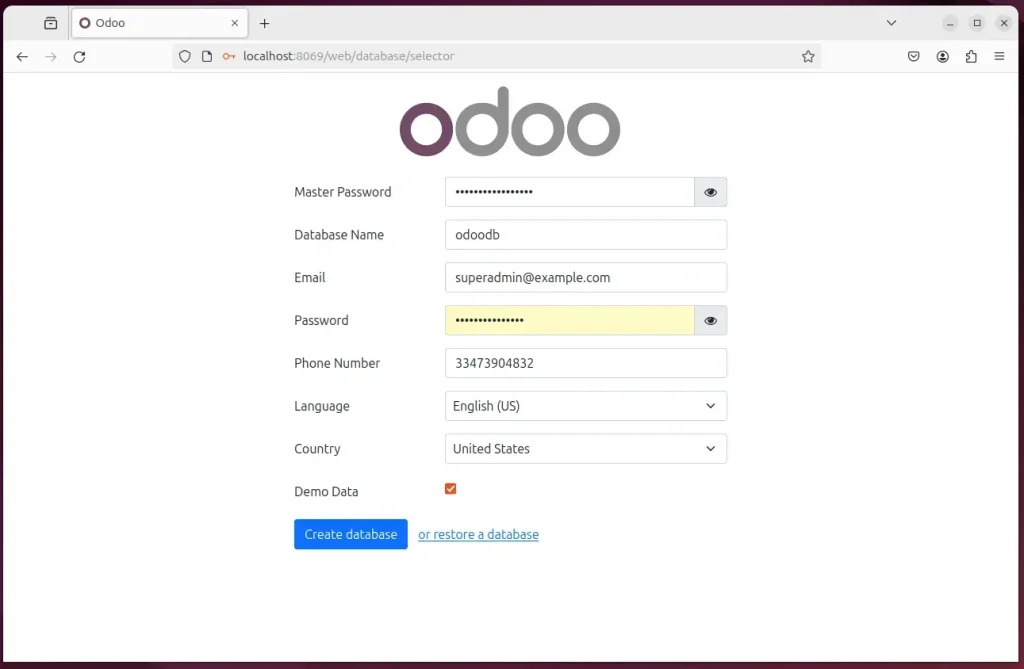
You should now see the Odoo setup page. Fill in the form as follows:
- Enter the master password you created in the /etc/odoo17.conf file.
- Type a new database name.
- Enter the admin email address. You will use it to sign in.
- Enter a password for that admin account.
Then click Create Database. Creating the database can take a minute or two, so don't close the page or click the button again while it works.
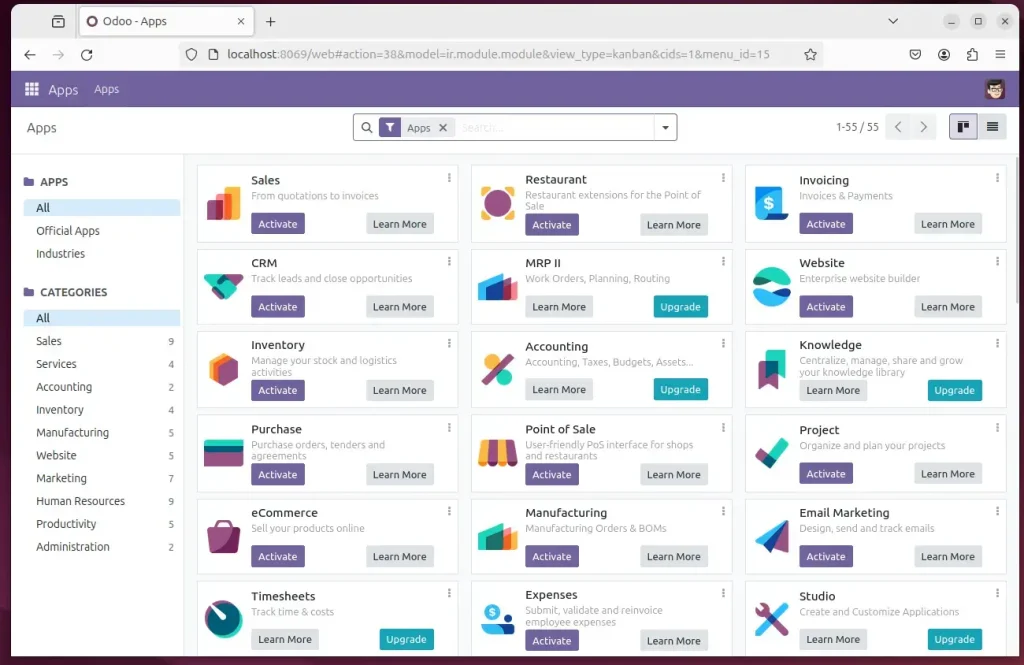
Once everything is entered correctly, the setup completes and you are taken into Odoo, where you can start using it. Sign in with the admin email and password you just chose.
A common fix is to configure PostgreSQL to trust local connections. Only do this if you hit these errors, because trust means local connections no longer need a password. That is acceptable on a server only you can log in to, but not on a shared machine. Change the setting back once things work if you want stricter security.
Run the commands below to open the PostgreSQL configuration file.
sudo nano /etc/postgresql/16/main/pg_hba.conf
Replace the version number in the path with the version installed on your system. If the file does not open, check which PostgreSQL version is installed.
Then change the highlighted line in the file and save it.
# "local" is for Unix domain socket connections only
local   all             all                    trust
Replace md5 or peer with trust on that line. Save and exit, then restart PostgreSQL with the command below so the change takes effect. Reload the Odoo page afterward and try the setup again.
sudo service postgresql restart
If you want to put a reverse proxy in front of Odoo, use one of the links below. A reverse proxy lets you serve Odoo on a normal domain name and add HTTPS, instead of using the IP address and port 8069. Pick the guide for Nginx or Apache, whichever you already use.
How to setup reverse proxy with Nginx
How to setup reverse proxy with Apache
That should do it!
Conclusion:
- Ease of InstallationSetting up Odoo 17 on Ubuntu 24.04 is straightforward when you follow the steps in order: prerequisites, system user, PostgreSQL, Wkhtmltopdf, Odoo source, configuration, and service.
- Robust PlatformUbuntu's reliability, support, and security features make it an ideal environment for deploying and running Odoo.
- Community SupportThe well-supported Ubuntu platform, combined with the extensive support from the Odoo community, makes installation and ongoing use easier.
- Further AssistanceIf you find an error or something missing, use the comments section below the post for support and clarification.
Have a question about this guide?
Answered by AI from this guide. Good questions may be added to this page — please don't include personal details.
Did this guide fix your problem?

About the Author
Richard
Tech Writer, IT Professional
Richard is a writer at Geek Rewind who turns complex IT tasks into clear, step-by-step guides. He draws on years of hands-on experience in system administration and enterprise IT operations, focusing on Windows, Linux and WordPress: the problems people actually run into, and the fixes that work. His server and WordPress guides come from systems he runs himself. Richard builds and maintains the platform behind Geek Rewind, from its Ubuntu servers and Nginx configuration to its custom WordPress plugins. Many new tutorials start with readers' questions, and he's always glad to answer them in the comments.
No comments yet — be the first to share your thoughts!