

Installing Joomla CMS (a popular platform for building websites) on Windows 11 using WSL (the Windows Subsystem for Linux feature that runs a Linux environment inside Windows) lets you test your site right on your PC. WSL version 2 gives you fast file speeds and full system compatibility, so you can host your site locally without setting up a separate virtual machine.
- Open the Command Prompt as an administrator and run
wsl --installto set up the Windows Subsystem for Linux, then restart your computer. - Install your preferred Linux distribution by running a command like
wsl --install -d ubuntu-20.04and create your username and password. - Set up the LEMP server stack by installing Nginx using
sudo apt install nginx. - Install the MariaDB database server using
sudo apt install mariadb-server mariadb-clientand secure it withsudo mysql_secure_installation. - Install PHP and required modules using the apt package manager and configure your
php.inifile settings. - Create a dedicated database and database user for your Joomla site inside the MariaDB console.
- Download the latest Joomla installation package to your Linux environment using
wgetand extract it to/var/www/joomla. - Create an Nginx VirtualHost configuration file for your Joomla site, enable the site, and open
http://localhostin your web browser to finish the setup wizard.
Install Joomla on Windows 11 by first enabling WSL via Command Prompt with `wsl –install` and restarting. Then, install a Linux distribution like Ubuntu using `wsl –install -d `. Finally, set up Nginx and MariaDB within your Linux environment to host Joomla.
Install Windows Subsystem for Linux in 🪟 Windows 11
Windows Subsystem for Linux (WSL) installs on Windows 11 by opening the Command Prompt as an administrator and running the setup commands. This feature lets you run Linux command-line tools and software directly alongside your Windows desktop without needing a separate virtual machine.
Next, right-click the Command Prompt app and choose to Run as administrator.

When the console opens, run the commands below to install Windows Subsystem for Linux (WSL):
wsl --install
Wait for WSL to be installed.
After installing , you should get a success message similar to the lines below:
Installing: Virtual Machine Platform
Virtual Machine Platform has been installed.
Installing: Windows Subsystem for Linux
Windows Subsystem for Linux has been installed.
Downloading: WSL Kernel
Installing: WSL Kernel
WSL Kernel has been installed.
Downloading: GUI App Support
Installing: GUI App Support
GUI App Support has been installed.
Downloading: Ubuntu
The requested operation is successful. Changes will not be effective until the system is rebooted.
Restart your computer.
WSL should be installed and ready to use. When you want to update, run the commands below:
wsl --update
Install Specific Linux distro on 🪟 Windows 11
Linux distributions install on WSL by running the wsl --list --online command in your terminal to view available options like Ubuntu. You can then pick your preferred operating system and set it up to run your web server and database environments on your Windows PC.
wsl --list --online
You should then see all available distributions that can be installed on WSL.
NAME            FRIENDLY NAME
Ubuntu          Ubuntu
Debian          Debian GNU/Linux
kali-linux      Kali Linux Rolling
openSUSE-42     openSUSE Leap 42
SLES-12         SUSE Linux Enterprise Server v12
Ubuntu-16.04    Ubuntu 16.04 LTS
Ubuntu-18.04    Ubuntu 18.04 LTS
Ubuntu-20.04    Ubuntu 20.04 LTS
To install a Linux distribution from the list above, simply run the commands below using the distribution name. For example, to install Ubuntu 20.04, run the commands below:
wsl --install -d ubuntu-20.04You should then get a message that the distribution is installed.
Downloading: Ubuntu 20.04 LTS
Installing: Ubuntu 20.04 LTS
Ubuntu 20.04 LTS has been installed.
Launching Ubuntu 20.04 LTS.
After installing, you should get a Ubuntu command console with setup details.
Installing, this may take a few minutes.
Please create a default UNIX user account. The username does not need to match your Windows username.
For more information visit: https://aka.ms/wslusers
Enter new UNIX username: Richard
New password:
Retype new password:
passwd: password updated successfully
Installation successful!
To run a command as administrator (user "root"), use "sudo <command>".
See "man sudo_root" for details.

Welcome to Ubuntu 20.04 LTS (GNU/Linux 4.4.0-22000-Microsoft x86_64)
Some troubleshooting commands to run when you run into issues.
wsl --set-default-version 1
bcdedit /set hypervisorlaunchtype auto start
Now that Ubuntu Linux is installed and ready, continue below to install the LEMP server to run Joomla. First, install the Nginx HTTP Server.
Install Nginx HTTP Server
Nginx installs on your Ubuntu system within WSL by updating your package list and running the apt install nginx command in the terminal. This fast and lightweight web server handles incoming web traffic and serves your Joomla website pages to visitors.
To install Nginx on Ubuntu, run the commands below:
sudo apt update
sudo apt install nginx
After installing Nginx, the commands below can be used to stop and start Nginx services.
sudo service nginx stop
sudo service nginx start
To test whether Nginx is installed and functioning, open your web browser and browse to the server's IP address or hostname.
http://localhost
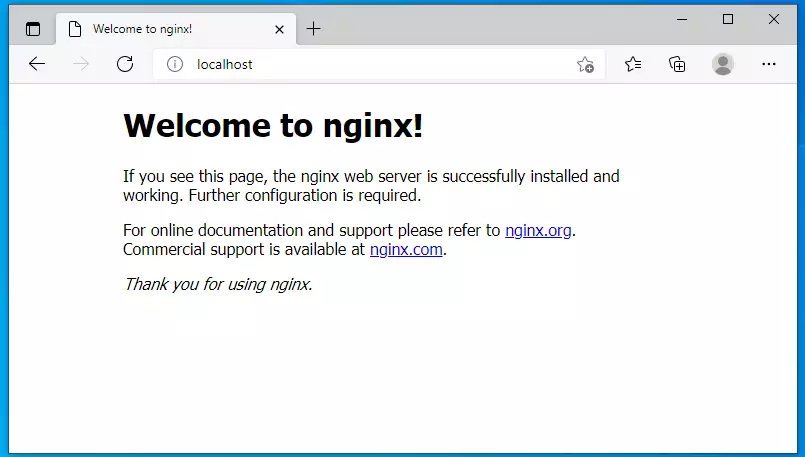
If you see the above page in your browser, Nginx works as expected.
Install MariaDB Server
MariaDB server installs on your Linux distribution using the apt package manager to provide a secure and fast database for your website content. This open-source database stores all your Joomla posts, user accounts, and settings securely on your local system.
MariaDB database server, a truly open-source database server, works with Joomla. MariaDB is fast, secure, and serves as the default database for nearly all Linux servers, making it a reliable choice for your Joomla installation.
To install MariaDB, run the commands below:
sudo apt install mariadb-server mariadb-client
After installing MariaDB, the commands below can stop, start, and enable the service to start when the server boots.
sudo service mysql stop
sudo service mysql start
sudo mysql_secure_installation
- Enter current password for root (enter for none): Just press the Enter
- Set root password? [Y/n]: Y
- New password: Enter password
- Re-enter new password: Repeat password
- Remove anonymous users? [Y/n]: Y
- Disallow root login remotely? [Y/n]: Y
- Remove test database and access to it? [Y/n]: Y
- Reload privilege tables now? [Y/n]: Y
To verify and validate that MariaDB is installed and working, log in to the database console using the commands below:
sudo mysql -u root -p
Type the root password when prompted.
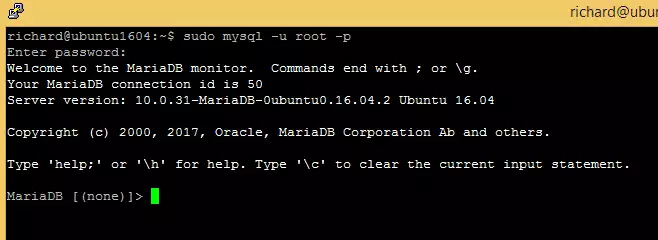
The server was successfully installed if you see a similar screen.
Install PHP and Related Modules
PHP and its required modules install on your Linux system by running the apt install php-fpm php-common php-mysql command string in your terminal. These extensions let PHP communicate with your database and web server so the Joomla content management system runs properly.
sudo apt install php-fpm php-common php-mysql php-gmp php-curl php-intl php-mbstring php-xmlrpc php-gd php-xml php-cli php-zip
After installing PHP, configure some basic settings required for Joomla to function properly.
For this tutorial, PHP 7.4 was installed. Based on your environment, another version of PHP might be installed. So verify that.
sudo nano /etc/php/7.4/fpm/php.iniBelow are good settings to configure for most Joomla websites.
file_uploads = On
allow_url_fopen = On
short_open_tag = On
memory_limit = 256M
cgi.fix_pathinfo = 0
upload_max_filesize = 100M
max_execution_time = 360
date.timezone = America/Chicago
That should get PHP 7.4 installed with some basic settings to allow Joomla to function.
After setting up PHP, the command below can be used to stop and start PHP7.4 services.
sudo service php7.4-fpm stop
sudo service php7.4-fpm start
Create Joomla Database
A blank database for your Joomla site creates inside the MariaDB console by logging in with root credentials and running a create database command. This dedicated storage space holds all your website tables separately from other system data.
Login to the MariaDB database console using the commands below:
sudo mysql -u root -p
Then, create a database called joomladb
CREATE DATABASE joomladb;Next, create a database user called joomladbuser and set a password
CREATE USER 'joomladbuser'@'localhost' IDENTIFIED BY 'new_password_here';
Then, grant the user full access to the database.
GRANT ALL ON joomladb.* TO 'joomladbuser'@'localhost' WITH GRANT OPTION;
Finally, save your changes and exit.
FLUSH PRIVILEGES;
EXIT;
Create Joomla Database
When all the servers are installed above, it's time to begin setting up the Joomla environment. First, run the steps below to create a blank database for Joomla.
Login to the MariaDB database console using the commands below:
sudo mysql -u root -p
Then, create a database called joomladb
CREATE DATABASE joomladb;Next, create a database user called joomladbuser and set a password
CREATE USER 'joomladbuser'@'localhost' IDENTIFIED BY 'new_password_here';
Then, grant the user full access to the database.
GRANT ALL ON joomladb.* TO 'joomladbuser'@'localhost' WITH GRANT OPTION;
Finally, save your changes and exit.
FLUSH PRIVILEGES;
EXIT;
Download Joomla
The Joomla CMS package downloads directly to your Linux server by navigating to the tmp directory and using the wget command with the official download link. This fetches the compressed installation files straight to your local environment for extraction.
To view Joomla releases, see this page.
cd /tmp
wget https://downloads.joomla.org/cms/joomla3/3-9-27/Joomla_3-9-27-Stable-Full_Package.zip
sudo unzip -d /var/www/joomla /tmp/Joomla_3-9-27-Stable-Full_Package.zip
Then, run the command below to allow the www-data user to own the Joomla directory.
sudo chown -R www-data:www-data /var/www/joomla/
sudo chmod -R 755 /var/www/joomla/
Configure Nginx VirtualHost
An Nginx VirtualHost configuration file sets up by creating a new text file in the sites-available directory using the nano editor. This file tells the web server where to find your website files and how to process incoming browser requests.
Run the commands below to create a new VirtualHost file called Joomla in the /etc/nginx/sites-available/ directory.
sudo nano /etc/nginx/sites-available/joomla
Below is a very good configuration setting for most Joomla sites on the Nginx server. This configuration should work great.
Copy the content below and save it into the file created above.
server {
    listen 80;
    listen [::]:80;
    root /var/www/joomla;
    index  index.php index.html index.htm;
    server_name  example.com www.example.com;

    client_max_body_size 100M;
    autoindex off;

    location / {
        try_files $uri $uri/ /index.php?$args;
    }

    # deny running scripts inside writable directories
    location ~* /(images|cache|media|logs|tmp)/.*.(php|pl|py|jsp|asp|sh|cgi)$ {
      return 403;
      error_page 403 /403_error.html;
    }

    location ~ .php$ {
        include snippets/fastcgi-php.conf;
        fastcgi_pass unix:/run/php/php7.4-fpm.sock;
        fastcgi_param SCRIPT_FILENAME $document_root$fastcgi_script_name;
        include fastcgi_params;
    }
}
Save the file and exit.
After saving the file above, run the commands below to enable the new site, then restart the Nginx server.
sudo ln -s /etc/nginx/sites-available/joomla /etc/nginx/sites-enabled/
sudo service nginx restart
At this stage, Joomla is ready and can be launched by going to the server's IP or hostname.
http://example.com
That should bring up the Joomla setup wizard. Type in the site name, create an administrator account, and continue.
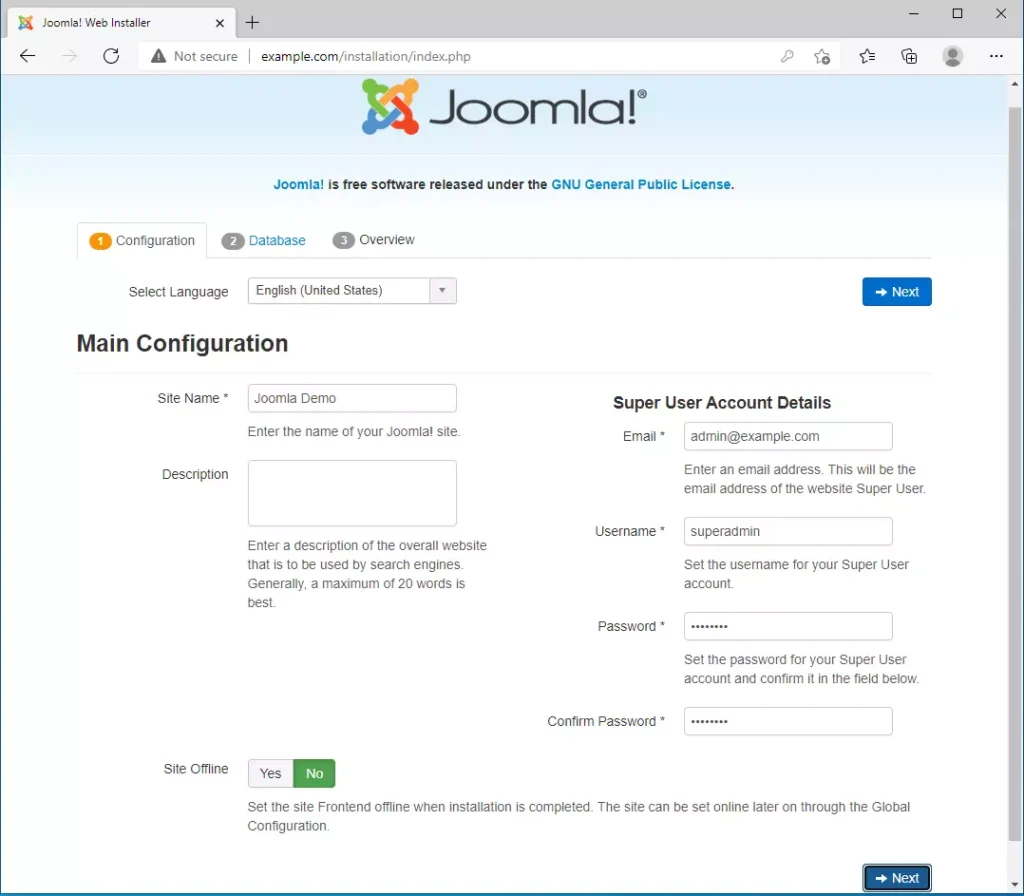
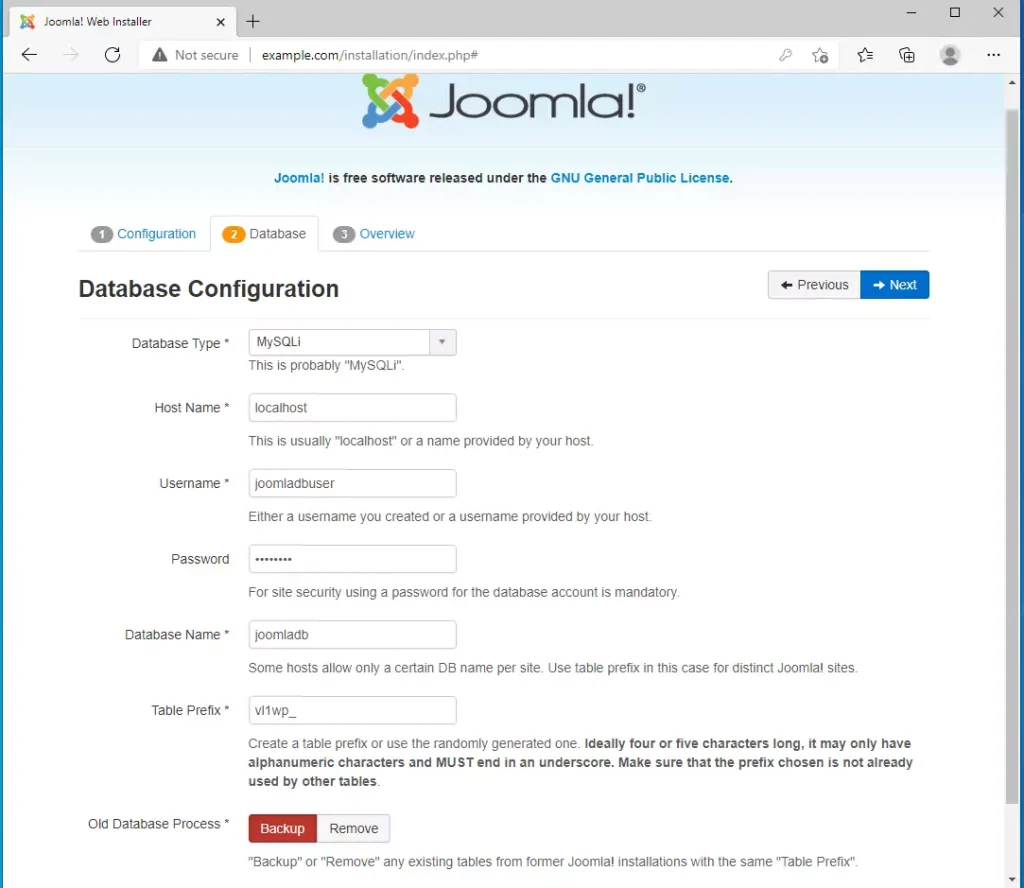
Type in the database connection and continue
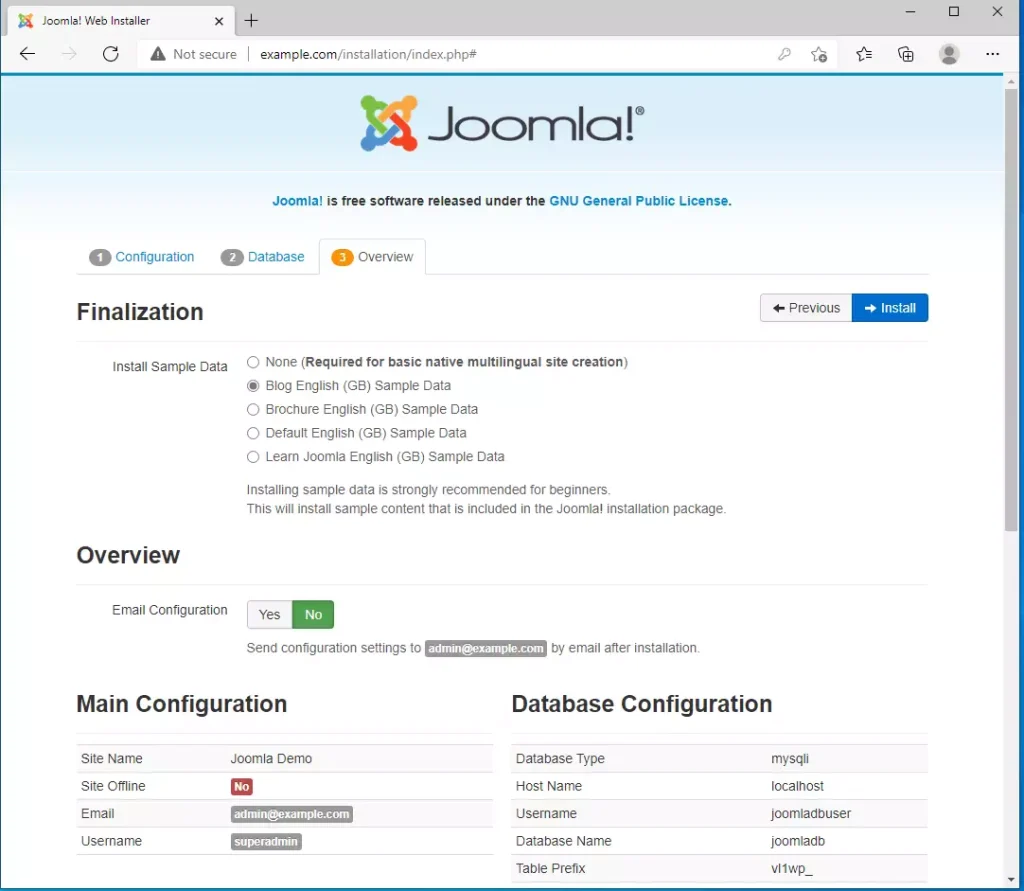
Finalize the setup and click Install to complete the installation.
Log in with the account above, and you're done.
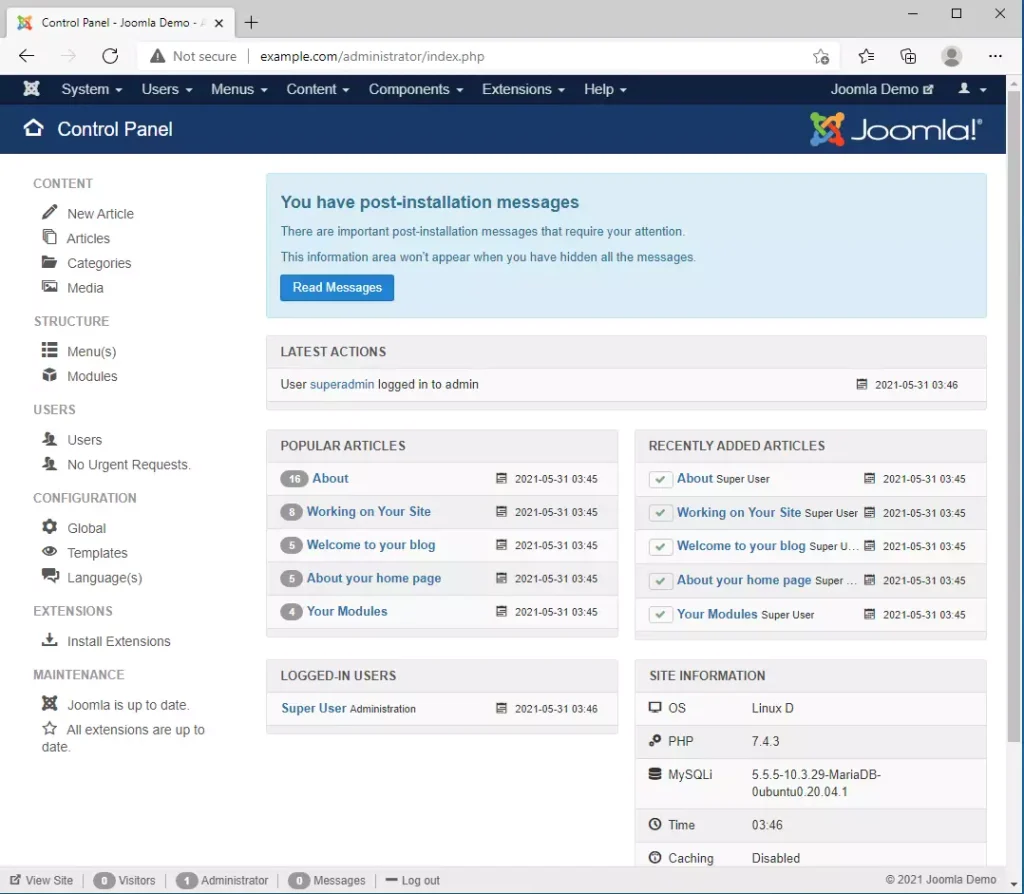
That's it!
Conclusion:
This post showed you how to install Joomla on Windows 11 with Ubuntu. If you find any error above, please use the comment form below to report.
You may also like the post below:
Was this guide helpful?

About the Author
Richard
Tech Writer, IT Professional
Richard is a writer at Geek Rewind who turns complex IT tasks into clear, step-by-step guides. He draws on years of hands-on experience in system administration and enterprise IT operations, focusing on Windows, Linux and WordPress: the problems people actually run into, and the fixes that work. His server and WordPress guides come from systems he runs himself. Richard builds and maintains the platform behind Geek Rewind, from its Ubuntu servers and Nginx configuration to its custom WordPress plugins. Many new tutorials start with readers' questions, and he's always glad to answer them in the comments.




No comments yet — be the first to share your thoughts!